1. Sehlahisoa Overview
The Sanpyl 5.76 Inch eBook Reader is a portable device designed for an enhanced reading experience. It features an HD e-paper display, runs on Android 11, and offers extensive storage and connectivity options.
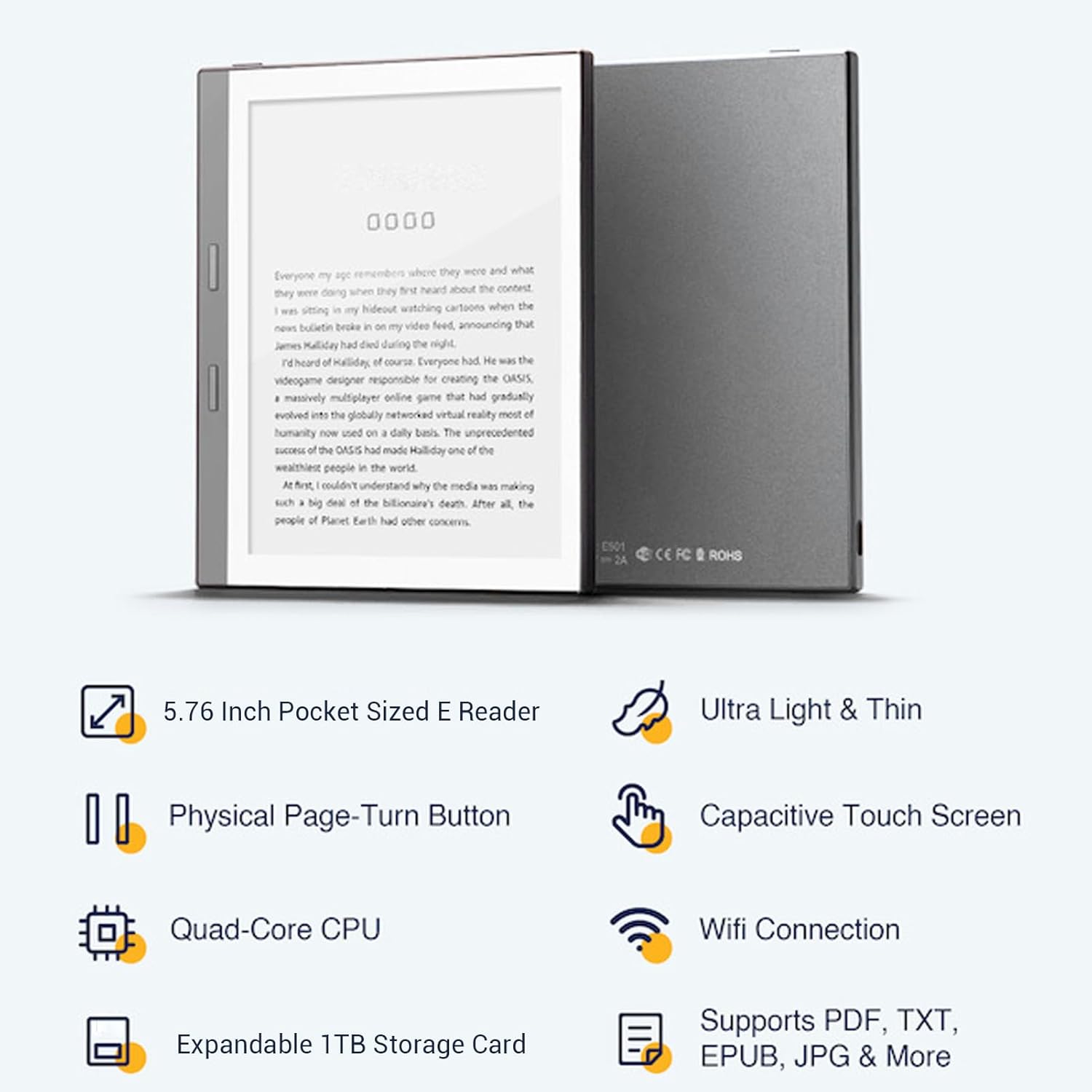
Setšoantšo: Pele le ka morao view of the Sanpyl 5.76 Inch eBook Reader, highlighting its compact size, physical page-turn buttons, capacitive touch screen, Quad-Core CPU, Wi-Fi, and expandable 1TB storage.
Likarolo tsa Bohlokoa:
- Hlahisa: 5.76 inch HD e-paper display with 920x680 resolution and 198ppi.
- Mokhoa oa tšebetso: Open source Android 11.
- Sehopotso: 1GB RAM.
- Polokelo: 32GB ROM, expandable up to 1TB via memory card.
- Leseli le ka Pele: 24-level adjustable color temperature.
- Khokahano: Wi-Fi le Bluetooth.
- Lifomete tse Tšehetsoeng: PDF, EPUB, MOBI, TXT, FB2, DOC, AZW, AZW3, JPG, and more.
- Mosebelisi: Capacitive touch screen and physical page-turn buttons.
2. Tataiso ea ho seta
2.1 Ho tjhaja Sesebediswa
Before initial use, fully charge your eBook reader. Connect the included USB Type-C cable to the device's charging port and the other end to a compatible USB power adapter (not included) or a computer's USB port.

Setšoantšo: Lintlha tse qaqileng view of the Type-C Charging Port on the Sanpyl eBook Reader.
The charging indicator light will typically show the charging status and turn off or change color when fully charged.
2.2 Ho Matlafatsa/Ho tima
- Ho Matlafatsa: Press and hold the power button (usually located on the side or bottom edge) for a few seconds until the screen activates.
- Ho tima: Press and hold the power button until a power-off menu appears on the screen. Select 'Power Off'.
- To Sleep/Wake: Briefly press the power button to put the device into sleep mode or wake it up.
2.3 Tlhophiso ea Pele
Upon first power-on, you will be guided through the initial setup process:
- Khetho ea Puo: Choose your preferred language for the device interface.
- Khokahano ea Wi-Fi: Connect to a Wi-Fi network to access online content and updates. Select your network from the list and enter the password if required.
- Letsatsi le Nako: Set the correct date and time, or allow the device to synchronize automatically via Wi-Fi.
- Account Setup (Optional): You may be prompted to log in to a Google account or other service accounts to access app stores or cloud services.
2.4 Ho Atolosa Polokelo
The device supports expandable storage up to 1TB using a memory card (MicroSD card). Locate the memory card slot, typically on the side or bottom of the device, and insert the card gently until it clicks into place.

Setšoantšo: Lintlha tse qaqileng view of the MicroSD card slot on the Sanpyl eBook Reader.
3. Litaelo tsa Ts'ebetso
3.1 Ho tsamaisa Sehokelo
The Sanpyl eBook Reader features both a capacitive touch screen and physical page-turn buttons for navigation.

Image: The eBook reader being held, illustrating its suitability for both left-handed and right-handed users, and highlighting the capacitive touch screen functionality.
- Skrine se thetsoang: Tap to select items, swipe to scroll, and pinch to zoom (if supported by the application).
- Physical Page-Turn Buttons: Use the buttons on the side of the device to turn pages forward or backward while reading. These buttons are designed for comfortable use by both left and right-handed individuals.

Image: Close-up of the eBook reader demonstrating the physical page-turn buttons and the on-screen option for adjusting font size.
3.2 Reading Books
The device supports various eBook formats. To open a book, navigate to your library or file manager and tap on the desired file.
- Adjusting Font Size: While reading, access the reading settings (usually by tapping the center of the screen) to adjust font size, line spacing, and margins.
- Leseli le ka Pele: The 24-level adjustable front light allows you to customize the screen's brightness and color temperature for comfortable reading in various lighting conditions, including direct sunlight.
- Mokhoa o Lefifi: Activate dark mode for a white text on black background display, which can reduce eye strain in low-light environments.
3.3 Connecting to Networks and Devices
- WiFi: Access Wi-Fi settings from the main menu to connect to available networks, download books, and update software.
- Bluetooth: Pair Bluetooth headphones or speakers for audio content, or connect to other Bluetooth-enabled devices. Access Bluetooth settings from the main menu.
3.4 Installing Third-Party Applications
Running on an open-source Android system, the device allows for the installation of various third-party applications. You can download apps from compatible app stores or by sideloading APK files. Ensure applications are from trusted sources to maintain device security and performance.

Image: The eBook reader screen showing an array of application icons, indicating its Android operating system and app compatibility.
4. Tlhokomelo
Proper maintenance ensures the longevity and optimal performance of your Sanpyl eBook Reader.
- Ho hloekisa: Use a soft, lint-free cloth to gently wipe the screen and body of the device. Avoid using harsh chemicals or abrasive materials.
- Polokelo: Boloka sesebelisoa sebakeng se phodileng, se omeletseng hole le letsatsi le mocheso o feteletseng.
- Tlhokomelo ea Betri: To prolong battery life, avoid fully discharging the device frequently. Charge it regularly, and if storing for an extended period, ensure it has a partial charge (around 50%).
- Lintlafatso tsa Software: Nako le nako hlahloba le ho kenya lintlafatso tsa software ho netefatsa hore u na le likarolo tsa morao-rao le lintlafatso tsa ts'ireletso.
5. Ho rarolla mathata
If you encounter issues with your eBook reader, refer to the following common solutions:
5.1 Sesebelisoa ha se Bulehe
- Ensure the device is sufficiently charged. Connect it to a power source and wait a few minutes before attempting to power it on again.
- Tobetsa o be o tshware konopo ya ho bulela ka metsotswana e 10-15 ho etsa ho qala botjha ka kgapeletso.
5.2 Screen Not Responding
- Qala hape sesebelisoa.
- Netefatsa hore skrini se hloekile ebile ha se na litšila kapa mongobo.
5.3 Mathata a Khokahano ea Wi-Fi
- Verify that Wi-Fi is enabled on the device.
- Check your Wi-Fi router and ensure it is working correctly.
- Try forgetting the network and reconnecting, entering the password again.
- Restart both the eBook reader and your Wi-Fi router.
5.4 Books Not Opening
- Ensure the book file format is supported by the device (PDF, EPUB, MOBI, TXT, FB2, DOC, AZW, AZW3).
- Try opening another book to determine if the issue is with a specific file or the reader application.
- If using a third-party reading app, ensure it is updated to the latest version.
6. Litlhaloso
Detailed technical specifications for the Sanpyl 5.76 Inch eBook Reader.

Image: Various angles of the Sanpyl eBook Reader, showcasing its design and physical features.
| Sebopeho | Tlhaloso |
|---|---|
| Brand | Sanpyl |
| Lebitso la Mohlala | Sanpyl9np4eh0a18-11 |
| Boholo ba skrine | 5.76 lisenthimithara |
| Bontša Theknoloji | Enke ea elektroniki |
| Qeto ea Pontšo | 920 x 680 |
| Bokhoni ba ho Boloka Memori | 32 GB (E ka atolosoa ho fihla ho 1TB) |
| Theknoloji ea Khokahano | Wi-Fi, Bluetooth |
| E tšehelitsoe File Mefuta | AZW, AZW3, DOC, EPUB, FB2, MOBI, PDF, TXT |
| Mmala | Hlooho |
| Boima ba Ntho | 14.8 lik'hilograma |
| Litekanyo tsa sephutheloana | 7.09 x 5.51 x 1.57 lisenthimithara |
7. Tiisetso le Tšehetso
For warranty information and customer support, please refer to the documentation included with your purchase or visit the official Sanpyl websebaka. Boloka bopaki ba hau ba theko bakeng sa likopo tsa waranti.
LEANO LA THEPA E KHUTLISOANG:
This product typically includes a 30-day return policy. Please check the specific terms and conditions of your retailer for details.
Merero ea Tšireletso:
Extended protection plans may be available for purchase separately. These plans offer additional coverage beyond the standard warranty period.


