1. Sehlahisoa Overview
The SUPVAN T50M Pro is a portable thermal label maker designed for various labeling needs. It operates without ink or toner, utilizing thermal paper for printing. This manual provides instructions for setup, operation, and maintenance of your device.
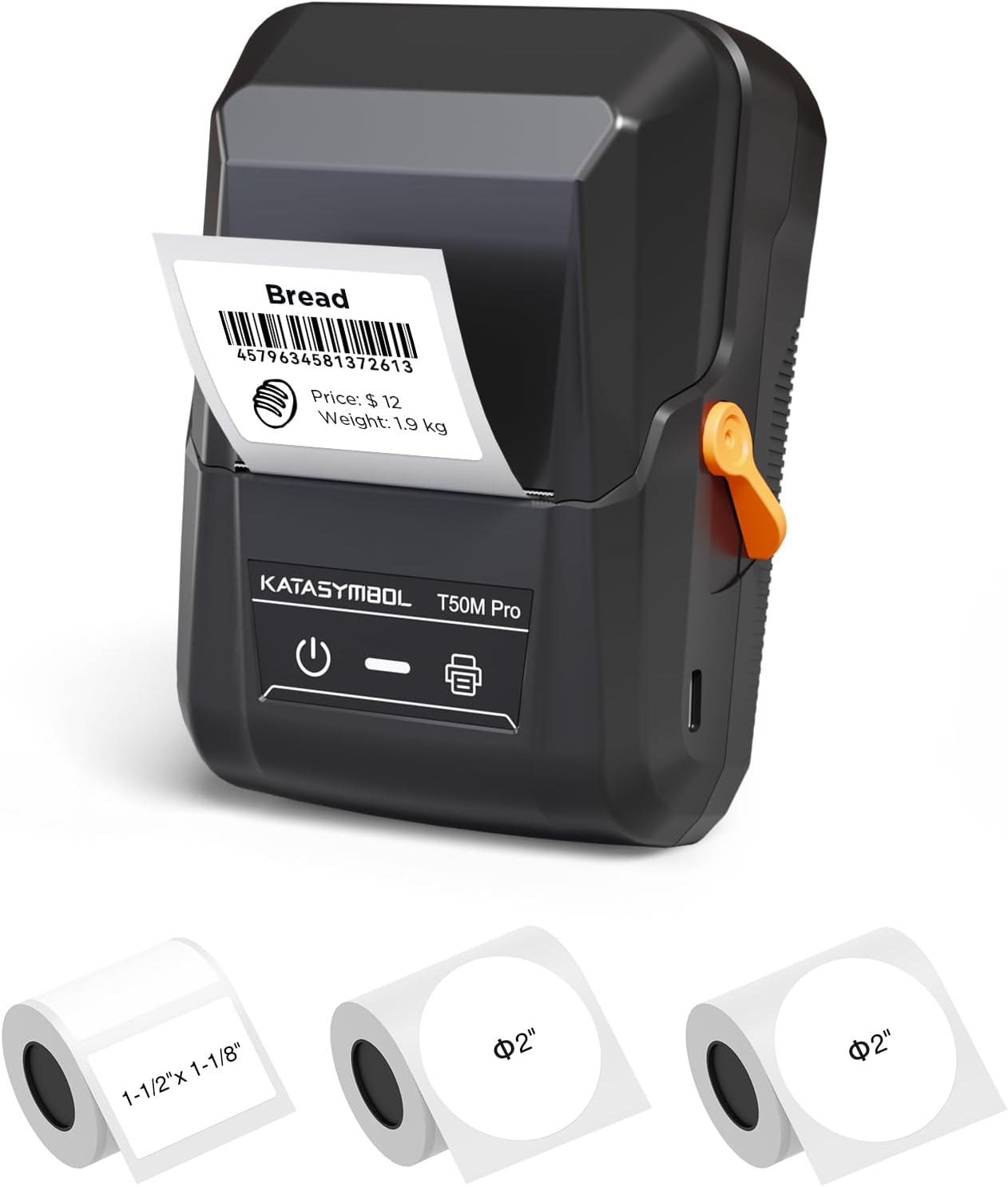
Image 1.1: The SUPVAN T50M Pro label maker shown with different label rolls and a printed label displaying "Bread" and a barcode (4579634581372613).
2. Likahare tsa Sephutheloana
Ha o bula lebokose, netefatsa hore lintho tsohle li teng:
- SUPVAN T50M Pro Label Maker
- 2 rolls of round white labels (Φ 2'', 140 labels/roll)
- 1 roll of rectangular white labels (1.57'' × 1.18'' / 40mm × 30mm, 250 labels/roll)
- USB Cable (for charging and connectivity)
- Bukana ea mosebelisi (tokomane ena)
3. Tataiso ea ho seta
3.1 Ho tjhaja Sesebediswa
Before first use, fully charge the label maker using the provided USB cable. Connect the cable to the device's USB port and a standard USB power adapter (not included). The device features a 1200 mAh built-in rechargeable battery.
3.2 Ho kenya Pampiri ea Thermal
- Bula sekoahelo sa karolo ea leibole.
- Insert the thermal label roll with the printing surface facing upwards.
- Ensure the label roll is properly seated and the leading edge of the label extends slightly out of the printer slot.
- Close the compartment cover securely. The printer's smart RFID auto-detection will recognize the label size.

Image 3.2: Illustration of how to load thermal paper into the SUPVAN T50M Pro label maker. The image shows a roll of thermal paper being inserted into the transparent compartment of the device.
Lenaneo la 3.3
Download the official SUPVAN label editing application from your device's app store (iOS/Android). The app is free to use and does not require a subscription.
4. Litaelo tsa Ts'ebetso
4.1 Ho Matlafatsa/Ho tima
- To power on: Press and hold the power button (marked with a universal power symbol) until the indicator light illuminates.
- Ho tima: Tobetsa o hatelle konopo ya matla ho fihlela lebone le tima.
4.2 Ho hokela ho App
Ensure Bluetooth is enabled on your smartphone or tablet. Open the SUPVAN app and follow the on-screen instructions to pair with your T50M Pro label maker. The device can also connect via USB.
4.3 Creating and Printing Labels
The SUPVAN app offers extensive features for label creation:
- Template Library: Access over 140 constantly updated templates for various uses (e.g., home, product, shipping, school).
- Moralo o Tloaelehileng: Utilize 40+ fonts, embed images, pictures, icons, shapes, QR codes, and Excel data.
- Auto Label Size Recognition: The app automatically detects the loaded label size (e.g., 2" x 2", 3/4" x 3/8").
- Ho hatisa: After designing, select "Preview & Print" within the app to send the label to the T50M Pro.

Image 4.3a: The SUPVAN app interface showing various editing functions, including font selection (40+ options), image/picture integration, and automatic label size recognition (e.g., 2" x 2").

Image 4.3b: The SUPVAN app displaying a selection of over 140 available templates, including designs for nutrition information, thank you notes, and product labels.

Image 4.3c: Examples of various label styles supported by the SUPVAN T50M Pro, including round "Thank you" labels, price tags, banking labels, Halloween designs, and address labels, demonstrating its ability to print 3/4 to 2-inch wide labels.
5. Tlhokomelo
5.1 Ho Hloekisa Hlooho ea Khatiso
To ensure optimal print quality, periodically clean the print head. Use a soft, lint-free cloth lightly dampened with isopropyl alcohol. Gently wipe the print head surface. Ensure the device is powered off and completely dry before use.
Tlhokomelo ea Battery
For long-term battery health, avoid fully discharging the device frequently. If storing for an extended period, charge the battery to approximately 50% and store in a cool, dry place.
5.3 Polokelo
Store the label maker in a clean, dry environment away from direct sunlight and extreme temperatures. Remove any label rolls if storing for very long periods to prevent dust accumulation.
6. Ho rarolla mathata
If you encounter issues with your SUPVAN T50M Pro, consider the following:
- Ha ho Matla: Ensure the device is charged. Connect it to a power source and try again.
- Boleng bo Fosahetseng ba Khatiso: Check if the thermal paper is loaded correctly. Clean the print head as described in Section 5.1. Ensure you are using genuine SUPVAN thermal labels.
- Mathata a Khokahano: Verify Bluetooth is enabled on your mobile device and the label maker is powered on. Restart both devices and try pairing again. For USB connection, ensure the cable is securely connected.
- Label Jam: Open the label compartment and carefully remove any jammed labels. Ensure the label roll is inserted correctly and not too tight.
- App ha e arabele: Close and reopen the app. If the issue persists, restart your mobile device.
For further assistance, refer to the in-app help section or contact SUPVAN customer support.
7. Litlhaloso
| Sebopeho | Lintlha |
|---|---|
| Lebitso la Mohlala | T50M Pro |
| Brand | SUPVAN |
| Theknoloji ea Khatiso | Mocheso |
| Theknoloji ea Khokahano | USB |
| Sephetho sa Mohatisi | Monochrome |
| Tšobotsi e Khethehileng | E nkehang |
| Betri | 1200 mAh built-in rechargeable |
| Boholo ba Media bo tšehelitsoeng | Up to 50.8 mm (2 inches) wide, e.g., 50 x 30 mm |
| Ntho Nomoro ea Mohlala | T50M Pro |
| Sesebelisoa sa Hardware | USB |
| Mmala | Ntsho |
| BPA-mahala | Yes (labels comply with BPA-free standard) |

Image 7.1: The SUPVAN T50M Pro label maker shown in a bag, highlighting its portability. Key specifications like size (5" x 3.7" x 2.3"), weight (0.6 lb), and 1200 mAh battery are displayed.

Setšoantšo sa 7.2: Examples of the SUPVAN T50M Pro's versatility, showing labels used for home organization (jars), product labeling (cookies), shipping (address labels), and school supplies (notebooks).
8. Boitsebiso ba Tiisetso
The SUPVAN T50M Pro Label Maker comes with a limited warranty. Please refer to the warranty card included in your package or contact SUPVAN customer support for specific terms and conditions.
9. Tšehetso ea Bareki
For technical support, troubleshooting, or warranty inquiries, please visit the official SUPVAN website or contact their customer service department. Contact information can typically be found on the product packaging or the SUPVAN brand store on Amazon.
Note: Always ensure you have your product model number (T50M Pro) and purchase details ready when contacting support.


