Selelekela
This user manual provides detailed instructions for the FJFJOPK 4K Video Camera Camcorder, Model HDV-3051L. Please read this manual thoroughly before operating the device to ensure proper usage and to maximize its performance. Keep this manual for future reference.

Figure 1: FJFJOPK 4K Video Camera Camcorder with included accessories like external microphone, handheld stabilizer, and remote control.
Litaba tsa Sephutheloana
Netefatsa hore lintho tsohle tse thathamisitsoeng ka tlase li kenyelelitsoe ka har'a sephutheloana sa hau. Haeba ho na le lintho tse sieo kapa li senyehile, ka kopo ikopanye le ts'ehetso ea bareki.
- Khamera ea video ea 4K
- Motsoako o tsitsitseng oa letsoho
- Remote Control
- Microphone
- Hood ea lense
- Karete ea SD ea 32GB
- 2 x Libetri tse ka nchafatsoang hape
- Thapo ea ho tjhaja
- Bukana ea Mosebelisi
- Letlapa la kh'amera
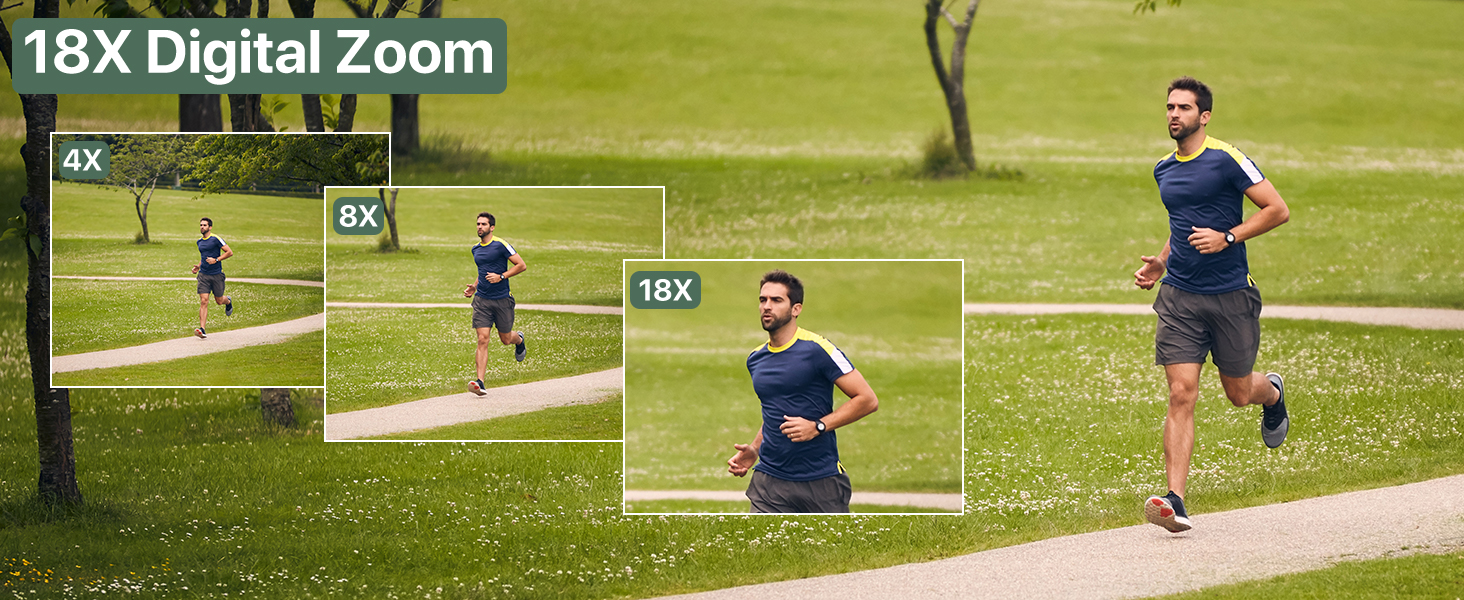
Figure 2: Visual representation of the complete packing list for the camcorder.
Tataiso ea ho seta
1. Ho kenya Battery
The camcorder uses two long-lasting rechargeable batteries. Ensure batteries are fully charged before first use.
- Locate the battery compartment on the camcorder.
- Bula sekwahelo sa karolo ya betri.
- Insert the charged batteries according to the polarity indicators inside the compartment.
- Koala sekoaelo sa karolo ea betri ka mokhoa o sireletsehileng.

Figure 3: Proper insertion of batteries into the camcorder.
2. Ho kenya karete ea SD
A 32GB SD card is included for immediate use. The camcorder supports SD cards for storing your videos and photos.
- Locate the SD card slot, typically near the battery compartment.
- Insert the SD card with the metal contacts facing down until it clicks into place.
- To remove, gently press the card until it pops out.
3. Ho hokela Lisebelisoa
Enhance your recording experience by attaching the included accessories.
- External Stereo Microphone: Attach the microphone to the hot shoe mount on top of the camcorder. Connect the microphone cable to the designated audio input port. This ensures clear audio capture.
- Sehatsetsi se Tšoaroang ka Letsoho: The anti-shake handheld stabilizer can be attached to the bottom tripod mount of the camcorder. This accessory helps in achieving smooth and steady shots, especially during movement.
- Lense Hood: Screw the lens hood onto the front of the camcorder's lens. The lens hood is designed to reduce glare and lens flare, improving image quality in bright outdoor conditions.

Figure 4: Handheld stabilizer attached for improved stability.

Figure 5: External microphone for enhanced audio recording.

Figure 6: The lens hood reduces glare for clearer outdoor shots.
Litaelo tsa Ts'ebetso
1. Ho tima/Ho tima
To power on the camcorder, open the LCD screen. To power off, close the LCD screen or press and hold the Power button.
2. Using the 3.0-inch Touch Screen
The camcorder features a 3.0-inch IPS touch screen that is 270° rotatable, allowing for versatile viewing angles, including selfie-angle recording.
- Navigation: Tap on-screen icons to navigate menus and settings.
- Ho potoloha: Gently rotate the screen to your desired angle for comfortable viewing or self-recording.

Figure 7: The 270° rotatable touch screen provides flexible viewing and recording options.
3. Ho Rekota Livideo le ho Nka Lifoto
The camcorder supports 4K Ultra HD video recording and 64MP still image capture.
- Ho Rekota Lifitio: Press the Record button to start and stop video recording. The camcorder captures every detail with stunning clarity.
- Ho Nka linepe: Switch to photo mode and press the Shutter button to take 64MP high-definition photos.
- 18X Digital Zoom: Use the zoom controls to magnify your subject up to 18 times. This feature allows for clear footage even from a distance.
- Pono ea Bosiu ea IR: Activate IR Night Vision mode for clear recording in low-light conditions or complete darkness.

Figure 8: Experience superior image and video quality with 4K UHD and 64MP resolution.

Figure 9: The 18X digital zoom allows for detailed capture of distant subjects.

Figure 10: IR Night Vision provides clear visibility in low-light or dark environments.
4. Likarolo tse Tsoetseng Pele
- Anti-Shake: The built-in anti-shake function, complemented by the handheld stabilizer, ensures smooth and stable footage even during dynamic movements.
- Senepe sa Nako e Feletseng: Capture stunning time-lapse videos by setting the desired interval in the camera settings.
- Ho Lemoha Sefahleho: The camcorder can detect faces in the frame, optimizing focus and exposure for portraits and group shots.
- One-Click Live Streaming: Connect the camcorder to your computer via USB to use it as a webcam for live streaming.
- Ho rekota ha o ntse o lefisa: The camcorder supports recording while connected to a power source, ideal for extended shooting sessions.
- Taolo ea Remoutu e se nang Waele: Use the included remote control for convenient wireless operation, perfect for self-recording or group shots.

Figure 11: Explore various shooting modes including anti-shake, slow motion, and time-lapse.

Figure 12: Continuous recording is possible while the camcorder is charging.
Tlhokomelo
- Ho hloekisa: Sebelisa lesela le bonolo, le omeletseng ho hloekisa 'mele oa khamera. Bakeng sa lense, sebelisa lesela le khethehileng la ho hloekisa lense le tharollo. Qoba lisebelisoa tse senyang.
- Polokelo: Store the camcorder in a cool, dry place away from direct sunlight and extreme temperatures. Remove batteries if storing for extended periods.
- Tlhokomelo ea Betri: Fully charge batteries before storage and recharge them every few months to maintain their lifespan.
Ho batle phoso
If you encounter issues with your camcorder, refer to the following common solutions:
| Bothata | Lebaka le ka khonehang | Tharollo |
|---|---|---|
| Khamera ha e sebetse. | Low or uncharged battery; incorrectly inserted battery. | Charge batteries fully. Ensure batteries are inserted correctly. |
| Boleng bo bobe ba setšoantšo/video. | Dirty lens; insufficient lighting; incorrect settings. | Clean the lens. Use IR Night Vision in low light. Adjust exposure settings. |
| Phoso ea karete ea SD. | SD card full; incorrectly inserted; incompatible card. | Hlakola files or use a new SD card. Reinsert card correctly. Ensure card is compatible (up to 32GB). |
| Ha ho rekoto ea molumo. | External microphone not connected properly or turned off. | Check microphone connection and ensure it is powered on if applicable. |
Litlhaloso
| Sebopeho | Lintlha |
|---|---|
| Brand | FJFJOPK |
| Nomoro ea Mohlala | HDV-3051L |
| Qeto ea ho nka video | 4K |
| Theknoloji ea sensor ea lifoto | CMOS |
| Bolelele bo Holimo ba Tsepamiso | 64 limilimithara |
| Maximum Aperture | 7.36 f |
| Mofuta oa Memori ea Flash | SD (32GB e kenyelelitsoe) |
| Sebopeho sa Video Capture | AVI |
| Boholo ba skrine | 3 Inches (270° Rotatable IPS Touch Screen) |
| Likarolo Tse Khethehileng | Anti-Shake, Image Stabilization, IR Night Vision, 18X Digital Zoom, External Microphone Support, Webcam Function, Time-Lapse, Face Detection, Recording While Charging, Wireless Remote Control |
| Boima ba Ntho | 2.05 liponto |
| Litekanyo tsa sephutheloana | 7.48 x 5.87 x 4.21 lisenthimithara |
Warranty le Tšehetso
For warranty information and customer support, please refer to the warranty card included in your package or contact FJFJOPK customer service directly. Optional protection plans are available for purchase to extend coverage beyond the standard manufacturer's warranty.
- Leano la Tšireletso la Lilemo tse 2: E fumaneha bakeng sa ts'ireletso e atolositsoeng.
- Leano la Tšireletso la Lilemo tse 3: E fumaneha bakeng sa ts'ireletso e atolositsoeng.
- Tšireletso e Feletseng: Moralo oa khoeli le khoeli o koahelang litheko tse loketseng tsa nakong e fetileng le tse tlang.


