1. Selelekela
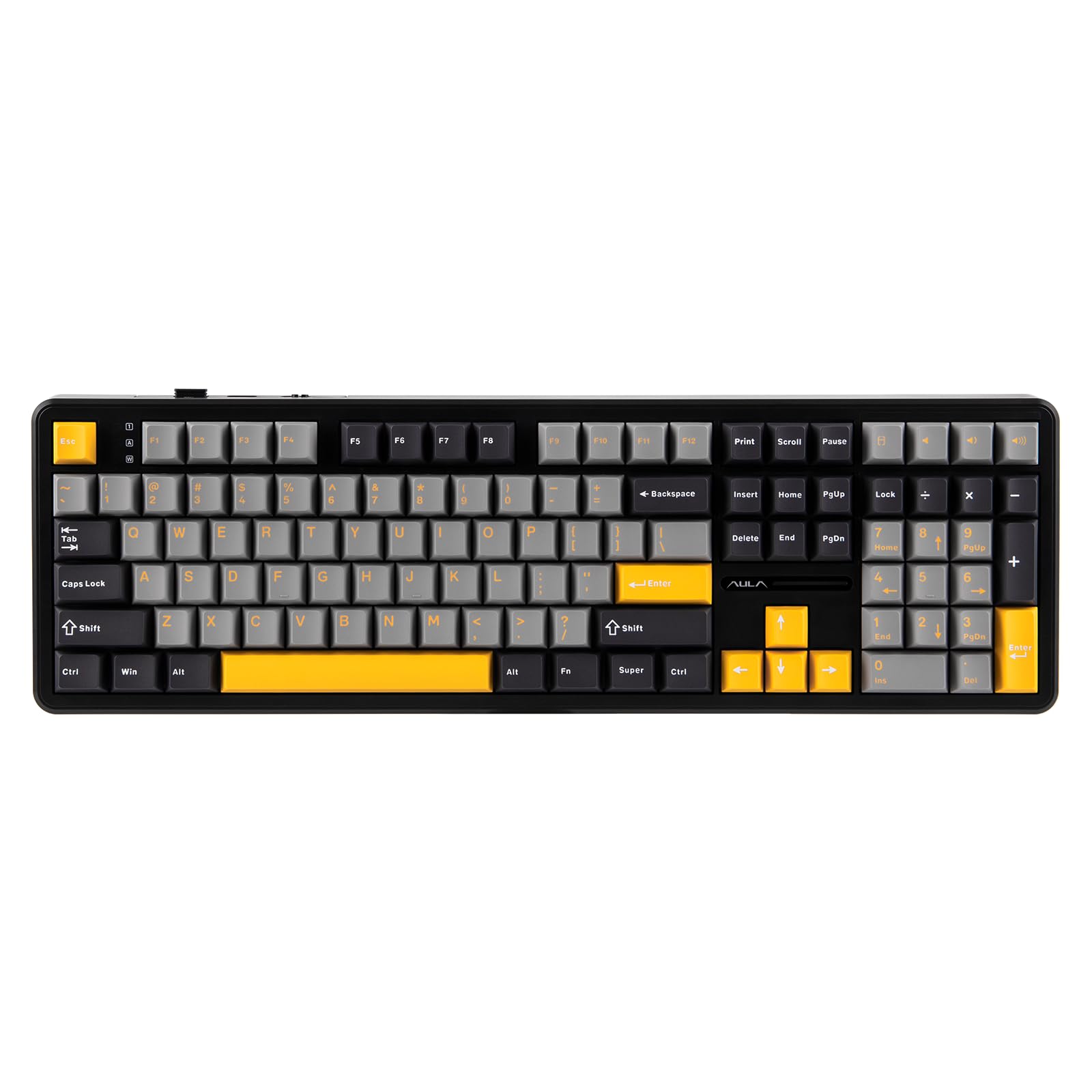
The EPOMAKER Aula F108 is a full-size wireless mechanical gaming keyboard designed for versatility and performance. It features 108 hot-swappable and programmable keys, RGB backlighting, and multi-device compatibility across Mac, PC, and Android platforms. This manual provides detailed instructions for setting up, operating, and maintaining your keyboard.
2. Likahare tsa Sephutheloana
Netefatsa hore lintho tsohle li teng ka har'a sephutheloana:
- EPOMAKER Aula F108 Wireless Mechanical Keyboard
- Keycap & Switch Puller
- Bukana ea Mosebelisi
- Cable e ka tlosoang ea USB-C ho ea ho USB-A
- Extra Mechanical Switches (4 pieces)
- 2.4GHz USB Receiver (stored in the keyboard)
3. Seta
3.1 Mekhoa ea Khokahano
The F108 keyboard supports three connectivity modes: 2.4GHz Wireless, Bluetooth (BT), and Wired (USB-C).

Kgokelo e se nang mohala ya 3.1.1 2.4GHz
- Locate the 2.4GHz USB receiver stored in the slot on the back of the keyboard.
- Hokela moamoheli oa USB koung ea USB e fumanehang komporong ea hau.
- Toggle the switch on the back of the keyboard to the "2.4G" position.
- The keyboard should automatically connect. The RGB light strip indicator will confirm connection.
3.1.2 Bluetooth (BT) Connection
- Toggle the switch on the back of the keyboard to the "BT" position.
- Tobetsa o hatelle FN + 1, FN + 2, kapa FN + 3 key combination for 3 seconds to enter pairing mode. The corresponding key's backlight will flash quickly.
- On your device (PC, Mac, Android), search for Bluetooth devices and select "AULA F108" or similar.
- Once connected, the backlight of the selected key will turn off after 2 seconds.
- The keyboard can store up to 3 Bluetooth profiles. Switch between them using FN + 1, FN + 2, kapa FN + 3.

3.1.3 Wired USB-C Connection
- Connect the provided USB-C cable to the keyboard's Type-C port.
- Hokela pheletsong ea thapo ea USB boema-kepe ba USB bo fumanehang komporong ea hau.
- Toggle the switch on the back of the keyboard to the "Wired" position.
- Keyboard e tla sebetsa e le sesebelisoa se nang le terata 'me e tla tjhaja ka nako e le' ngoe.

3.2 Litaba tsa Battery
The EPOMAKER Aula F108 is equipped with a 4000mAh rechargeable battery. The battery life can last up to 100 hours with the backlight off, and approximately 10 hours with RGB backlight on. The keyboard charges via the USB-C port.

4. Litaelo tsa Ts'ebetso
4.1 Key Functions and Combinations
The F108 is a full-size 108-key keyboard with anti-ghosting capabilities, allowing for accurate and simultaneous input. Many functions are accessible via the FN key combinations.

4.2 RGB Taolo ea Backlight
The keyboard features per-key RGB lighting and side RGB strips. You can customize lighting modes, colors, saturation, brightness, and dynamic patterns.
- FN + \ |: Cycle through various RGB lighting effects.
- FN + ↑ / ↓: Fetola khanya ea lebone la morao.
- FN + ← / →: Adjust backlight speed.
- FN + Z/X/C: Change backlight color (specific modes).
- FN + Sebaka sa Sebaka: Reset RGB lighting to default.

4.3 Programmable Keys and Software
The F108 keyboard is fully programmable. Utilize the dedicated software to remap keys, assign macros, and adjust sensitivity for enhanced input speed and gaming competitiveness. Hlokomela: Mac software may not be available.

The software allows for:
- Key Remapping
- Macro Recording
- Custom Light Effects
- System Settings adjustments
- Music Rhythm synchronization
4.4 Ergonomics
The keyboard features a 2-stage kickstand and a low front height with Cherry profile keycaps to reduce finger fatigue and wrist strain during extended use.
5. Tlhokomelo
5.1 Ho hloekisa
Regularly clean your keyboard to ensure optimal performance and longevity. Use a soft, dry cloth to wipe down the keycaps and chassis. For deeper cleaning, use the provided keycap puller to remove keycaps and clean underneath with compressed air or a brush.
5.2 Phetolo ea Switch (E ka Fetoha ka ho Chesa)
The F108 is hot-swappable, allowing you to easily change 3/5-pin mechanical switches without soldering. Use the provided switch puller to carefully remove switches. Insert new switches by aligning the pins with the sockets and pressing gently until they click into place.

6. Ho rarolla mathata
6.1 Mathata a Khokahano
- Keyboard not connecting via 2.4GHz: Ensure the USB receiver is securely plugged in and the keyboard switch is set to "2.4G". Try a different USB port.
- Bluetooth pairing failure: Ensure the keyboard is in pairing mode (FN + 1/2/3 for 3 seconds). Check your device's Bluetooth settings and try re-pairing. Ensure no other devices are interfering.
- Khokahano ea waelese ha e sebetse: Verify the USB-C cable is properly connected to both the keyboard and the computer. Ensure the keyboard switch is set to "Wired". Try a different USB-C cable or port.
6.2 Mathata a Mabone
- Lebone la morao ha le bulehe: Ensure the keyboard is powered on and not in sleep mode. Adjust brightness using FN + ↑.
- Inconsistent lighting: Check for software conflicts or try resetting the RGB lighting to default (FN + Spacebar).
6.3 Key Response Issues
- Linotlolo ha li arabe: Check if the keyboard is properly connected. For hot-swappable switches, ensure the switch is fully seated in its socket. Try replacing the switch with one of the spares.
- Double typing or missed inputs: This could be due to switch issues. Try replacing the problematic switch.
6.4 Hlahisa Fektheri bocha
If you encounter persistent issues, a factory reset may resolve them. Refer to the programming software for the factory reset option or consult the quick operation guide included in the package.
7. Litlhaloso
| Sebopeho | Lintlha |
|---|---|
| Litekanyo tsa Sehlahisoa | 5.3 x 17.4 x 1.6 lisenthimithara |
| Boima ba Ntho | 3.44 liponto |
| Moetsi | MOEKETSI |
| Ntho Nomoro ea Mohlala | F108 |
| Brand | MOEKETSI |
| Lisebelisoa tse lumellanang | Gaming Console, Laptop, PC, Smartphone, Tablet |
| Theknoloji ea Khokahano | 2.4GHz Wireless, Bluetooth, USB-C |
| Keyboard Tlhaloso | Mechini |
| Likarolo Tse Khethehileng | Backlit, Ergonomic, Full Size Keyboard, Hot-Swappable, Programmable Keys |
| Keyboard Backlighting Color Support | RGB |
| Lintho tse bonahalang | Plastiki |
| Bokhoni ba Battery | 4000mAh |
8. Warranty & Ts'ehetso
For warranty information, technical support, or further assistance, please visit the official EPOMAKER store or contact their customer service. You can find more information at the EPOMAKER Store on Amazon.
9. Lisebelisoa tse Eketsehileng
9.1 Livideo tsa Sehlahisoa sa Semmuso
EPOMAKER Aula F108 Typing ASMR
Video: A short video showcasing the typing sound (ASMR) of the EPOMAKER Aula F108 keyboard, highlighting its acoustic profile. This video is provided by the seller, EPOMAKER.
EPOMAKER AULA F108 Unboxing Video
Video: An unboxing video for the EPOMAKER AULA F108 keyboard, demonstrating the contents of the package and initial presentation. This video is provided by the seller, EPOMAKER.
EPOMAKER Aula F108 Product Show
Video: A product showcase video for the EPOMAKER Aula F108, highlighting its design, features, and various lighting effects. This video is provided by the seller, EPOMAKER.
EPOMAKER X Aula TH108 F108 F108PRO Typing Comparison
Video: A typing comparison video featuring the EPOMAKER X Aula TH108, F108, and F108PRO keyboards, demonstrating the sound and feel of each. This video is provided by the seller, EPOMAKER.


