1. Selelekela
The Tenlamp X3 Gaming Audio Mixer is an all-in-one USB audio mixer station designed to streamline your audio production for podcasting, streaming, gaming, and content creation. It offers intuitive controls for microphone, music, headphone, 3-band EQ, reverb, and voice changing, eliminating the need for complex software or drivers. This manual provides detailed instructions for setting up, operating, and maintaining your X3 audio mixer to enhance your audio experience.

Setšoantšo sa 1.1: Pele view of the Tenlamp X3 Gaming Audio Mixer, showcasing its vibrant control panel and intuitive layout.

Figure 1.2: The Tenlamp X3 mixer integrated into a streaming setup, demonstrating its role as a comprehensive audio solution.
2. Likahare tsa Sephutheloana
Ka kopo netefatsa hore lintho tsohle tse thathamisitsoeng ka tlase li kenyelelitsoe ka har'a sephutheloana sa hau:
- 1 x Tenlamp X3 Audio Mixer
- 1 x USB A-C Charging Data Cable
- 1 x 3.5mm TRRS Audio Cable
- 1 x Buka ea Mosebelisi (tokomane ena)
3. Sehlahisoa Overview
Familiarize yourself with the various controls and ports on your Tenlamp X3 audio mixer.
3.1 Front Panel Controls
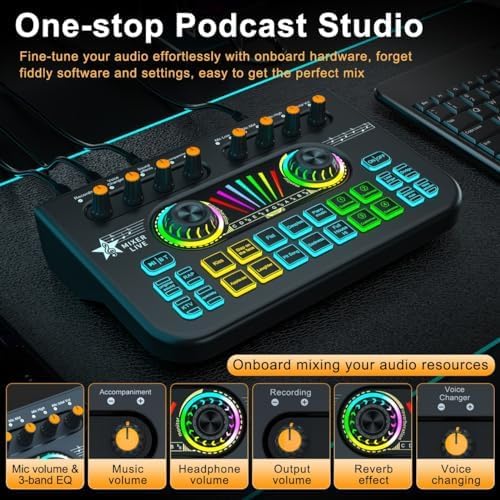
Setšoantšo sa 3.1: Ho fetaview of the X3 mixer's front panel, highlighting key control knobs for various audio parameters.
- Microphone Volume & 3-band EQ Knobs: Adjust microphone input level and fine-tune low, mid, and high frequencies.
- Knob ea Bolumo ea 'Mino: Controls the volume of background music or accompaniment.
- Knob ea Molumo oa Li-headphone: Adjusts the monitoring volume for your headphones.
- Output Volume Knob: Controls the overall output volume to your streaming/recording device.
- Reverb Effect Knob: Adjusts the intensity of the reverb effect.
- Knob ea ho Fetola Lentsoe: Cycles through various voice modulation effects.
- Soundpads: 4 customizable and 10 preset sound effect buttons for adding fun elements.
- Likonopo tsa Mosebetsi: Includes ON/OFF, Loopback, Auto Ducking, Lead Singer, Dodge, Noise Reduction, and Electronic Music.

Setšoantšo sa 3.2: Ka botlalo view of the X3's control knobs and the central LED display for reverb and monitoring.
3.2 Li-Panel Ports tse ka morao

Figure 3.3: Rear panel connections of the Tenlamp X3 mixer, detailing input and output ports.
- Dynamic Microphone Input: 6.35mm jack for dynamic microphones.
- XLR-3.5mm Microphone Input: For condenser microphones with a 3.5mm connector.
- Headset Input & Monitoring Headphone Output: 3.5mm ports for headset and monitoring headphones.
- Kenyeletso e tsamaisanang: 3.5mm port for connecting external music sources.
- Live Streaming Ports (1 & 2): 3.5mm TRRS ports for connecting to mobile devices for live streaming.
- Type-C OTG Port: USB-C port for digital audio I/O with PC or mobile devices.
- Type-C Charge Port (5V/1A): USB-C port for charging the built-in battery or powering the device.
Hlokomela: The Type-C OTG port does not support connecting USB microphones directly.
4. Tataiso ea ho seta
Follow these steps to set up your Tenlamp X3 audio mixer for various applications.
4.1 Ho Bulela le ho Tjhaja Matla a Pele
- Connect the provided USB A-C charging data cable to the Type-C Charge port on the mixer and a 5V/1A power adapter or a computer USB port.
- The mixer has a built-in 1200mAh rechargeable battery, offering up to 6 hours of continuous use. Ensure it is sufficiently charged before portable use.
- Press the "ON/OFF" button on the front panel to power on the device.

Figure 4.1: The Tenlamp X3 mixer highlighting its internal 1200mAh rechargeable battery for portable use.
4.2 Lithako tse hokelang
- Maekerofounu: Connect your condenser microphone to the XLR-3.5mm Microphone Input or a dynamic microphone to the Dynamic Microphone Input.
- Headphones/Headset: Plug your monitoring headphones or headset into the Headset Input or Monitoring Headphone Output.
- Music Source (Accompaniment): Connect an external audio device (e.g., phone, tablet) to the Accompaniment Input using a 3.5mm audio cable if you wish to play background music.
4.3 Connecting to PC/Mobile Devices for Streaming/Recording

Figure 4.2: The X3 mixer demonstrating its plug-and-play compatibility with PCs, mobile devices, and various streaming/recording platforms.
- For PC/Mac (Digital I/O): Use the USB A-C charging data cable to connect the mixer's Type-C OTG port to your computer's USB port. The mixer will be recognized as an audio input/output device.
- For Mobile Devices (Analog Streaming): Use the provided 3.5mm TRRS audio cable to connect one of the Live Streaming Ports (1 or 2) to your smartphone or tablet's headphone jack.
- Multi-device Streaming: You can connect up to two mobile devices for live streaming simultaneously using both Live Streaming Ports.
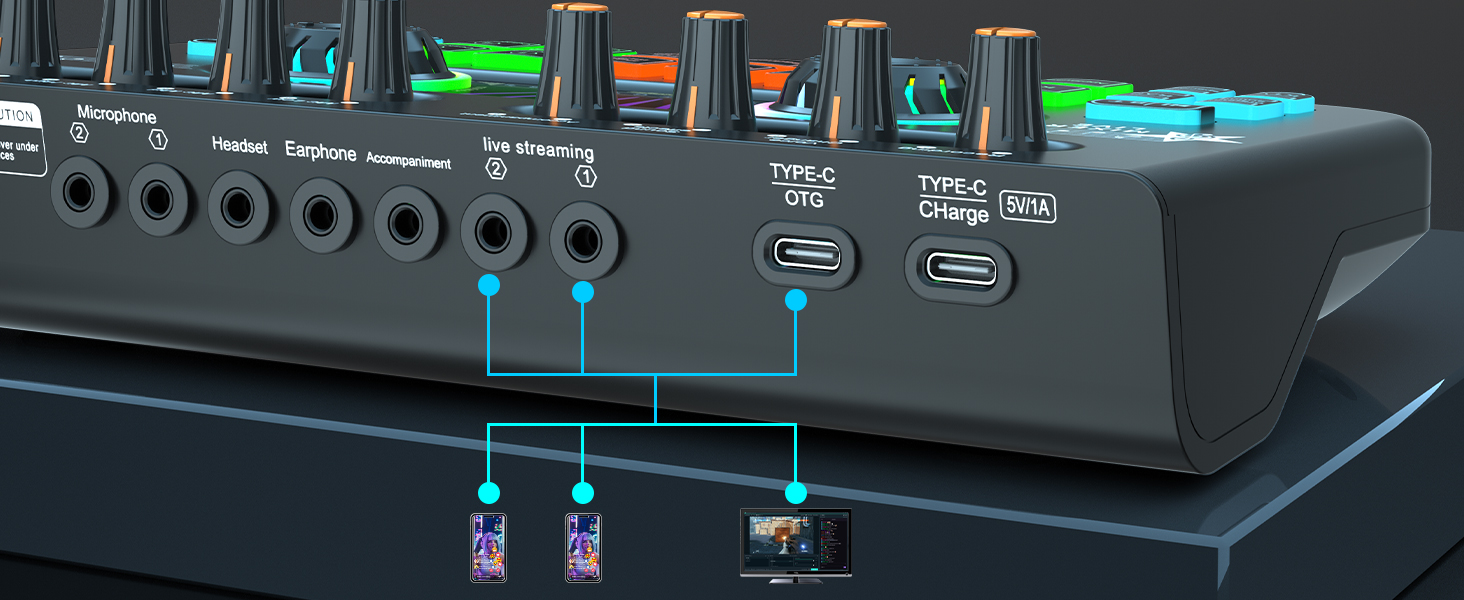
Figure 4.3: Connection diagram illustrating how to connect the X3 mixer to multiple mobile devices and a PC for diverse streaming setups.
5. Litaelo tsa Ts'ebetso
This section details how to use the various features of your Tenlamp X3 audio mixer.
5.1 Basic Audio Control
- Microphone Adjustment: Use the "Mic Low", "Mic Mid", and "Mic High" knobs to adjust the microphone's bass, midrange, and treble frequencies. The "Mic total Vol" knob controls the overall microphone volume.
- Music/Accompaniment Volume: Adjust the "Accompaniment" knob to control the volume of background music.
- Monitoring Volume: Use the "Monitor" knob to adjust the volume you hear through your headphones.
- Molumo oa ho Rekota: Use the "Recording" knob to adjust the output volume sent to your recording or streaming device.
5.2 Sound Effects and Voice Changing

Figure 5.1: The X3 mixer's soundpad section, illustrating both customizable and preset sound effect buttons.
- Preset Sound Effects: Press any of the 10 preset soundpad buttons (e.g., Kiss, Slap on the face, Applause, Laughter) to instantly play sound effects.
- Customizable Soundpads: The 4 "Customize" buttons allow you to record and play your own sound effects. To record, press and hold a customize button until it blinks, record your sound, then press it again to save. Press briefly to play.
- Voice Changer: Rotate the "Voice Changer" knob to cycle through different voice effects such as female, male, baby, or robot.

Figure 5.2: The X3 mixer's voice changer and reverb controls, enabling dynamic vocal effects.
5.3 Singing and Accompaniment Modes

Figure 5.3: Explanation of the three accompaniment modes available on the X3 mixer for singing and music streaming.
- Mekhoa ea Reverb: The mixer offers 4 reverb modes. Adjust the "Reverb" knob to select and control the intensity of the reverb effect.
- 12-Step Auto Tune: Use the "Electronic Music" button to activate and cycle through 12 different auto-tune keys, helping you stay in tune while singing.
- BT Accompaniment: Activate Bluetooth (BT) mode to wirelessly connect your phone or tablet and stream accompaniment music directly to the mixer.
- Lead Singer Mode: This mode eliminates the vocal part from the music input for the first 60 seconds, retaining only the accompaniment and microphone sounds in your monitoring headphones. After 60 seconds, the original vocals return.
- Mosebetsi oa Dodge: When activated, this feature automatically lowers the background music volume when you speak into the microphone, and raises it again when you stop.
5.4 Phokotso ea Lerata
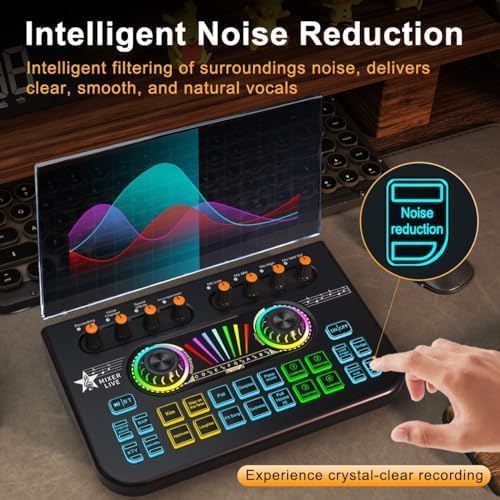
Figure 5.4: The X3 mixer's noise reduction feature, designed to deliver clear and natural vocals by filtering out ambient noise.
Press the "Noise reduction" button to activate the intelligent noise filtering feature. This helps to reduce surrounding background noise, ensuring clear, smooth, and natural vocals for your recordings or streams.
6. Tlhokomelo
Proper care and maintenance will ensure the longevity and optimal performance of your Tenlamp X3 audio mixer.
- Ho hloekisa: Use a soft, dry cloth to wipe down the surface of the mixer. Avoid using abrasive cleaners or solvents, as they may damage the finish.
- Polokelo: Boloka motswako sebakeng se pholileng, se omileng hole le letsatsi le tobileng le mocheso o feteletseng.
- Ho tšoara: Handle the mixer with care. Avoid dropping it or exposing it to excessive shock or vibration.
- Khokahano: Always insert and remove cables gently to prevent damage to the ports.
7. Ho rarolla mathata
If you encounter any issues with your Tenlamp X3 audio mixer, please refer to the following table for common problems and their solutions.
| Bothata | Lebaka le ka khonehang | Tharollo |
|---|---|---|
| Ha ho tlhahiso ea molumo |
|
|
| Microphone ha e sebetse |
|
|
| Melumo ha e bapale |
|
|
| Echo or feedback |
|
|
| Bluetooth ha e hoketsoe |
|
|
8. Lintlha tsa Setegeniki
| Sebopeho | Tlhaloso |
|---|---|
| Nomoro ea Mohlala | X3-B6443 |
| Litekanyo (L x W x H) | 8.2 x 5.1 x 2 lisenthimithara (20.8 x 13 x 5.1 cm) |
| Boima ba Ntho | 11.5 ounces (326 dikgerama) |
| Theknoloji ea Khokahano | BT, Auxiliary (3.5mm), USB (Type-C), XLR (via 3.5mm adapter) |
| Palo ea Likanale | 5 |
| Mohloli oa Matla | Battery Powered (Built-in 1200mAh Lithium Polymer) / USB-C (5V/1A) |
| Bophelo ba Battery | Up to 6 hours (continuous working) |
| Ho lumellana | Windows, Mac OS, Android, iOS (Supports OBS, Twitch, YouTube, TikTok, Spotify, Discord, Zoom, etc.) |
9. Tiisetso le Tšehetso
Your Tenlamp X3 Gaming Audio Mixer comes with a Warranty ea Likhoeli tse 12 from the date of purchase. This warranty covers manufacturing defects and ensures your product functions as intended under normal use.
For technical support, troubleshooting assistance, or warranty claims, please contact us directly through Amazon's messaging system. Our support team will endeavor to resolve your issue as quickly as possible.
We recommend reading this user manual thoroughly before setting up and operating the device to ensure the best user experience.


