Selelekela
This manual provides comprehensive instructions for the setup, operation, maintenance, and troubleshooting of your NIIMBOT D110 Mini Label Maker Machine. Please read this manual carefully before using the device to ensure proper function and longevity.

Image: The NIIMBOT D110 Mini Label Maker Machine, shown with included label rolls.
Se ka Lebokoseng
Ha u bula sephutheloana, etsa bonnete ba hore likarolo tsohle li teng:
- NIIMBOT D110 Mini Label Maker Machine
- 3 Rolls of White Cable Labels (12.5×109mm)
- Thapo ea ho tjhaja
- Bukana ea mosebelisi (tokomane ena)
Tlhophiso
- Tefisa Sesebediswa: Connect the label maker to a power source using the provided charging cable. The device has a built-in 1500mAh rechargeable battery.
- Install Label Roll:
- Bula sekoahelo sa karolo ea leibole.
- Insert a label roll, ensuring the printing side faces down and the label edge extends slightly out of the slot.
- Close the cover securely. The device features automatic label recognition and calibration.
- Khoasolla sesebelisoa: Batla "NIIMBOT" in the Apple App Store (for iOS) or Google Play Store (for Android) and install the application on your smartphone.
- Hokela ka Bluetooth:
- Turn on the NIIMBOT D110 by pressing and holding the power button.
- Open the NIIMBOT app on your smartphone.
- Within the app, navigate to the device connection settings and select your D110 label maker from the list of available Bluetooth devices.

Image: The NIIMBOT mobile application interface, demonstrating various label design and editing functions.
Litaelo tsa Ts'ebetso
The NIIMBOT D110 is controlled primarily through the dedicated NIIMBOT smartphone application.
- Create a New Label:
- Open the NIIMBOT app and select the option to create a new label.
- Choose from various templates or start with a blank canvas.
- Edit Label Content:
- Add text, icons, borders, images, QR codes, barcodes, and other elements using the app's editing tools.
- Adjust font size, style, and alignment as needed.
- Hatisa Leibole:
- Once your label design is complete, tap the print icon within the app.
- Confirm the number of copies and print settings.
- The label maker will print the labels using direct thermal technology.
- Applying Labels:
The labels are suitable for various applications, including cable identification, organizing items in the home or office, and pricing products for small businesses.

Setšoantšo: Example of labels used for organizing and identifying cables.
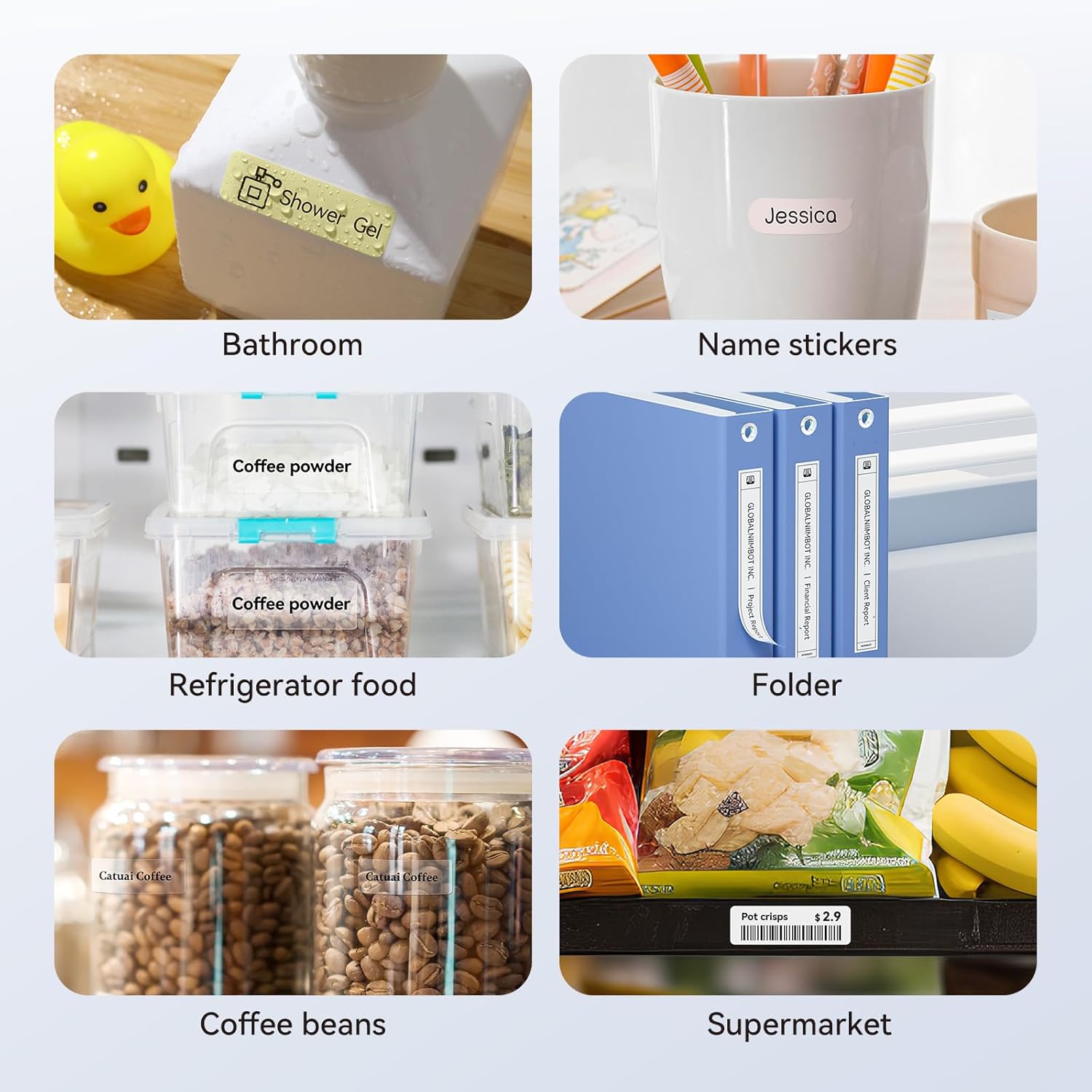
Image: Demonstrates diverse uses for NIIMBOT labels, including bathroom items, name tags, food storage, folders, and retail pricing.
Tlhokomelo
- Ho hloekisa Hlooho ea Khatiso: If print quality degrades, gently wipe the thermal print head with a cotton swab lightly dampened with isopropyl alcohol. Ensure the device is off and dry before use.
- Tlhokomelo ea Betri: To prolong battery life, avoid fully discharging the device frequently. Charge it regularly, especially if it will be stored for an extended period.
- Label Roll Handling: Store label rolls in a cool, dry place away from direct sunlight to prevent degradation of the thermal material. Do not tear or destroy the printing sensor chip on the side of the roll, as this can affect printing.
- Tlhoekiso e Akaretsang: Wipe the exterior of the label maker with a soft, dry cloth. Avoid using harsh chemicals or abrasive materials.
Ho batle phoso
| Bothata | Lebaka le ka khonehang | Tharollo |
|---|---|---|
| Sesebelisoa ha se bulele | Betri e tlase kapa ha e lefelloe | Connect the device to a power source using the charging cable and allow it to charge. |
| Ha e khone ho hokela ka Bluetooth | Bluetooth is off on phone, app not open, or device not discoverable | Ensure Bluetooth is enabled on your smartphone. Open the NIIMBOT app and try reconnecting. Restart both the label maker and your phone if necessary. |
| Poor print quality / Faded labels | Dirty print head, incorrect label roll insertion, or low battery | Clean the print head as described in the Maintenance section. Re-insert the label roll correctly. Ensure the device is sufficiently charged. |
| Labels not feeding correctly / Printing offset | Label roll improperly installed, sensor chip damaged | Ensure the label roll is inserted correctly and the cover is closed. Check if the sensor chip on the label roll is intact. The device has automatic calibration. |
| App ha e arabe | Phoso ea app kapa mofuta oa khale | Close and reopen the app. Check for app updates in your app store. Restart your smartphone. |
Litlhaloso
| Sebopeho | Lintlha |
|---|---|
| Mohlala | D110 |
| Brand | NIMBOTO |
| Theknoloji ea Khatiso | Direct Thermal (BPA-Free) |
| Qeto ea ho Hatisa | 203 DPI |
| Khokahano | bluetooth |
| Lisebelisoa tse lumellanang | Lifono tse bohlale (iOS le Android) |
| Mokhoa oa ho Laola | Sesebelisoa sa NIIMBOT |
| Maximum Label Width | 15 limilimithara |
| Bokhoni ba Battery | 1500mAh (e ka nchafatsoa) |
| Boima ba Ntho | Hoo e ka bang 146g |
| Kenyellelitsoe Likaroloana | Label Maker, 3 Label Rolls, Charging Cable |

Image: Detailed dimensions of the NIIMBOT thermal labels (12.5mm x 109mm).

Image: Key features of NIIMBOT labels, highlighting their waterproof, strong adhesive, inkless, and BPA-free properties.
Boitsebiso ba Warranty
NIIMBOT products typically come with a standard manufacturer's warranty. For specific details regarding the warranty period and terms for your D110 Mini Label Maker Machine, please refer to the warranty card included in your product packaging or visit the official NIIMBOT websebaka. Boloka rasiti ea hau ea theko e le bopaki ba hore u rekile litseko tsa waranti.
Tšehetso ea Bareki
For further assistance, technical support, or inquiries regarding your NIIMBOT D110 Mini Label Maker Machine, please contact NIIMBOT customer service through their official website or the contact information provided in the NIIMBOT app.
Official NIIMBOT Store: Visit the NIIMBOT Store on Amazon


