1. Selelekela
Thank you for choosing the CZEview Baby Monitor Camera. This device is designed to provide you with peace of mind by offering advanced monitoring features for your baby's room. With its 2.5K Ultra HD resolution, intelligent detection, two-way audio, and smart home integration, you can stay connected and informed from anywhere.
This manual provides detailed instructions on how to set up, operate, and maintain your CZEview Baby Monitor Camera. Please read it thoroughly before use and keep it for future reference.
2. Boitsebiso ba Bohlokoa ba Tšireletseho
Ho netefatsa ts'ebetso e bolokehileng le ho thibela tšenyo, ka kopo ela hloko mehato e latelang ea ts'ireletso:
- Keep the camera and all accessories out of reach of children.
- Do not place the camera or power cord within 3 feet (1 meter) of the crib or playpen to avoid strangulation hazards.
- Use only the power adapter supplied with the product. Using unauthorized adapters may cause damage or fire.
- Do not expose the camera to water, moisture, or extreme temperatures.
- Avoid placing the camera in direct sunlight or near heat sources.
- Do not attempt to open or repair the camera yourself. Refer all servicing to qualified personnel.
- Ensure the camera is placed on a stable, flat surface or securely mounted to prevent it from falling.
3. Likahare tsa Sephutheloana
Ka kopo, sheba sephutheloana sa lintho tse latelang:
- CZEview Baby Monitor Camera Unit
- Adapter ea Matla
- Cable ea Matla a USB
- Mounting Kit (Screws and Wall Anchors)
- Bukana ea Mosebelisi
4. Likarolo tsa Sehlahisoa

Pele view of the CZEview Baby Monitor Camera, showing the lens and microphone button.

Setšoantšo sa CZEview Baby Monitor Camera placed on a dresser in a nursery, illustrating its compact size and design.
- Lense ea Khamera: Captures 2.5K Ultra HD video.
- Maekerofounu: For two-way audio communication and noise detection.
- Sebui: For two-way audio communication and playing lullabies.
- Light-up Ears: Decorative and can be used for visual cues or night light (as per user reviews).
- Konopo ea Microphone: Press to activate two-way talk.
- Seta Botjha Konopo: Located under the camera lens (rotate the lens upwards to access). Used for factory reset.
- Slot ea Karete ea Micro SD: Located under the camera lens (rotate the lens upwards to access). Supports up to 128GB for local storage.
- Port ea Matla: E hokela ho adaptara ea motlakase.
5. Tataiso ea ho seta
5.1 Ho jarolla App le ho Theha Akhaonto
- Scan the QR code on the packaging or search for the 'CZEview' app (or specified app name in product documentation) in your smartphone's app store (App Store for iOS, Google Play Store for Android).
- Khoasolla le ho kenya sesebelisoa.
- Bula sesebelisoa 'me u thehe ak'haonte e ncha kapa u kene haeba u se u ntse u e-na le eona.
5.2 Ho Matlafatsa le ho Seta Pele
- Connect the power cable to the camera's power port and plug the adapter into a power outlet. The camera will power on and begin its initialization process.
- Bula CZEview app and tap 'Add Device' or the '+' icon.
- Follow the on-screen instructions to select your camera model and connect it to your Wi-Fi network. The camera supports both 2.4GHz and 5GHz Wi-Fi bands for a stronger and more stable connection.
- During the pairing process, you may be prompted to scan a QR code displayed on your phone screen with the camera's lens.
- Once connected, the camera will calibrate, and you will see the live feed in the app.
5.3 Ho beoa ha Khamera
Khetha sebaka se fanang ka leseli le hlakileng view of your baby's crib or play area. Ensure the camera is placed on a stable surface or securely mounted to a wall or ceiling using the provided mounting kit. Remember to keep the camera and its power cord at a safe distance from your baby.
6. Litaelo tsa Ts'ebetso
6.1 Phela View le Taolo ea Pan/Tilt
Once connected, open the app to view the live 2.5K Ultra HD video feed from your camera. You can remotely pan (horizontal) and tilt (vertical) the camera lens directly from the app to adjust the viewing angle and see more of the room.
6.2 Puisano ea Mahlakore a Mabeli

Illustration of the two-way talk feature, allowing parents to speak to their baby through the camera.
The camera features a built-in microphone and speaker for two-way audio communication. To speak to your baby, tap the microphone icon in the app. Hold the button to speak, and release it to listen. This allows you to comfort your baby or communicate with anyone in the room.
6.3 Pono ea Bosiu ea Infrared

Depiction of the camera's infrared night vision capability and the lullaby function, with musical notes floating around a sleeping baby.
The camera automatically switches to infrared night vision in low-light conditions, providing clear black-and-white video footage even in complete darkness. This ensures continuous monitoring day and night.
6.4 Intelligent AI Detection (Motion, Noise, Cry)

Visual representation of the intelligent AI detection features: motion detection, noise detection, and cry detection.
Setšoantšo sa CZEview Baby Monitor is equipped with advanced AI detection capabilities:
- Ho Fumana Motsamao: Notifies you when movement is detected in the camera's field of view.
- Ho lemoha lerata: Alerts you to significant sounds, such as a baby crying.
- Cry Detection (Cry-Comfort Function): Specifically designed to identify and alert you when your baby is crying, allowing for quick response.
You can customize sensitivity levels and notification settings within the app.
6.5 Mokhoa oa Lekunutu
Activate the one-click privacy mode in the app to temporarily disable live streaming and recording. When enabled, the camera automatically rotates downwards to face the ground, ensuring your privacy. The live view in the app will turn black.
6.6 Video Storage (Cloud & SD Card)
Video clips can be stored in two ways:
- Cloud Storage: Free cloud storage may be available upon activation (check app for details).
- Karete ea Micro SD: Insert a Micro SD card (up to 128GB, not included) into the camera's slot for 24/7 continuous recording or event-triggered recordings.
6.7 Works with Amazon Alexa
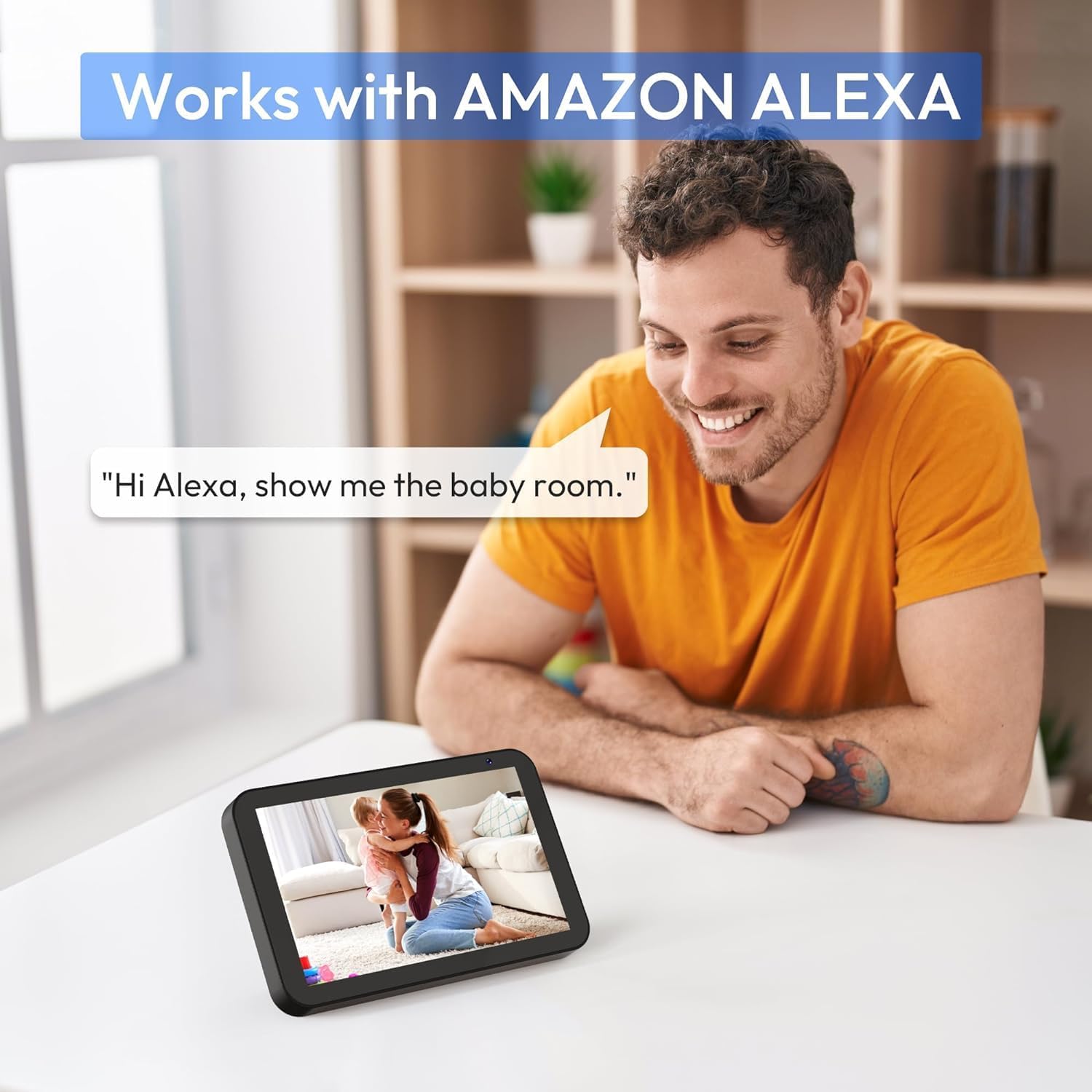
A person interacting with an Amazon Echo Show, displaying the camera's live feed, demonstrating Alexa compatibility.
Integrate your CZEview Baby Monitor with Amazon Alexa. Once linked, you can use voice commands to view the camera feed on compatible Alexa-enabled devices (e.g., "Alexa, show me the baby's room").
6.8 Li-Lullabies
The camera can play soothing lullabies to help your baby fall asleep. Access and control the lullaby function through the CZEview app.
6.9 Likhamera tse ngata View
If you have multiple CZEview cameras, you can add them all to the same app and view up to 4 live video feeds simultaneously, allowing you to monitor different areas of your home.
7. Tlhokomelo
7.1 Ho hloekisa
To clean the camera, gently wipe the exterior with a soft, dry cloth. Do not use liquid cleaners or aerosol sprays, as they may damage the device. For the lens, use a lens cleaning cloth specifically designed for optical surfaces.
7.2 Polokelo
When not in use for extended periods, unplug the camera and store it in a cool, dry place, away from direct sunlight and extreme temperatures.
8. Ho rarolla mathata
| Bothata | Lebaka le ka khonehang | Tharollo |
|---|---|---|
| Khamera ha e hoketsoe ho Wi-Fi | Incorrect Wi-Fi password; Weak Wi-Fi signal; Router issues; Camera too far from router. | Ensure correct password. Move camera closer to router. Restart router. Check Wi-Fi band (2.4GHz/5GHz). |
| Boleng bo bobe ba setšoantšo | Insufficient lighting; Dirty lens; Weak Wi-Fi signal. | Ensure adequate lighting. Clean the camera lens. Improve Wi-Fi signal strength. |
| No sound from camera/app | Microphone/speaker muted in app; Device volume too low. | Check app settings for mute options. Increase volume on your smartphone/device. |
| Detection alerts not working | Detection sensitivity too low; Notifications disabled in app/phone settings. | Adjust detection sensitivity in app. Enable notifications for the CZEview app in your phone's settings. |
| Camera unresponsive | Power issue; Software glitch. | Unplug and replug the power cable. If issue persists, perform a factory reset using the reset button. |
9. Litlhaloso
- Nomoro ea Mohlala: 2AZL7-ZY-D1
- Moetsi: CZEview
- Qeto ea Video: 2.5K Ultra HD
- Khokahano: Wi-Fi (2.4GHz le 5GHz)
- Polokelo: Micro SD Card (up to 128GB, not included), Cloud Storage
- Likaroloana: Two-Way Talk, Infrared Night Vision, Motion Detection, Noise Detection, Cry Detection, Privacy Mode, Lullabies, Alexa Integration
- Boitsebiso: Plastiki
- Mmala: Bosoeu
10. Tiisetso le Tšehetso
For warranty information and technical support, please refer to the warranty card included with your purchase or visit the official CZEview website. You can also contact CZEview customer service directly for assistance with product setup, troubleshooting, or any other inquiries.


