1. Selelekela
This manual provides essential information for the safe and efficient use of your Samsung Galaxy Tab Active 5 SM-X306B. The Galaxy Tab Active 5 is a rugged tablet designed for durability, featuring IP68 dust/water resistance and MIL-STD-810H compliance. It operates on Android 14 with One UI 6 and supports both Wi-Fi and 5G LTE cellular connectivity.
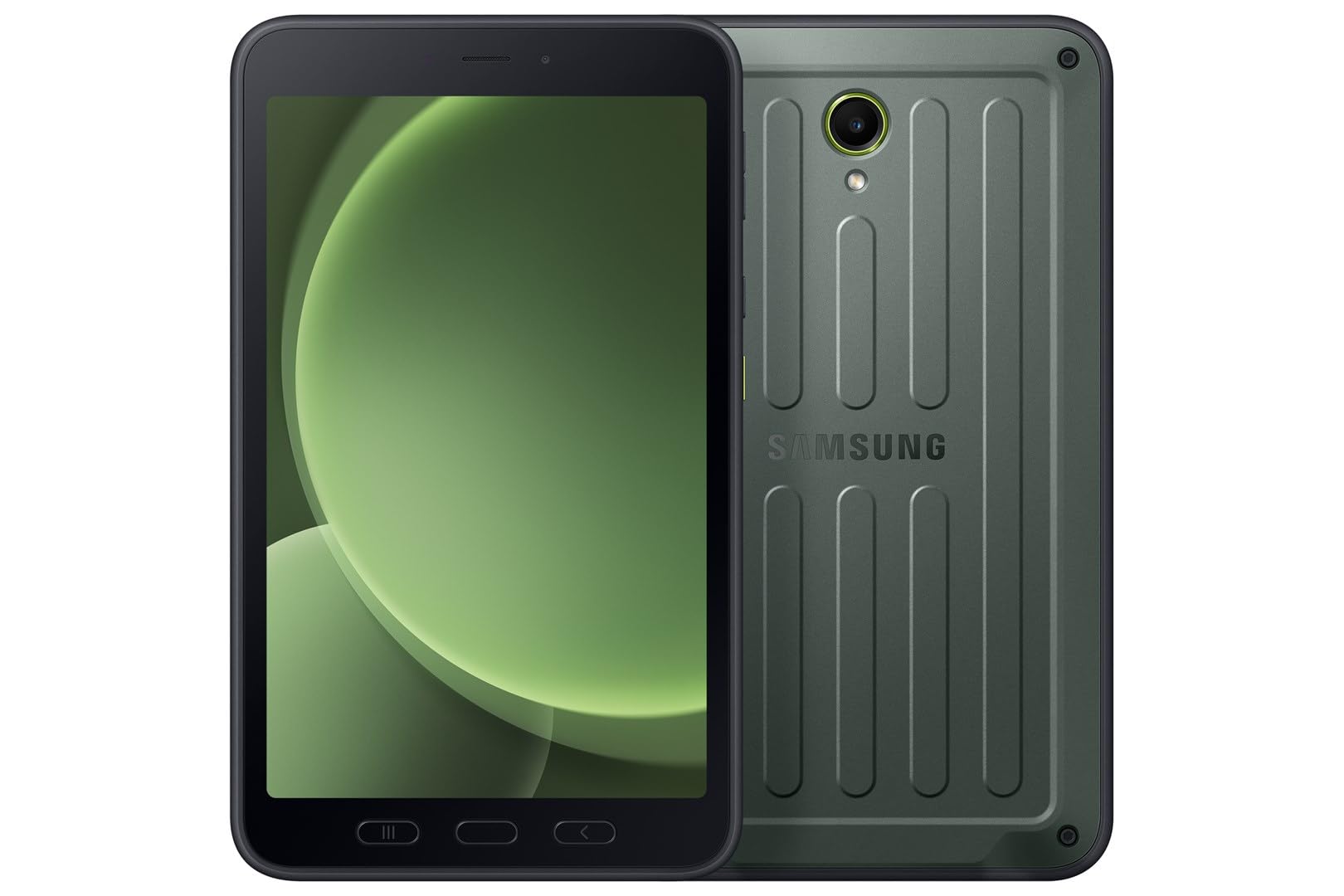
Setšoantšo: Pele view of the Samsung Galaxy Tab Active 5.
2. Se ka Lebokoseng
Verify that the following items are included with your Samsung Galaxy Tab Active 5:
- Samsung Galaxy Tab Active 5 SM-X306B Tablet
- USB Type-C 2.0 Cable
- S Pen (integrated or included separately)
- Tataiso ea ho Qala ka Potlako (e ka fapana ho ea ka libaka)
3. Seta
3.1 Tefiso ea Pele
Before first use, fully charge your tablet. Connect the supplied USB Type-C cable to the tablet's charging port and then to a compatible power adapter (sold separately) or a computer's USB port. The charging indicator will show the charging status.
3.2 SIM Card and eSIM Installation
The Galaxy Tab Active 5 supports Nano-SIM cards and eSIM functionality for cellular connectivity.
- For Nano-SIM: Locate the SIM card tray on the side of the tablet. Use the provided ejection tool to open the tray. Insert the Nano-SIM card into the tray with the gold contacts facing down. Close the tray securely.
- For eSIM: Follow the on-screen instructions during initial setup or navigate to the tablet's settings to activate an eSIM profile provided by your cellular carrier.
Hlokomela: This is an international version. Compatibility with GSM networks (e.g., AT&T, T-Mobile) is generally supported, but CDMA carriers (e.g., Verizon, Sprint) may require specific configuration or may not be fully compatible. Verify band support with your carrier before use. A new SIM card or additional configuration may be required, and coverage may vary by location.

Setšoantšo: Ka morao view of the Samsung Galaxy Tab Active 5, where the SIM tray is typically located on the side.
3.3 Ho Matlafatsa/Ho tima
- Ho Matlafatsa: Tobetsa 'me u tšoare konopo ea Matla (e ka lehlakoreng) ho fihlela letšoao la Samsung le hlaha.
- Ho tima: Press and hold the Power button, then tap 'Power off' on the screen. Alternatively, swipe down from the top of the screen to open the Quick Panel, then tap the Power icon and select 'Power off'.
3.4 Tlhophiso ea Pele
Upon first power-on, follow the on-screen prompts to complete the initial setup. This includes selecting your language, connecting to a Wi-Fi network, signing in with your Google account, and setting up security features like a PIN, pattern, or fingerprint.
4. Ho sebelisa sesebelisoa sa hau
4.1 Tsamaiso ea Motheo
The tablet features a touchscreen interface. Use gestures such as tapping, swiping, pinching, and spreading to navigate through menus, open applications, and interact with content. Physical buttons for power and volume are located on the side of the device.
4.2 Khokahano
- WiFi: Ho hokela ho netweke ya Wi-Fi, eya ho Di-setting > Dikgokelo > Wi-Fi. Select your desired network and enter the password if required. The tablet supports 802.11ax (Wi-Fi 6).
- 5G LTE: If a SIM or eSIM is active, cellular data will be enabled automatically. Manage cellular settings under Di-setting > Dikgokelo > Dinetweke tsa mehala.
4.3 Tšebeliso ea khamera
The tablet is equipped with a 13 MP rear camera and a 5 MP front camera.
- Bula the Khamera application from the home screen or app drawer.
- Select between photo, video, or other modes.
- Tlanya konopo ea shutter ho nka setšoantšo kapa ho qala / ho emisa ho rekota video.
4.4 Tshebetso ya Pene ya S
The Galaxy Tab Active 5 includes an S Pen for enhanced interaction and productivity.
- Ho tlosa S Pen: Gently pull the S Pen from its integrated slot on the tablet.
- Taelo ea Moea: When the S Pen is removed or hovered over the screen, the Air Command menu may appear, offering quick access to S Pen features like Create note, Smart select, and Screen write.
- Ho Ngola le ho taka: Sebelisa S Pen ka ho toba skrineng bakeng sa ho kenya lintlha ka nepo, ho ngola lintlha le ho taka.

Image: Samsung Galaxy Tab Active 5 with S Pen.

Image: Close-up of the S Pen.
5. Tlhokomelo
5.1 Ho hloekisa Sesebelisoa sa Hao
To clean your rugged tablet, use a soft, lint-free cloth. For stubborn dirt, slightly dampen the cloth with water or a screen cleaner designed for electronics. Avoid harsh chemicals, abrasive materials, or excessive moisture, especially near ports.
5.2 Lintlafatso tsa Software
Keep your tablet's software up to date to ensure optimal performance, security, and access to new features. Go to Di-setting > Apdeite ya software > Khoasolla le ho kenya ho sheba lintlafatso tse fumanehang.
Tlhokomelo ea Battery
Ho lelefatsa bophelo ba betri:
- Qoba mocheso o feteletseng.
- U se ke ua tlohela letlapa le tjhajilwe ka botlalo kapa le ntshitswe ka botlalo ka nako e telele.
- Sebedisa feela ditjhaja le dithapo tse dumelletsweng ke Samsung.
6. Ho rarolla mathata
6.1 Mathata a Tloaelehileng
- Letlapa ha le bulehe: Netefatsa hore betri e tjhajilwe. Hokela tjhaja mme o eme metsotso e mmalwa pele o leka ho bula hape.
- Skrine ha e arabele: Try a forced restart by pressing and holding the Power button and Volume Down button simultaneously for about 7-10 seconds until the tablet restarts.
- Connectivity problems (Wi-Fi/Cellular): Toggle Wi-Fi or Mobile Data off and on. Restart the tablet. For Wi-Fi, forget the network and reconnect. For cellular, ensure your SIM/eSIM is properly installed and activated.
- Lisebelisoa tse senyehang kapa lia hoama: Koala le ho bula sesebelisoa hape. Hlakola cache ea app (Litlhophiso > Lisebelisoa > [App Name] > Storage > Hlakola cache). If the issue persists, consider reinstalling the app.
6.2 Hlahisa Fektheri bocha
A factory reset will erase all data from your tablet and restore it to its original factory settings. Back up important data before proceeding.
- Eya ho Di-setting > Taolo e akaretsang > Seta botjha > Ho seta data botjha fekthering.
- Review tlhahisoleseding ebe o tlanya Seta bocha.
- Enter your screen lock credentials if prompted.
- Tlanya Hlakola kaofela ho tiisa.
7. Litlhaloso
Detailed technical specifications for the Samsung Galaxy Tab Active 5 SM-X306B:
| Sebopeho | Tlhaloso |
|---|---|
| Lebitso la Mohlala | Samsung Galaxy Tab Active 5 |
| Ntho Nomoro ea Mohlala | SM-X306B |
| Mokhoa oa tšebetso | Android 14, One UI 6 |
| Boholo ba Pontšo | 8.0 inch |
| Mofuta oa Pontšo | TFT LCD, 120Hz |
| Qeto | 1920 x 1200 pixels (WUXGA) |
| Tshireletso | Corning Gorilla Glass 5 |
| processor | Octa-core (5 nm chipset) |
| Polokelo ea ka hare | 128 GB |
| RAM | 6 GB |
| Polokelo e Atolositsoeng | microSDXC card slot |
| Khamera e ka morao | 13 MP, f/1.9, AF (4K@30fps video) |
| Khamera e ka pele | 5 MP, f/2.2 (1080p@30fps video) |
| SIM | Nano-SIM, eSIM |
| Khokahano | Wi-Fi 802.11ax, 5G LTE, Bluetooth |
| Boema-kepe | USB Type-C 2.0 |
| Ho tšoarella | IP68 dust/water resistant (up to 1.5m for 30 min), MIL-STD-810H compliant (drop-to-concrete resistance from up to 1.8 meter) |
| Litekanyo (HxWxD) | 213.8 x 126.8 x 10.1 mm (8.42 x 4.99 x 0.40 in) |
| Boima ba 'mele | 433 g (15.27 oz) |
8. Tiisetso le Tšehetso
8.1 Boitsebiso ba Tiisetso
Please note that this is an international version of the Samsung Galaxy Tab Active 5. As such, it ha e kenyelletse waranti ya US. Some manufacturers may not honor warranties for international items. For warranty details specific to your region, please consult the documentation provided with your device or contact your local Samsung support.
8.2 Tšehetso ea Bareki
Bakeng sa thuso e eketsehileng, tšehetso ea tekheniki, kapa lipotso mabapi le litšebeletso, ka kopo etela tšehetso ea semmuso ea Samsung website for your region or contact their customer service. You can often find FAQs, troubleshooting guides, and contact information on their websebaka.


