1. Selelekela
This manual provides detailed instructions for the installation, operation, and maintenance of your Xprinter XP-370B Thermal Barcode Sticker Printer. Please read this manual thoroughly before using the printer to ensure proper functionality and to prevent damage.
2. Boitsebiso ba Tšireletseho
- Kamehla hokela printa sebakeng sa motlakase se theohileng fatše.
- Do not expose the printer to water or high humidity.
- Qoba ho beha printa letsatsing le tobileng kapa haufi le mehloli ea mocheso.
- Use only Xprinter approved accessories and power adapters.
- Beha printa hole le bana.
- Do not attempt to disassemble or repair the printer yourself. Contact qualified service personnel for assistance.
3. Likahare tsa Sephutheloana
Netefatsa hore lintho tsohle li teng ka har'a sephutheloana:
- Xprinter XP-370B Thermal Barcode Sticker Printer
- Adapter ea Matla
- Cable ea USB
- Tataiso ea ho Qala ka Potlako (haeba e kenyelelitsoe)
4. Sehlahisoa Overview
The Xprinter XP-370B is a compact and efficient thermal printer designed for barcode and sticker printing. It features high-speed printing capabilities and supports various connectivity options.

Figure 4.1: Front-right view of the Xprinter XP-370B Thermal Barcode Sticker Printer.

Setšoantšo sa 4.2: Lehlakore view illustrating the power button and top cover key for accessing the media compartment.
5. Seta
5.1 Ho phutholla le ho bea
- Tlosa printa ka hloko sephuthelong sa eona.
- Place the printer on a stable, flat surface with adequate ventilation.
- Ensure there is enough space around the printer for cable connections and media loading.
5.2 Ho hokela Printer
- Connect the power adapter to the printer's power port and then plug it into a power outlet.
- Connect the printer to your computer using the provided USB cable. The printer also supports Serial, Ethernet, and Bluetooth connectivity options depending on the model.
- Turn on the printer using the power button located on the side (refer to Figure 4.2).
5.3 Loading Print Media
- Press the top cover key (refer to Figure 4.2) to open the printer's top cover.
- Place the roll of thermal labels into the media compartment. The maximum label diameter supported is 100mm.
- Adjust the paper guide to fit the width of your labels securely.
- Pull a small length of labels past the print head.
- Close the top cover until it clicks into place.
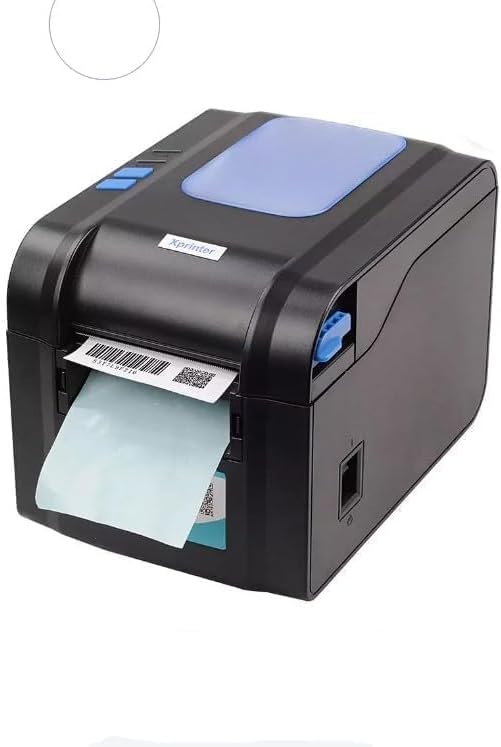
Figure 5.3: The printer demonstrating a label being fed out after printing.
5.4 Ho kenya Mokhanni
- For Windows systems, insert the driver CD (if provided) or download the latest drivers from the official Xprinter websebaka. Latela litaelo tse skrineng bakeng sa ho instola.
- For Android and iOS devices, download the appropriate printing application from your device's app store.
6. Litaelo tsa Ts'ebetso
6.1 Khatiso ea Motheo
- Ensure the printer is powered on and connected to your device.
- Open the document or application from which you wish to print.
- Select the Xprinter XP-370B from your list of available printers.
- Adjust print settings such as label size, orientation, and density as needed.
- Initiate the print command. The printer will begin printing at speeds up to 152mm/s.
7. Tlhokomelo
7.1 Ho hloekisa Printer
- Turn off and unplug the printer before cleaning.
- Sebelisa lesela le bonolo, le se nang linte dampened with isopropyl alcohol to gently clean the print head.
- Clean the exterior of the printer with a soft, dry cloth.
- Se ke oa sebelisa li-abrasive cleaners kapa solvents.
8. Ho rarolla mathata
- Printer not responding: Check power connection, USB/Serial/Ethernet/Bluetooth connection, and ensure drivers are correctly installed.
- Boleng bo tlase ba khatiso: Clean the print head, ensure correct media type is used, and check print density settings.
- Jeme ea pampiri: Open the top cover, carefully remove any jammed labels, and re-load the media correctly.
- Labels not feeding: Ensure labels are loaded correctly and the paper guide is adjusted properly. Check for any obstructions.
9. Litlhaloso
| Sebopeho | Tlhaloso |
|---|---|
| Brand | Xprinter |
| Nomoro ea Mohlala | XP-370B |
| Theknoloji ea Mohatisi | Mocheso |
| Theknoloji ea Khokahano | USB, Serial, Bluetooth, Ethernet (options vary) |
| Lebelo le Phahameng la ho Hatisa | Ho fihlela ho 152 mm / s |
| Boholo ba Media Size | 4 x 6 inch |
| Maximum Label Diameter | 100 limilimithara |
| Printa Media | Labels |
| Sephetho sa Mohatisi | Monochrome |
| Litekanyo tsa Ntho (D x W x H) | 15D x 7W x 10H disentimitara |
| Boima ba Ntho | 300 g |
| Sistimi ea Ts'ebetso e tšehelitsoeng | Windows, Android, iOS |
10. Tiisetso le Tšehetso
For warranty information and technical support, please refer to the documentation provided with your purchase or visit the official Xprinter websebaka. Boloka rasiti ea hau ea theko e le bopaki ba hore u rekile litseko tsa waranti.


