1. Selelekela
This manual provides essential information for the safe and efficient operation of your Ulefone Armor Pad 2 Rugged Tablet. Please read this manual thoroughly before using the device to ensure proper functionality and to prevent damage. Keep this manual for future reference.
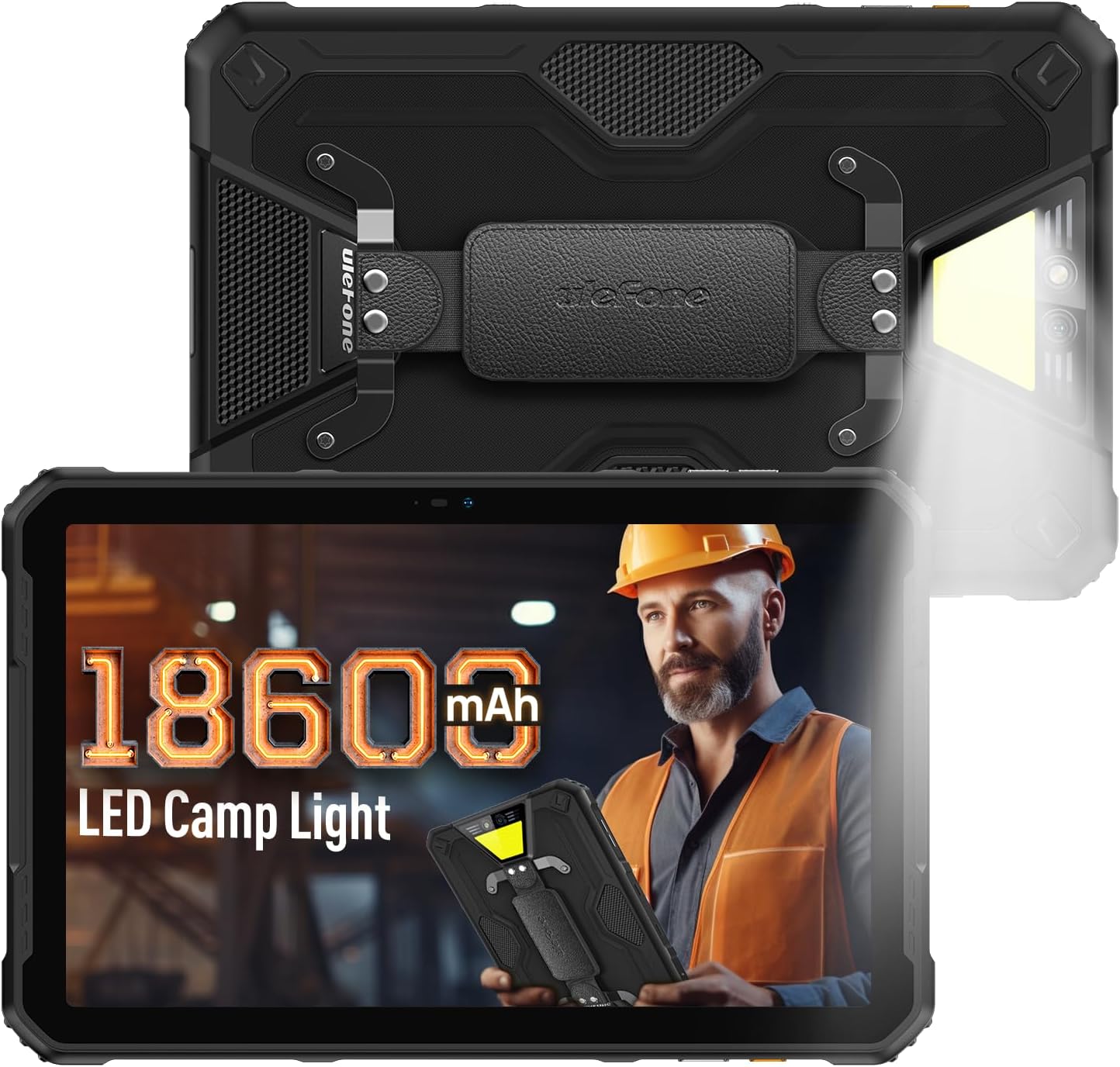
Figure 1: Ulefone Armor Pad 2 Rugged Tablet. This image displays the tablet from both front and back angles, highlighting its robust design and integrated campkhanya e khanyang.
2. Likahare tsa Sephutheloana
Netefatsa hore lintho tsohle li teng ka har'a sephutheloana:
- 1 x Ulefone Armor Pad 2 Tablet
- 1 x AC Power Charger
- 1 x USB Type-C 2.0 Charging Cable
- 1 x Leqhoele la Letsoho
- 1 x Screwdriver
- 8 x Screws (for hand strap attachment)
- 1 x Protective Film (Pre-installed)
- 1 x Nale ea SIM
- 1 x Buka ea Mosebelisi (tokomane ena)
Video 1: Armor Pad 2 Unboxing Video. This video demonstrates the unboxing process and shows all included accessories.
3. Sebopeho sa Sesebelisoa
Familiarize yourself with the physical components and ports of your Armor Pad 2 tablet.

Setšoantšo sa 2: Ho fetaview of Ulefone Armor Pad 2 features. This image highlights various components such as the camera, camping light, uSmart connector, and buttons.
- Khamera e ka Pele: 16MP for video calls and selfies.
- Hlahisa: 11-inch 2K display with Corning Gorilla Glass 5.
- Konopo ea Matla: Located on the side, typically integrated with the fingerprint sensor.
- Likonopo tsa Bolumo: Fetola maemo a molumo.
- Senotlolo se Tloaelehileng: Programmable button for quick access to functions (e.g., PTT, flashlight).
- USB Type-C Port: Bakeng sa ho tjhaja le ho fetisa data.
- 3.5mm Audio Jack: Bakeng sa li-headphones.
- SIM/TF Card Slot: Supports dual Nano SIM cards and one TF card.
- Khamera e ka morao: 48MP main camera.
- Camping Light: 750 lumens LED light with multiple modes.
- Sehokelo sa Katoloso sa uSmart: For connecting compatible external accessories.
- Libui tse peli tsa stereo: Front-facing for clear and balanced audio.
4. Seta
4.1 Matla a Pele a Buletsoe
- Press and hold the Power Button (usually on the side) until the Ulefone logo appears.
- Latela litaelo tse skrineng ho phethela tlhophiso ea mantlha, ho kenyeletsoa khetho ea puo, khokahano ea Wi-Fi, le ho seta ak'haonte ea Google.
4.2 SIM/TF Card Installation
- Locate the SIM/TF card slot on the side of the tablet.
- Use the provided SIM needle to gently eject the card tray.
- Place your Nano SIM cards and/or TF card into the tray according to the diagram on the tray. Ensure correct orientation.
- Carefully reinsert the card tray into the slot until it clicks into place.
4.3 Ho tjhaja Letlapa
- Connect the USB Type-C cable to the tablet's charging port.
- Connect the other end of the cable to the AC Power Charger.
- Plug the AC Power Charger into a wall outlet.
- Sesupo sa ho tjhaja skrineng se tla bontsha boemo ba ho tjhaja.
- For optimal charging, use the provided Ulefone charger and cable.

Figure 3: Battery and Charging Features. This image illustrates the tablet's large 18600mAh battery capacity, 33W fast charging capability, and support for reverse charging.
5. Ts'ebetso ea Motheo
5.1 Ho Bulela/Ho tima
- Matlafatsa: Press and hold the Power Button until the device vibrates and the screen lights up.
- Tlosa motlakase: Press and hold the Power Button for a few seconds, then select "Power off" from the options on the screen.
- Qala hape: Press and hold the Power Button for a few seconds, then select "Restart" from the options.
5.2 Touchscreen Gestures
Navigate your tablet using standard Android gestures:
- Tlanya: Select an item or activate a function.
- Tšoara 'me u tšoare: Access contextual menus or drag items.
- Senya: Tsamaea ka har'a li-skrini, manane, kapa litaba.
- Penya-ho-Atometsa: Atometsa kapa u atolose litšoantšo le web maqephe.
5.3 Custom Key Functions
The custom key on the side of the tablet can be programmed for various shortcuts:
- Access settings to assign single-click, double-click, and long-press actions.
- Common assignments include Push-to-Talk (PTT), flashlight, or quick camera launch.
5.4 Glove Mode
Activate Glove Mode in settings to enable touchscreen responsiveness while wearing gloves, ideal for outdoor or industrial environments.
6. Likarolo tsa Bohlokoa
6.1 Rugged Design
The Armor Pad 2 is built to withstand harsh conditions:
- IP68/IP69K Rated: Certified for water and dust resistance.
- E netefalitsoe ke MIL-STD-810H: Meets military standards for durability against drops, shocks, and extreme temperatures.
- Corning Gorilla Glass 5: Enhanced scratch and drop resistance for the display.

Figure 4: Ruggedness features. This image demonstrates the tablet's water, dust, and drop resistance, highlighting its IP68/IP69K and MIL-STD-810H certifications.
6.2 Pontšo
Experience clear visuals on the 11-inch 2K display:
- Boholo: 11-inch.
- Qeto: 2K (2000x1200 pixels).
- Khanya: 500 nits for visibility in various lighting conditions.

Figure 5: 11-inch 2K Display. This image showcases the vibrant display protected by Corning Gorilla Glass 5.
6.3 Tshebetso
The tablet is powered by a MediaTek Helio G99 processor, ensuring smooth operation:
- Motlakase: MediaTek Helio G99 (8-core, 2.2GHz, 6nm).
- RAM: Up to 16GB (8GB physical + 8GB virtual).
- Bobolokelo ba ka Hare 256GB.
- Polokelo e Atolositsoeng: Up to 2TB via TF card.
- Mokhoa oa tšebetso: Android 13.

Figure 6: Performance specifications. This image details the MediaTek Helio G99 chipset, RAM, and ROM capabilities of the tablet.
6.4 lik'hamera
Capture moments with the integrated cameras:
- Khamera e ka morao: 48MP.
- Khamera e ka Pele: 16MP.

Figure 7: Camera capabilities. This image shows examples of photos taken with the 48MP rear and 16MP front cameras.
6.5 Khokahano
Stay connected with a range of communication options:
- Mehala: 4G Dual SIM Dual Standby (Note: Not compatible with AT&T, Cricket).
- WiFi: Wi-Fi 6 for faster wireless connections.
- Bluetooth: Bluetooth 5.2.
- Navigation: GPS + GLONASS + Galileo + BeiDou.
- NFC: Bakeng sa litefo ntle le ho ikopanya le phapanyetsano ea data.
6.6 Audio
Enjoy immersive sound with:
- Stereo Dual Speakers: Front-facing for clear and balanced audio.
- 3.5mm Audio Jack: Bakeng sa li-headphones tsa wired.
6.7Camping Leseli
The integrated 750 lumens LED camping light provides versatile illumination:
- Khanya: 750 lumens, 383 lighting beads, 5.5 watts.
- Mekhoa: 3 lighting modes (e.g., Lighting, Sharp Light, SOS).
- Maemo a Khanya: 3 adjustable levels.
- Activated via a physical button for quick access.

Figure 8: 750LM Camping Light. This image shows the tablet's powerful integrated LED light in use during a camping scenario.
6.8 uSmart Expansion Connector
Ulefone's exclusive uSmart Expansion offers fast and stable connections to professional tools with plug-and-play convenience. Compatible expansion devices (e.g., endoscope, 1000x microscope) require additional purchases.
Video 2: Ulefone Armor Pad 2 Rugged Tablet Overview. This video demonstrates various features including the uSmart Expansion Connector.
7. Tlhokomelo
- Ho hloekisa: Sebelisa bonolo, damp cloth to clean the tablet. Avoid harsh chemicals or abrasive materials. Ensure all port covers are securely closed before cleaning with liquids.
- Water/Dust Protection: Always ensure all port covers (USB, audio jack, SIM slot) are firmly sealed to maintain IP68/IP69K water and dust resistance.
- Tlhokomelo ea Betri: Avoid exposing the tablet to extreme temperatures. For long-term storage, charge the battery to approximately 50-70%.
- Ts'ireletso ea Screen: The tablet comes with a pre-installed protective film. For additional protection, consider using a tempered glass screen protector.
8. Ho rarolla mathata
| Bothata | Lebaka le ka khonehang | Tharollo |
|---|---|---|
| Letlapa ha le sebetse. | Low battery or system crash. | Charge the tablet for at least 30 minutes. If still unresponsive, press and hold the Power Button for 10-15 seconds to force restart. |
| Skrine ea ho ama ha e arabele. | Software glitch or screen damage. | Restart the tablet. If the issue persists, perform a factory reset (backup data first). If physical damage is suspected, contact support. |
| Ha e khone ho hokela ho Wi-Fi. | Incorrect password, router issue, or tablet Wi-Fi module issue. | Verify Wi-Fi password. Restart router and tablet. Try connecting to other Wi-Fi networks. |
| Poor call quality or no signal. | Weak network signal, incorrect SIM installation, or carrier issue. | Move to an area with better signal. Reinstall SIM card. Contact your mobile carrier for network status. |
| Letlapa le lieha kapa le hoama. | Too many apps running, low storage, or outdated software. | Close unnecessary apps. Clear cache. Free up storage. Check for system updates. |
9. Litlhaloso
| Sebopeho | Lintlha |
|---|---|
| Mohlala | Ulefone Armor Pad 2 |
| Litekanyo | 10.94 x 7 x 0.55 lisenthimithara |
| Boima ba 'mele | 2.24 liponto |
| Mokhoa oa tšebetso | Android 13 |
| processor | MediaTek Helio G99 (8-core, 2.2GHz) |
| RAM | Up to 16GB (8GB physical + 8GB virtual) |
| Polokelo ea ka hare | 256GB |
| Polokelo e Atolositsoeng | Up to 2TB (TF card) |
| Pontšo | 11-inch 2K (1280 x 800 pixels, 500 nits, Corning Gorilla Glass 5) |
| Khamera e ka morao | 48MP |
| Khamera e ka pele | 16MP |
| Bokhoni ba Battery | 18600mAh |
| Ho tjhaja | 33W Fast Charging, Reverse Charging (OTG) |
| Ho tšoarella | Setifikeiti sa IP68/IP69K, MIL-STD-810H |
| Khokahano | 4G Dual SIM, Wi-Fi 6, Bluetooth 5.2, NFC |
| Navigation | GPS, GLONASS, Galileo, BeiDou |
| Likarolo Tse Khethehileng | 750LM Camping Light, uSmart Expansion Connector, Custom Key, PTT, Digital Toolbox, Fingerprint Sensor, Glove Mode, Stereo Dual Speakers |
10. Tiisetso le Tšehetso
Ulefone products come with a standard manufacturer's warranty. For detailed warranty information, technical support, or service inquiries, please visit the official Ulefone websebaka kapa ikopanye le litšebeletso tsa bareki ka kotloloho. Boloka rasiti ea hau ea theko e le bopaki ba hore u rekile litseko tsa waranti.
Official Ulefone Websebaka: ulefone.com


