1. Selelekela
This user manual provides detailed instructions for the installation, operation, and maintenance of your Xprinter XP-D200N Thermal Receipt Printer. The XP-D200N is a high-speed thermal printer designed for reliable and efficient receipt printing in various business environments. Please read this manual thoroughly before using the printer to ensure proper functionality and to prevent damage.
2. Boitsebiso ba Tšireletseho
To ensure safe operation and prevent damage to the printer or injury to yourself, please observe the following safety precautions:
- Always use the provided power adapter. Using an incorrect adapter may damage the printer and void the warranty.
- O se ke wa beha printa metsing, mongobong, kapa dithempereichareng tse feteletseng.
- Qoba ho beha printa letsatsing le tobileng kapa haufi le mehloli ea mocheso.
- Do not attempt to disassemble or repair the printer yourself. Refer all servicing to qualified personnel.
- Netefatsa hore printa e behiloe holim'a bokaholimo bo tsitsitseng, bo bataletseng.
- Keep the printer away from dust and debris to maintain optimal performance.
3. Likahare tsa Sephutheloana
Ka kopo hlahloba dikahare tsa sephutheloana sa hao. Haeba dintho dife kapa dife di le siyo kapa di senyehile, ikopanye le morekisi wa hao hanghang.
- Xprinter XP-D200N Thermal Receipt Printer
- Adapter ea Matla
- Mohala oa Matla
- Cable ea USB
- Moqolo oa Pampiri ea Thermal (sebapali sa pele)
- Bukana ea mosebelisi (tokomane ena)
4. Sehlahisoa Overview
The Xprinter XP-D200N is a compact and efficient thermal receipt printer. Below are images illustrating its key components and design.
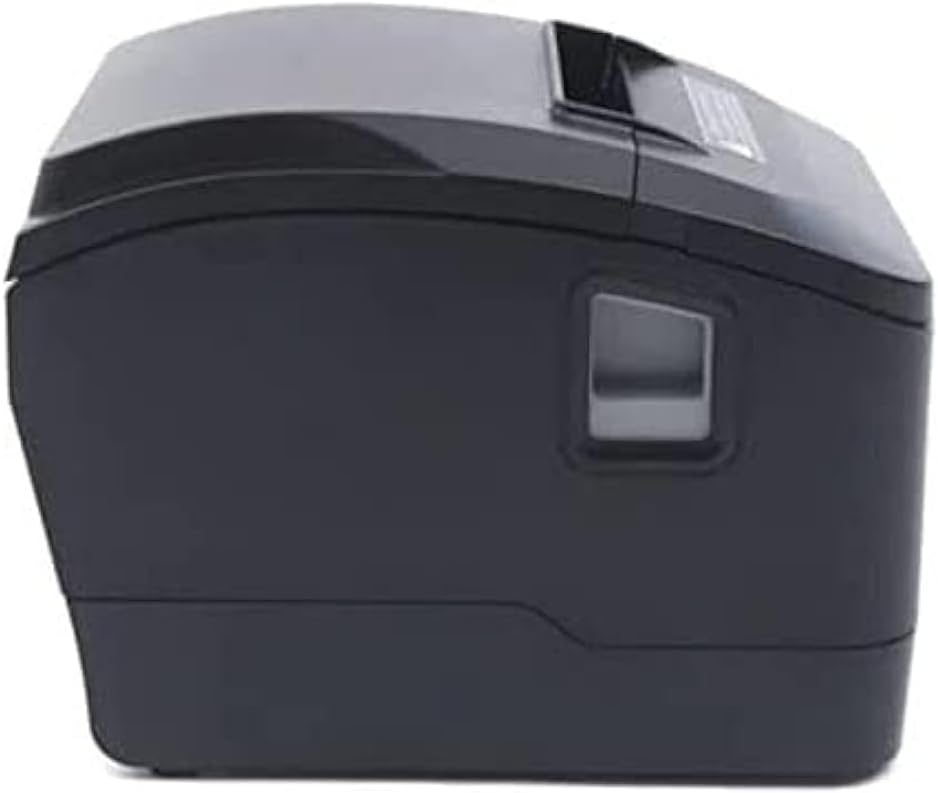
Setšoantšo sa 4.1: Lehlakore le ka pele view of the Xprinter XP-D200N Thermal Receipt Printer. This image shows the sleek, black casing and the paper output slot.
Setšoantšo sa 4.2: Lehlakore view of the Xprinter XP-D200N Thermal Receipt Printer. This perspective highlights the compact design and the power switch on the right side.

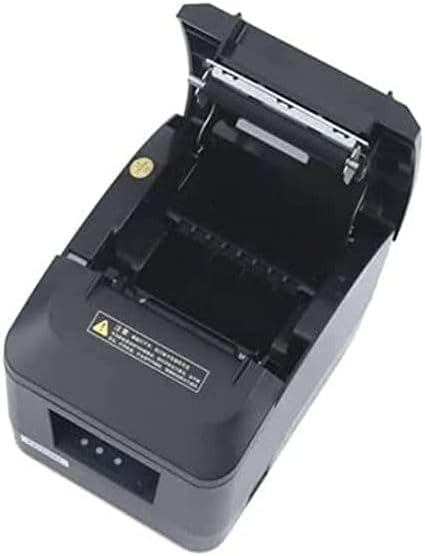
Setšoantšo sa 4.3: Holimo view of the Xprinter XP-D200N Thermal Receipt Printer with the cover open, revealing the thermal paper roll compartment and the print head mechanism. This view is essential for paper loading and maintenance.
5. Seta
5.1 Ho hokela Matla
- Ensure the printer's power switch is in the OFF position.
- Connect the power adapter to the power input port on the back of the printer.
- Plug the power cord into the power adapter, then into a standard electrical outlet.
5.2 Ho hokela Khomphuteng
The XP-D200N supports both USB and LAN connectivity.
Khokahano ea USB:
- Hokela ntlha e 'ngoe ea thapo ea USB koung ea USB e printareng.
- Hokela pheletsong e 'ngoe ea thapo ea USB ho koung ea USB e fumanehang komporong ea hau.
LAN (Ethernet) Connection:
- Connect an Ethernet cable to the LAN port on the printer.
- Hokela pheletsong e 'ngoe ea thapo ea Ethernet ho router ea netweke ea hau kapa switjha.
- Refer to the printer's advanced settings or driver utility for network configuration (e.g., IP address settings).
5.3 Ho kenya Pampiri ea Thermal
- Open the printer cover by pressing the release button or lifting the cover latch. (Refer to Figure 4.3).
- Insert the thermal paper roll into the compartment with the paper feeding from the bottom and the leading edge extending towards the front of the printer. Ensure the paper is aligned correctly.
- Hula pampiri e nyane ka pela seha.
- Close the printer cover firmly until it clicks into place.
5.4 Ho kenya Mokhanni
After connecting the printer, you will need to install the appropriate drivers on your computer. Drivers are typically provided on a CD included with the printer or can be downloaded from the official Xprinter websebaka. Latela ditaelo tse skrineng nakong ya ho kenya.
6. Litaelo tsa Ts'ebetso
6.1 Ho Matlafatsa/Ho tima
- To power on: Ensure the power cord is connected, then flip the power switch to the ON position. The indicator light will illuminate.
- To power off: Flip the power switch to the OFF position.
6.2 Khatiso ea Motheo
Once the printer is connected and drivers are installed, you can print receipts from your point-of-sale (POS) software or other applications. Select the Xprinter XP-D200N as your default printer in your application's print settings.
6.3 Matšoao a Boemo
The printer features indicator lights (usually on the front panel) that provide information about its status:
- Lesupa la Matla: Solid light indicates the printer is powered on.
- Lesupa la Phoso: Flashing or solid light indicates an error (e.g., paper out, cover open, print head overheat). Refer to the troubleshooting section.
- Paper Out Indicator: Illuminates when the paper roll is empty or nearly empty.
7. Tlhokomelo
7.1 Ho Hloekisa Hlooho ea Khatiso
Ho hlwekisa hlooho ya kgatiso kgafetsa ho netefatsa boleng bo botle ba kgatiso mme ho eketsa nako ya bophelo ba kgatiso.
- Tima printa 'me u hakolle thapo ea motlakase.
- Bula sekwahelo sa printa.
- Sebelisa swab ea k'hothone hanyaneampened with isopropyl alcohol (70% or higher) to gently wipe the thermal print head surface. Avoid touching the print head with bare hands.
- Allow the print head to dry completely before closing the cover and reconnecting power (approximately 2-3 minutes).
7.2 Tlhoekiso e Akaretsang
Hlakola bokantle ba printa ka bonolo, damp lesela. Se ke oa sebelisa li-abrasive cleaners kapa solvents.
7.3 Replacing the Paper Roll
When the paper out indicator illuminates or print quality degrades, it's time to replace the paper roll. Follow the steps in Section 5.3 "Loading Thermal Paper".
8. Ho rarolla mathata
| Bothata | Lebaka le ka khonehang | Tharollo |
|---|---|---|
| Printa ha e bule. | No power, faulty power adapter/cord. | Check power connections. Ensure power switch is ON. Test outlet. |
| Ha ho kgatiso. | Paper out, cover open, incorrect driver, incorrect printer selected, cable disconnected. | Load paper, close cover, check USB/LAN connection, verify driver installation, select correct printer in software. |
| Boleng bo tlase ba khatiso (mela e fokolang, e se nang letho). | Dirty print head, low quality thermal paper, print head damage. | Clean print head (Section 7.1). Replace thermal paper. If problem persists, contact support. |
| Jeme ea pampiri. | Improper paper loading, foreign object. | Turn off printer, open cover, carefully remove jammed paper. Reload paper correctly. |
| Error indicator light is on/flashing. | General error, paper out, cover open. | Check for paper out, ensure cover is closed. Power cycle the printer. If error persists, consult manufacturer's support. |
9. Litlhaloso
| Lebitso: | Xprinter |
| Mohlala: | XP-D200N |
| Mofuta oa Printer: | Mochine oa khatiso oa Thermal |
| Mokhoa oa ho hatisa: | Thermal e otlolohileng |
| Lebelo la ho Hatisa: | 220 mm/sec (as per product description) |
| Boholo ba Media: | 8 cm (80mm) |
| Khokahano: | USB, LAN (Ethernet) |
| Kenyeletso ea Matla: | 24V - 2.5A |
| Printer Output: | Monochrome |
| Likarolo tse Khethehileng: | Sleek, Compact, Lightweight Design, High Print Quality, Durability, Low Noise, Automatic Paper Cutting |
| Boholo ba Sehlahisoa: | 18.4 x 14 x 13.5 cm, |
| Boima ba Ntho: | 1.63 lik'hilograma |
10. Tiisetso le Tšehetso
The Xprinter XP-D200N Thermal Receipt Printer comes with a standard manufacturer's warranty. For specific warranty terms and conditions, please refer to the warranty card included with your product or visit the official Xprinter website. For technical support, driver downloads, or service inquiries, please contact your local dealer or the Xprinter customer support team through their official channels.
For the latest information and support resources, please visit: www.xprinter.net


