1. Selelekela
The ADKIDO PTZ Camera is a versatile and high-performance camera designed for various applications including live streaming, conferences, educational broadcasts, and worship services. It features advanced optical zooming, Power over Ethernet (PoE) support, and multiple output options including IP, 3G-SDI, HDMI, and USB. This manual provides essential information for setting up, operating, and maintaining your camera.

Figure 1: ADKIDO PTZ Camera, Remote Control, and Wall Mount Bracket.
2. Se ka Lebokoseng
Upon unboxing your ADKIDO PTZ Camera, please verify that all the following components are included:
- 1 x PTZ Khamera
- 1 x Taolo ea Remoutu
- 1 x Thapo ea Matla
- 1 x thapo ea USB
- 1 x Bracket ea Thaba ea Lerako
- 1 x Adapter ea Matla a AC
- 1 x RS232 Cable
- 1 x Buka ea Mosebelisi (tokomane ena)

Figure 2: All components included in the product packaging.
3. Likarolo tsa lihlahisoa
The ADKIDO PTZ Camera incorporates several advanced features to enhance your video production and streaming experience:
- Khokahano e fapaneng: Supports synchronous 3G-SDI, IP, USB, and HDMI outputs. This allows for flexible integration with various professional and consumer-grade equipment.
- Matla holim'a Ethernet (PoE): Simplifies installation by allowing both power supply and video streaming through a single network cable when connected to a PoE-enabled LAN.
- Advanced AI Tracking: Features human tracking based on advanced AI algorithms. The camera can automatically track and focus on a subject, enabling automatic framing and unmanned operation, ideal for educational recording and broadcasting.
- 20X Optical Zoom: Equipped with a Japanese imported lens offering 20x optical zoom, capable of capturing high-quality 1080p/60fps video. The camera supports various video formats including 1080P60/50, 1080P30/25, 720P60/50, and 720P30/25.
- Rich Interface and Low Latency: High-tech components ensure low latency, smooth, and clear connections, compatible with software such as vMix, OBS, Zoom, and Skype.
- Likhetho tse ngata tsa Taolo: Easily control pan, tilt, and zoom functions via infrared remote control, RS232, RS485 (serial joystick), or IP (IP joystick) motion, with an effective control distance of up to 150 meters.
- Boleng bo Phahameng ba Litšoantšo: Reproduces realistic colors and beautiful picture quality, even in low-light environments, with minimal noise. Supports H.264/H.265 video compression and IP stream protocols like RTSP, RTMP, SRT, and HTML5.

Figure 3: Connectivity options for the ADKIDO PTZ Camera.
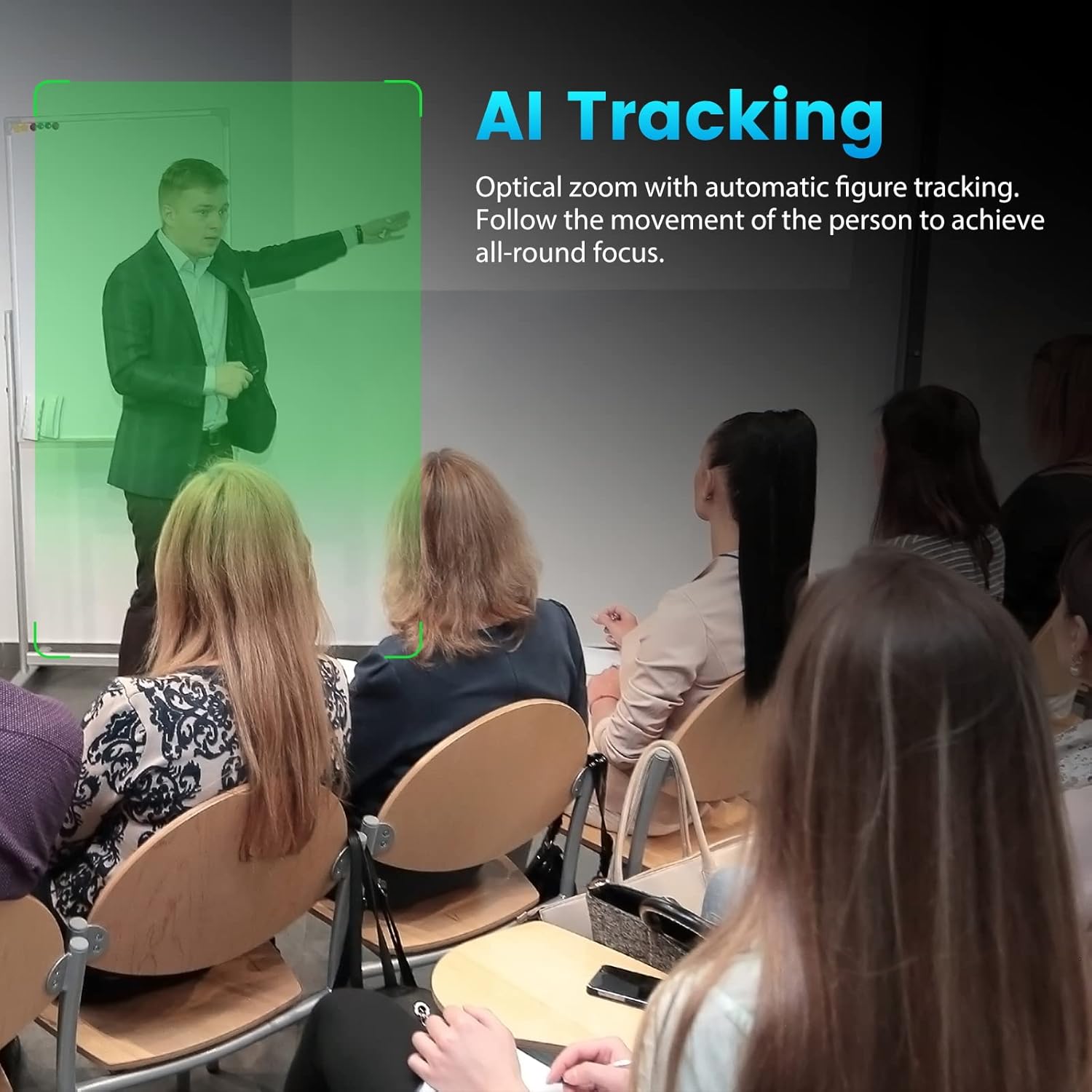
Figure 4: Demonstration of AI Tracking capability.

Figure 5: Visual representation of 20X optical zoom.
4. Seta
4.1 Ho Kena ka Sebele
- Ho hlongoa: Use the provided wall mount bracket to securely install the camera in your desired location. Ensure the mounting surface is stable and can support the camera's weight.
- Khokelo ea Matla: Connect the AC power adapter to the camera's DC 12V input. Alternatively, if using a PoE-enabled network switch, connect a single Ethernet cable to the LAN port for both power and data.
- Sephetho sa Video: Connect the camera to your display or capture device using one of the available output ports:
- HDMI: For direct connection to a monitor or capture card.
- 3G-SDI: For professional long-distance video transmission.
- USB 3.0: For direct connection to a computer for use as a webcam or capture device.
- LAN (IP Streaming): For network-based video streaming.
- Kenyo ea Molaetsa/Se hlahisoang: Connect external microphones or audio devices to the "LINE IN" or "LINE OUT" ports as needed.
4.2 Network Configuration (for IP Streaming)
For IP streaming and control, the camera requires network configuration. The camera typically defaults to DHCP to obtain an IP address automatically. It is important to verify the actual IP address assigned to the camera on your network.
- Finding the IP Address: Connect the camera to a monitor via HDMI or SDI. Use the remote control's MENU button to navigate to the network settings and view the camera's assigned IP address. This address is crucial for accessing the camera's web segokahanyi.
- Ho kena Web Sehokelo: Bula a web browser on a computer connected to the same network and enter the camera's IP address.
- Lintlha tsa ho Kena: The default username is typically "admin". For the password, please refer to the specific instructions provided with your camera or try leaving it blank, as some units may have an empty default password. If issues persist, consult the official ADKIDO support resources.
5. Litaelo tsa Ts'ebetso
5.1 Basic Camera Control
The camera can be controlled using the included infrared remote control, or via RS232/RS485 serial commands, or through its IP interface.
- Pan/Tilt: Use the directional arrows on the remote control or control software to move the camera horizontally (pan) and vertically (tilt). The horizontal rotation range is ±170° and the vertical rotation range is -30° to +90°.
- Atometsa: Use the ZOOM +/- buttons on the remote or control interface to adjust the optical zoom. The camera features 20x optical zoom.
- Tsepamisa maikutlo: Adjust focus using the AUTO/FAR/NEAR buttons on the remote or through the web interface. The camera supports advanced auto-focusing technology.
- Litokisetso Save and recall camera positions using the preset buttons (1-9) on the remote. The camera supports up to 255 preset positions.

Figure 6: The ADKIDO PTZ Camera is ideal for diverse applications including worship services, live events, business meetings, and educational environments.
5.2 AI Tracking Function
The AI tracking feature allows the camera to automatically follow a designated subject. This is particularly useful for presentations, lectures, or worship services where a speaker moves around.
- Kenyelletso: Refer to the camera's on-screen menu or web interface for specific instructions on how to activate and configure AI tracking.
- Tshebetso: The camera uses advanced AI algorithms to recognize and track human shapes, ensuring the subject remains in focus and within the frame.
5.3 Live Streaming and Software Integration
The ADKIDO PTZ Camera is designed for seamless integration with popular live streaming and video conferencing software.
- Ts'ebetsong ea Software: The camera is compatible with vMix, OBS, Zoom, Skype, and other similar platforms.
- Connection via USB: For direct connection to a computer, use the USB 3.0 port. The camera will be recognized as a standard webkh'am.
- Connection via IP: For network streaming, configure the camera's IP settings and use the RTSP, RTMP, SRT, or HTML5 protocols within your streaming software.
Video 1: Official ADKIDO PTZ Camera demonstration showcasing 1080P60 FULL HD and Auto-Tracking features. This video highlights the camera's smooth pan, tilt, and zoom movements, as well as its ability to automatically track subjects, making it suitable for dynamic live productions.
6. Tlhokomelo
Proper maintenance ensures the longevity and optimal performance of your ADKIDO PTZ Camera:
- Ho hloekisa: Use a soft, dry cloth to clean the camera body. For the lens, use a specialized lens cleaning cloth and solution. Avoid abrasive materials or harsh chemicals.
- Tikoloho: Operate the camera in a clean, dry environment. Avoid excessive dust, humidity, or extreme temperatures.
- Lisebelisoa tsa Firmware: Periodically check the official ADKIDO website for firmware updates. Keeping the firmware updated can improve performance, add new features, and resolve potential issues.
7. Ho rarolla mathata
This section addresses common issues you might encounter with your ADKIDO PTZ Camera:
| Bothata | Lebaka le ka khonehang | Tharollo |
|---|---|---|
| Khamera ha e sebetse. | Power cable loose or disconnected; power adapter faulty; no power from PoE. | Ensure all power connections are secure. Verify the power adapter is working. If using PoE, confirm the network switch provides PoE. |
| No video output / Blurry image. | Incorrect cable connection; wrong input selected on display; lens dirty; focus issue; incorrect resolution settings. | Check all video cables (HDMI, SDI, USB) are correctly connected. Select the correct input source on your monitor/capture device. Clean the lens. Adjust the camera's focus. Verify output resolution settings match your display's capabilities. |
| Cannot access camera web interface / IP control. | Incorrect IP address; network connectivity issue; incorrect login credentials. |
|
| Remote control ha e sebetse. | Batteries low/dead; line of sight blocked; remote sensor on camera obstructed. | Replace batteries. Ensure clear line of sight between remote and camera. Check for obstructions in front of the camera's IR sensor. |
8. Litlhaloso
| Tlhaloso | Lintlha |
|---|---|
| Nomoro ea Mohlala | V60XL |
| Litekanyo tsa Sehlahisoa | 6.65 x 6.61 x 5.75 lisenthimithara |
| Boima ba Ntho | 3.31 liponto |
| Theknoloji ea sensor ea lifoto | CMOS |
| Qeto ea ho nka video | 1080p |
| Bolelele bo Holimo ba Tsepamiso | 34 limilimithara |
| Maximum Aperture | 1.4 f |
| Mofuta oa Memori ea Flash | SD |
| Sebopeho sa Video Capture | MJPEG, MP4 |
| Sebopeho sa Audio se tšehelitsoeng | AAC |
| Boholo ba skrine | 2.8 lisenthimithara |
| Theknoloji ea Khokahano | USB/SDI/LAN/HDMI |
9. Tiisetso le Tšehetso
All ADKIDO products come with a Waranti ea lilemo tse 3. For any issues, questions, or support needs, please contact ADKIDO customer service. You can also refer to the official User Manual PDF for more detailed information.
Bukana ea Semmuso ea Mosebelisi (PDF): Khoasolla Mona
