1. Selelekela
This manual provides comprehensive instructions for the safe and efficient operation of your CLABEL 220B Thermal Bluetooth Label Printer. This portable, inkless label maker is designed for various applications in small businesses, offices, and homes, supporting label widths from 20mm to 50mm.
2. Likahare tsa Sephutheloana
Ka kopo netefatsa hore lintho tsohle tse thathamisitsoeng ka tlase li kenyelelitsoe ka har'a sephutheloana sa hau:
- CLABEL 220B Thermal Bluetooth Label Printer
- 1 Roll of Thermal Labels
- USB Charging Cable
- Bukana ea mosebelisi (tokomane ena)
3. Sehlahisoa Overview
Familiarize yourself with the components of your CLABEL 220B printer.
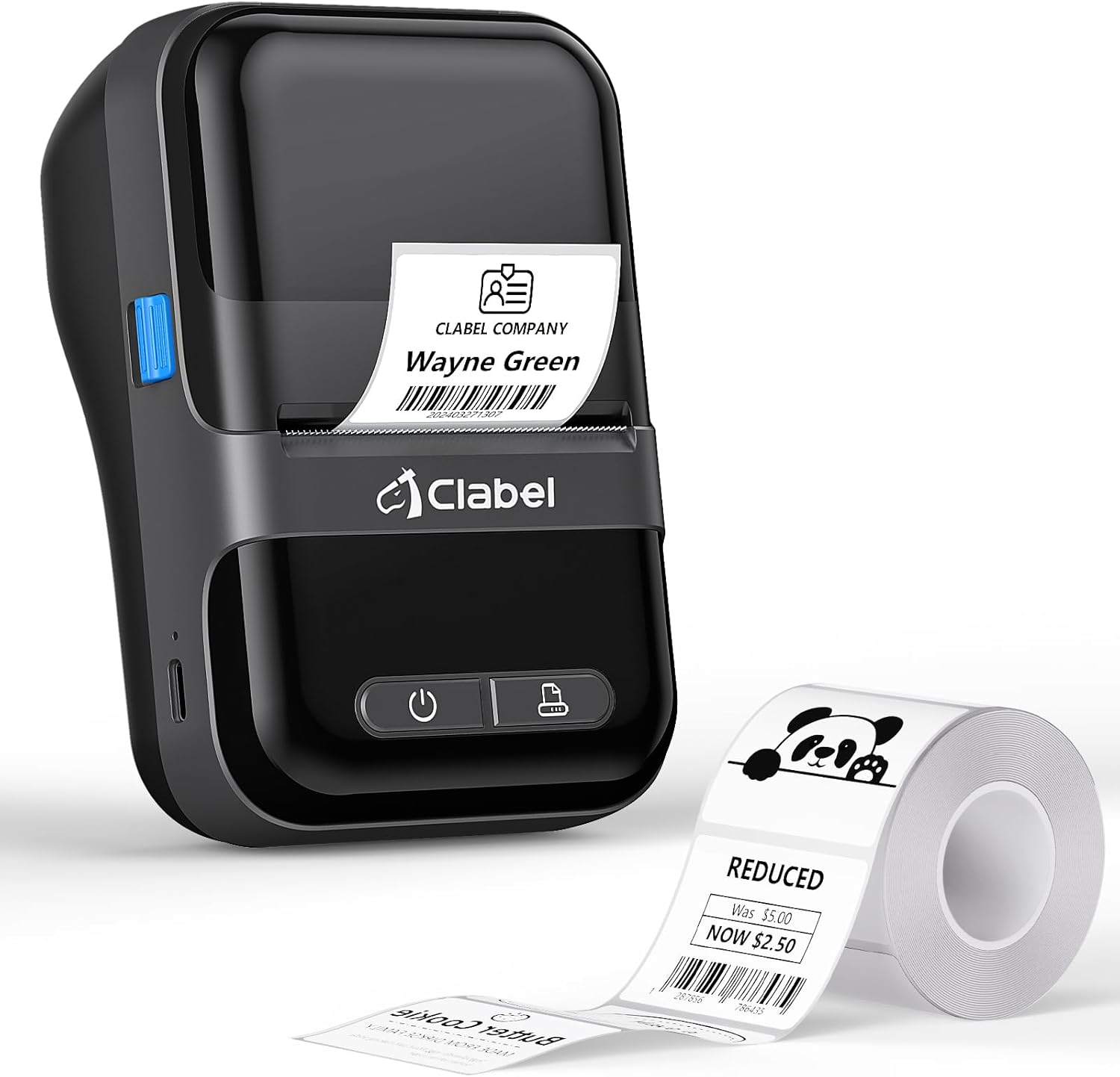
Image: The CLABEL 220B printer, showcasing its compact design, a printed label emerging from the output slot, and a roll of blank labels.
The printer features a power button, a feed button, and a label compartment. The charging port is typically located on the side or back.
4. Seta
4.1. Ho tjhaja Printer
Before initial use, fully charge the printer. Connect the provided USB cable to the printer's charging port and to a 5V-2A power adapter (not included) or a computer's USB port. The charging indicator light will show the charging status.
4.2. Loading Labels
Follow these steps to correctly load the thermal labels:

Image: Step-by-step guide for label installation, showing opening the cover, setting jam protection, inserting labels, and closing the cover.
- Bula sekwahelo sa printa.
- Set the jam protection to "OPEN" if applicable.
- Insert the label roll into the compartment, ensuring the printable side faces up and the labels are aligned on the left.
- Pull out a small length of labels and close the cover securely.
5. Khokahano
5.1. Mobile Phone Connection (Bluetooth)
The CLABEL 220B supports connection with iOS and Android devices via Bluetooth.

Image: Mobile phone connection steps, illustrating downloading the 'Clabel trade' app, enabling Bluetooth, and connecting to the printer within the app.
- Download the "CLABEL trade" app from your device's app store (iOS App Store or Android Google Play Store).
- Netefatsa hore Bluetooth e butswe fonong ya hao.
- Open the "CLABEL trade" app and connect to your printer from the device list.
5.2. PC Connection (USB)
For Windows PCs, connect the printer using the provided USB cable.

Image: Computer connection steps, detailing turning on the printer, connecting via USB, downloading the driver/app, and printing.
- Kenya printa.
- Hokela printa komporong ea hau ka thapo ea USB.
- Download the necessary driver or application from the official CLABEL brand websebaka.
- Open the application, create or select a label, and initiate printing.
6. Litaelo tsa Ts'ebetso
6.1. Using the CLABEL Trade App
The "CLABEL trade" app offers extensive features for label creation and management:
- Access over 30 business label templates.
- Utilize more than 450 common symbols for various applications.
- Create and customize your own label templates.
- Edit and typeset labels with text, barcodes, QR codes, images, and more.
6.2. Batch Printing
The printer supports batch printing, allowing you to import data from Excel tables to print multiple labels efficiently. This feature helps improve printing efficiency by setting the printing quantity without repetitive operations.
6.3. Recommended Label Sizes and Uses
The CLABEL 220B printer supports labels with a width of 20-50mm and a length of 15-100mm, accommodating various styles and applications.

Image: Recommended label sizes for business applications, including price tags, barcodes, logos, and product information (e.g., 40x40mm, 50x50mm).

Image: Recommended label sizes for food applications, such as bakery items, ingredient lists, and price & date labels (e.g., 40x30mm, 50x40mm).

Image: Recommended label sizes for office organization, including labels for letters, addresses, folders, and cables (e.g., 25x78mm, 50x30mm).
7. Tlhokomelo
To ensure optimal performance and longevity of your CLABEL 220B printer, follow these maintenance guidelines:
- Ho hloekisa Hlooho ea Khatiso: Regularly clean the thermal print head with an alcohol swab to remove dust or adhesive residue. Ensure the printer is off and cooled down before cleaning.
- Ho Hloekisa Ka Ntle: Wipe the exterior of the printer with a soft, dry cloth. Avoid using harsh chemicals or abrasive materials.
- Polokelo: Store the printer in a cool, dry place away from direct sunlight and extreme temperatures.
- Tlhokomelo ea Betri: For long-term storage, charge the battery to about 50% every three months to prevent deep discharge.
8. Ho rarolla mathata
If you encounter issues with your CLABEL 220B printer, refer to the following common problems and solutions:
| Bothata | Lebaka le ka khonehang | Tharollo |
|---|---|---|
| Printer ha e bulele | Betri e tlase kapa bothata ba matla | Charge the printer fully. Ensure the power button is pressed correctly. |
| Poor print quality (light or spotty) | Dirty print head, incorrect label type, or low battery | Clean the print head. Ensure you are using thermal labels. Charge the printer. Adjust print density in the app if available. |
| Li-label li fosahetse kapa li koetsoe | Labels not loaded correctly | Open the cover, re-align the label roll, and ensure it's properly seated. Refer to Section 4.2. |
| Ha e khone ho hokela ka Bluetooth | Bluetooth off, app issue, or printer not discoverable | Ensure Bluetooth is enabled on your phone and the printer is on. Restart the app and printer. Try re-pairing the device. |
| PC connection issues | Driver not installed, incorrect cable, or software issue | Install the correct driver from the CLABEL website. Ensure the USB cable is functional. Restart PC and printer. |
If the problem persists, please contact CLABEL customer support for further assistance.
9. Litlhaloso
Key technical specifications for the CLABEL 220B Thermal Bluetooth Label Printer:
- Mohlala: 220B
- Theknoloji ea Khatiso: Mocheso
- Khokahano: Bluetooth, USB
- Printer Output: Monochrome
- Boholo ba Qeto ea Khatiso: 203 DPI
- Boholo ba Media: 25-50mm (width)
- Lisebelisoa tse Lumellanang: Smartphones (iOS, Android), Windows XP or above
- Bokhoni ba Betri: 2200mAh
- Tšebeliso ea Matla: 2.2 Watts (On-modeng)
- Boholo ba Sehlahisoa: 4.65"D x 4.6"W x 2.88"H
- Boima ba Ntho: 14.1 ounces (400 Grams)
10. Tiisetso le Tšehetso
The CLABEL 220B Thermal Bluetooth Label Printer comes with a limited warranty. For specific warranty terms and conditions, please refer to the documentation included with your purchase or visit the official CLABEL websebaka.
For additional support, including detailed user guides and installation manuals, please refer to the following resources:
- Official CLABEL Websebaka: CLABEL Store
- Tataiso ea mosebelisi (PDF): Khoasolla Bukana ea Basebelisi
- Buka ea ho kenya (PDF): Khoasolla Buka ea ho Kenya
For technical assistance or customer service inquiries, please contact CLABEL support through their official channels.


