1. Selelekela
The ASUS ROG Strix Z690-E Gaming WiFi motherboard is engineered to support 12th Gen Intel® Core™ processors, offering robust power delivery and advanced cooling solutions. This ATX motherboard integrates Wi-Fi 6E, DDR5 memory, and PCI Express® 5.0 for high-speed data transfer and exceptional performance. Its design incorporates futuristic elements and Aura lighting, providing both functionality and aesthetic appeal for high-performance PC builds.
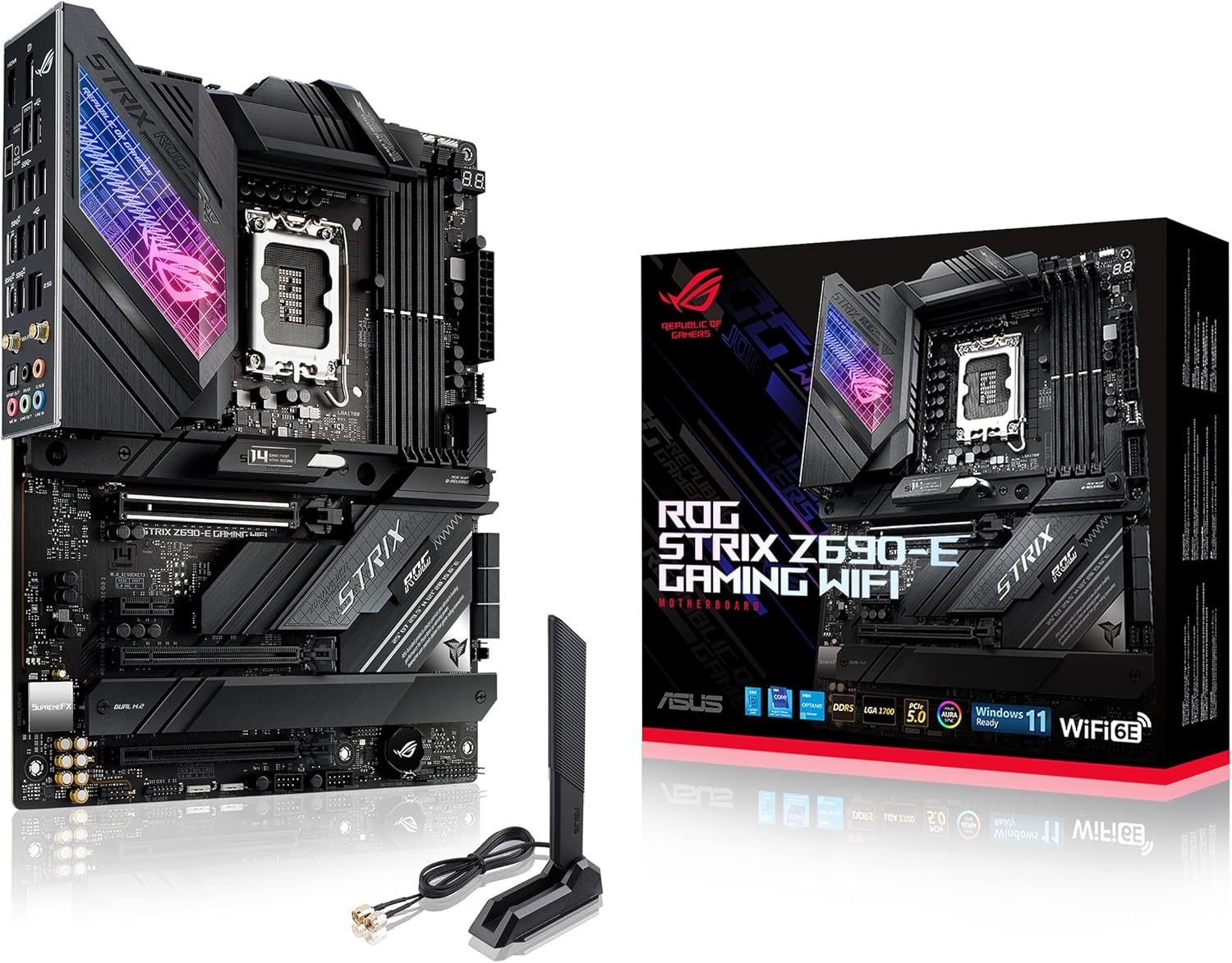
Figure 1.1: ASUS ROG Strix Z690-E Gaming WiFi Motherboard overview.
2. Likarolo tsa Bohlokoa
- Sokete ea Intel LGA 1700: Ready for 12th Gen Intel Core processors, supporting PCIe 5.0, DDR5, and out-of-box Windows 11 compatibility.
- AI Motherboard Technologies: Features AI Overclocking, AI Cooling, AI Networking (GameFirst VI), and AI Noise Cancellation for optimized performance.
- Robust Power Solution: Equipped with 18+1 90A power stages and ProCool II power connectors, high-quality alloy chokes, and durable capacitors for stable power delivery to multi-core processors.
- Optimized Thermal Design: Includes VRM heatsink, PCH fanless heatsink, double-sided M.2 heatsinks, hybrid fan headers, and Fan Xpert 4 utility for efficient heat dissipation.
- High-performance Gaming Networking: On-board WiFi 6E and Intel 2.5 Gb Ethernet with ASUS LANGuard for superior network connectivity.
- Khokahano e Molemohali ea Lipapali: Supports HDMI 2.0 and DisplayPort 1.4 output, up to 5x M.2 slots (including 1x PCIe 5.0 M.2), bundled ROG Hyper M.2 card, and USB 3.2 Gen 2x2 Type-C and Type-A connectors.
- PC DIY Friendly: Features SafeDIMM, PCIe 5.0 SafeSlot, Q-LED, M.2 Q-Latch, CPU socket lever protector, Pre-mount I/O shield, BIOS FlashBack, Clr CMOS button, Q-Code, and FlexKey (Reset, Aura on/off, Direct key).
- Industry-leading Gaming Audio: High-fidelity audio with ALC4080 and Savitech SV3H712 amplifier, along with DTS Sound Unbound and Sonic Studio III.
- New ROG Strix Aesthetics: Modern ID design, Illuminated Acrylic Display, and ASUS-exclusive Aura Sync RGB lighting with RGB headers and Gen 2 addressable headers.
3. Tataiso ea ho seta
3.1. Unboxing le likarolo
Before beginning installation, ensure all components are present and accounted for. The motherboard package typically includes the motherboard itself, a WiFi 6E antenna, SATA cables, cable ties, ROG stickers, a thank you card, a ROG graphics card holder, and a user manual/support DVD.

Figure 3.1: Contents typically found in the ASUS ROG Strix Z690-E Gaming WiFi Motherboard package.
3.2. CPU Installation (LGA 1700 Socket)
Carefully open the CPU socket lever. Align the notches on your 12th Gen Intel Core processor with the socket, ensuring correct orientation. Gently place the CPU into the socket without applying force. Close the lever to secure the CPU. Refer to the video below for a visual guide on CPU installation for LGA 1700 sockets.
Video 3.1: A guide demonstrating the installation of an Intel LGA1700 CPU and cooler on a Z690 motherboard. While the specific motherboard model may differ, the CPU installation process for LGA1700 is generally the same.
3.3. RAM Installation (DDR5)
This motherboard supports DDR5 memory. Open the retention clips on the DIMM slots. Align the notch on the DDR5 memory module with the notch in the DIMM slot. Press down firmly on both ends of the memory module until the clips snap into place. For dual-channel performance, install memory modules in the recommended slots (typically A2 and B2, refer to your motherboard manual for exact slots).
3.4. Ho kenya SSD ea M.2
The ROG Strix Z690-E Gaming WiFi motherboard features multiple M.2 slots, including a PCIe 5.0 M.2 slot and support for the bundled ROG Hyper M.2 card. Remove the M.2 heatsink/cover. Insert the M.2 SSD into the slot at an angle, then gently push it down. Secure it using the M.2 Q-Latch mechanism or a screw, then reattach the heatsink.
Video 3.2: Review of the ASUS ROG Strix Z690-E Gaming WiFi motherboard, which includes a segment demonstrating the installation of M.2 SSDs and the ROG Hyper M.2 card.
3.5. Cooling System Installation
Ensure your CPU cooler is compatible with the LGA 1700 socket. Apply thermal paste to the CPU (if not pre-applied on the cooler). Mount the CPU cooler according to its manufacturer's instructions. The motherboard features optimized thermal design with VRM and M.2 heatsinks.

Setšoantšo sa 3.2: Ho fetaview of the motherboard's comprehensive cooling features, including integrated I/O & VRM heatsink, M.2 Combo Sink, AIO Pump Header, Chipset Heatsink, and multiple 4-pin PWM Fan Headers.
Video 3.3: This video demonstrates the unboxing and installation of a Be Quiet! Pure Loop 2 FX cooler. While the cooler model may vary, the general principles of cooler installation on a motherboard are applicable.
3.6. Khokelo ea Matla
Connect the 24-pin ATX main power connector and the 8-pin + 4-pin ATX 12V power connectors from your power supply to the corresponding ports on the motherboard.
3.7. Front Panel & Rear I/O Connections
Connect your case's front panel connectors (USB, audio, power/reset buttons, LED indicators) to the appropriate headers on the motherboard. Utilize the rear I/O panel for external peripherals, including USB devices, display outputs (HDMI, DisplayPort), and audio devices.

Setšoantšo sa 3.3: Ka botlalo view of the motherboard's rear I/O panel and internal connectivity headers, including USB ports, display outputs, Ethernet, WiFi 6E antenna connectors, and audio jacks.
4. Litaelo tsa Ts'ebetso
4.1. Tlhophiso ea BIOS / UEFI
Upon first boot, enter the UEFI BIOS (typically by pressing DEL or F2 during startup). Here you can configure various settings including:
- Ho sebelisa AI ka ho feteletseng: Enable AI Optimized mode for automatic system tuning.
- XMP Profile: Numella Extreme Memory Profile (XMP) for your DDR5 RAM to run at its advertised speeds.
- Fan Xpert 4: Adjust fan curves and monitor temperatures for optimal cooling and noise levels.
- Boot Priority: Set the boot order for your storage devices.
Video 4.1: A user's quick overview of the ASUS ROG Strix Z690-E Gaming WiFi motherboard, highlighting its easy setup, overclocking capabilities, and BIOS features.
4.2. Ho kenya Mokhanni
After installing your operating system, it is crucial to install the latest drivers for your motherboard components. These include LAN, Wireless, Chipset, and Audio drivers. You can download these directly from the ASUS support website for your specific motherboard model. The Armoury Crate software can also assist in managing drivers and system settings.
5. Tlhokomelo
- Ho Hloekisa Kamehla: Periodically clean dust from the motherboard and cooling components using compressed air to maintain optimal thermal performance.
- Lintlafatso tsa BIOS: Boloka BIOS ea hau e ntlafalitsoe ho ea phetolelong ea morao-rao ho tsoa tšehetsong ea ASUS website to ensure compatibility with new hardware and improve system stability.
- Lintlafatso tsa Bakhanni: Regularly check for and install updated drivers for all motherboard components to ensure peak performance and stability.
6. Ho rarolla mathata
- Ha ho Boot/Ha ho Pontšo: Check all power connections, ensure CPU and RAM are correctly seated, and verify display cable connections. Utilize the Q-LED indicators on the motherboard for diagnostic codes.
- Mathata a Ntlafatso ea BIOS: If a BIOS update fails or causes issues, use the BIOS FlashBack feature with a USB drive to revert to a stable version.
- USB Port Durability: While the motherboard offers extensive USB connectivity, ensure careful handling of USB ports to prevent damage.
- Cooler Compatibility: Ensure your CPU cooler is compatible with the LGA 1700 socket. Some larger air coolers may have clearance issues with VRM heatsinks or RAM modules.
- Driver Recognition: If LAN or Wireless drivers are not automatically recognized after OS installation, download them from another device and install manually.
7. Litlhaloso
| Sebopeho | Tlhaloso |
|---|---|
| Brand | ASUS |
| Letoto | ROG STRIX Z690-E GAMING WIFI |
| Ntho Nomoro ea Mohlala | ROG STRIX Z690-E GAMING WIFI |
| CPU Socket | LGA 1700 |
| Li-processor tse lumellanang | Intel Pentium Gold, Celeron, Core i5, Core i7, Core i9 (12th Gen) |
| Mofuta oa Chipset | Intel Z690 |
| Theknoloji ea Memori ea RAM | DDR5 |
| Lebelo la Oache ea memori | 6400 MHz (OC) |
| Palo ea likou tsa USB 2.0 | 11 (various generations and types) |
| Litekanyo tsa Sehlahisoa | 14.4 x 12.2 x 4.5 lisenthimithara |
| Boima ba Ntho | 6 liponto |
| Khokahano e se nang mohala | Wi-Fi 6E (802.11 a/b/g/n/ac/ax), Bluetooth v5.2 |
| Ethernet | Intel 2.5 Gb Ethernet |
8. Tiisetso le Tšehetso
For detailed warranty information and technical support, please visit the official ASUS support website. Ensure you have your product model number (ROG STRIX Z690-E GAMING WIFI) and serial number ready when contacting support.
Lisebelisoa tsa Marang-rang:


