Selelekela
The Verizon Wireless Qi Fast Charging Pad provides a convenient and efficient way to wirelessly charge your compatible devices. Designed for speed and reliability, this charging pad is optimized to deliver fast charging to a wide range of Qi-enabled smartphones, including models from Apple, Samsung, and Google. Its compact design and user-friendly features make it an ideal charging solution for home or office use.
Se ka Lebokoseng
- 1 x Verizon Wireless Qi Fast Charging Pad
- 1 x thapo ea USB
- 1 x Buka ea Mosebelisi (tokomane ena)
Likaroloana
- Ho tjhaja kapele: Optimized for rapid charging of compatible Qi-enabled devices.
- Letšoao la ho tjhaja LED: Provides visual confirmation of charging status.
- Silicone Grip Surface: Helps prevent devices from slipping during charging.
- Tšebelisano-'moho: Capable of charging through most phone cases.
- E Ikamahanya le Tšireletseho: Halogen-free and complies with Restriction of Hazardous Substances (RoHS).
- E netefalitsoe: Made for Google and Qi-certified for reliable performance.
Sehlahisoa se Felletseview
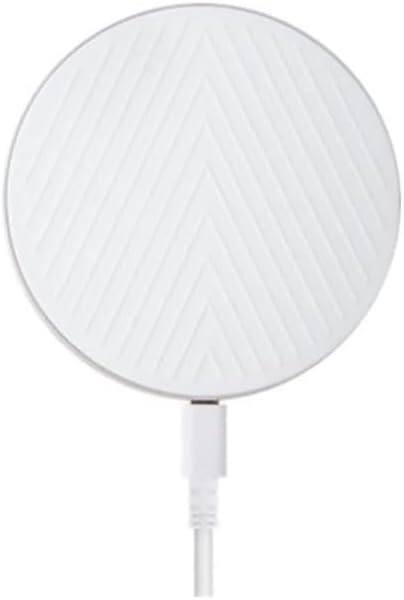
Setšoantšo sa 1: Holimo view of the Verizon Wireless Qi Fast Charging Pad. This image displays the circular white charging pad with a distinctive chevron pattern on its surface, and a white USB cable extending from its side.

Setšoantšo sa 2: Lehlakore view of the Verizon Wireless Qi Fast Charging Pad. This image highlights the slim, circular profile of the charging pad, revealing its minimalist design and the subtle charging port on its edge.
Litlhaloso
| Tšobotsi | Boleng |
|---|---|
| Litekanyo tsa Sehlahisoa | 3 x 2 x 4 lisenthimithara |
| Boima ba Ntho | 7.8 lik'hilograma |
| Nomoro ea Mohlala | WC10WGGL |
| Brand | Verizon |
| Theknoloji ea Khokahano | Wireless |
| Mofuta oa Sehokelo | Wireless |
| Lisebelisoa tse lumellanang | Qi-enabled Smartphones (Apple, Samsung, Google) |
| Mehlala ea Mehala e Tšoanang | iPhone 8 or later, Samsung Galaxy S6 or later, Google Pixel 3/3 XL or later |
| Kenyellelitsoe Likaroloana | 1 Pad ea ho tjhaja e se nang mohala |
| Tšobotsi e Khethehileng | Charging Indicator, Fast Charging |
| Mmala | Bosoeu |
| Keletso Voltage | Li-volts tse 9 |
| Mofuta oa ho Beha | Thaba ea Letlapa |
Tlhophiso
- Hlakola: Carefully remove the charging pad and its cable from the packaging.
- Kopanya Matla: Plug the USB cable from the charging pad into a compatible USB wall adapter (not included) or a powered USB port. Ensure the power source provides sufficient output for fast charging (e.g., a Quick Charge 2.0/3.0 or Power Delivery adapter).
- Sebaka: Place the charging pad on a flat, stable surface, away from direct sunlight, heat sources, and liquids.
- Matlafatsa: Once connected to power, the LED indicator on the charging pad may briefly illuminate to confirm it is ready.
Litaelo tsa Ts'ebetso
- Sesebediswa sa Sebaka: Center your Qi-enabled smartphone on the surface of the charging pad. The silicone grip surface will help keep your device in place.
- Netefatsa ho tjhaja: The LED indicator on the charging pad will illuminate (e.g., turn solid blue or green) to indicate that your device is charging. Your phone's screen should also show a charging icon or notification.
- Sebaka se nepahetseng: If charging does not begin immediately, slightly adjust the position of your phone on the pad until the charging indicator activates.
- Charging Through Cases: The pad is designed to charge through most phone cases. However, very thick cases, cases with metal, or cases containing magnets may interfere with charging and might need to be removed.
- Ho tjhaja ho Fedile: Once your device is fully charged, the charging pad may stop charging or the LED indicator may change color (refer to your phone's display for exact charge status).
Tlhokomelo
- Ho hloekisa: Disconnect the charging pad from power before cleaning. Use a soft, dry, lint-free cloth to wipe the surface. Do not use abrasive cleaners, solvents, or chemical sprays.
- Polokelo: When not in use, store the charging pad in a cool, dry place, away from extreme temperatures and humidity.
- Tšoara ka Tlhokomeliso: Avoid dropping the charging pad or subjecting it to strong impacts, as this may damage internal components.
Ho batle phoso
| Bothata | Tharollo |
|---|---|
| Sesebelisoa ha se tjhaje. |
|
| Ho tjhaja butle. |
|
| LED indicator is off or blinking. |
|
Boitsebiso ba Tšireletseho
- Se ke oa qhaqha, oa fetola kapa oa lokisa sesebelisoa.
- Keep the charging pad away from water, moisture, and extreme temperatures.
- Avoid placing metallic objects (e.g., coins, keys, credit cards) on the charging pad, as this can cause overheating or damage.
- Do not use the charging pad in environments with high humidity or near flammable materials.
- This product is halogen-free and complies with the Restriction of Hazardous Substances (RoHS).
Warranty le Tšehetso
For warranty information or technical support, please refer to the official Verizon Wireless websebaka kapa ikopanye le litšebeletso tsa bareki. Boloka rasiti ea hau ea theko e le bopaki ba hore u rekile litseko tsa waranti.
Verizon Customer Support: https://www.verizon.com/support/


