1. Selelekela
Thank you for choosing the Aerocool Mirage 12 ARGB PC Fan. This manual provides detailed instructions for the installation, operation, and maintenance of your new fan. The Mirage 12 ARGB fan features an Infinity Mirror RGB design and is compatible with Addressable RGB motherboards for customizable lighting effects. Please read this manual thoroughly before installation and use to ensure proper functionality and safety.
2. Boitsebiso ba Tšireletseho
- Ensure your computer system is powered off and disconnected from the main power supply before installation.
- Tšoara likarolo ka hloko ho qoba tšenyo.
- Do not attempt to modify the fan or its connectors.
- Boloka moo bana ba ka fihlang teng.
- Refer to your motherboard manual for specific ARGB header and fan header locations and voltage litlhoko.
3. Likahare tsa Sephutheloana
The Aerocool Mirage 12 ARGB PC Fan package includes the following items:
- 1 x Aerocool Mirage 12 ARGB PC Fan (120mm)
- Mounting Screws
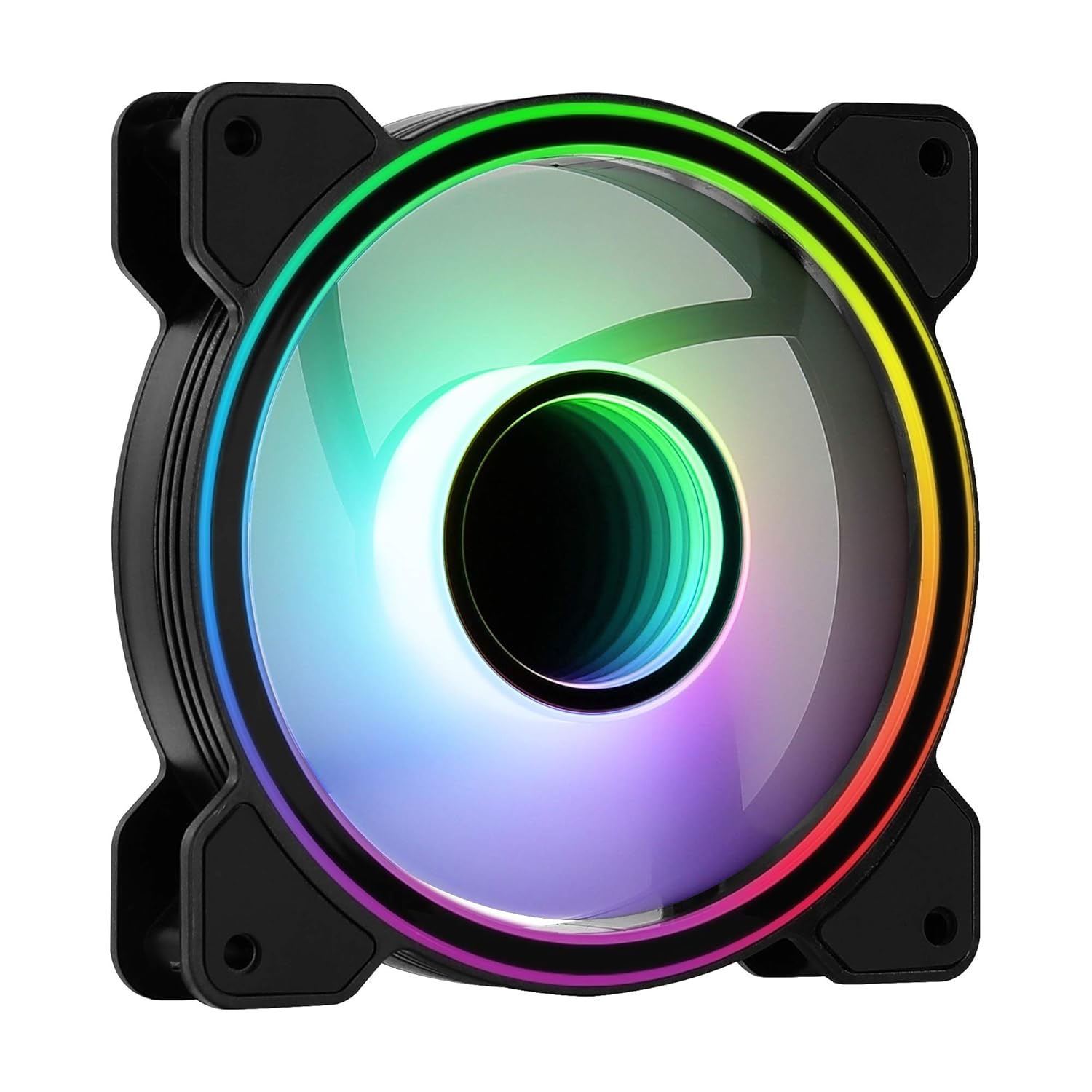
Setšoantšo sa 1: Pele view of the Aerocool Mirage 12 ARGB PC Fan, showcasing its infinity mirror RGB lighting effect.
4. tlhomamiso Guide
4.1 Ho Kena ka Sebele
- Identify the desired mounting location within your PC case (e.g., front, rear, top, bottom).
- Position the fan in the chosen location, ensuring proper airflow direction (typically, the side with the frame supports and sticker is the exhaust side).
- Secure the fan to the case using the provided mounting screws. Do not overtighten.

Setšoantšo sa 2: Morao view of the Aerocool Mirage 12 ARGB PC Fan, illustrating the fan blade structure and motor hub.
4.2 Khokelo ea Motlakase
- Locate the 6-pin connector on the fan cable.
- Connect the 6-pin connector to a compatible Aerocool H66F RGB Control Hub (if available) or a similar Addressable RGB controller that supports 6-pin fan connections.
- If using an H66F RGB Control Hub, connect the hub to your motherboard's 4-pin PWM fan header for fan speed control and a 3-pin 5V Addressable RGB header for lighting control. Refer to the H66F hub manual for detailed instructions.
- Netefatsa hore likhokahano tsohle li bolokehile pele o kenya sistimi ea hau.

Setšoantšo sa 3: Haufi-ufi view of the 6-pin connector, used for both power and ARGB signal transmission.
5. Ts'ebetso
5.1 Taolo ea Mabone ea ARGB
The Aerocool Mirage 12 ARGB fan's lighting can be controlled via a compatible Addressable RGB motherboard or an external ARGB controller (e.g., Aerocool H66F RGB Control Hub).
- Software ea Motherboard: If connected to a 3-pin 5V ARGB header on your motherboard, use the motherboard's proprietary software (e.g., ASUS Aura Sync, MSI Mystic Light Sync, Gigabyte RGB Fusion) to customize lighting effects, colors, and patterns.
- Molaoli oa Kantle: If connected to an external ARGB controller, refer to the controller's manual for instructions on how to adjust lighting settings.
5.2 Taolo ea lebelo la fan
The fan speed is controlled via the 6-pin connector, which typically interfaces with a PWM-compatible fan header on your motherboard (often through a control hub like the H66F). You can adjust fan speeds through your motherboard's BIOS/UEFI settings or dedicated fan control software.
- Ensure your motherboard's 4-pin fan header is PWM compatible for optimal speed control.
- Adjust fan curves in your motherboard's BIOS/UEFI or operating system software to balance cooling performance and noise levels.
6. Tlhokomelo
To ensure optimal performance and longevity of your Aerocool Mirage 12 ARGB PC Fan, periodic cleaning is recommended.
- Tlosa motlakase: Always power off your computer and disconnect it from the power supply before cleaning.
- Ho Tlosa Lerōle: Use compressed air or a soft, dry cloth to gently remove dust accumulation from the fan blades and frame.
- Qoba Liquids: Do not use liquid cleaners or immerse the fan in water.
7. Ho rarolla mathata
| Bothata | Lebaka le ka khonehang | Tharollo |
|---|---|---|
| Fane ha e sothe | Incorrect or loose power connection. Insufficient power. | Check the 6-pin connector and ensure it is securely connected to the control hub/motherboard. Verify power supply connections. |
| Mabone a ARGB ha a sebetse | Incorrect or loose ARGB connection. Incompatible ARGB header. Software issue. | Ensure the 6-pin connector is properly seated. Verify that your motherboard's ARGB header is 3-pin 5V (not 4-pin 12V RGB). Check motherboard ARGB software settings. |
| Fan speed not controllable | Non-PWM fan header. Incorrect BIOS settings. | Confirm your motherboard's fan header is PWM compatible. Adjust fan control settings in your motherboard's BIOS/UEFI. |
8. Litlhaloso
| Sebopeho | Lintlha |
|---|---|
| Nomoro ea Mohlala | MIRAGE12 |
| Litekanyo tsa Sehlahisoa | 4.72"L x 4.72"Bophara x 0.98"Bophara (120mm x 120mm x 25mm) |
| Mofuta oa Sehokedi sa Matla | 6-Pin |
| Moqtage | Li-volts tse 12 |
| Wattage | 1.8 watts |
| Mokhoa oa ho Pholisa | Fane |
| Lisebelisoa tse lumellanang | Desktop |
| Boemo ba Lerata | 17.8 li-decibels |
| Lintho tse bonahalang | Polycarbonate |
| Lebelo le Leholo la Potoloho | 1300 RPM |
9. Tiisetso le Tšehetso
For warranty information and technical support, please refer to the official AeroCool websaete kapa ikopanye le morekisi oa sebakeng sa heno. Boloka bopaki ba hau ba theko bakeng sa likopo tsa waranti.
AeroCool Official Websebaka: www.aerocool.io


