Sehlahisoa se Felletseview
The Poly Calisto 5300M is a personal, portable Bluetooth speakerphone designed for professional audio quality in various work environments, including home, remote, or office settings. It provides clear audio for calls, video conferences, podcasts, and music.

Image: The Poly Calisto 5300M Mobile Conference Speaker, showcasing its compact design with control buttons for mute, volume, and call management.
Likarolo tsa Bohlokoa
- Khokahano: Connects to PC and Mac via USB-A and smartphones via Bluetooth.
- Tšebelisano: Fully compatible with Microsoft Teams, Zoom, and other leading collaboration platforms.
- Ts'ebetso ea Audio: Features rich, clear voice transmission and a 360-degree microphone for optimal sound pickup.
- Likarolo tsa Bohlale: Provides visual indicators and voice alerts for call status, with controls for answer/end, mute, and volume. Offers up to 16 hours of talk time.
- Boikemisetso: Settings can be customized using Plantronics Hub for desktop, allowing language preference, feature adjustments, and firmware updates.
Tataiso ea ho seta
Se ka Lebokoseng
- Poly Calisto 5300M Speakerphone
- Ho jara Nyeoe
- USB-C Connection Cable (integrated)
- Bluetooth Stick BT600 (USB-A)
Phetoho ea pele
- Ho tjhaja Sesebediswa: Before first use, fully charge the Calisto 5300M. Connect the integrated USB-C cable to a powered USB port on your computer or a USB wall adapter. The charging time is approximately 3.5 hours.
- E Matlafatsa: Tobetsa 'me u tšoare konopo ea ho tima ho fihlela mabone a sesupo a bonesa.
- Connecting to a Computer (USB-A):
For a wired connection, plug the integrated USB-C cable into your computer's USB-C port. If your computer only has USB-A ports, use the provided Bluetooth Stick BT600. Plug the BT600 into an available USB-A port on your computer. The speakerphone and BT600 are pre-paired.

Image: The Poly Calisto 5300M speakerphone positioned on a coffee table in a living room, demonstrating its use in a home office environment.
- Connecting to a Smartphone (Bluetooth):
- Ensure the Calisto 5300M is powered on.
- Kenya tšebetsong Bluetooth ho smartphone ea hau.
- On the Calisto 5300M, press and hold the Bluetooth pairing button until the LED flashes blue and red.
- Select "Poly Calisto 5300" from the list of available devices on your smartphone.
- Hang ha e pentiloe, LED e tla fetoha boputsoa bo tiileng.
Litaelo tsa Ts'ebetso
Tsamaiso ea mohala
- Araba/Khaola mohala: Tobetsa konopo ea Call () to answer an incoming call or end an active call.
- Khutsa/Khutsa: Tobetsa konopo ea ho khutsisa () to mute or unmute the microphone during a call.
- Taolo ea Bolumo: Use the Volume Up (+) and Volume Down (-) buttons to adjust the speaker volume.
Lipontšo tsa LED
The Calisto 5300M features LED indicators that provide visual feedback on the device's status:
- Botala bo Tiileng: Connected via Bluetooth or USB.
- Flashing Blue/Red: Mokhoa oa ho hokahanya oa Bluetooth.
- Bokhubelu bo tiileng: E khutsisitsoe.
- Botala bo Khanyang: Mohala o kenang.
- Bosoeu bo tiileng: Ho tjhaja.
Using with Collaboration Platforms
The Calisto 5300M is optimized for use with popular collaboration platforms such as Microsoft Teams and Zoom. Ensure the Calisto 5300M is selected as the default audio device within your application's audio settings for optimal performance.
Tlhokomelo
- Ho hloekisa: Use a soft, dry cloth to clean the speakerphone. Avoid using abrasive cleaners or solvents.
- Polokelo: When not in use, store the speakerphone in its provided carrying case to protect it from dust and damage.
- Lisebelisoa tsa Firmware: Regularly check for firmware updates using the Plantronics Hub desktop application to ensure optimal performance and access to new features.
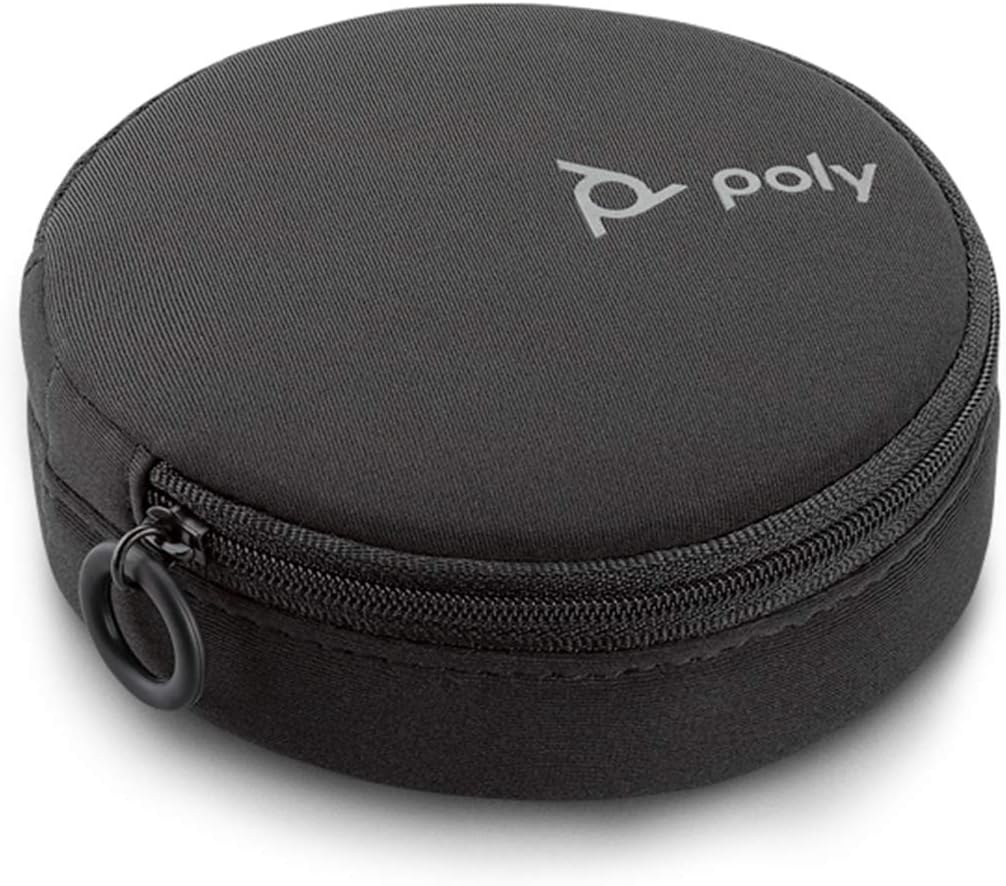
Image: The compact carrying case for the Poly Calisto 5300M, designed for portability and protection.
Ho batle phoso
| Bothata | Tharollo e ka khonehang |
|---|---|
| Ha ho na molumo o tsoang fonong ea sebuela-hōle. |
|
| Maekerofounu ha e utloe molumo. |
|
| Mathata a khokahano ea Bluetooth. |
|
| Sesebelisoa ha se tjhaje. |
|
Litlhaloso
| Sebopeho | Lintlha |
|---|---|
| Lebitso la Mohlala | Calisto 5300 USB-A |
| Ntho Nomoro ea Mohlala | 215441-01 |
| Theknoloji ea Khokahano | Bluetooth, USB-C |
| Theknoloji ea puisano e se nang mohala | bluetooth |
| Bluetooth Range | 10 metres |
| Mofuta oa Sebui | Sepikara sa Khomphutha |
| Sebui se Phahameng sa Matla a Phahamisang | 120 Watts |
| Audio Driver Size | 50 limilimithara |
| Palo ea li-Microphone | 1 (360-degree pickup) |
| Bophelo ba Battery | Nako ea ho bua ho fihlela lihora tse 16 |
| Nako ea ho tjhaja | Lihora tse 3.5 |
| Mohloli oa Matla | Motlakase o nang le Cord (ka USB) |
| Litekanyo tsa Sehlahisoa | 7"D x 6"W x 2"H |
| Boima ba Ntho | 7.6 Lionsi |
| Lintho tse bonahalang | Plastiki |
| Mmala | Ntsho |
| Lisebelisoa tse lumellanang | K'homphieutha ea Motho, Smartphone |
| UPC | 017229171541 |
Boitsebiso ba Warranty
The Poly Calisto 5300M Mobile Conference Speaker comes with a Tiisetso e Lekanyelitsoeng. For specific terms and conditions, please refer to the warranty documentation included with your product or visit the official Poly websebaka.
Tšehetso
For further assistance, technical support, or to download the Plantronics Hub software, please visit the official Poly support websebaka sa marang-rang. Hape o ka fumana Lipotso Tse Botsoang Khafetsa le mehlodi e meng moo.
Hlokomela: The Plantronics Hub software is essential for customizing settings and keeping your device's firmware up-to-date.


