1. Selelekela
This manual provides comprehensive instructions for the safe and efficient operation of your HPRT HT-300 Barcode Label Printer. Please read this manual thoroughly before using the printer and retain it for future reference.
Likarolo tsa Bohlokoa:
- Efficient and portable thermal printing technology.
- Versatile connectivity via USB, suitable for various environments including retail, healthcare, and logistics.
- Simple operation, quick paper loading, and straightforward maintenance.
- Delivers high-quality, low-noise, and high-speed printing at 203 DPI.
- User-friendly setup and operation for seamless integration with your devices.
2. Boitsebiso ba Tšireletseho
To ensure safe operation and prevent damage to the printer or injury to yourself, please observe the following safety precautions:
- U se ke ua beha printa metsing kapa mongobong o feteletseng.
- Sebelisa adaptara ea motlakase feela e tla le printa.
- Qoba ho beha printa letsatsing le tobileng kapa haufi le mehloli ea mocheso.
- Beha printa hole le lerole le lithōle.
- U se ke ua leka ho qhaqholla kapa ho lokisa printa ka bouena. Ikopanye le basebetsi ba litšebeletso ba tšoanelehang.
- Netefatsa hore ho na le moea o kenang hantle ho potoloha printa nakong ea ts'ebetso.
3. Likahare tsa Sephutheloana
Netefatsa hore lintho tsohle li teng ka har'a sephutheloana:
- HPRT HT-300 Barcode Label Printer
- Adapter ea Matla
- Cable ea USB
- Starter Label Roll
- Bukana ea mosebelisi (tokomane ena)
4. Printa e Felletsengview
Familiarize yourself with the components of your HPRT HT-300 printer.
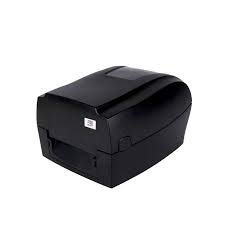
Setšoantšo sa 4.1: Pele-ka ho le letona view of the HPRT HT-300 Barcode Label Printer. This image shows the compact design of the printer, with the label output slot visible at the front.
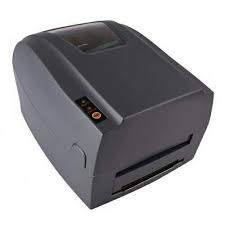
Setšoantšo sa 4.2: Holimo-le letona view of the HPRT HT-300 printer, highlighting the control panel with buttons for operation and status indicators.
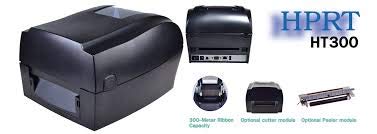
Setšoantšo sa 4.3: E phatlohile view illustrating the internal components and optional modules for the HPRT HT-300, such as the ribbon capacity, optional cutter, and peeler modules.
5. Seta
5.1 Ho phutha
- Tlosa printa le disebediswa tsohle ka hloko ho tloha sephuthelong.
- Retain the packaging for future transportation or storage.
5.2 Matla a ho Hokela
- Hokela adaptara ya motlakase le koung ya ho kenya motlakase ya printa.
- Hokela thapo ea motlakase sebakeng se loketseng sa motlakase.
- Ensure the power indicator light illuminates (if applicable).
5.3 Ho hokela khomphuteng
The HPRT HT-300 connects to your computer via USB.
- Hokela ntlha e 'ngoe ea thapo ea USB koung ea USB ea printa.
- Hokela pheletsong e 'ngoe ea thapo ea USB ho koung ea USB e fumanehang komporong ea hau.
5.4 Ho kenya Li-label
Follow these steps to load label rolls into the printer:
- Bula sekwahelo sa printa.
- Place the label roll onto the media holder, ensuring the labels feed from the bottom.
- Guide the leading edge of the labels through the print mechanism until it extends slightly past the print head.
- Adjust the media guides to fit the width of your labels snugly.
- Koala sekoaelo sa khatiso ka mokhoa o sireletsehileng.
5.5 Ho kenya Driver le Software
To enable your computer to communicate with the printer, you must install the appropriate drivers and software.

Setšoantšo sa 5.1: Example of HPRT Kit Software and BarTender label design software interface. This image illustrates the software tools available for driver installation, printer settings, and label design.
- Insert the provided driver CD (if included) into your computer's optical drive, or download the latest drivers from the official HPRT websebaka.
- Run the installer and follow the on-screen prompts to complete the driver installation.
- Install any bundled label design software, such as BarTender, if desired. This software provides tools for creating and printing various label formats.
- Utilize the HPRT label printer-specific settings tool to view printer status, perform test prints, and configure advanced settings.
6. Ts'ebetso
6.1 Basic Printing Steps
- Netefatsa hore printa e butswe mme e hokahantswe le khomphutha ya hao.
- Open your label design software (e.g., BarTender) or the application from which you wish to print.
- Create or open the label design you intend to print.
- Access the print settings and select the HPRT HT-300 as your printer.
- Verify the label size and orientation settings match your loaded labels.
- Initiate the print job.
6.2 Printer Status Indicators
Refer to the printer's control panel for status lights that indicate power, errors, or paper out conditions. Consult the driver software for more detailed status information.
7. Tlhokomelo
Tlhokomelo e tloaelehileng e netefatsa ts'ebetso e ntle ka ho fetisisa mme e eketsa nako ea bophelo ba printa ea hau.
7.1 Ho Hloekisa Hlooho ea Khatiso
The print head should be cleaned periodically to prevent print quality issues.
- Tima printa 'me u hakolle thapo ea motlakase.
- Bula sekwahelo sa printa.
- Gently wipe the print head surface with a lint-free cloth moistened with isopropyl alcohol.
- Lumella hlooho ea khatiso hore e ome ka ho feletseng pele u koala sekoahelo le ho kopanya motlakase hape.
7.2 Ho Hloekisa Roller ea Platen
Clean the platen roller to ensure smooth label feeding.
- Tima printa 'me u hakolle thapo ea motlakase.
- Bula sekwahelo sa printa.
- Rotate the platen roller manually and wipe its surface with a lint-free cloth moistened with isopropyl alcohol.
- Allow it to dry before closing the cover and reconnecting power.
8. Ho rarolla mathata
This section addresses common issues you might encounter with your HPRT HT-300 printer.
| Bothata | Lebaka le ka khonehang | Tharollo |
|---|---|---|
| Printa ha e arabe |
|
|
| Boleng bo tlase ba khatiso (e fifetseng, mela) |
|
|
| Jeme ea pampiri |
|
|
9. Litlhaloso
Technical specifications for the HPRT HT-300 Barcode Label Printer:
- Mohlala: HT-300
- Theknoloji ea Khatiso: Mocheso
- Qeto ea ho Printa: 203 DPI
- Lebelo la ho Hatisa: 5 Inches per Second (IPS)
- Printer Output: Monochrome
- Khokahano: USB
- Lisebelisoa tse Lumellanang: Laptops, Computers
- Boholo ba Media: 5 inch
- Khatiso ea litaba: Labels
- Dual-sided printing: Che
- Mmala: Ntsho
- Boima ba Ntho: 3kg 670g
- Moetsi: HPRT
- Nomoro ea Karolo ea Moetsi: SDH03
10. Tiisetso le Tšehetso
10.1 Boitsebiso ba Tiisetso
The HPRT HT-300 Barcode Label Printer comes with a Waranti ea likhoeli tse 12 from the date of purchase. This warranty covers manufacturing defects under normal use. It does not cover damage caused by misuse, accidents, unauthorized modifications, or improper maintenance. Please retain your proof of purchase for warranty claims.
10.2 Tšehetso ea Bareki
For technical assistance, troubleshooting, or warranty inquiries, please contact HPRT customer support.
- Websebaka: Visit the official HPRT website for support resources, FAQs, and driver downloads.
- Imeile/Mohala: Refer to the HPRT website or product packaging for specific contact details.


