Selelekela
This manual provides comprehensive instructions for the Rocstor Premium Cisco Console Router Cable, Model Y10A211-BL1. This cable is designed to facilitate direct serial communication between a computer and a Cisco network device (such as a router or switch) for configuration and management purposes. It features an RJ45 connector on one end and a DB9 female serial connector on the other, enabling a reliable connection for console access.
Sehlahisoa se Felletseview
The Rocstor Premium Cisco Console Router Cable is a specialized cable used for connecting to the console port of Cisco networking equipment. It allows administrators to access the command-line interface (CLI) for initial setup, configuration, and troubleshooting.
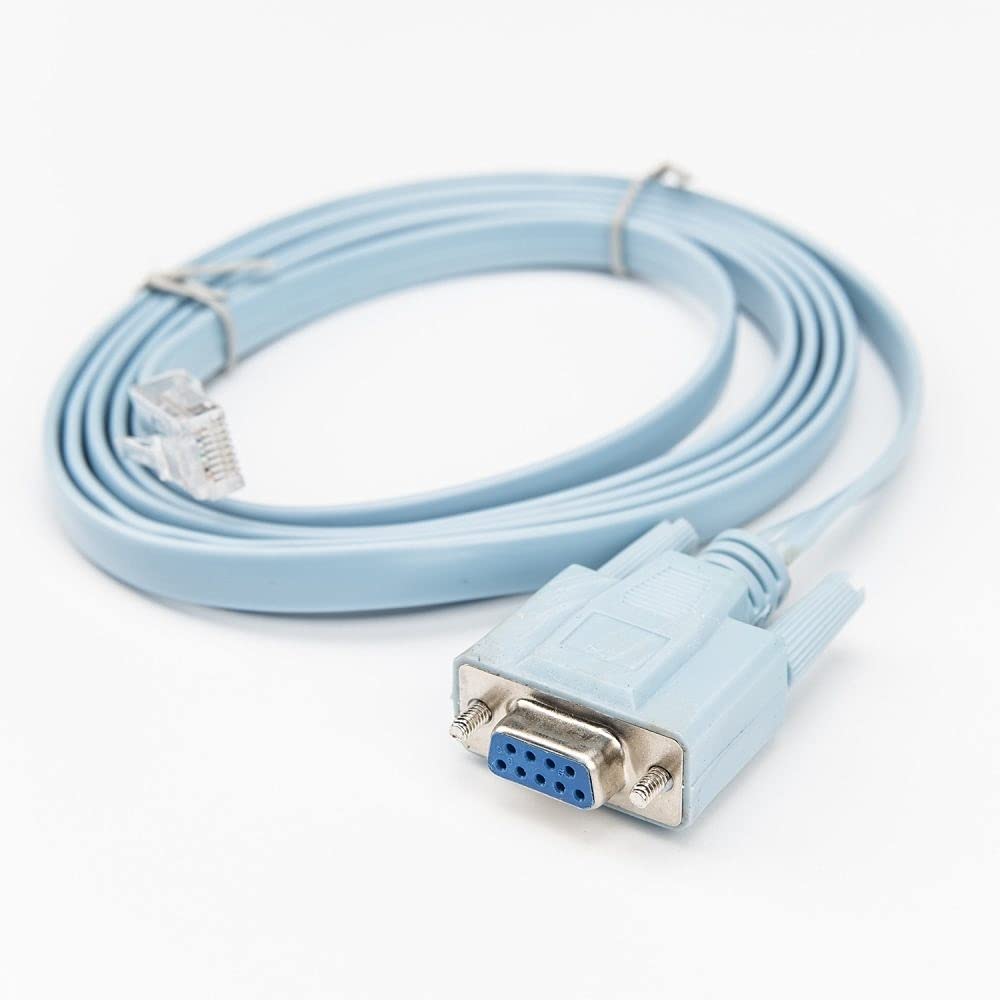
Image: A light blue, flat network cable coiled, featuring a clear RJ45 male connector on one end and a light blue DB9 female serial connector on the other. The DB9 connector has two thumbscrews for secure attachment.
Likarolo tsa Bohlokoa:
- Mofuta oa Cable: DB-9/RJ-45
- Bolelele ba Cable: 6 ft (hoo e ka bang limithara tse 1.8)
- Connector on First End: RJ-45 Male Network
- Connector on Second End: 9-pin DB-9 Female Serial
- Sesebelisoa se Tšehetsoeng: Router (and other compatible Cisco networking devices)
Litaelo tsa ho seta
Follow these steps to connect your computer to a Cisco device using the console cable:
- Khetholla Maemo: Locate the console port on your Cisco router or switch. This port is typically labeled 'Console' and is an RJ45 jack. Identify the serial port (DB9 male) on your computer. If your computer does not have a physical DB9 serial port, a USB-to-Serial (DB9) adapter will be required.
- Connect RJ45: Insert the RJ45 end of the Rocstor console cable into the console port of your Cisco device. Ensure it clicks securely into place.
- Connect DB9: Connect the DB9 female end of the console cable to the DB9 male serial port on your computer or USB-to-Serial adapter. Tighten the thumbscrews on the DB9 connector to secure the connection.
- Install Drivers (if applicable): If using a USB-to-Serial adapter, ensure that the necessary drivers are installed on your computer. Refer to the adapter's manual for driver installation instructions.
- Netefatsa Khokahano: Once connected, the physical setup is complete. You can now proceed to configure your terminal emulation software.
Litaelo tsa Ts'ebetso
To communicate with your Cisco device, you will need terminal emulation software on your computer. Popular options include PuTTY, Tera Term, or SecureCRT.
- Open Terminal Software: Launch your preferred terminal emulation program.
- Configure Serial Connection:
- Select 'Serial' or 'COM' as the connection type.
- Identify the correct COM port number assigned to your serial port or USB-to-Serial adapter (check Device Manager on Windows or `ls /dev/tty*` on Linux/macOS).
- Set the serial port settings to the standard Cisco console configuration:
- Speed (Baud Rate): 9600
- Lintlha tsa lintlha: 8
- Bonngoe: Ha ho letho
- Emisa likotoana: 1
- Taolo ea Phallo: None (or XON/XOFF)
- Theha Khokahano: Click 'Open' or 'Connect' in your terminal software. You should now see a command prompt from your Cisco device. If not, press Enter a few times.
- Begin Configuration: You can now enter commands to configure and manage your Cisco router or switch.
Tlhokomelo
Proper care of your Rocstor console cable will ensure its longevity and reliable performance:
- Polokelo: Boloka thapo sebakeng se pholileng, se omileng hole le khanya ea letsatsi le mocheso o feteletseng.
- Ho tšoara: Avoid sharp bends or kinks in the cable, as this can damage the internal wiring. Do not pull the cable by the wire; always grasp the connector when plugging or unplugging.
- Ho hloekisa: If necessary, gently wipe the cable and connectors with a soft, dry cloth. Avoid using harsh chemicals or abrasive materials.
- Tlhahlobo: Periodically inspect the connectors for any signs of damage, corrosion, or bent pins.
Ho batle phoso
If you encounter issues while using the console cable, consider the following troubleshooting steps:
| Bothata | Lebaka le ka khonehang | Tharollo |
|---|---|---|
| No output in terminal software | Incorrect COM port selected Incorrect serial settings Cable not fully connected Cisco device powered off | Verify COM port in Device Manager. Ensure baud rate is 9600, 8 data bits, no parity, 1 stop bit, no flow control. Check both RJ45 and DB9 connections. Ensure Cisco device is powered on. |
| Garbled or unreadable text | Incorrect baud rate or other serial settings | Double-check all serial settings (9600, 8, N, 1, None). Try other common baud rates if necessary (e.g., 115200). |
| Cannot find COM port | USB-to-Serial adapter drivers not installed or faulty | Install or reinstall the correct drivers for your USB-to-Serial adapter. Check Device Manager for driver status. |
| Khokahano e theoha butle butle | Khokelo ea cable e hlephileng Cable e fosahetseng | Ensure all connections are secure, especially the DB9 thumbscrews. Test with another console cable if available. |
Litlhaloso
| Sebopeho | Lintlha |
|---|---|
| Brand | Rocstor |
| Nomoro ea Mohlala | Y10A211-BL1 |
| Mofuta oa Cable | DB-9/RJ-45 Serial Console Cable |
| Bolelele ba Cable | 6 ft (limithara tse 1.8) |
| Sehokedi 1 | RJ-45 Male Network |
| Sehokedi 2 | DB-9 Female Serial |
| Tekano ya kgokahanyo | E motona-ho-e-Motšehali |
| Lisebelisoa tse lumellanang | Cisco Routers, Switches, and other networking devices with an RJ45 console port |
| Sekhahla sa Phetiso ea Lintlha | 0.48 Gigabits Per Second (for general data, not console speed) |
| Sebopeho | Round (cable jacket) |
| Tšebeliso ea Ka hare/Kantle | Ka hare, Ka ntle |
| Boima ba Ntho | 3.4 Liponto (hoo e ka bang 1.54 kg) |
| Litekanyo tsa Sehlahisoa | 9.45 x 7 x 7.01 lisenthimithara (litekanyo tsa ho paka) |
| UPC | 810606031410 |
| Letsatsi le Fumanang Pele | La 1 Motšeanong 2019 |
Warranty le Tšehetso
For information regarding product warranty, technical support, or service inquiries, please refer to the official Rocstor website or contact Rocstor customer support directly. Keep your purchase receipt for warranty claims.
Rocstor Official Websebaka: www.rocstor.com


