1. Selelekela
This manual provides instructions for setting up, operating, and maintaining your Plantronics Blackwire 3215 USB-A Headset. Please read this manual thoroughly before using your headset to ensure optimal performance and longevity.
2. Likahare tsa Sephutheloana
- Plantronics Blackwire 3215 USB-A Headset
- Inline Controller (integrated)
- Carrying Case (may vary by region)
3. Seta
3.1 Headset Fit and Adjustment
For optimal comfort and audio performance, adjust the headset to fit your head. The headband can be lengthened or shortened by sliding the earcups up or down.
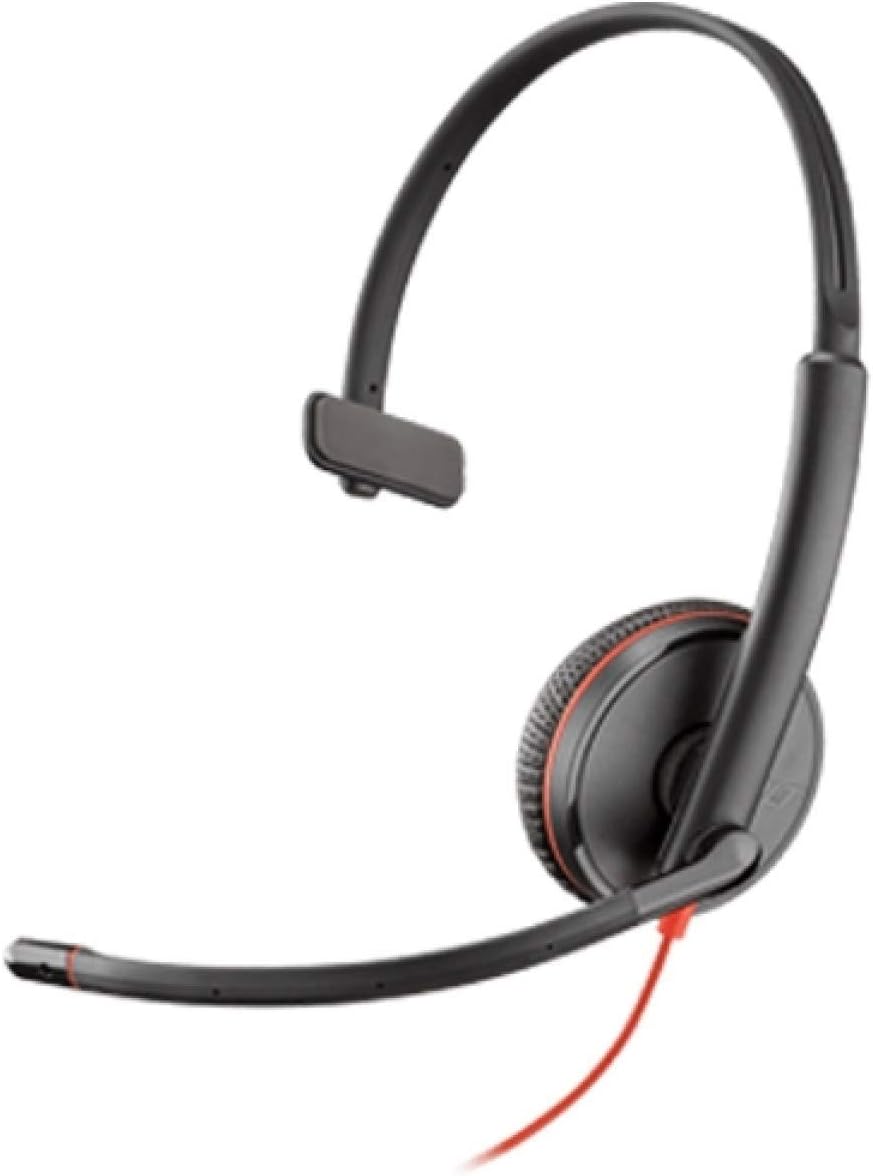
Image: Plantronics Blackwire 3215 headset with adjustable headband and boom microphone.
The flexible boom microphone can be worn on either your left or right side. Rotate and adjust the boom so that the microphone is positioned approximately two fingers' width from the corner of your mouth. This ensures clear voice pickup.
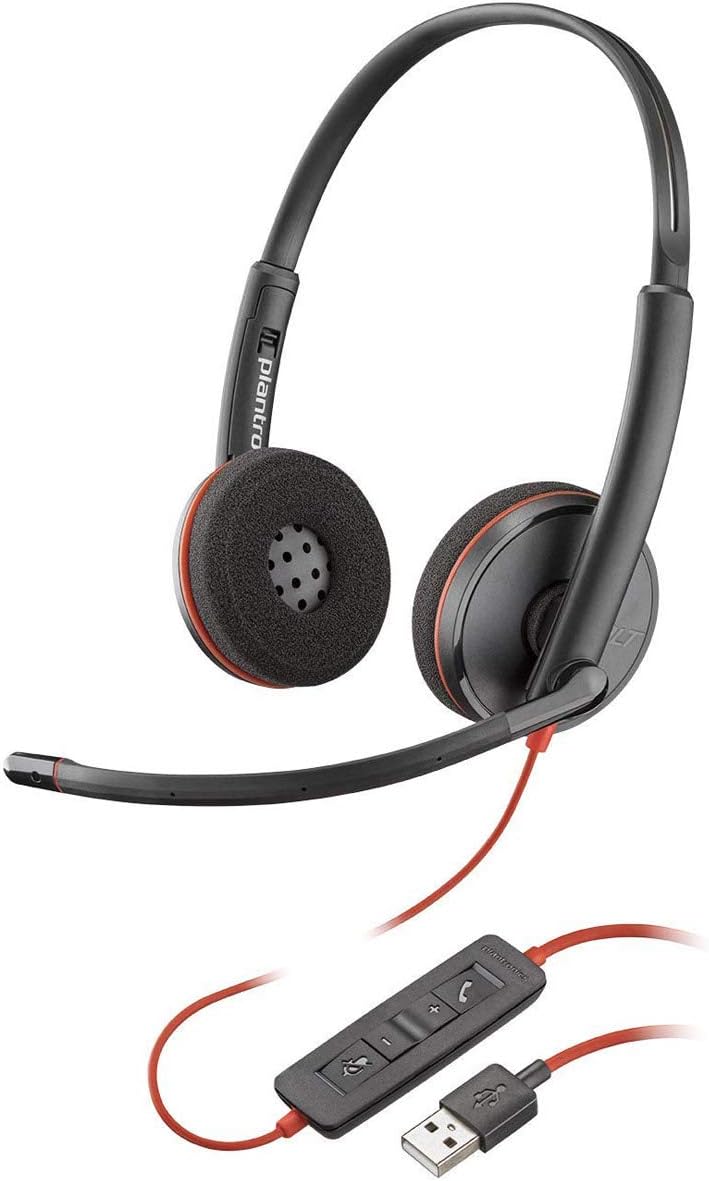
Image: Proper positioning of the boom microphone for the Blackwire 3215 headset.
3.2 Connecting to Your Computer (USB-A)
Plug the USB-A connector of your headset's inline controller directly into an available USB-A port on your computer (PC or Mac). The headset is plug-and-play, and your computer should automatically recognize it.
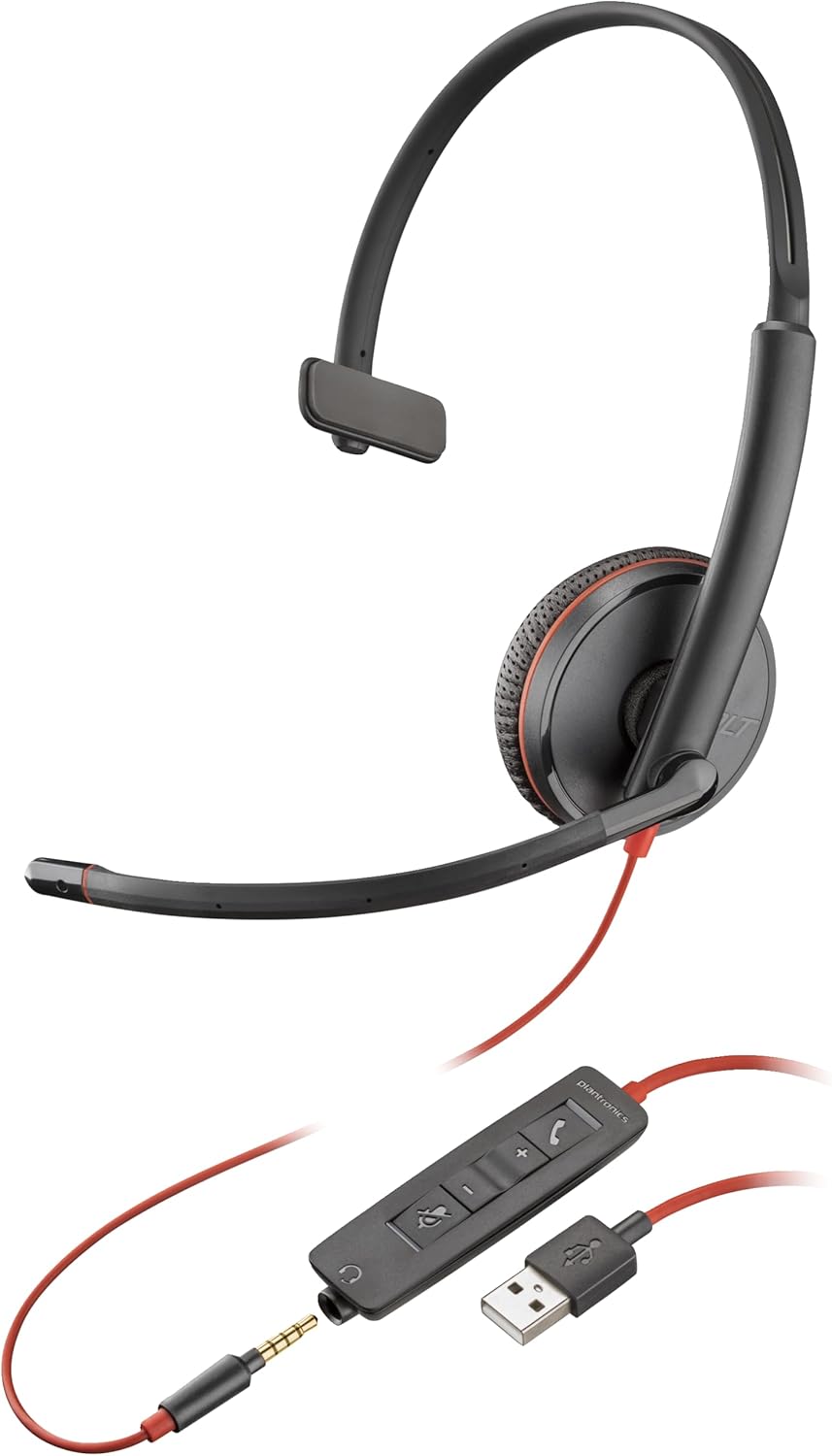
Image: The Blackwire 3215 headset showing the inline controller and USB-A connection.
3.3 Connecting to Mobile/Tablet (3.5mm)
For models Blackwire 3215 and 3225, you can connect directly to a smartphone or tablet using the 3.5mm jack. Unplug the headset from the inline controller and plug the 3.5mm cable directly into your mobile device's audio jack.
3.4 Software Installation (Optional but Recommended)
For advanced features and settings, download the Plantronics Hub desktop software for Windows or Mac from www.plantronics.com/software. This software allows you to configure settings such as call control, firmware updates, and more.
Video: This video demonstrates how to use Plantronics USB Headphones, specifically the Blackwire 3200 Series, covering setup and basic call controls.
4. Opereishene Headset Hao
4.1 Call Control (via Inline Controller)
- Araba/Khaola mohala: Tobetsa konopo ea Call (📞) once to answer an incoming call. Press it again to end an active call.
- Tšoara Mohala: Double-press the Call button (📞) to place an active call on hold. Double-press again to resume the call.
- Tlosa hape: If not on an active call, double-pressing the Call button (📞) will redial the last outgoing call.
4.2 Volume and Mute Control
- Volume holimo: Tobetsa konopo ea ho phahamisa molumo (+) on the inline controller to increase listening volume.
- Buka ea tlase: Tobetsa konopo ea ho theola molumo (-) on the inline controller to decrease listening volume.
- Khutsa/Khutsa: Tobetsa konopo ea ho khutsisa (🔇) on the inline controller to mute your microphone during a call. Press it again to unmute.
When connected via 3.5mm jack to a mobile device, call controls will typically be managed directly from your mobile device.
5. Tlhokomelo
To ensure the longevity and optimal performance of your Plantronics Blackwire 3215 headset, follow these maintenance guidelines:
- Ho hloekisa: Gently wipe the headset with a soft, dry cloth. For stubborn dirt, a slightly damp cloth can be used, but ensure no moisture enters the earcup or microphone openings. Do not use harsh chemicals or abrasive cleaners.
- Polokelo: When not in use, store the headset in its provided carrying case to protect it from dust and physical damage. Avoid extreme temperatures.
- Tlhokomelo ea Lithapo: Avoid sharp bends or kinks in the cable. Do not pull the cable to disconnect the headset; always grasp the plug.
6. Ho rarolla mathata
| Bothata | Lebaka le ka khonehang | Tharollo |
|---|---|---|
| Ha ho molumo o tsoang ho li-headphones | Headset not selected as default audio device; Volume too low; Muted. | Check audio settings in your computer/softphone; Increase volume; Unmute headset. |
| Microphone ha e sebetse | Microphone muted; Incorrect microphone selected; Boom mic not positioned correctly. | Unmute microphone; Check microphone settings in your computer/softphone; Adjust boom mic position. |
| Call control buttons not working | Plantronics Hub software not installed or updated; Softphone compatibility issue. | Install/update Plantronics Hub; Ensure your softphone is supported. |
| Molumo o sothehileng | Volume too high; Poor connection. | Lower volume; Reconnect headset; Try a different USB port. |
7. Litlhaloso
- Nomoro ea Mohlala: 209746-101
- Khokahano: USB-A (also 3.5mm for 3215/3225 models)
- Ho Beha Tsebe: Tsebeng
- Taolo ea Lerata: Active Noise Cancellation (microphone)
- Mmala: Ntsho
- Boholo ba Sehlahisoa: 4.33 x 4.33 x 1.97 lisenthimithara
- Boima ba 'mele: 3.39 lik'hilograma
8. Tiisetso le Tšehetso
8.1 Boitsebiso ba Tiisetso
The Plantronics Blackwire 3215 headset comes with a 2-year global warranty. Please retain your proof of purchase for warranty claims.
8.2 Tšehetso e Eketsehileng
For additional support, frequently asked questions, or to download the full user guide in PDF format, please visit the official Poly websaete kapa sheba mehloli e latelang:
- Bukana ea Semmuso ea Mosebelisi (PDF): Khoasolla PDF
- Poly Store on Amazon: Visit Poly Store


