Selelekela
The ELEGOO Smart Robot Car Kit V4.0 is an educational learning kit designed for individuals interested in programming, electronic assembly, and robotics. Compatible with Arduino IDE, this kit provides a comprehensive solution for hands-on learning experiences. It includes various module components to build a functional robot car capable of multiple operational modes.
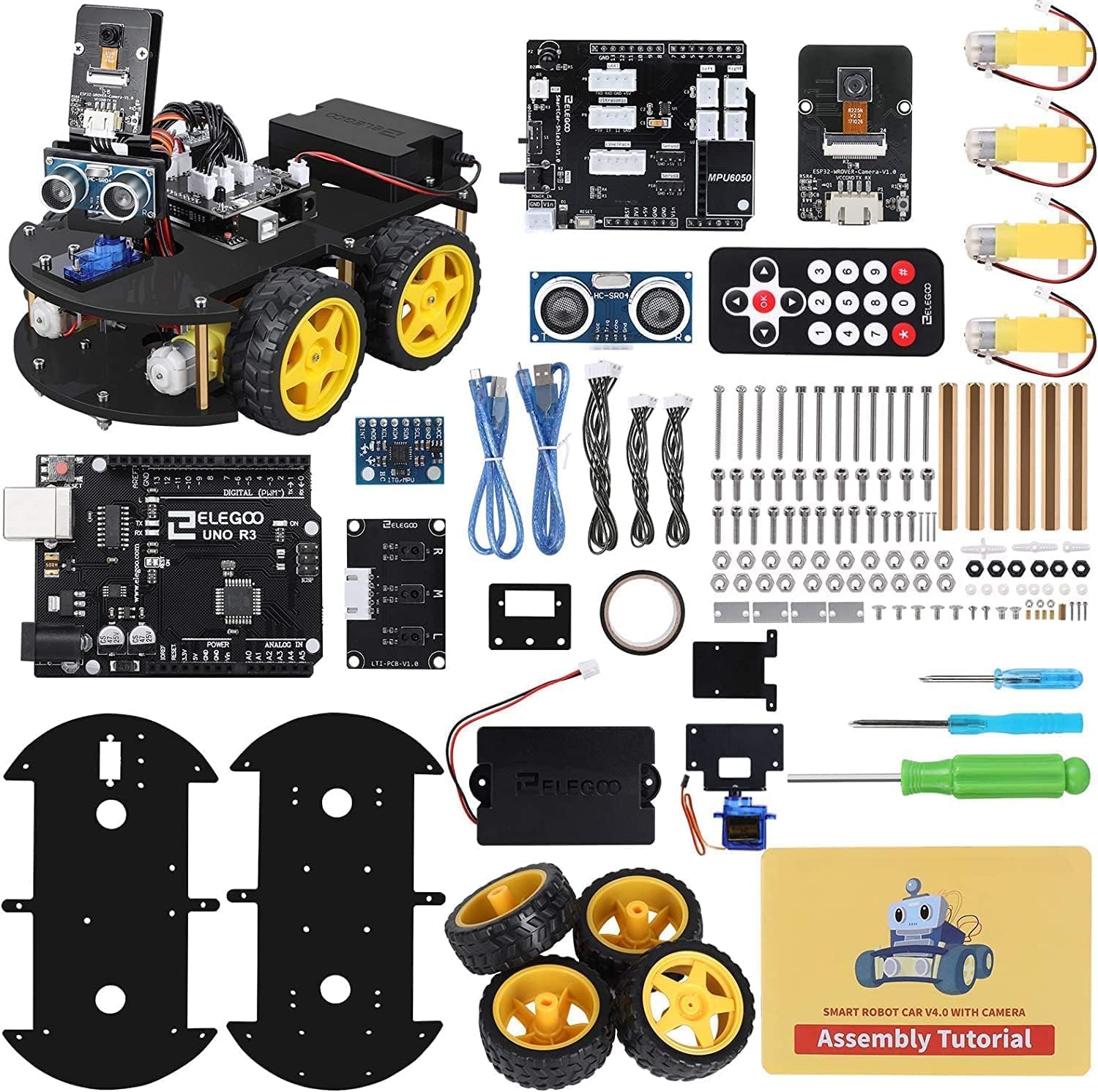
Setšoantšo: Ho felileview of the ELEGOO Smart Robot Car Kit V4.0, showing all included components and the fully assembled robot car.
Boitsebiso ba Tšireletseho
- This kit contains small parts and is recommended for users aged 12 and above. Adult supervision is advised for younger users.
- Ensure all connections are secure before powering on the device to prevent short circuits.
- U se ke ua beha likarolo tsa elektroniki metsing kapa mongobong o feteletseng.
- Handle circuit boards and sensors with care to avoid damage.
Litaba tsa Sephutheloana
The ELEGOO Smart Robot Car Kit V4.0 includes a comprehensive set of components for assembly and operation.
- UNO R3 Microcontroller
- Smart Car Shield V1.0
- ESP32-WROVER-B Camera Module
- Ultrasonic Sensor (HC-SR04)
- Line Tracking Module
- Go la la Remote Control
- DC Motors and Wheels
- Acrylic Chassis Plates
- Sets'oants'o sa Betri
- Servo Motor
- Cable ea USB
- Various Screws, Nuts, and Spacers
- Ho hokela Lithapo
- Li-screwdriver
- Assembly Tutorial Card

Setšoantšo: E qaqileng view of the various electronic modules, mechanical parts, and tools included in the kit.
Tlhophiso le Kopano
The assembly process for the ELEGOO Smart Robot Car V4.0 is designed to be straightforward, with all module interfaces adapted with XH2.54 ports to simplify connections and reduce errors.
- Lokisetsa likarolo: Tlosa likarolo tsohle 'me u netefatse ho latela lethathamo la litaba tsa sephutheloana.
- Kopanya Chassis: Attach the DC motors to the acrylic chassis plates using the provided screws and nuts. Mount the wheels onto the motor shafts.
- Install Main Board: Secure the UNO R3 Microcontroller and the Smart Car Shield V1.0 onto the chassis.
- Li-sensor tsa ho hokela: Attach the Ultrasonic Sensor and the ESP32-WROVER-B Camera Module to their designated positions on the chassis. Connect them to the Smart Car Shield using the XH2.54 cables.
- Wire Motors and Power: Connect the DC motors to the motor driver ports on the Smart Car Shield. Install batteries into the battery holder and connect it to the power input of the Smart Car Shield.
- Litlhahlobo tsa ho Qetela: Double-check all connections to ensure they are firm and correctly oriented.
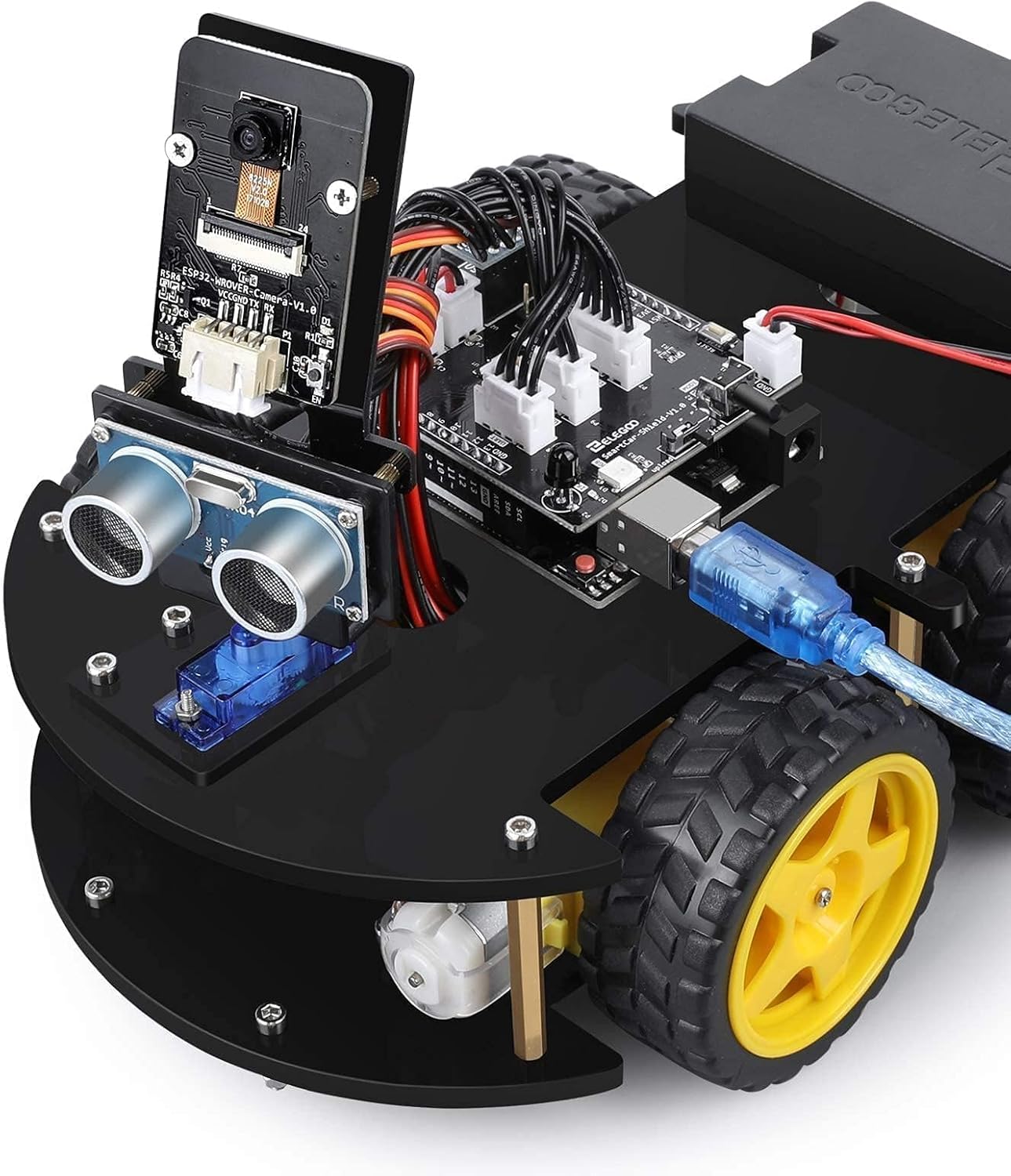
Setšoantšo: Haufi view of the assembled robot car, highlighting the main control board and the USB connection for programming.
Litaelo tsa Ts'ebetso
The ELEGOO Smart Robot Car V4.0 supports five primary operating modes, offering diverse functionalities.
- FPV (First-Person View) Mode: Utilize the integrated camera module to stream live video to a connected smartphone or tablet, allowing for remote control with a driver's perspective.
- Mokhoa oa ho lata: The robot car follows a designated black line on a light surface using its line tracking module.
- Mokhoa oa ho Qoba Litšitiso: The ultrasonic sensor detects obstacles in the robot's path, causing it to autonomously navigate around them.
- Infrared Remote Control Mode: Control the robot car's movements using the included infrared remote control.
- App Control Mode: Control the robot car via a dedicated smartphone or tablet application, offering a user-friendly interface for various commands.
For a visual demonstration of the robot car's capabilities, you may refer to the official video: ELEGOO Smart Robot Car V4.0 Demonstration Video.

Image: The robot car actively avoiding obstacles, illustrating its autonomous navigation capability.

Image: A smartphone screen showing the First-Person View (FPV) feed from the robot car's camera, demonstrating remote operation.
Programming and Customization
The ELEGOO Smart Robot Car Kit V4.0 is fully compatible with Arduino IDE, allowing users to upload custom code and expand its functionalities.
- Arduino IDE: Khoasolla le ho kenya Arduino IDE ho tsoa ho Arduino ea semmuso websebaka.
- Kenya Lilaebrari: Install necessary libraries for the sensors and modules included in the kit (e.g., ultrasonic sensor library, servo library).
- Upload Code: Connect the UNO R3 Microcontroller to your computer via the USB cable. Select the correct board and port in the Arduino IDE, then upload your custom sketches.
- Teko: Modify existing code examples or write new programs to explore different behaviors and interactions with the environment.
Tlhokomelo
- Ho hloekisa: Gently wipe the robot car and its components with a dry, soft cloth to remove dust. Avoid using liquid cleaners.
- Tlhokomelo ea Betri: Remove batteries if the robot car will not be used for an extended period to prevent leakage. Use only recommended battery types.
- Tlhahlobo ea Karolo: Periodically check all connections and physical components for any signs of wear or damage. Tighten loose screws as needed.
Ho batle phoso
- Robot not moving:
- Check battery level and ensure they are correctly inserted.
- Verify all motor connections to the Smart Car Shield.
- Ensure the correct code is uploaded to the UNO R3 Microcontroller.
- Sensors not responding:
- Confirm sensor cables are securely connected to the correct pins on the Smart Car Shield.
- Check if the sensor libraries are correctly installed in Arduino IDE.
- Mathata a khokahano ea app:
- Ensure the robot car is powered on and within range of your device.
- Verify that the ESP32-WROVER-B Camera Module is correctly configured for Wi-Fi communication.
- Restart both the robot car and your controlling device.
- Infrared remote not working:
- Hlahloba betri ea taolo ea remote.
- Ensure there is no obstruction between the remote and the robot's IR receiver.
Litlhaloso
| Litekanyo tsa Sehlahisoa | 24.99 x 19 x 8 cm (9.84 x 7.48 x 3.15 lisenthimithara) |
| Boima ba 'mele | 1.25 lik'hilograma (2.76 lbs) |
| E khothalelitsoeng Lilemo | Lilemo tse 12 ho ea holimo |
| Nomoro ea Mohlala | ES-GYE-KIT-027 |
| Lipakane Tsa Thuto | Programming skills, building skills, robotics fundamentals |
| Mofuta oa Boitsebiso | Aluminium |
| Libetri li Hlokahala | Yes (1 product-specific battery, Lithium-ion type recommended, not included) |
| Remote Control Kenyelelitsoe | Yes (Infrared remote control is part of the kit) |
Note: While some general specifications might indicate 'Remote Control Included: No', the product features explicitly list an infrared remote control as part of the complete package.
Tšehetso le Warranty
For technical support, troubleshooting assistance, or warranty inquiries, please contact ELEGOO customer service through their official website or the platform where the product was purchased. ELEGOO is committed to providing efficient customer service.
Additional resources and tutorials may be available on the ELEGOO websebaka.


