1. Selelekela
This manual provides comprehensive instructions for the installation, operation, and maintenance of your UHPPOTE 4 Channel Color Quad System Video Splitter, Model UT-XYL-440. This device is designed to process and display video feeds from up to four CCTV cameras simultaneously on a single monitor, offering various display modes and control options for effective surveillance monitoring.
2. Boitsebiso ba Tšireletseho
- Ensure the device is placed on a stable, flat surface to prevent accidental falls.
- Sebetsa sesebelisoa ka har'a molumo o boletsoengtage range (DC 12V) using the provided power adapter.
- Avoid exposing the unit to moisture, rain, or extreme temperatures. This device is intended for indoor use only.
- Se ke oa bula casing or attempt to repair the unit yourself. Refer all servicing to qualified personnel.
- Boloka moea o lekaneng ho potoloha yuniti ho thibela ho chesa haholo.
3. Likahare tsa Sephutheloana
Ka kopo, netefatsa hore lintho tsohle li teng ka har'a sephutheloana sa hau:
- UHPPOTE 4 Channel Color Quad System Video Splitter (UT-XYL-440)
- Go la la Remote Control
- BNC Adapters (7 pieces)
- Adapter ea Matla (DC 12V)

Image 3.1: UHPPOTE 4 Channel Color Quad System Video Splitter, remote control, and BNC adapters.
4. Sehlahisoa Overview
Familiarize yourself with the components and controls of your video splitter.
4.1. Panel e ka pele
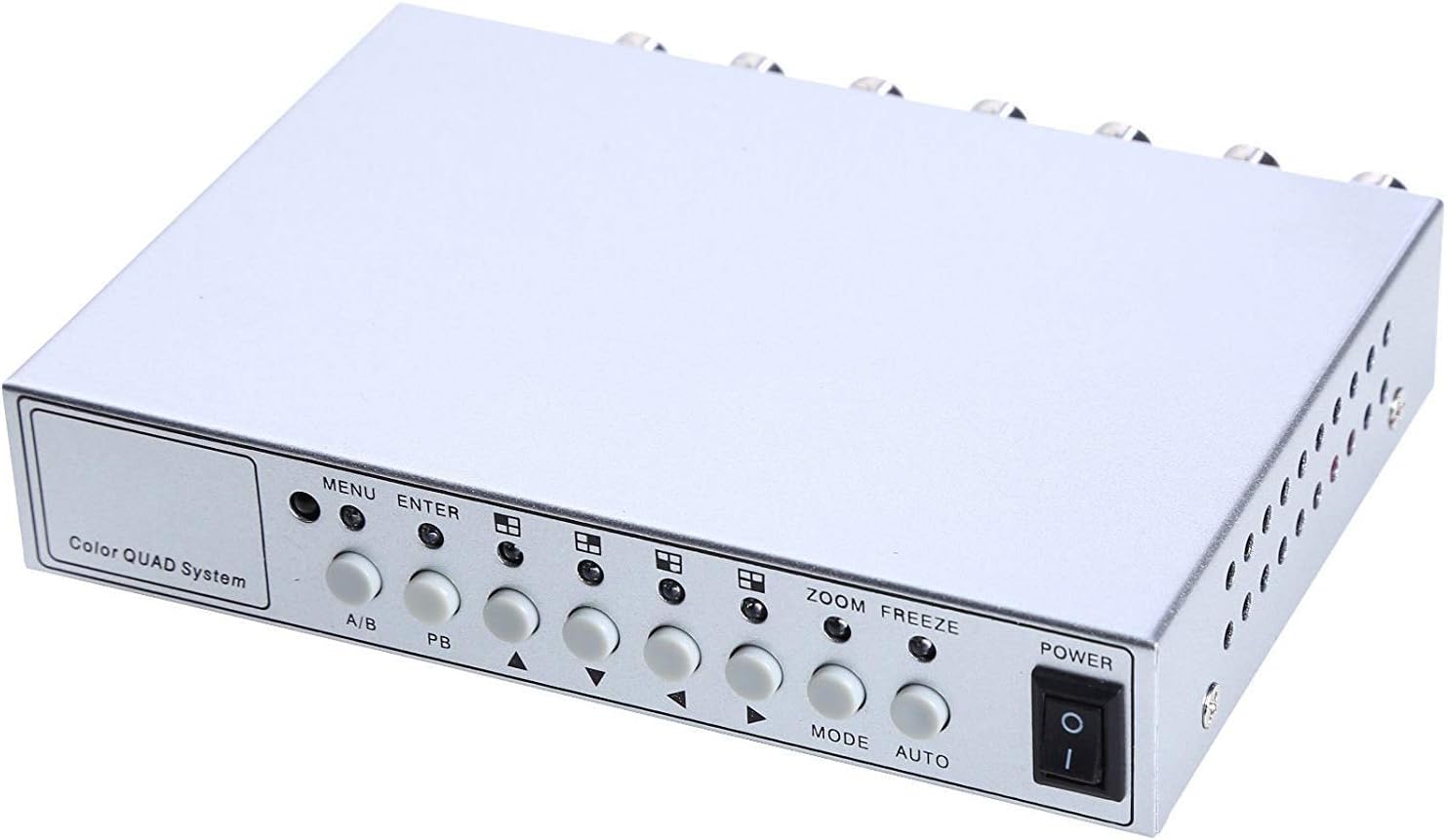
Setšoantšo sa 4.1: Litaolo le matšoao a ka pele.
- MENU: Accesses the on-screen display (OSD) menu for settings adjustment.
- Kena: Confirms selections within the OSD menu.
- A/B: Switches between different display modes or channels.
- PB: Playback control (if connected to a VCR).
- Directional Arrows (Up/Down/Left/Right): Tsamaea ka har'a dikgetho tsa menyu mme o fetole boleng.
- LOKELA: Activates the digital zoom function.
- HLOKA: Freezes the current video frame.
- MOKHOA: Cycles through various display modes (Quad, Full Screen, PIP, Dual Split).
- KETSAHALO: Activates the auto-sequence display mode.
- MATLA: On/Off switch for the unit.
4.2. Karolo e ka morao

Image 4.2: Rear panel video input/output ports and power input.
- VIDEO 1-4: BNC inputs for connecting up to four CCTV cameras.
- VCR IN: BNC input for connecting a VCR or other recording device.
- VCR OUT: BNC output for connecting to a VCR or other recording device.
- MOHLOLI: BNC output for connecting to a display monitor.
- DC 12V: Power input jack for the DC 12V power adapter.
4.3. Remote Control

Image 4.3: Infrared remote control for convenient operation.
The remote control provides convenient access to all functions, mirroring the front panel controls and offering direct channel selection.
5. Seta
Follow these steps to set up your UHPPOTE Video Splitter:
- Hokela lik'hamera: Connect your CCTV cameras to the VIDEO 1, VIDEO 2, VIDEO 3, le VIDEO 4 BNC input ports on the rear panel. Ensure secure connections.
- Connect Monitor: Connect your display monitor to the MONITORI BNC output port on the rear panel.
- Connect VCR (Optional): If you wish to record video, connect the VCR IN le VCR OUT BNC ports to your VCR or recording device.
- Kopanya Matla: Insert the DC 12V power adapter into the DC 12V input jack on the rear panel, then plug the adapter into a standard electrical outlet.
- Matlafatsa: Tobetsa ea MATLA button on the front panel or remote control to turn on the unit.
6. Litaelo tsa Ts'ebetso
6.1. Matla On/O tima
Tobetsa ea MATLA button on the front panel or the remote control to switch the unit on or off.
6.2. Mekhoa ea Pontšo
The unit supports various display configurations. Use the MOKHOA button on the front panel or remote to cycle through them:
- QUAD Split Mode: Displays all four camera feeds simultaneously in a four-way split screen.
- Mokhoa o felletseng oa skrineng: Displays a single camera feed in full screen. Use the directional arrows or number buttons (1-4) on the remote to select the desired camera.
- PIP (Picture-in-Picture) Mode: Displays one main camera feed with a smaller window of another camera feed. The position of the PIP window can often be adjusted via the menu.
- Dual Split Mode: Displays two camera feeds simultaneously (e.g., side-by-side or top-bottom).
- Auto Sequence Mode: Automatically cycles through full-screen views of each connected camera. Activate using the MOSEBETSI button on the front panel or remote.
6.3. Menu Navigation le Settings
To access and adjust system settings:
- Tobetsa ea MENU button on the front panel or remote control. The On-Screen Display (OSD) menu will appear.
- Sebelisa le Holimo/Fase directional arrows to navigate between menu options.
- Tobetsa KENA to select an option or enter a sub-menu.
- Sebelisa le Ka ho le letšehali/Ka ho le letona directional arrows to adjust values (e.g., brightness, contrast) or change settings.
- Tobetsa MENU hape ho tsoa ho menu.
Litlhophiso tsa Konopo:
- Liphetoho tsa Video: Adjust Brightness, Contrast, Saturation, Hue, and Sharpness for optimal image quality.
- Sebopeho sa Sistimi: Select between NTSC (for North America, Japan, etc.) or PAL (for Europe, Asia, etc.) based on your region's video standard. Incorrect selection can lead to distorted or black and white images.
- Overlay Information: Configure display of Camera Title, Real Time and Date, and Alarm/Loss/Motion messages.
- Event Report: Review event logs and configure buzzer/relay output settings.
6.4. Mosebetsi oa Zoom
In full-screen mode, press the ZOOM button on the front panel or remote to activate digital zoom. Use the directional arrows to select the area to zoom in on.
6.5. Freeze Function
Tobetsa ea KHOTHOA (FRZ) button on the front panel or remote to pause the current video frame. Press it again to resume live video.
7. Tlhokomelo
- Ho hloekisa: Sebelisa lesela le bonolo, le omileng ho hloekisa bokantle ba yuniti. U se ke ua sebelisa li-cleaner tsa metsi kapa tsa aerosol.
- Moea oa moea: Ensure the ventilation holes are not obstructed to prevent overheating.
- Polokelo: If storing the unit for an extended period, disconnect it from power and store in a cool, dry place.
8. Ho rarolla mathata
| Bothata | Lebaka le ka khonehang | Tharollo |
|---|---|---|
| No video signal on monitor |
|
|
| Distorted, black & white, or rolling image |
|
|
| Remote control ha e sebetse |
|
|
| Constant buzzing sound |
|
|
9. Litlhaloso
| Sebopeho | Lintlha |
|---|---|
| Nomoro ea Mohlala | UT-XYL-440 |
| Lisebelisoa tsa Video | 4 BNC (for cameras), 1 BNC (VCR In) |
| Liphetho tsa Video | 1 BNC (Monitor), 1 BNC (VCR Out) |
| Qeto ea Video | 720x480 (NTSC 60Hz), 720x576 (PAL 50Hz) |
| Mekhoa ea Pontšo | Quad Split, Full Screen, PIP, Dual Split, Auto Sequence |
| Liphetoho tsa Litšoantšo | Ho khanya, phapang, Khotsofalo, Hue, Sharpness |
| Mesebetsi e Ikgethileng | Freeze Function, Zoom Function, Video Loss Detection, Motion Detection |
| Phepelo ea motlakase | DC 12V |
| Boima ba Ntho | 13.4 ounces (hoo e ka bang 380g) |
| Litekanyo tsa sephutheloana | 8.54 x 6.06 x 2.4 lisenthimithara (hoo e ka bang 21.7 x 15.4 x 6.1 cm) |
| Battery ea Remote | 1 x CR2 battery (required) |
10. Tiisetso le Tšehetso
UHPPOTE products are designed for reliability and performance. For warranty information, technical support, or service inquiries, please refer to the contact information provided with your purchase or visit the official UHPPOTE website. Please have your model number (UT-XYL-440) available when contacting support.


