Selelekela
The Logitech UE Boom is a 360-degree wireless Bluetooth speaker designed for portable audio. It features a durable, go-anywhere shape and is equipped with a water and stain resistant acoustic skin. This speaker allows for wireless music playback, phone calls, and can be paired with another UE Boom for stereo sound.

Setšoantšo: Pele view of the Logitech UE Boom Wireless Bluetooth Speaker in Northern Light color.
Likarolo tsa Bohlokoa
- Molumo oa 360-degree: Delivers immersive audio in all directions.
- Moralo o nkehang habonolo: Versatile, cylindrical shape for easy transport.
- Water and Stain Resistant: Features a colorful acoustic skin with plasma coating for durability against water and stains.
- Khokahano e se nang mohala: Connects via Bluetooth from up to 50 feet away. Easy pairing via NFC for compatible devices.
- Double Up Feature: Wirelessly connect two UE BOOM speakers in stereo using the UE BOOM app for enhanced sound.
- Bophelo bo Bolelele ba Battery: Rechargeable battery provides up to 15 hours of playback.
- Sepikara: Integrated crystal-clear speakerphone for calls.
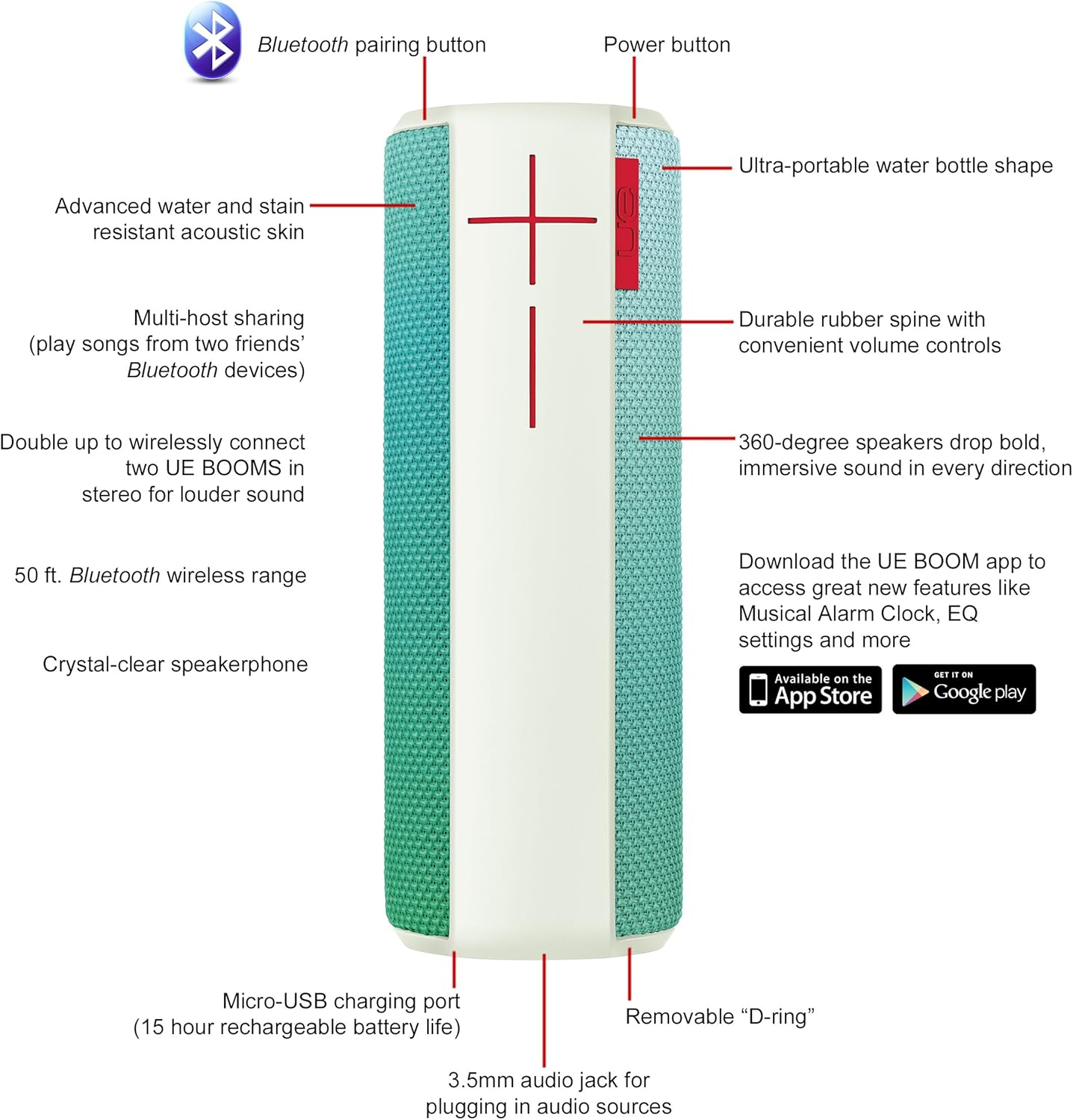
Image: Diagram highlighting key features and controls of the UE Boom speaker, including Bluetooth pairing button, power button, volume controls, micro-USB charging port, and 3.5mm audio jack.
Tlhophiso
Ho lefisa Sebui
Before initial use, fully charge your UE Boom speaker. Connect the provided micro-USB cable to the charging port located at the bottom of the speaker and plug the other end into a USB power source. The speaker's battery provides approximately 15 hours of playback on a full charge.
Bluetooth pairing
- Power on your UE Boom speaker by pressing the power button.
- Press and hold the Bluetooth pairing button (usually indicated by a Bluetooth icon) until you hear an audible tone and the LED indicator flashes rapidly.
- On your mobile device (smartphone or tablet), navigate to the Bluetooth settings.
- Select "UE Boom" from the list of available devices to pair.
- Once paired, you will hear a confirmation tone from the speaker.
For NFC-enabled devices, simply tap your device to the NFC area on the speaker for quick pairing.
Litaelo tsa Ts'ebetso
Litaolo tsa Motheo
- Konopo ea Matla: Located on the top of the speaker to turn it on or off.
- Bolaoli ba Buka: Large '+' and '-' buttons on the side of the speaker adjust the volume.
- Konopo ea Bluetooth: E qala mokhoa oa ho hokahanya oa Bluetooth.
Using the UE BOOM App
Download the official UE BOOM app from your device's app store (available on App Store and Google Play) to unlock additional features:
- Musical Alarm Clock: Wake up to your favorite music.
- Ts'ebetso ea Remote: Turn your speaker on/off from your device.
- Litlhophiso tsa EQ: Iketsetse molumo oa profile ho ea ka khetho ea hau.
- Habeli: Connect two UE BOOM speakers for a stereo sound experience.
Speakerphone Functionality
When connected to a smartphone, the UE Boom can be used as a speakerphone. Incoming calls will be routed through the speaker, allowing for hands-free communication.
Tlhokomelo
The UE Boom speaker features a water and stain resistant acoustic skin. To clean, gently wipe the speaker with a damp cloth. Avoid using harsh chemicals or abrasive cleaners. Ensure all ports are dry before charging or connecting other devices.
Ho batle phoso
- Ha ho Matla: Ensure the speaker is charged. Connect it to a power source using the micro-USB cable.
- Ha e khone ho Kopanya ka Bluetooth:
- Netefatsa hore sebui se mokgweng wa ho se kopanya (ho benya LED).
- Sheba hore na Bluetooth e butswe sesebedisweng sa hao.
- Move your device closer to the speaker (within 50 feet).
- Leka ho lokisa le ho lokisa sesebediswa hape.
- Molumo o tlase kapa o sothehileng:
- Fetola molumo ho sebuela-pele le sesebediswa sa hao se hoketsweng.
- Netefatsa hore sebui se qosoa ka botlalo.
- Check for any obstructions around the speaker.
- App ha e hokahane: Ensure the speaker is powered on and connected via Bluetooth to your device. Update the app to the latest version.
Litlhaloso tsa Sehlahisoa
| Lebitso la Mohlala | Logitech UE Boom Wireless Bluetooth Speaker |
| Nomoro ea Mohlala | 980-001023 |
| Brand | Logitech |
| Mmala | Northern Light |
| Mofuta oa Sebui | Kantle |
| Theknoloji ea Khokahano | Bluetooth, e se nang mohala |
| Range e se nang mohala | Ho fihla ho maoto a 50 (15.24 metres) |
| Mohloli oa Matla | E Matlafatsoa ke Battery (1 Lithium Ion battery e kenyelelitsoe) |
| Karolelano ea Bophelo ba Battery | Lihora tse 15 |
| Boemo ba ho hanyetsa Metsi | Ha e kenele metsi |
| Boima ba Ntho | 2.2 Liponto |
| Litekanyo tsa Sehlahisoa (LxWxH) | 2.6 x 2.6 x 7.1 lisenthimithara |
| Lintho tse bonahalang | Plastiki |
| UPC | 097855112125 |
Video ea Sehlahisoa sa Molao
Video: Ho fetaview of the Logitech UE Boom speaker's features, including 360-degree sound, water resistance, wireless connectivity, and the ability to pair two speakers for louder sound. This video demonstrates the speaker's durability and portability in various environments.
Warranty le Tšehetso
The Logitech UE Boom Wireless Bluetooth Speaker comes with a Limited Warranty. For specific warranty details, please refer to the documentation included with your product or visit the official Logitech websebaka.
For technical support or customer service, you may contact Logitech at: 646-454-3200.


