
Selelekela
The Roku Hiro 32-inch 720p HD Smart TV offers an integrated Roku streaming experience. This television features an HD display for clear picture quality and speakers with enhanced audio. It supports Bluetooth for private listening with headphones and includes Wi-Fi for internet connectivity. The Roku operating system provides a customizable home screen, access to numerous streaming channels, and automatic updates, making it suitable for various living spaces.
Se ka Lebokoseng
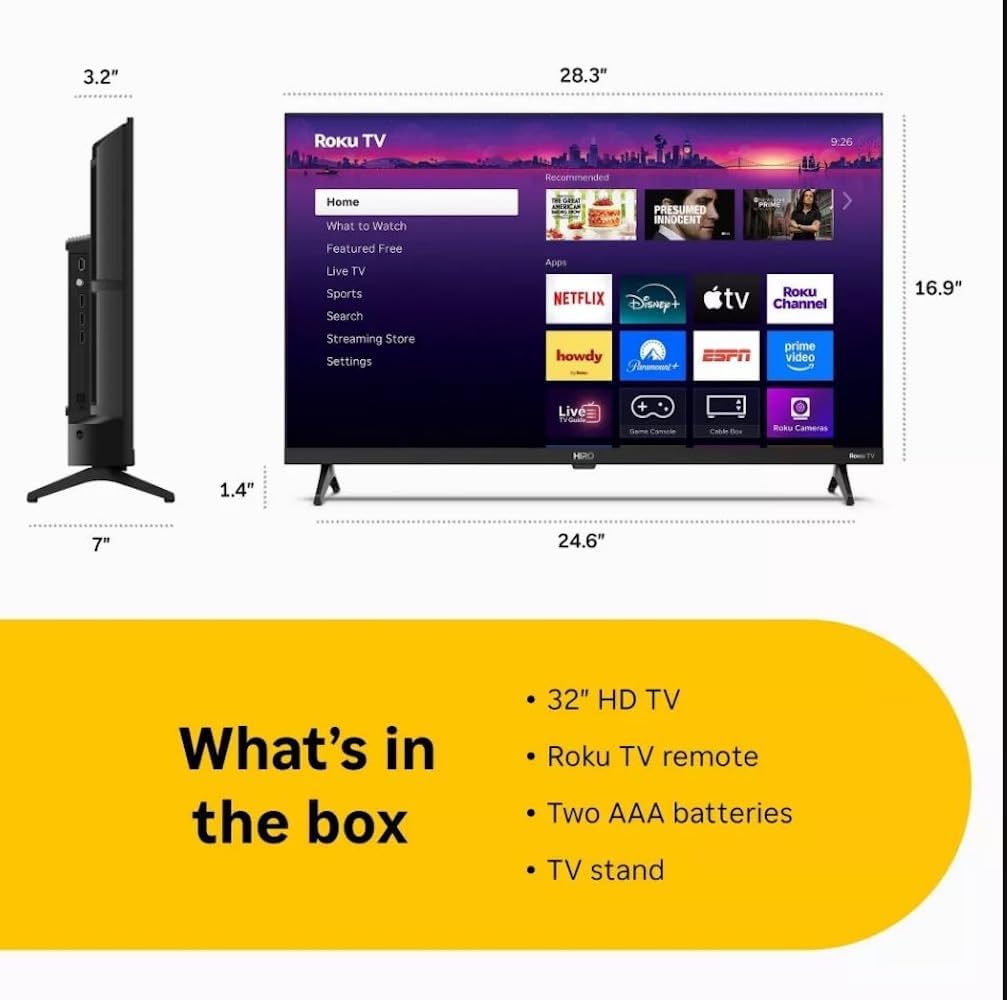
Diagram showing the dimensions of the Roku Hiro 32-inch TV and a list of included accessories: 32-inch HD TV, Roku TV remote, two AAA batteries, and TV stand.
- Hiro 32" 720p HD Smart TV Flat Screen LED Television with Roku TV
- Remote Control
- TV E eme
- Motlakase oa Motlakase
- Bukana ea Mosebelisi
Tlhophiso
1. Ema Tlhophiso
Carefully place the TV screen-down on a soft, clean surface to prevent damage. Align the TV stand with the designated slots on the bottom of the TV. Secure the stand using the provided screws. Ensure the stand is firmly attached before proceeding.
2. Ho Hokela Lisebelisoa

Ka morao view of the Roku Hiro TV, showing the input/output ports including USB, HDMI, and antenna connections.
- Matla: Hokela thapo ea motlakase ho motlakase oa TV ebe o hokela leboteng.
- HDMI: Connect external devices such as Blu-ray players, game consoles, or cable boxes to the HDMI ports. This TV features 3 HDMI ports.
- USB: Use the USB port for media playback from a USB drive.
- Molumo oa Optical: Connect an external sound system using an optical audio cable for enhanced sound.
- Antenna/Cable: Connect an antenna or cable TV feed to the RF input for over-the-air or cable channels.
3. Tlhophiso ea Pele
After connecting all necessary cables, power on the TV. Follow the on-screen instructions to:
- Khetha puo ea hau.
- Hokela ho netweke ea hau ea Wi-Fi.
- Activate your Roku account (or create a new one).
- Scan for available channels if an antenna is connected.
Litaelo tsa Ts'ebetso
Mesebetsi ea Remote Control

Close-up of the Roku TV remote control, highlighting buttons for TV power, volume, mute, sleep timer, instant replay, options, and app shortcuts.
- Konopo ea Matla: E bulela kapa e tima TV.
- Directional Pad (D-Pad): Tsamaisa dimenu ebe o kgetha dintho.
- Konopo e Lokileng: E netefatsa likhetho.
- Konopo ea Lehae: E khutlela skrineng sa lapeng sa Roku.
- Konopo ea ho Khutlela: E khutlela skrineng se fetileng.
- Phahamiso ea Phahamiso / Tlase: E fetola molumo oa TV.
- Konopo ea Limumu: E khutsisa kapa e khutsisa molumo oa TV.
- Likonopo tsa Shortcut tsa App: Direct access to popular streaming services (e.g., Netflix, Disney+, Apple TV+, Prime Video).
- Nako ea Boroko: Sets a timer for the TV to turn off automatically.
- Papali ea Hang-hang: Jumps back a few seconds in supported content.
- Likhetho: Accesses additional settings or information for the current content.
Ho sebelisa Roku OS

The Roku TV home screen interface, showing recommended content and various streaming applications.
The Roku home screen provides access to all your streaming channels, inputs, and settings. Use the D-Pad on your remote to navigate through the menu options on the left and the app grid on the right. You can customize the order of your channels by highlighting an app, pressing the * (Options) button, and selecting 'Move channel'.
Litaba tsa ho phallela
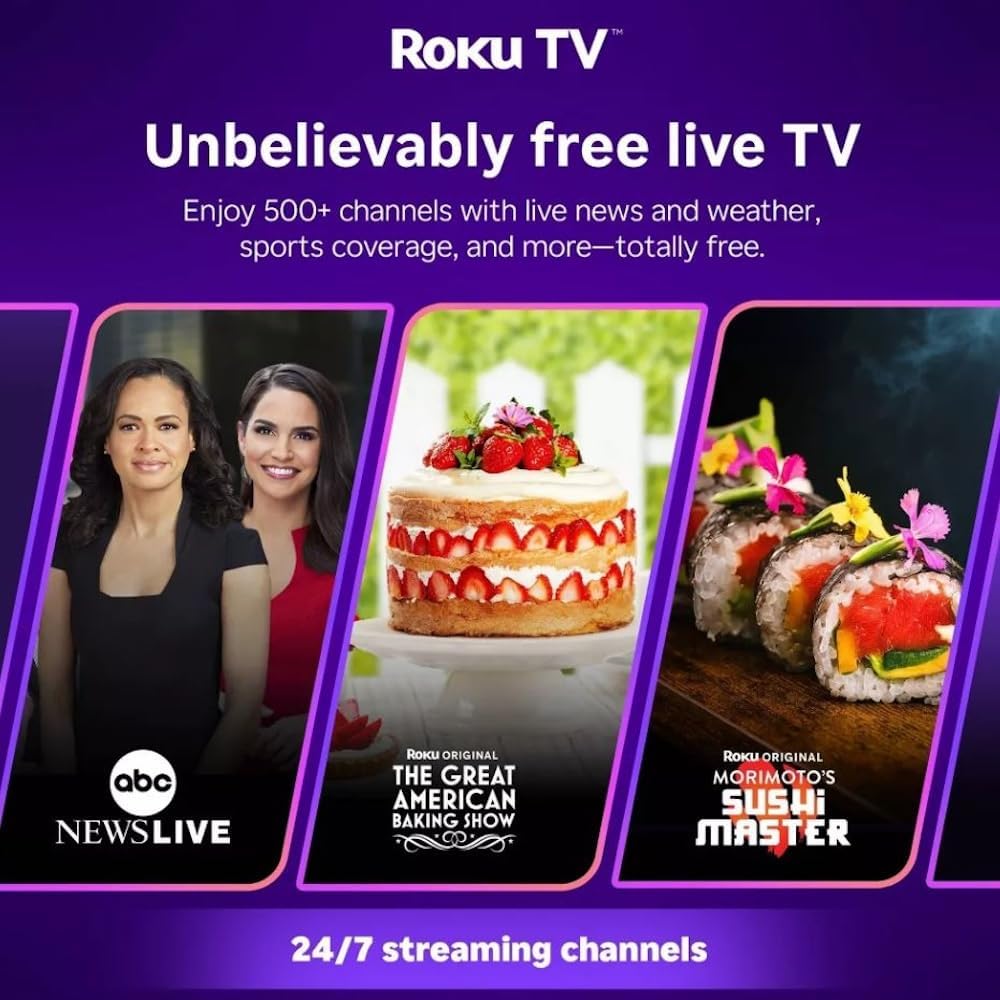
Roku TV interface promoting free live TV channels, featuring examples like ABC News Live, The Great American Baking Show, and Morimoto's Sushi Master.
Access a wide range of streaming services and free content through the Roku Channel Store. The Roku platform offers over 500 free channels, including live television, movies, and news. Use the 'Search' function on the home screen to find specific titles or channels.
Litšobotsi tsa Audio

Roku Hiro TV displaying the home screen with various streaming apps, emphasizing enhanced audio quality.
The TV features enhanced audio quality. For private listening, you can pair Bluetooth headphones directly with the TV. Navigate to Settings > Remotes & devices > Bluetooth devices > Pair new device to connect your headphones.
Tlhokomelo
Ho hloekisa TV
- Kamehla u tlose TV pele u hloekisa.
- Sebelisa lesela le bonolo, le se nang lint ho hlakola skrine le khabinete ka bonolo.
- Bakeng sa matšoao a manganga, ha bobebe dampst lesela le nang le metsi kapa mochini o hloekisang skrineng o bobebe, o sa senyeheng. Se ke oa fafatsa sehloekisi ka kotloloho skrineng.
- Qoba ho sebelisa lik'hemik'hale tse bohale, li-abrasive pads, kapa solvents.
Lisebelisoa tsa Software
The Roku TV automatically checks for and installs software updates when connected to the internet. To manually check for updates, go to Litlhophiso > Sistimi > Ntlafatso ea software.
Ho batle phoso
| Bothata | Tharollo |
|---|---|
| Ha ho matla | Ensure the power cable is securely connected to both the TV and a working electrical outlet. Try a different outlet. |
| Ha ho setšoantšo, empa molumo o teng | Sheba mohloli oa ho kenya. Tobetsa ea Lehae button on the remote and select the correct input. Ensure all HDMI cables are securely connected. |
| Ha ho na molumo, empa setšoantšo se teng | Check the volume level and ensure the TV is not muted. If using external audio, verify connections and settings. |
| Ha e khone ho hokela ho Wi-Fi | Verify your Wi-Fi password. Restart your router and modem. Go to Settings > Network > Set up connection to reconfigure. |
| Remote control ha e sebetse | Kenya libeteri sebakeng se hole. Netefatsa hore ha ho na litšitiso lipakeng tsa remote le sensor ea IR ea TV. |
Litlhaloso
| Lebitso la Mohlala | H32C2C4 |
| Boholo ba skrine | 32 lisenthimithara |
| Bontša Theknoloji | LED |
| Qeto | 720p |
| Refresh Rate | 60 Hz |
| Mokhoa oa tšebetso | Roku OS |
| Theknoloji ea Khokahano | Bluetooth, HDMI, Optical Audio, USB, Wi-Fi |
| Total Number of HDMI Ports | 3 |
| Kakaretso ea likou tsa USB | 1 |
| Litekanyo tsa Sehlahisoa (D x W x H) | 3.2"D x 28.3"W x 16.9"H |
| Boima ba Ntho | 7.5 Liponto |
| Moqtage | 120 Volts (AC) |
| Mofuta oa ho Beha | Thaba ea Tafole |
| Mmala | Ntsho |
Boitsebiso ba Warranty
This Roku Hiro TV is covered by a 90-day Replacement Warranty. Please retain your proof of purchase for any warranty claims. For detailed terms and conditions, refer to the warranty documentation included with your product or visit the official Roku support websebaka.
Tšehetso
For further assistance, troubleshooting guides, or to contact customer support, please visit the official Roku support website. You can find comprehensive FAQs and contact information there.