
1. Selelekela
The Huawei OptiXstar K251a-21 is a sub-FTTR (Fiber to the Room) unit designed to extend the high-speed network provided by the Huawei FTTR OptiXstar F50 Plus main unit. This device supports ultra-Gigabit high-speed access via upstream fiber optic lines and delivers Ultra Gigabit dual-band Wi-Fi and ultra-Gigabit network ports to users. It integrates next-generation Wi-Fi 7 technology for higher speeds and lower latency, ensuring a superior home network experience.
2. Boitsebiso ba Tšireletseho
Please read and understand all safety instructions before using this device. Failure to follow these instructions may result in injury, damage to the device, or property damage.
- Sebelisa feela adaptara ea motlakase e fanoeng le sesebelisoa.
- Se ke oa beha sesebelisoa sebakeng sa metsi, mongobo, kapa mocheso o feteletseng.
- Qoba ho beha sesebelisoa haufi le mehloli ea mocheso kapa khanyeng ea letsatsi.
- Netefatsa moea o nepahetseng ho thibela mocheso o feteletseng.
- Do not attempt to open or repair the device yourself. Contact qualified service personnel for assistance.
- Boloka sesebelisoa hole le bana le liphoofolo tse ruuoang lapeng.
3. Likahare tsa Sephutheloana
Netefatsa hore lintho tsohle li teng ka har'a sephutheloana sa hau:
- Huawei OptiXstar K251a-21 Sub FTTR Device
- Motlakase oa Motlakase
- Tataiso ea ho Qala ka Potlako (haeba e kenyelelitsoe)
4. Sehlahisoa Overview
Familiarize yourself with the device's components and indicators.
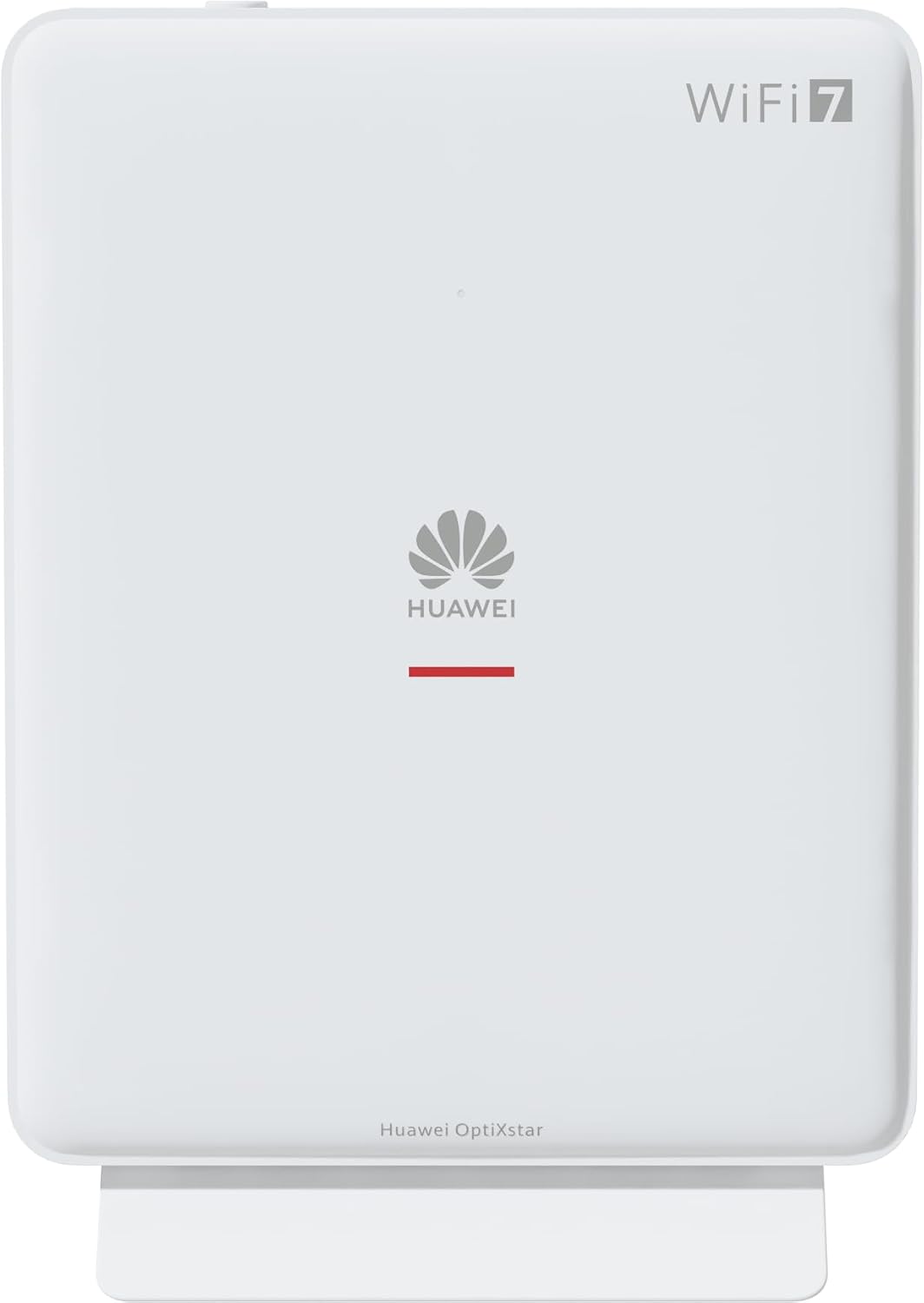
Setšoantšo sa 1: Pele view of the Huawei OptiXstar K251a-21 Sub FTTR device, showing the Huawei logo and "WiFi 7" branding.

Figure 2: Angled front-side view of the Huawei OptiXstar K251a-21 Sub FTTR, highlighting its sleek design and ventilation.

Setšoantšo sa 3: Ka morao view of the Huawei OptiXstar K251a-21 Sub FTTR, displaying the ports (Reset, 2-GE, 1-2.5GE, Power, FTTR) and mounting options.

Setšoantšo sa 4: Lehlakore la profile of the Huawei OptiXstar K251a-21 Sub FTTR, showing its slim form factor and ventilation grilles.

Setšoantšo sa 5: Ka morao e nang le angled view of the Huawei OptiXstar K251a-21 Sub FTTR, providing a clear look at the port labels and layout.

Setšoantšo sa 6: Holimo view of the Huawei OptiXstar K251a-21 Sub FTTR, featuring the WPS/LED button.
Boema-kepe le Likonopo:
- FTTR Port: Connects to the main FTTR unit via a fiber optic cable.
- 1-2.5GE Port: Gigabit Ethernet port for high-speed wired connections.
- 2-GE Port: Gigabit Ethernet port for wired connections.
- Port ea Matla: E hokela ho adaptara ea motlakase.
- Seta Botjha Konopo: Used to restore factory settings (press and hold for 5-10 seconds).
- WPS/LED Button: Initiates Wi-Fi Protected Setup (WPS) for easy device connection and controls LED indicators.
5. Seta
Follow these steps to set up your Huawei OptiXstar K251a-21 Sub FTTR device:
- Sebaka: Choose a central location in your home for optimal Wi-Fi coverage. The device is suitable for various installation scenarios, including vertical placement on a desk, wall-mounting, plugging into a power strip, or mounting in an 86mm junction box with a bracket.
- Hokela Cable ea Fiber Optic: Connect one end of the fiber optic cable to the FTTR port on the Sub FTTR unit and the other end to the corresponding FTTR port on your Huawei FTTR OptiXstar F50 Plus main unit or wall outlet. Ensure the connection is secure.
- Kopanya Matla: Plug the power adapter into the Power port on the Sub FTTR unit, then plug the other end into a power outlet.
- Matlafatsa: The device will automatically power on. Wait for the indicator lights to stabilize, typically indicating a successful connection to the main FTTR unit and active Wi-Fi.
- Wired Connections (Optional): For wired devices, connect an Ethernet cable from the 1-2.5GE or 2-GE ports on the Sub FTTR to your computer, gaming console, or other network devices.
6. Ho sebetsa
Once set up, your OptiXstar K251a-21 provides seamless Wi-Fi 7 connectivity.
- Khokahano ea Wi-Fi: Batla the Wi-Fi network name (SSID) broadcast by your FTTR system on your devices (smartphones, laptops, etc.). Enter the Wi-Fi password. The system's unique SRCN (Seamless Roaming Coordinate Network) technology ensures seamless roaming throughout your home.
- C-WAN Architecture: The C-WAN architecture centrally controls and coordinates network-wide Wi-Fi resources via the Main FTTR, providing an ultra-Gigabit high-speed experience.
- IoT Casing: The device features an IoT casing designed to protect home network security and privacy.
- Mosebetsi oa WPS: Press the WPS/LED button briefly to use Wi-Fi Protected Setup (WPS) for quick connection of compatible devices without entering the password.
- Lipontšo tsa LED: The LED indicators provide status information. Refer to the main FTTR unit's manual or the device's specific documentation for detailed LED status meanings.
7. Tlhokomelo
Regular maintenance helps ensure optimal performance and longevity of your device.
- Ho hloekisa: Hlakola sesebediswa ka bonolo ka lesela le bonolo, le omileng. O se ke wa sebedisa dihlatswa-mokelikeli kapa thepa e kgopang.
- Lisebelisoa tsa Firmware: Huawei periodically releases firmware updates to improve performance and security. These updates are typically managed through the main FTTR unit or a dedicated mobile application. Ensure your system is always running the latest firmware.
- Moea oa moea: Netefatsa hore masoba a moea ha a thibeloa ho thibela mocheso o feteletseng.
- Tsamaiso ea Cable: Keep fiber optic and power cables neatly organized and free from kinks or excessive bending.
8. Ho rarolla mathata
Haeba u na le mathata, leka mehato e latelang ea ho rarolla bothata:
- Ha ho Matla: Check if the power cable is securely connected to both the device and the power outlet. Try a different outlet.
- Ha ho Khokahano ea Marang-rang:
- Verify that the fiber optic cable is correctly connected to the FTTR port.
- Check the status indicators on both the Sub FTTR and the main FTTR unit.
- Restart both the Sub FTTR and the main FTTR unit by unplugging them from power for 30 seconds and then plugging them back in.
- Ensure your main FTTR unit has an active internet connection.
- Lebelo le Butle la Wi-Fi:
- Ensure the device is placed optimally, away from obstructions and interference sources.
- Check if too many devices are connected to the network.
- Update the firmware of your FTTR system.
- Consider using a wired connection for bandwidth-intensive tasks.
- Ha e khone ho hokela ho Wi-Fi:
- Netefatsa hore o kenya phasewete e nepahetseng ea Wi-Fi.
- Try using the WPS button to connect.
- Restart your device and the Sub FTTR unit.
- Seta fektheri: If issues persist, you may need to perform a factory reset. With the device powered on, use a pointed object (like a paperclip) to press and hold the Reset button for 5-10 seconds until the indicators change. Note that this will erase all custom settings.
9. Litlhaloso
| Sebopeho | Tlhaloso |
|---|---|
| Brand | HUAWEI |
| Nomoro ea Mohlala | K8M251a-21G02 |
| Litekanyo (Pakete) | 24.5 x 23.7 x 7.4 cm, |
| Boima (Pakete) | 300 dikgerama |
| Tšobotsi e Khethehileng | Tšireletso ea Inthanete |
| Frequency Band Class | Dual Band |
| Tekanyetso ea puisano e se nang mohala | 802.11ax (Wi-Fi 7 Generation) |
| Lisebelisoa tse lumellanang | K'homphieutha ea Motho |
| Litšebeliso tse khothalelitsoeng | Lehae |
| Kenyellelitsoe Likaroloana | Motlakase oa Motlakase |
| Theknoloji ea Khokahano | Ethernet, FTTR, Wi-Fi, Fiberglass |
| Mmala | Bosoeu |
| Palo ea Boema-kepe | 4 (FTTR, 1-2.5GE, 2-GE, Power) |
| Sekhahla sa Phetiso ea Lintlha | 1 Gigabits per second |
| Smart Home Compatibility | Compatible with smart home systems |
| Khokahano ea Marang-rang | Ee |
| Khokahano Protocol | WiFi |
10. Tiisetso le Tšehetso
For warranty information and technical support, please refer to the official Huawei website or contact your local Huawei customer service. Keep your purchase receipt for warranty claims.
Lisebelisoa tsa Marang-rang: Visit the official Huawei support websaete bakeng sa Lipotso-potso, libuka tse nchafalitsoeng, le khoaso ea software.
Tšebeletso ea bareki: Contact details for customer support can typically be found on the Huawei website or in the documentation provided with your main FTTR unit.