
Selelekela
This manual provides essential information for setting up, operating, maintaining, and troubleshooting your HP 17.3" Touchscreen Laptop, model 17-cp3602nr. Please read this guide thoroughly to ensure proper use and to maximize the lifespan of your device.
Litaba tsa Sephutheloana
Netefatsa hore lintho tsohle li teng ka har'a sephutheloana:
- HP 17.3" Touchscreen Laptop (Model 17-cp3602nr)
- AC Power Adapter and Cord
- Tataiso ea ho Qala ka Potlako (haeba e kenyelelitsoe)

Image: The HP 17.3" Touchscreen Laptop and its included power adapter.
Tlhophiso
1. Matla a Pele a ho Bulela le ho Chesa
- Connect the AC power adapter to the laptop's AC smart pin port and then to a power outlet.
- Bula sekoahelo sa laptop. Laptop e ka 'na ea qala ho sebetsa ka bo eona, kapa u ka 'na ua hloka ho tobetsa konopo ea ho tima e fumanehang ho keyboard.
- Allow the battery to charge fully before initial use, though you can begin setup while charging.
2. Windows 11 Setup
Follow the on-screen instructions to complete the Windows 11 Home setup. This typically includes:
- Ho khetha sebaka sa hau le sebopeho sa keyboard.
- E hokela ho netweke ya Wi-Fi.
- Signing in with or creating a Microsoft account.
- Setting up a PIN or password.
- Configuring privacy settings.
3. Ho seta Sebali sa Menoana
During or after Windows setup, you can configure the fingerprint reader for secure login. Navigate to Litlhophiso > Liakhaonto > Likhetho tsa ho kena and follow the prompts to add your fingerprint.

Image: Close-up of the backlit keyboard and the integrated fingerprint reader on the HP laptop.
Litaelo tsa Ts'ebetso
Ho sebelisa "touchscreen Display".
The 17.3" HD+ (1600 x 900) display supports touch input. You can interact with Windows 11 and applications directly on the screen using gestures similar to a tablet or smartphone. Ensure your screen is clean for optimal touch responsiveness.
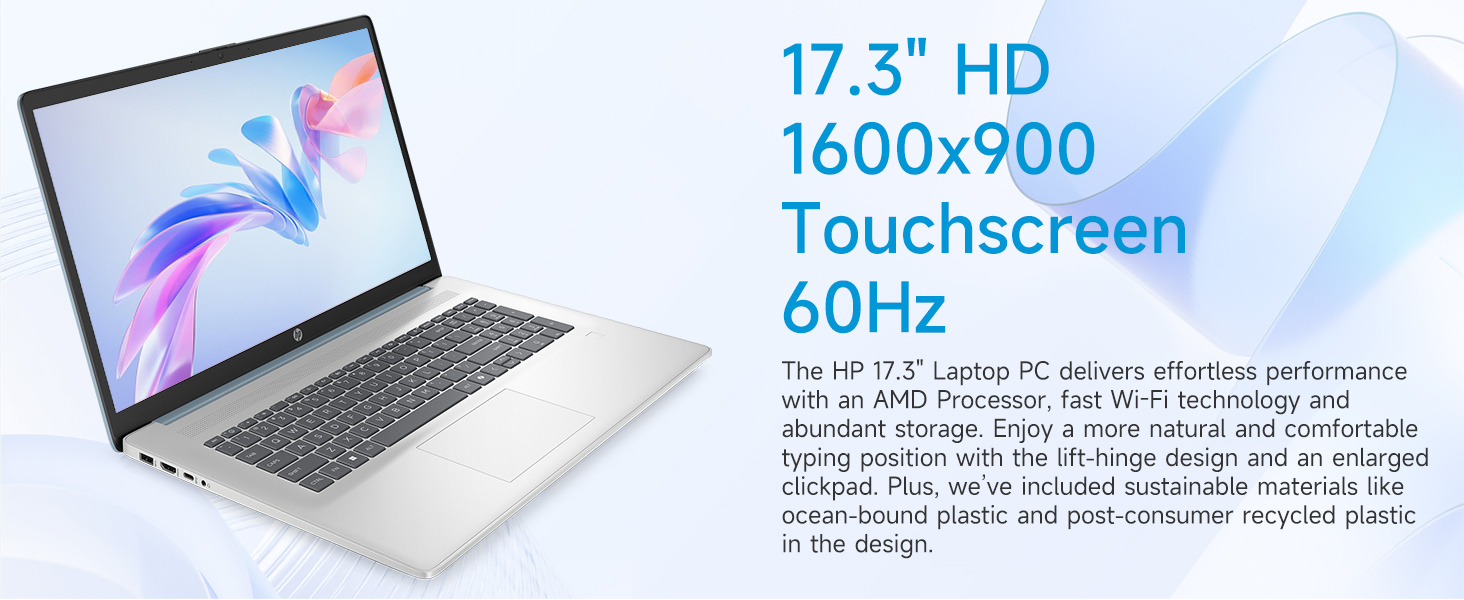
Image: The 17.3-inch touchscreen display of the HP laptop, illustrating its touch capabilities.
Keyboard le Touchpad
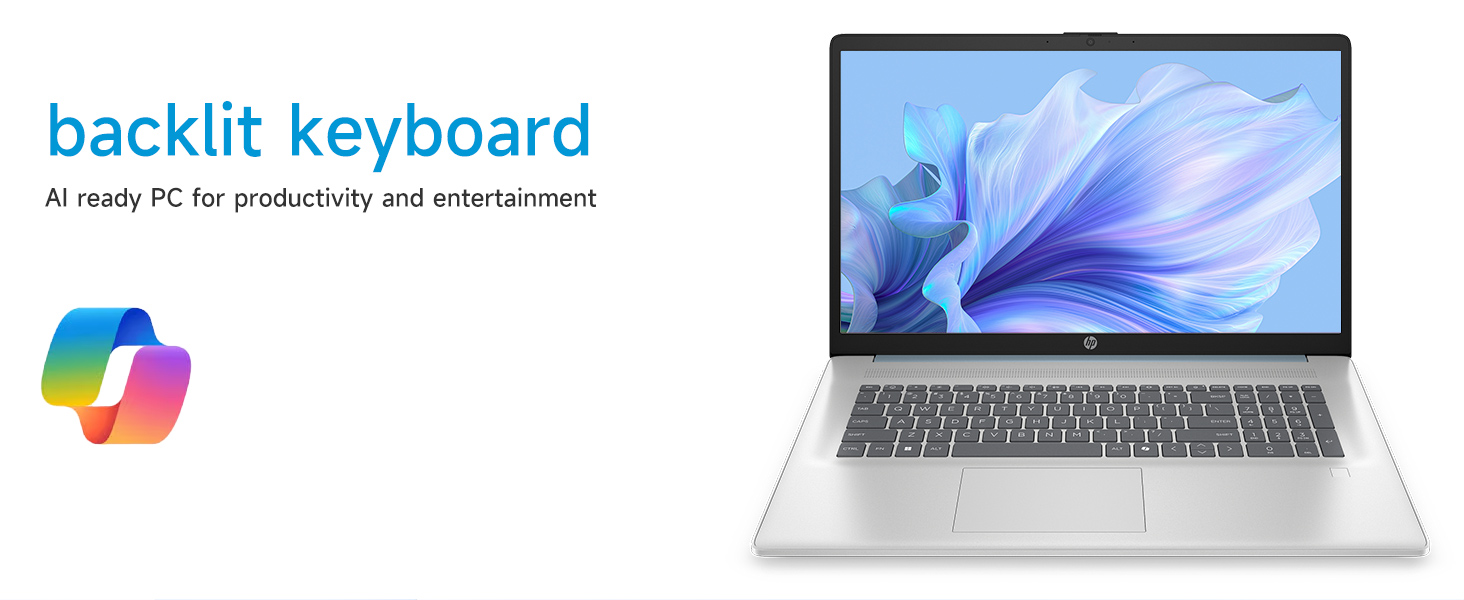
- Backlit Keyboard: Tobetsa ea Fn + F5 (or similar function key with a keyboard backlight icon) to toggle the keyboard backlight on/off or adjust its brightness.
- Letlapa la Linomoro: Utilize the dedicated numeric keypad for efficient data entry.
- Touchpad: The large click pad supports multi-touch gestures for navigation. Refer to Windows settings for customizing touchpad gestures.
Connecting External Devices (Ports)
Laptop ea hau e na le likou tse fapaneng tsa ho hokela li-peripherals:
- USB Type-C (5Gbps signaling rate): For connecting modern USB-C devices.
- USB Type-A (5Gbps signaling rate): Two ports for standard USB devices like mice, keyboards, or external drives.
- HDMI 1.4b: Connect to external monitors or TVs for extended display.
- Li-headphone/Makrofoni Combo Jack: For audio input/output with a single jack.
- AC Smart Pin: Bakeng sa ho hokahanya adaptara ea motlakase.
Setšoantšo: Ka botlalo view of the laptop's side ports, including USB-A, USB-C, HDMI, and audio jack.
Khokahano ea Wi-Fi 6
The laptop supports Wi-Fi 6 (802.11ax) for fast and reliable wireless internet connectivity. To connect, click the Wi-Fi icon in the taskbar, select your network, and enter the password.
Tlhokomelo
Ho Hloekisa Laptop ea Hao
- Skrine: Sebelisa lesela le bonolo, le se nang lint hanyenyane dampe kentsoeng ka metsi kapa mochini o hloekisang skrine. Qoba lik'hemik'hale tse bohale.
- Keyboard le Chassis: Sebelisa lesela le bonolo, le omeletseng. Bakeng sa litšila tse manganga, d hanyenyaneamp cloth can be used, ensuring no liquid enters openings.
- Boema-kepe: Keep ports free of dust and debris using compressed air if necessary.
Lisebelisoa tsa Software
Regularly check for and install Windows updates to ensure your system has the latest security patches and performance improvements. Go to Litlhophiso > Windows Update ho laola lintlafatso.
Tlhokomelo ea Battery
To prolong battery life, avoid extreme temperatures and fully discharging the battery frequently. For long-term storage, charge the battery to about 50%.
Ho batle phoso
Karolo ena e bua ka mathata a tloaelehileng ao u ka kopanang le 'ona.
Laptop ha e bule
- Netefatsa hore adaptara ea AC e hoketsoe ka mokhoa o sireletsehileng ho laptop le sesebelisoa sa motlakase se sebetsang.
- Netefatsa hore motlakase oa sebetsa ka ho hokela sesebelisoa se seng.
- Haeba betri e felile ka botlalo, ho ka nka metsotso e seng mekae ho tjhaja pele laptop e ka bula.
Screen Remains Blank
- Sheba hore na laptop e buletsoe (lebone la pontšo ea matla).
- Try adjusting the screen brightness using the function keys (e.g., Fn + F2/F3).
- If an external monitor is connected, ensure it is properly configured in Windows display settings.
Mathata a Khokahano ea Wi-Fi
- Netefatsa hore Wi-Fi e butse litlhophiso tsa Windows.
- Qala hape router ea hau le modem.
- Lebala marang-rang le ho hokahanya hape, kenya phasewete hape.
- Update Wi-Fi drivers via Device Manager.
System Restarts Unexpectedly
Unexpected restarts can be caused by software conflicts, outdated drivers, or hardware issues. Ensure all Windows updates are installed and drivers are current. If the issue persists, consider running Windows diagnostic tools or contacting HP Support.
Litlhaloso
| Sebopeho | Lintlha |
|---|---|
| Brand | HP |
| Lebitso la Mohlala | 17-cp3602nr |
| Boholo ba skrine | 17.3 lisenthimithara |
| Qeto ea Pontšo | HD+ (1600 x 900) |
| Likarolo tsa Pontšo | Touch, Anti-glare, 250 nits, 60% NTSC |
| processor | AMD Ryzen 5 7430U (6 Cores, 12 Threads, up to 4.3 GHz) |
| Litšoantšo | Litšoantšo tsa AMD Radeon (tse kopantsoeng) |
| RAM | 8 GB DDR4 SDRAM (3200 MHz) |
| Polokelo | 128 GB PCIe NVMe M.2 SSD |
| Mokhoa oa tšebetso | Lehae la Windows 11 |
| Boema-kepe | 1x USB Type-C 5Gbps, 2x USB Type-A 5Gbps, 1x HDMI 1.4b, 1x Headphone/Microphone Combo, 1x AC Smart Pin |
| Khokahano e se nang mohala | Wi-Fi 6 (802.11ax) |
| Likarolo Tse Khethehileng | Backlit Keyboard, Fingerprint Reader, Numeric Keypad, Webkam |
| Dimensions (L x W x Thickness) | 15.78"L x 10.15"W x 0.81"Th |
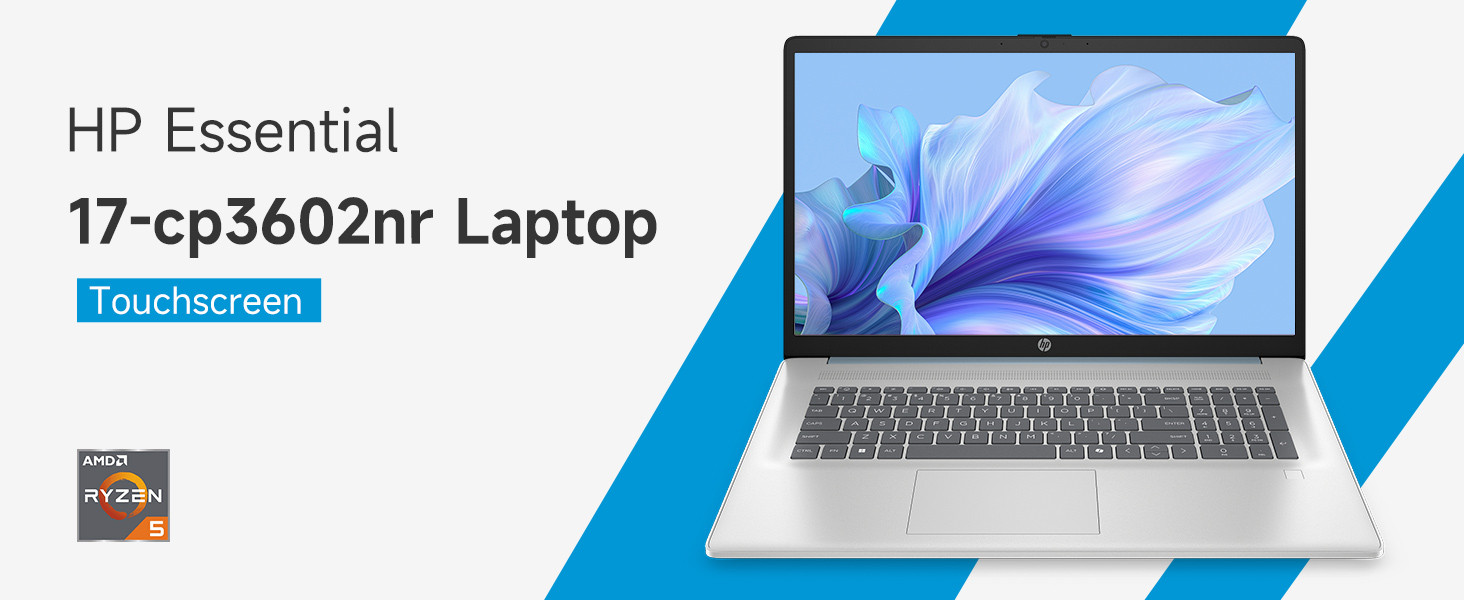
Image: An infographic highlighting key specifications such as the AMD Ryzen 5 processor, Windows 11 Home, storage, and connectivity options.
Warranty le Tšehetso
Tiisetso ea Moetsi
Your HP laptop is covered by a standard manufacturer's warranty. For specific terms and conditions, please refer to the warranty documentation included with your product or visit the official HP support website. Warranty duration and coverage may vary by region.
Tšehetso ea tekheniki
For technical assistance, driver downloads, or further troubleshooting, please visit the official HP Support websebaka:
When contacting support, have your laptop's model number (17-cp3602nr) and serial number ready.