
1. Seta
1.1 Likahare tsa Sephutheloana
Pele o kopanya, ka kopo netefatsa hore likarolo tsohle li teng ka har'a sephutheloana:
- KTC H24F7 24 Inch 240Hz Monitor
- Lekola Base
- Hlokomela Stand
- Adapter ea Matla
- Cable ea HDMI
- Tataiso ea Qalo e Potlakileng (QSG)
1.2 Litaelo tsa Kopano
Latela mehato ena ho kopanya leihlo la hau:
- Tlosa sekirini le likarolo tsohle ka hloko ho tsoa sephutheloana.
- Attach the monitor stand to the monitor base. Ensure it clicks securely into place.
- Connect the assembled stand and base to the back of the monitor. The stand is designed for easy snap-in installation.
- Beha seipone sebakeng se tsitsitseng, se bataletseng.

1.3 VESA Mount Installation
The KTC H24F7 monitor supports VESA 100mm x 100mm mounting for alternative stand or wall mount solutions. Ensure you use M4-0.7 x 10mm screws (not included) for secure installation.

1.4 Ho hokela ho Lisebelisoa
Connect your computer or other devices to the monitor using the appropriate cables.
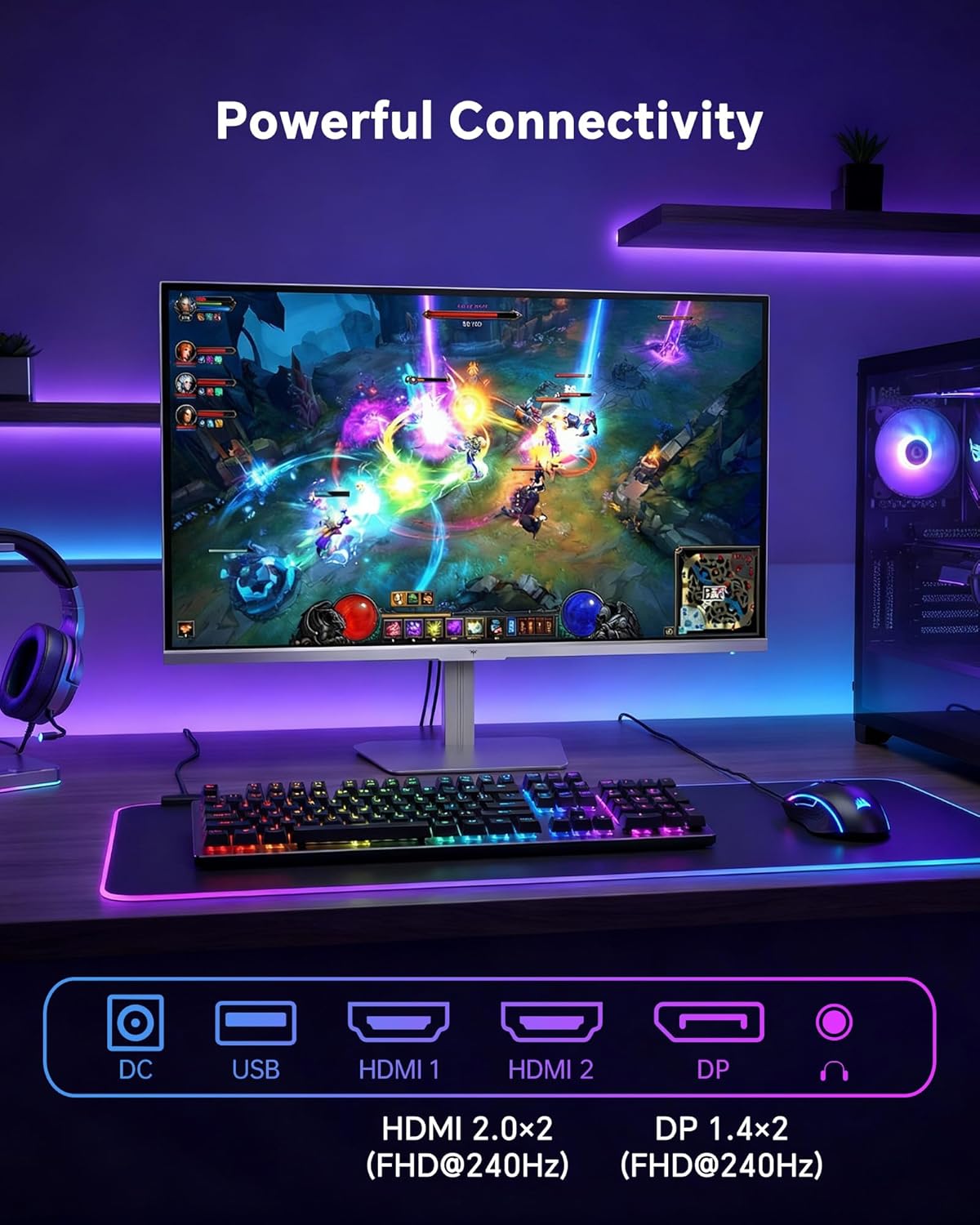
- HDMI: Use an HDMI cable to connect to devices with HDMI output. The monitor has two HDMI 2.0 ports, supporting FHD at 240Hz.
- DisplayPort: Use a DisplayPort cable for devices with DisplayPort output. The monitor has one DisplayPort 1.4, supporting FHD at 240Hz.
- Matla: Connect the power adaptor to the DC input on the monitor and then to a power outlet.
- USB: A USB 2.0 port is available for connecting peripherals.
- Audio tsoa: A 3.5mm audio jack is available for connecting headphones or external speakers.
2. Litaelo tsa Ts'ebetso
2.1 Ho Bulela/Ho tima
Tobetsa konopo ea matla e lutseng holim'a mochini ho e bulela kapa ho e tima. Leseli la pontšo ea matla le tla khantša ha mochine o sebetsa.
2.2 Lenane la Pontsho ya Skrineng (OSD).
The OSD menu allows you to adjust various monitor settings. Use the control buttons (typically located on the back or bottom of the monitor) to navigate the menu and select options. Refer to the Quick Start Guide for specific button functions.
2.3 Di-setting tsa pontsho
Ntlafatsa hao viewho fetola boiphihlelo ka ho fetola di-setting tse latelang:
- Sekhahla sa ho Nchafatsa: The monitor supports a 240Hz refresh rate for smooth motion. Ensure your graphics card settings are configured to utilize this rate.

- Adaptive Sync: This technology synchronizes the monitor's refresh rate with your graphics card's frame rate to eliminate screen tearing and stuttering. Enable Adaptive Sync in the OSD menu and ensure it is also enabled in your graphics card control panel (FreeSync/G-Sync compatible).

- HDR 400: High Dynamic Range 400 provides enhanced contrast and color accuracy, delivering brighter highlights and deeper shadows. Activate HDR in the OSD menu and your operating system display settings for compatible content.

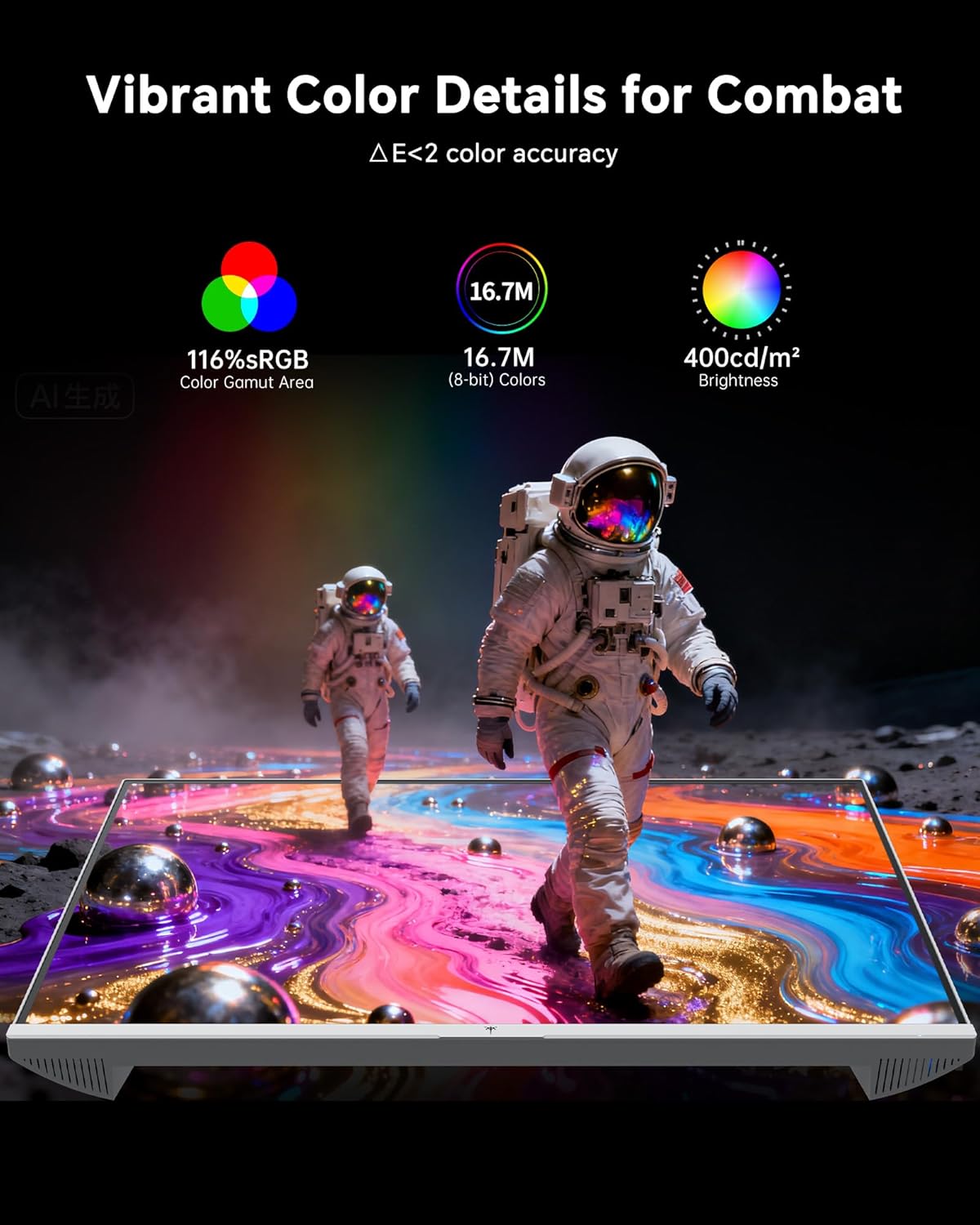
- Litlhophiso tsa Mebala: The monitor offers 116% sRGB color gamut and 16.7 million colors. Adjust brightness (up to 400 cd/m²) and color temperature through the OSD menu to suit your preference.
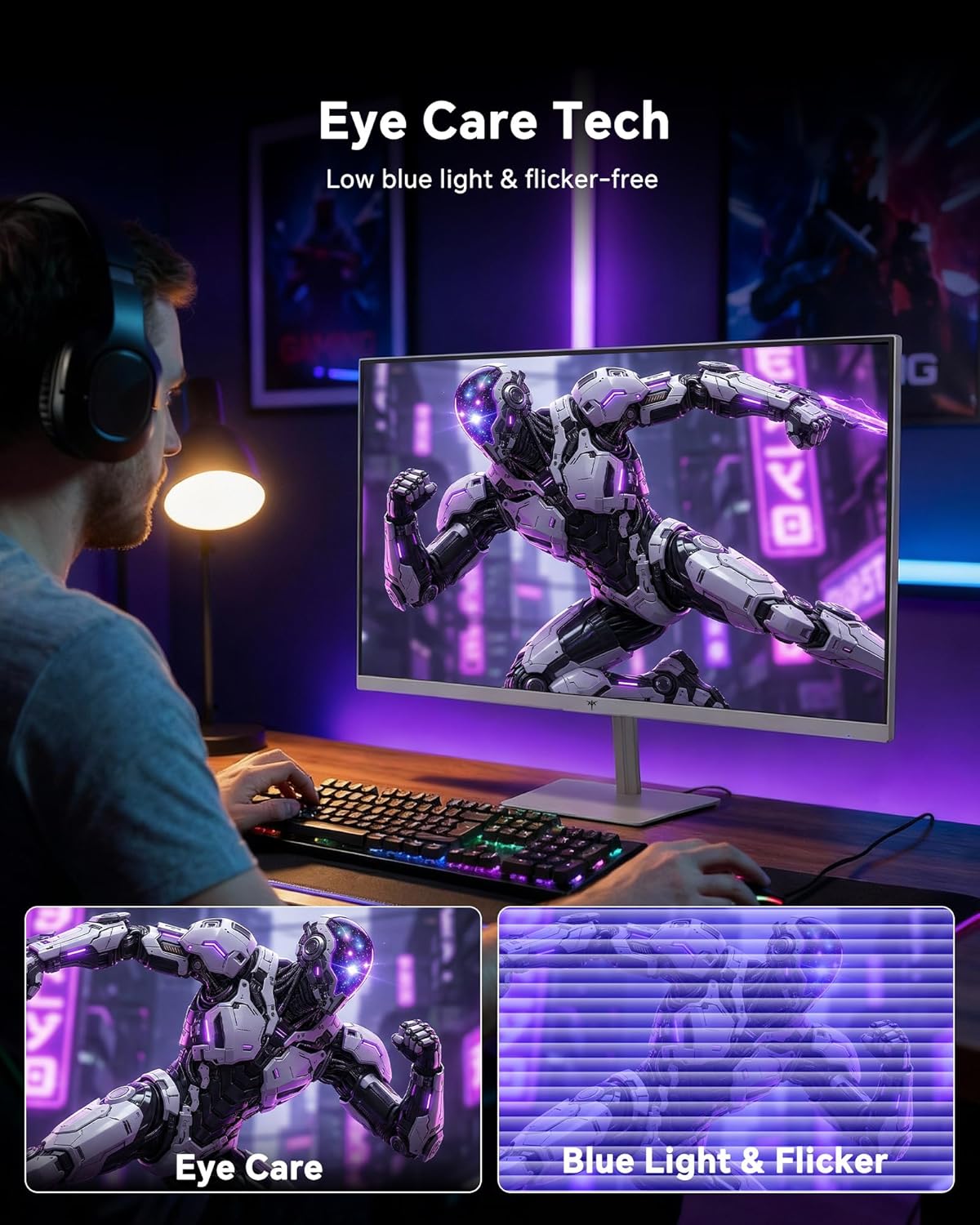
- Theknoloji ea Tlhokomelo ea Mahlo: The monitor features low blue light and flicker-free technology to reduce eye strain during prolonged use. These settings can typically be adjusted or enabled within the OSD menu.
2.4 Monitor Tilt Adjustment
The monitor supports tilt adjustment from -5° to 15° (±3°). Gently adjust the monitor panel to your desired viewing angle.
3. Tlhokomelo
3.1 Ho hloekisa Mohlahlobi
Ho hlwekisa skrine sa monitor le casing:
- Kamehla tima sebonela-hōle 'me u lokolle thapo ea motlakase pele u hloekisa.
- Sebelisa lesela le bonolo, le se nang lint hanyenyane dampe kentsoeng ka metsi kapa mochini o hloekisang skrine o bobebe, o sa senyeheng.
- Hlakola skrine ka bonolo ho tlosa lerōle le litšila. Qoba ho sebelisa khatello e feteletseng.
- Bakeng sa casing, use a dry, soft cloth. Do not use alcohol, ammonia, or abrasive cleaners, as these can damage the surface.
3.2 Tlhokomelo e akaretsang
- Qoba ho beha lintho tse boima holim'a sehlahlo kapa likhoele tsa sona.
- U se ke ua beha sekirini letsatsing le tobileng, mochesong o feteletseng, kapa serameng se feteletseng.
- Keep the monitor away from liquids and high humidity.
- Etsa bonnete ba hore ho na le moea o nepahetseng o pota-potileng mochine ho thibela mocheso o feteletseng.
4. Ho rarolla mathata
If you encounter issues with your KTC H24F7 monitor, refer to the following common problems and solutions:
| Bothata | Lebaka le ka khonehang | Tharollo |
|---|---|---|
| Ha ho setšoantšo skrineng | Power cable disconnected; Video cable disconnected or loose; Incorrect input source selected; Monitor is off. | Ensure power cable is securely connected and monitor is on. Check video cable connections (HDMI/DisplayPort) at both the monitor and computer. Press the input source button on the monitor to cycle through inputs. |
| Image flickering or tearing | Adaptive Sync not enabled; Graphics card driver issues; Faulty video cable. | Enable Adaptive Sync in the OSD menu and your graphics card control panel. Update graphics card drivers. Try a different video cable. If using DisplayPort 1, try DisplayPort 2 or HDMI if available, as some units may experience issues with specific ports. |
| Colors appear incorrect or washed out | Color settings incorrect; HDR not properly configured; Faulty video cable. | Adjust color settings (brightness, contrast, color temperature) in the OSD menu. Ensure HDR is enabled in both the OSD and your operating system for HDR content. Try a different video cable. |
| Monitor not reaching 240Hz | Graphics card limitations; Incorrect display settings in OS; Cable bandwidth limitations. | Ensure your graphics card supports 240Hz at 1080p. Verify display settings in your operating system (e.g., Windows Display Settings or NVIDIA/AMD control panel) are set to 240Hz. Use the provided HDMI cable or a certified DisplayPort 1.4 cable. |
| Stuck or dead pixels | Bothata ba tlhahiso. | A small number of stuck or dead pixels (typically 1-3) may be considered normal for LCD panels. If the issue is severe or persistent, contact customer support. |
5. Litlhaloso
| Sebopeho | Lintlha |
|---|---|
| Brand | CTC |
| Nomoro ea Mohlala | H24F7 |
| Boholo ba skrine | 24 lisenthimithara |
| Qeto | FHD 1080p (1920 x 1080 Pixels) |
| Mofuta oa Panel | IPS e potlakileng |
| Refresh Rate | 240 Hz |
| Nako ea Karabelo | Miliseconde e le 1 (MPRT) |
| Aspect ratio | 16:9 |
| Khanya | 400 Candela per Square Meter |
| Phapang karo-karolelano | 1000:1 |
| Colour Gamut | 116% sRGB |
| Tšehetso ea HDR | HDR 400 |
| Adaptive Sync | FreeSync, G-Sync Compatible |
| Khokahano | 2x HDMI 2.0, 1x DisplayPort 1.4, 1x USB 2.0, 1x Audio Out (3.5mm) |
| Likarolo tsa Tlhokomelo ea Mahlo | Low Blue Light, Flicker-Free, Anti-Glare Screen |
| Liphetoho | Tilt (-5° to 15°) |
| Thaba ea VESA | 100mm x 100 limilimithara |
| Litekanyo (D x W x H) | 5.39"D x 21.25"W x 15.74"H |
| Boima ba Ntho | 3.2 lik'hilograma |
| Mmala | Bosoeu |
6. Warranty & Ts'ehetso
6.1 Boitsebiso ba Tiisetso
The KTC H24F7 monitor comes with a three-year manufacturer warranty. Tiisetso ena e koahela mefokolo ea thepa le moetso tlas'a tšebeliso e tloaelehileng.
Ka kopo, boloka bopaki ba theko ea hau bakeng sa likopo tsa tiisetso.
6.2 Tšehetso ea Bareki
For technical assistance, warranty claims, or any questions regarding your KTC H24F7 monitor, please contact KTC customer support. KTC aims to provide responsive customer support and typically responds within 12 hours.
You can usually find contact information on the official KTC website or through the retailer where you purchased the product. When contacting support, please have your monitor model number (H24F7) and purchase details ready.