
1. Selelekela
This manual provides essential information for setting up, operating, maintaining, and troubleshooting your HP Pavilion 16-inch 2K Laptop. Please read this guide thoroughly to ensure optimal performance and longevity of your device.
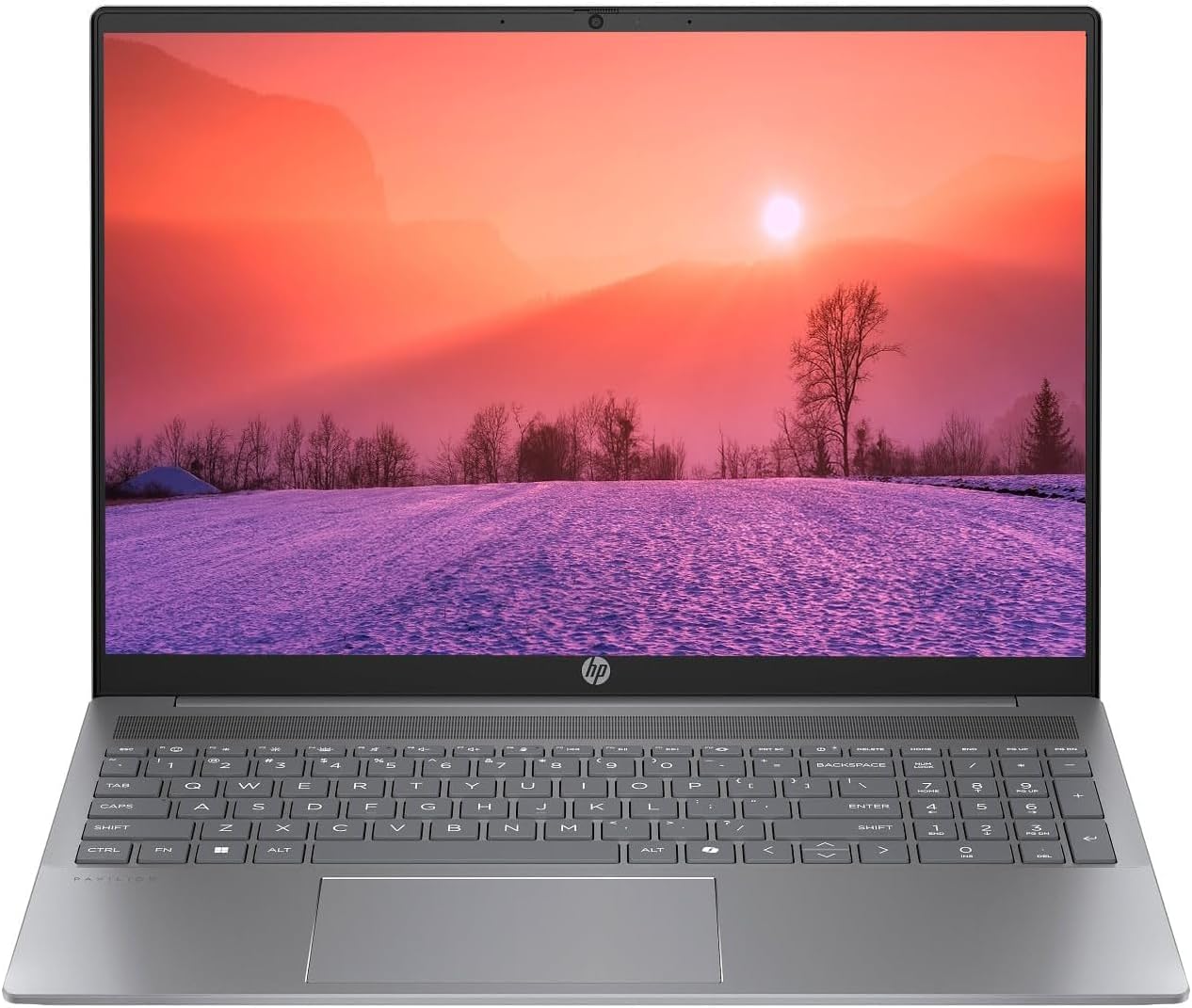
Figure 1.1: HP Pavilion 16-inch Laptop (Angled View)
This image displays the HP Pavilion 16-inch laptop in an open, angled position, highlighting its display and keyboard layout.
2. Seta
2.1 Ho phutholla le Tlhahlobo ea Pele
Carefully remove the laptop and all accessories from the packaging. Inspect for any signs of damage. If any components are missing or damaged, contact your retailer or HP support immediately.
2.2 Matla a ho Hokela
- Connect the AC adapter to the power connector on the side of your laptop.
- Hokela thapo ea motlakase sebakeng sa motlakase.
- Allow the laptop to charge for at least 30 minutes before initial use, especially if the battery is completely drained.
2.3 Ho qala ho qala le ho seta Windows 11
Press the power button to turn on your laptop. Follow the on-screen instructions to complete the Windows 11 Home OS setup, including language selection, network connection, and user account creation.
2.4 Lithako tse hokelang
Laptop ea hau e na le likou tse fapaneng tsa ho hokela lisebelisoa tsa kantle:
- Maeke a USB Type-C (2): For data transfer, charging compatible devices, and video output.
- USB Type-A Ports (2): Bakeng sa ho hokela disebediswa tse tlwaelehileng tsa USB tse kang ditoeba, dikhiboto, kapa di-drive tsa kantle.
- HDMI Port (1): Bakeng sa ho hokela ho lipontšo tsa kantle kapa liprojeke.
- Headphone/Microphone Combo Jack (1): For connecting headphones, external speakers, or a headset with a microphone.
3. Litaelo tsa Ts'ebetso
3.1 Power On/Off and Sleep Mode
- Matlafatsa: Press the power button located on the keyboard deck.
- Koala: Tobetsa konopo ea Qala ho Windows, ebe u khetha Matla > Koala.
- Mokhoa oa ho robala: Close the laptop lid or click the Start button, then select Power > Sleep.
3.2 Ho Sebelisa Keyboard le Touchpad
The laptop features a full-size keyboard and a precision touchpad.
- Backlit Keyboard: To activate or adjust the keyboard backlight, use the dedicated function key (usually F5 or F4, look for a keyboard icon).
- Boitšisinyo ba Touchpad: Refer to Windows 11 settings for customizable touchpad gestures (e.g., two-finger scroll, pinch-to-zoom).
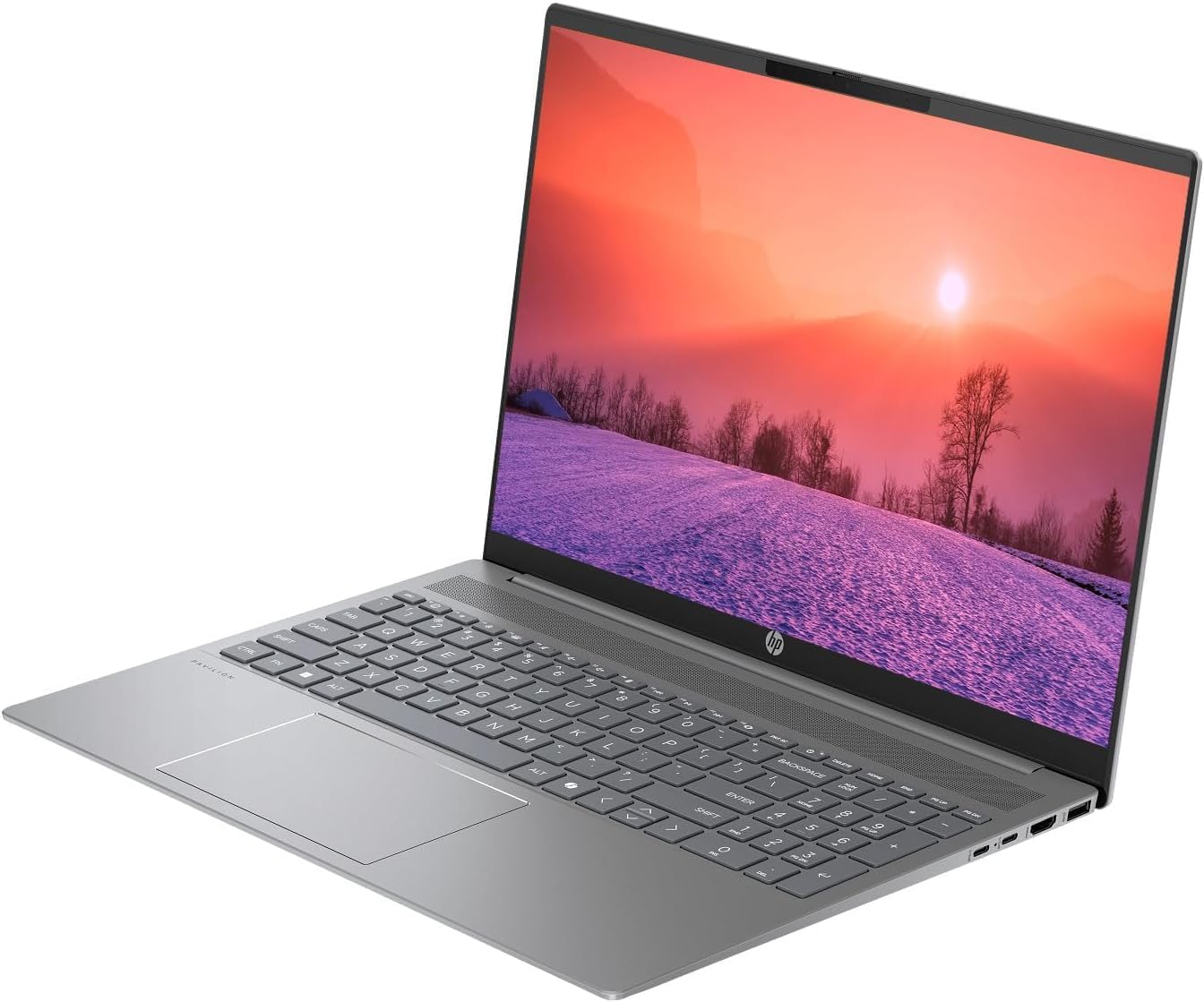
Figure 3.1: HP Pavilion 16-inch Laptop (Front View)
This image shows the HP Pavilion 16-inch laptop from a direct front view, highlighting the screen and keyboard.
3.3 Khokahano e se nang mohala
- Wi-Fi 6: To connect to a wireless network, click the Wi-Fi icon in the taskbar, select your network, and enter the password.
- Bluetooth: To pair Bluetooth devices, go to Windows Settings > Bluetooth & devices, and turn on Bluetooth.
3.4 Ho sebelisa sesebelisoa sa Webkam
HD e kopantsoeng webcam can be used for video calls and conferences. Access it through applications like Camera, Microsoft Teams, or Zoom.
4. Tlhokomelo
4.1 Ho hloekisa Laptop
- Sebelisa lesela le bonolo, le se nang lint hanyenyane dampe kentsoeng ka metsi kapa mochini o hloekisang skrine bakeng sa pontsho.
- For the keyboard and chassis, use a soft cloth. Avoid harsh chemicals.
- Use compressed air to clear dust from vents periodically.
Tlhokomelo ea Battery
- Qoba ho ntša betri ka ho feletseng khafetsa.
- Boloka laptop sebakeng se phodileng, se omileng haeba se sa sebelisoe nako e telele.
- For optimal battery health, avoid continuous charging at 100% for prolonged durations.
4.3 Lintlafatso tsa Software
Regularly check for and install Windows updates to ensure system stability, security, and performance. Go to Windows Settings > Windows Update.
4.4 Taolo ea Polokelo
Nako le nako hloekisa ho sa hlokahale files and applications to maintain optimal performance of the 512GB SSD. Use Windows built-in tools like Disk Cleanup or Storage Sense.
5. Ho rarolla mathata
This section addresses common issues you might encounter with your HP Pavilion laptop.
5.1 Laptop Not Powering On
- Netefatsa hore adaptara ea AC e hoketsoe ka mokhoa o sireletsehileng ho laptop le sesebelisoa sa motlakase se sebetsang.
- Netefatsa hore motlakase oa sebetsa ka ho hokela sesebelisoa se seng.
- Haeba betri e khathetse ka ho feletseng, e lumelle hore e tjhaje bonyane metsotso e 30 pele o leka ho bulela.
5.2 Mathata a Khokahano ea Wi-Fi
- Sheba hore na Wi-Fi e nolofalitsoe ho litlhophiso tsa Windows.
- Qala hape router ea hau le modem.
- Ensure you are within range of the Wi-Fi network.
- Leka ho lebala marang-rang le ho hokahanya hape.
5.3 Keyboard Backlight Not Working
- Press the dedicated keyboard backlight function key (e.g., F5 or F4) to toggle or adjust the brightness.
- Check Windows Mobility Center settings (search for it in the Start menu) for backlight options.
5.4 Tshebetso e butle
- Koala lits'ebetso tse sa hlokahaleng tse sebetsang ka morao.
- Ensure Windows is up to date.
- Run a disk cleanup and check for malware.
- Verify that the laptop is not overheating.
6. Litlhaloso
| Sebopeho | Tlhaloso |
|---|---|
| Lebitso la Mohlala | HP 16" Laptop |
| processor | AMD Ryzen 5 8540U (Up to 4.89GHz) |
| RAM | 8GB LPDDR5 |
| Polokelo | 512GB SSD |
| Pontšo | 16-inch WUXGA 2K (1920 x 1200 pixels) LED |
| Litšoantšo | AMD Radeon Graphics (Dedicated) |
| Mokhoa oa tšebetso | Windows 11 Home OS |
| Boema-kepe | 2x USB Type-C, 2x USB Type-A, 1x HDMI, 1x Headphone/Microphone Combo Jack |
| Khokahano e se nang mohala | Wi-Fi 6 (802.11ax), Bluetooth |
| Keyboard | E khantšitse |
| Webkam | Ee |
| Litekanyo (L x W x Th) | 14.17" x 9.2" x 0.7" |
| Betri | Lithium Ion, 4 Watt Hours |
| UPC | 197961359091 |
7. Tiisetso le Tšehetso
7.1 Boitsebiso ba Tiisetso
This HP Pavilion laptop comes with a Warranty ea matsatsi a 30. Please retain your proof of purchase for any warranty claims. The warranty covers manufacturing defects under normal use conditions.
7.2 Tšehetso ea Bareki
For further assistance, technical support, or warranty inquiries, please visit the official HP support website or contact their customer service. You can typically find contact information and support resources by searching for "HP Support" online.