
Selelekela
This manual provides essential information for setting up, operating, and maintaining your Roku 32-Inch Select Series 1080p Full HD Smart TV. Designed for a delightful streaming experience, this TV offers excellent picture quality, clear sound, and automatic updates. Please read this manual thoroughly before using your television.
Se ka Lebokoseng
Netefatsa hore likarolo tsohle li teng ka har'a sephutheloana:
- Roku 32-Inch Select Series 1080p Full HD Smart TV
- Remote Control
- Ema (likotoana tse peli)
- Stand Screws (4 pieces)
- Motlakase oa Motlakase
- Bukana ea mosebelisi (tokomane ena)

Image: Contents of the Roku TV box, showing the television, remote control, two stand pieces, and four screws.
Litaelo tsa ho seta
1. Ho hokela Seteishene sa TV
- Carefully place your TV face-down on a soft, clean surface to prevent damage to the screen.
- Align the stand pieces with the screw holes on the bottom of the TV.
- Secure each stand piece with two screws using a Phillips head screwdriver. Do not overtighten.
2. Ho hokahanya Matla le Lisebelisoa
- Hokela thapo ea motlakase ho motlakase oa TV ebe o hokela leboteng.
- Connect your external devices (e.g., cable box, gaming console, Blu-ray player) to the available HDMI ports on the back of the TV. This model features 3 HDMI ports.
- For older devices, use the AV input ports (yellow, white, red).
- An optical audio output is available for connecting to soundbars or home theater systems.
- A USB port is provided for media playback.

Setšoantšo: Ka morao view of the Roku TV displaying HDMI, AV, Antenna, USB, Optical, and Headphone ports.
3. Ho Bulela Matla a Pele le Kgokelo ya Marangrang
- Tobetsa konopo ea matla ho remote control kapa TV.
- Follow the on-screen instructions to select your language and connect to your Wi-Fi network.
- Activate your Roku account or create a new one. This is required to access streaming channels and features.
Litaelo tsa Ts'ebetso
1. Roku OS Interface
The Roku OS provides a simple and intuitive home screen for accessing all your entertainment. Easily navigate between streaming apps, live TV, and connected devices.

Image: The Roku TV home screen with a menu on the left and app icons on the right, including Netflix, Disney+, Apple TV, and Roku Channel.
2. Voice Remote
Your Roku TV comes with a voice remote for convenient control. Use your voice to search for content, launch apps, and control playback.
- Batla ka Lentsoe: Press the voice button and speak your command (e.g., "Find comedies," "Open Netflix").
- Likhaoletso tsa App: Dedicated buttons provide quick access to popular streaming services.
- Taolo ea Bolumo: Fetola molumo o sebelisa likonopo tse ka mahlakoreng.
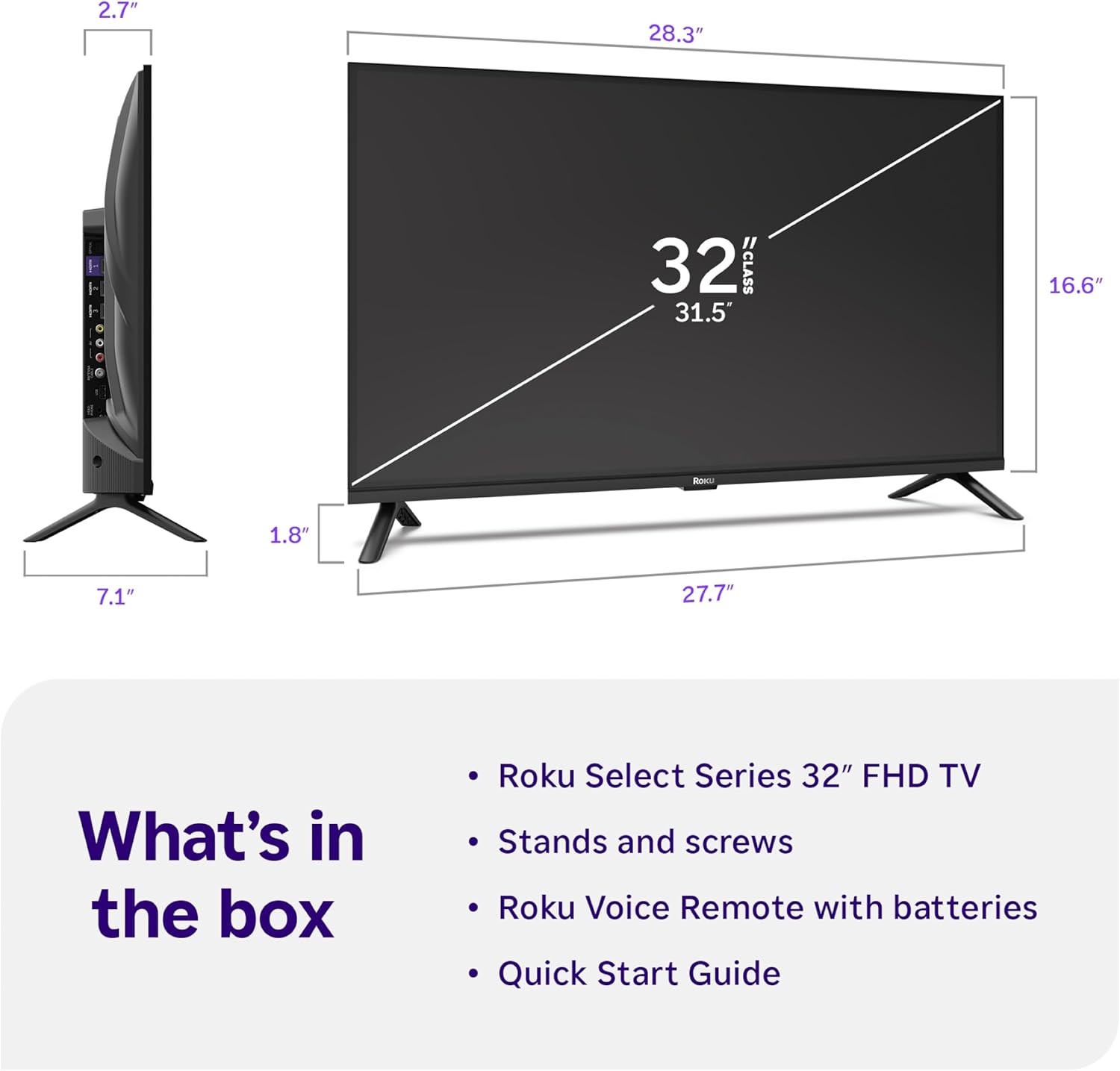
Image: Close-up of the Roku Voice Remote, highlighting buttons for TV power, volume, mute, voice search, instant replay, options, and dedicated app shortcuts.
3. Streaming Apps and Live TV
Access thousands of streaming channels, including Netflix, Disney+, Hulu, Prime Video, and Apple TV+. The Roku Channel also offers free live TV and on-demand content.

Image: A vibrant Roku TV home screen displaying a selection of popular streaming applications and recommended shows.
4. Litlhophiso tsa Litšoantšo
Ntlafatsa hao viewing experience with various picture settings:
- Roku Smart Picture: Automatically adjusts picture mode for optimal viewng.
- Mekhoa ea Litšoantšo: Choose from presets like Movie, Sports, Vivid, Standard, or Low Power.
- Boikemisetso: Adjust brightness, contrast, sharpness, color, and tint for a personalized picture.
5. Litlhophiso tsa molumo
Enhance your audio experience:
- Molumo oa Dolby: Enjoy clear speech and louder sound.
- Mefuta ea Molumo: Select from Standard, Dialogue, Movie, Music, or Night mode.
- Bluetooth Headphone Mode: Connect your wireless headphones to listen without disturbing others.

Image: A child wearing wireless headphones while watching the Roku TV, demonstrating the Bluetooth Headphone Mode.
6. Smart Home Integration
Your Roku TV is compatible with various smart home ecosystems:
- Taolo ea Lentsoe: Use Roku Voice, Siri, Alexa, or Google Assistant for hands-free control.
- Apple AirPlay: Effortlessly share videos, photos, and music from your Apple devices.
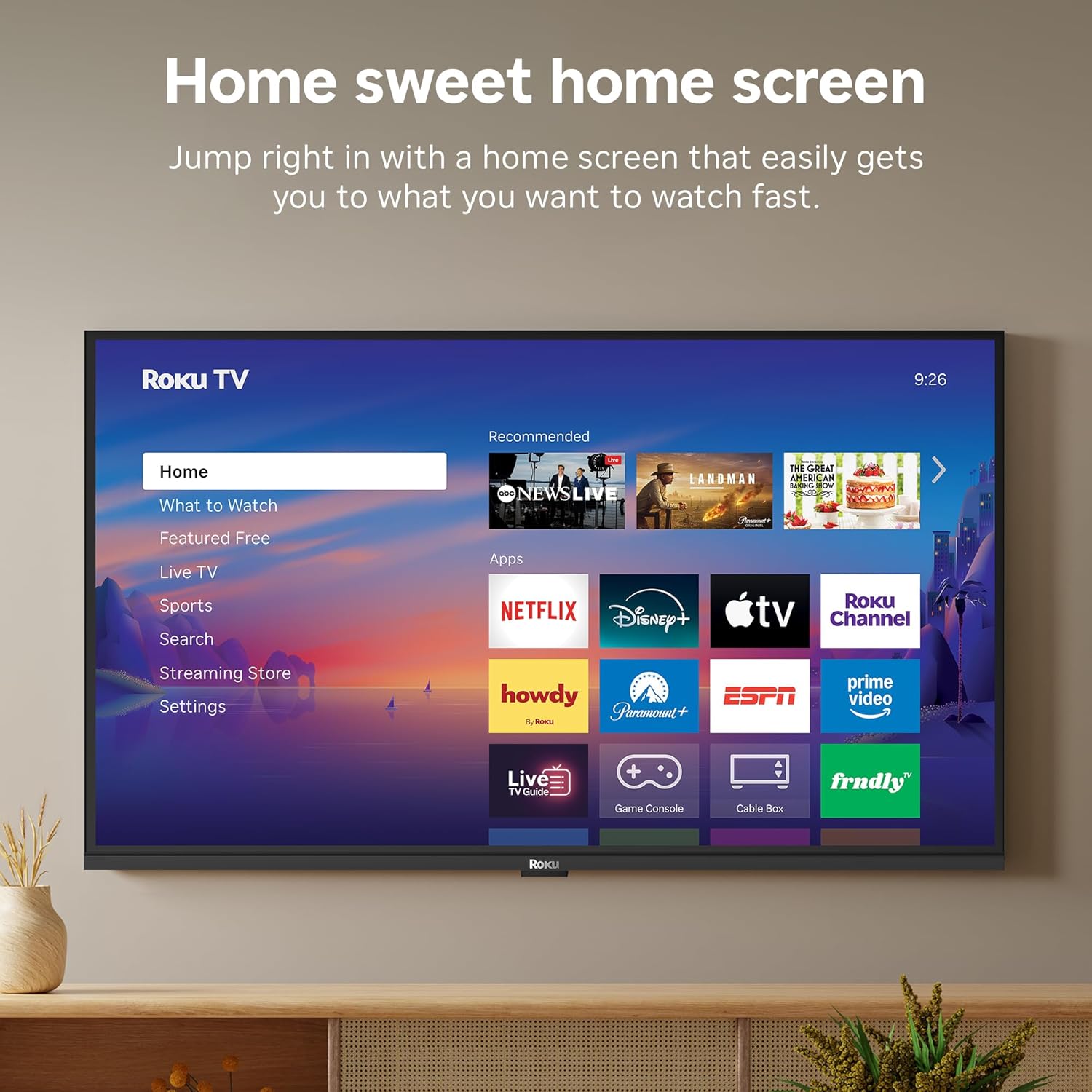
Image: The Roku TV screen displaying smart home compatibility logos for Roku Smart Home, Apple AirPlay, Apple Home, Alexa, and Google Home, with a smart speaker nearby.
7. Taolo ea Batsoali
Manage content access with built-in parental controls, including V-Chip technology, to ensure a safe viewtikoloho ea bana.
Video ea Sehlahisoa sa Molao
Video: Ho fetaview of the Roku TV OS, demonstrating its user-friendly interface, app selection, and smart features. This video is provided by Roku, Inc.
Litlhaloso
- Boholo ba skrini:
- 32 lisenthimithara
- Qeto:
- 1080p e Feletseng HD
- Bontša Theknoloji:
- LED
- Sekhahla sa ho Nchafatsa:
- 60 Hz
- Likarolo tse Khethehileng:
- Bluetooth Headphone Mode, Dolby Audio, Voice Remote, Roku Smart Picture
- Theknoloji ea Khokahano:
- Bluetooth, WiFi
- Sebopeho sa Hardware:
- 3 HDMI Ports, 1 USB Port, S/PDIF (Optical Audio Out)
- Mokhoa oa tšebetso:
- Roku OS
- Litekanyo tsa Sehlahisoa (D x W x H):
- 7.1"D x 28.3"W x 18.4"H
- Boima ba Ntho:
- 7.7 Pounds (with stand)
- VESA Mount Standard:
- 200 x 200 limilimithara
- Nomoro ea Mohlala:
- 32R3E5
- UPC:
- 829610009469
Ho batle phoso
If you encounter issues with your Roku TV, please refer to the following common solutions:
- Ha ho Matla: Ensure the power cable is securely connected to both the TV and a working electrical outlet. Try a different outlet.
- Ha ho Senepe/Molumo: Verify that the correct input source is selected on your TV. Check all cable connections (HDMI, AV, etc.) for looseness.
- Remoutu ha e arabe: Replace the batteries in your remote control. Ensure there are no obstructions between the remote and the TV.
- Mathata a Khokahano ea Marang-rang: Restart your Wi-Fi router and modem. Go to the TV's Settings > Network > Check connection to diagnose and reconnect.
- Sesebelisoa ha se jarisoe: Restart the app. If the issue persists, try removing and reinstalling the app from the Roku Channel Store.
For more detailed troubleshooting, visit the official Roku support websebaka.
Tlhokomelo
To ensure the longevity and optimal performance of your Roku TV, follow these maintenance guidelines:
- Ho hloekisa skrine: Hlakola skrine ka bonolo ka lesela le bonolo, le omeletseng la microfiber. Bakeng sa smudges manganga, habobebe dampst lesela le nang le metsi kapa tharollo ea ho hloekisa skrine e etselitsoeng lisebelisoa tsa elektroniki ka ho khetheha. Se ke oa fafatsa mokelikeli ka kotloloho skrineng.
- Ho Hloekisa 'Mele oa TV: Use a soft, dry cloth to wipe the exterior of the TV. Avoid abrasive cleaners or solvents.
- Moea oa moea: Ensure the TV's ventilation openings are not blocked to prevent overheating. Maintain adequate space around the TV for air circulation.
- Lintlafatso tsa Software: Your Roku TV automatically receives software updates. Ensure your TV is connected to the internet to receive the latest features and performance improvements.
- Taolo ea Matla: Ntša TV motlakaseng nakong ea lifefo tsa lehalima kapa ha e tla be e sa hlokomeloe ka nako e telele.
Warranty le Tšehetso
Boitsebiso ba Warranty
Roku warrants the hardware of this device against defects in materials and workmanship under normal use for a period of one (1) year from the date of purchase ("Warranty Period"). If Roku determines that the device’s hardware is defective during the Warranty Period, Roku’s sole obligation, and your exclusive remedy, will be to either repair or replace the unit with either a new or rebuilt device, at its option. This warranty applies if the device is used in accordance with the provided documentation.
Important information about warranty returns and replacements is available on the Roku support site. You may also return a device for any reason, subject to the terms of the applicable return policy: 1) Within thirty (30) days from the date of purchase from Roku; or 2) within the applicable return period if purchased from an authorized reseller or distributor. Additional details regarding product returns can be found on the Roku support site.
Tšehetso ea Bareki
For further assistance, technical support, or to access the full range of support resources, please visit the official Roku support websebaka. U ka fumana li-FAQ, litataiso tsa ho rarolla mathata, le lintlha tsa ho ikopanya le litšebeletso tsa bareki moo.