
1. Selelekela
Thank you for choosing the BESTISAN GM07 Computer Gaming Speakers. These 30W powered monitor speakers are designed to enhance your audio experience for gaming, movies, and music. Featuring versatile connectivity options including Bluetooth, AUX, and Type-C, along with customizable RGB lighting, the GM07 speakers offer powerful sound in a compact design.
This manual provides essential information for setting up, operating, and maintaining your speakers. Please read it thoroughly before use to ensure proper function and to maximize your enjoyment of the product.
2. Se ka Lebokoseng
Carefully unpack the box and ensure all items are present and in good condition. If any items are missing or damaged, please contact customer support.
- BESTISAN GM07 Speakers (2 units)
- Motlakase oa Motlakase
- Audio Cable (AUX)
- Tataiso ea ho Qala ka Potlako

Image: The package contents for the BESTISAN GM07 speakers, showing the two speaker units, power adapter, AUX cable, and the quick start guide.
3. Sehlahisoa Overview
3.1 Likarolo tsa Sebui
Each speaker unit features a front-facing grille covering the audio drivers and an integrated RGB light bar at the base. The primary controls and connection ports are located on one of the speaker units.
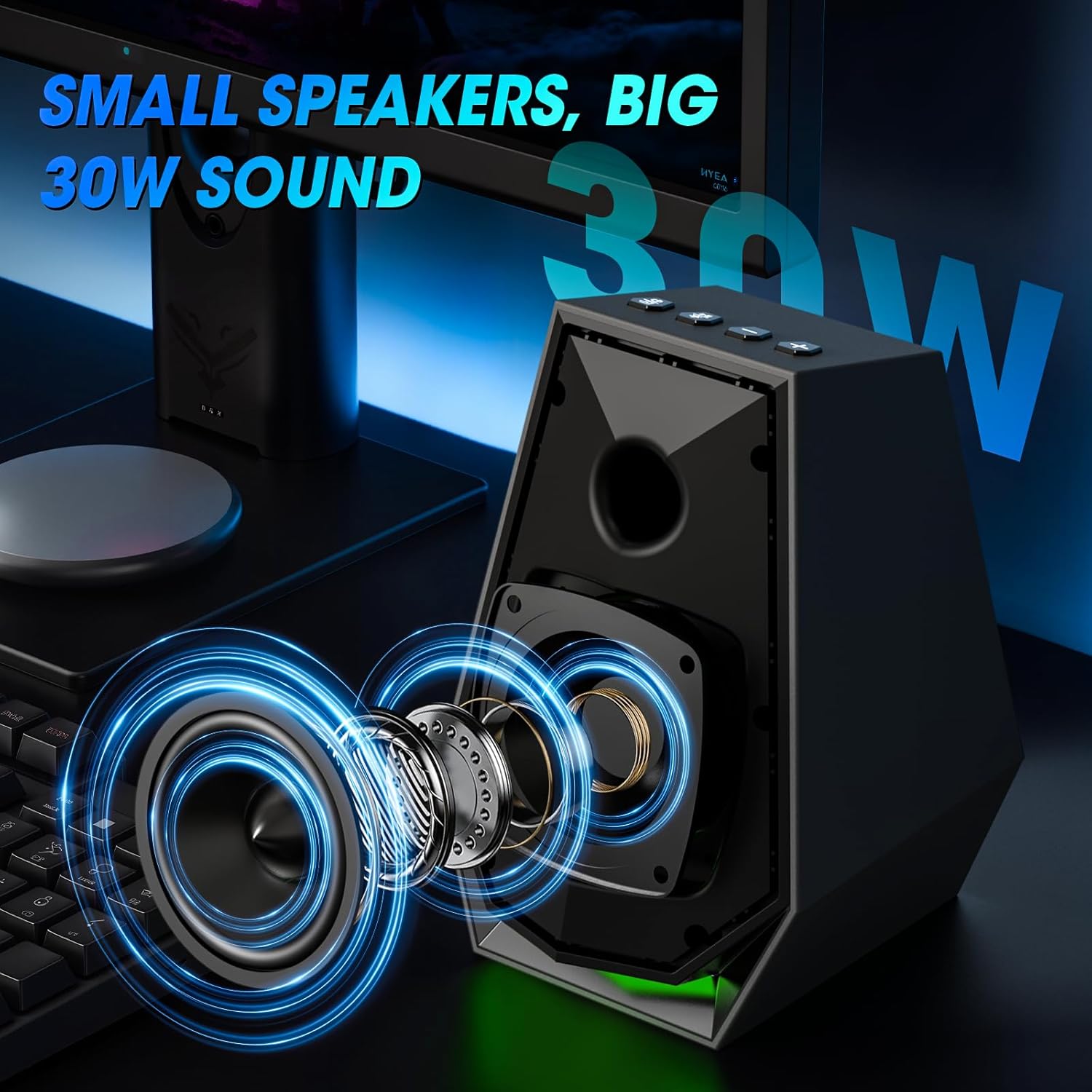
Setšoantšo: Ea ka hare view of the speaker, illustrating the acoustic components responsible for sound output.
3.2 Taolo le Likou
The main speaker unit includes the following controls and ports:
- Konopo ea Matla / Mokhoa: Short press to switch input modes (Bluetooth/AUX/Type-C). Long press to power off. Double press to change EQ mode.
- Play/Pause/Light Button: Short press to play/pause audio. Long press to disconnect Bluetooth. Double press to change light mode.
- Konopo ea Phahamisa (+): E eketsa molumo.
- Konopo ea Phatlalatso (-): E fokotsa molumo.
- AUX e Koung: For wired audio connection via 3.5mm audio cable.
- Mofuta oa C Port: For wired audio connection via Type-C cable.
- Motlakase oa DC: E hokela ho adaptara ea motlakase.
- Sephetho sa sebui: Connects to the secondary speaker unit.

Image: A user interacting with the control buttons located on the top of the speaker unit.

Image: The rear panel of the speaker, highlighting the AUX and Type-C input ports for various device connections.
4. Seta
4.1 Ho Bea Sebui
Place the two speaker units on either side of your monitor or laptop, ensuring they are at an equal distance from your listening position for optimal stereo sound. The compact design allows them to fit comfortably on most desks.
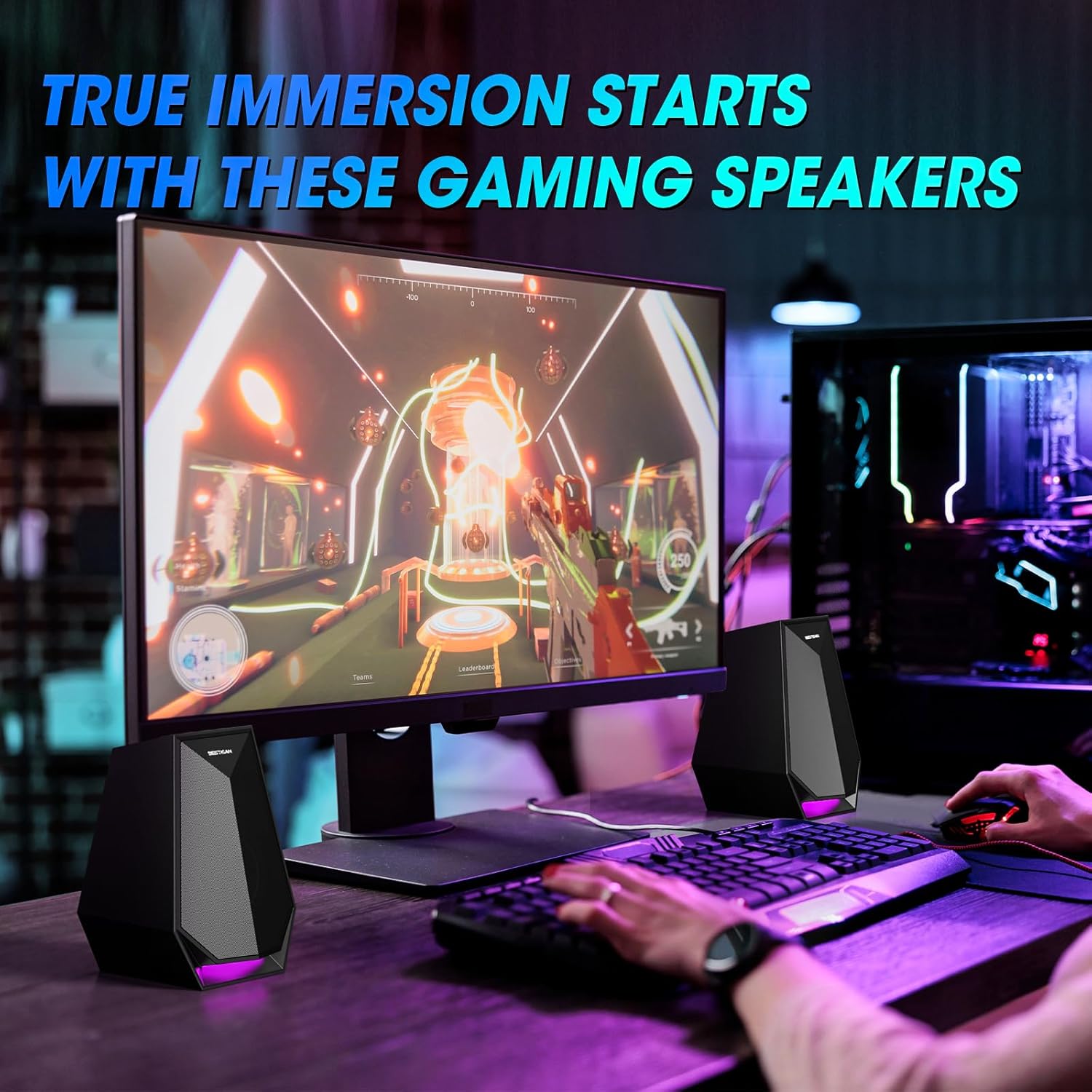
Image: The speakers are set up on a desk, flanking a computer monitor, demonstrating ideal placement.
4.2 Khokelo ea Matla
- Connect the power cable to the DC Power Input port on the main speaker unit.
- Hokela adaptara ea motlakase sebakeng se tloaelehileng sa lebota.
4.3 Connecting the Secondary Speaker
Connect the cable from the secondary speaker unit to the Speaker Output port on the main speaker unit.
5. Litaelo tsa Ts'ebetso
5.1 Ho Bulela/Ho tima
- Matlafatsa: Short press the Power/Mode button.
- Tlosa motlakase: Long press the Power/Mode button.
5.2 Mekhoa ea ho Fetola ea ho Kenya
After powering on, short press the Power/Mode button to cycle through the available input modes: Bluetooth, AUX, and Type-C. The speaker will indicate the current mode.
5.3 Khokelo ea Bluetooth
- Switch the speaker to Bluetooth mode. The indicator light will flash, indicating it is ready for pairing.
- On your device (phone, laptop, etc.), enable Bluetooth and search for "BESTISAN GM07".
- Select "BESTISAN GM07" to pair. Once connected, the indicator light will stop flashing.
- To disconnect Bluetooth, long press the Play/Pause/Light button.
Khokahano ea 5.4 AUX
Connect your audio source (e.g., computer, gaming console) to the AUX In port on the main speaker unit using the provided 3.5mm audio cable. Switch the speaker to AUX mode.
5.5 Khokahano ea Mofuta oa C
Connect your audio source (e.g., laptop, monitor) to the Type-C port on the main speaker unit using a compatible Type-C cable. Switch the speaker to Type-C mode.
5.6 Ho Fetola Bolumo
Use the Volume Up (+) and Volume Down (-) buttons on the main speaker unit to adjust the audio volume.
5.7 Mekhoa ea ho Fetola Leseli
The speakers feature 6 customizable colorful light modes. Double press the Play/Pause/Light button to cycle through the different lighting effects.
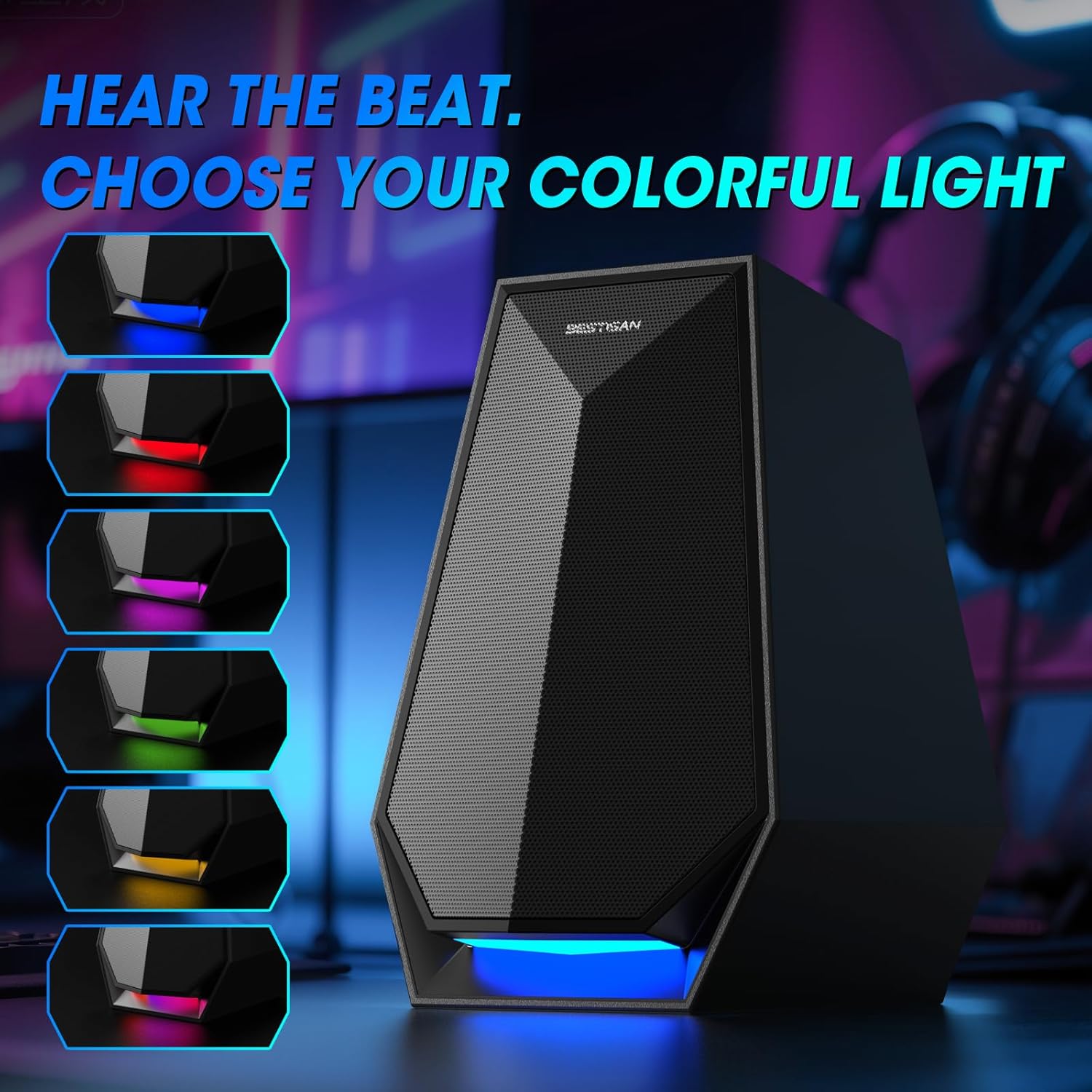
Image: The speaker's base illuminated with different colors, demonstrating the customizable lighting options.
6. Tlhokomelo
To ensure the longevity and optimal performance of your BESTISAN GM07 speakers, follow these maintenance guidelines:
- Ho hloekisa: Use a soft, dry cloth to wipe the speaker surfaces. Avoid using abrasive cleaners, solvents, or chemical sprays, as these can damage the finish.
- Lerōle: Regularly dust the speaker grilles to prevent accumulation, which can affect sound quality.
- Tikoloho: Keep the speakers away from direct sunlight, excessive heat, humidity, and water. Ensure adequate ventilation around the units.
- Ho tšoara: Qoba ho liha kapa ho beha libui tlas'a tšusumetso e matla.
7. Ho rarolla mathata
Haeba u kopana le mathata le libui tsa hau, sheba mathata le litharollo tse latelang:
| Bothata | Lebaka le ka khonehang | Tharollo |
|---|---|---|
| Ha ho molumo | Speakers not powered on; incorrect input mode; volume too low; loose cable connection; device volume too low. | Ensure speakers are powered on. Switch to the correct input mode (Bluetooth, AUX, Type-C). Increase speaker and device volume. Check all cable connections. |
| Ho hloleha ho hokahanya ha Bluetooth | Speakers not in pairing mode; device Bluetooth off; interference; previously paired device connected. | Ensure speakers are in Bluetooth pairing mode (flashing indicator). Turn on Bluetooth on your device. Move closer to speakers. Disconnect from any other paired devices. |
| RGB lights not working/changing | Incorrect button press; internal issue. | Double press the Play/Pause/Light button to cycle modes. If issue persists, power cycle the speakers. |
| Molumo o sothehileng | Volume too high; poor audio source quality; loose connection. | Reduce volume on both speakers and audio source. Test with a different audio source. Check cable connections. |
If the problem persists after trying these solutions, please contact BESTISAN customer support.
8. Litlhaloso
| Sebopeho | Lintlha |
|---|---|
| Lebitso la Mohlala | GM07 |
| Brand | MOEKETSI |
| Mofuta oa Sebui | Ho pota-pota Modumo |
| Theknoloji ea Khokahano | Auxiliary, Bluetooth, Type-C |
| Sebui se Phahameng sa Matla a Phahamisang | 30 Watts (29.99 Watts) |
| Litekanyo tsa Sehlahisoa | 4.53"D x 4.72"W x 6.77"H |
| Boima ba Ntho | 3.41 liponto |
| Mmala | Ntsho |
| Mofuta oa ho Beha | Thaba ea Letlapa |
9. Tiisetso le Tšehetso
BESTISAN products are designed and manufactured to the highest quality standards. This product is covered by a standard manufacturer's warranty against defects in materials and workmanship from the date of purchase. Please refer to the warranty card included in your package for specific terms and conditions.
For technical support, warranty claims, or any questions regarding your BESTISAN GM07 speakers, please contact BESTISAN customer service through the retailer where you purchased the product or visit the official BESTISAN websaete bakeng sa lintlha tsa ho ikopanya.
Ka kopo, boloka bopaki ba theko ea hau molemong oa tiisetso.