
1. Seta
1.1 Product Package Contents
The EDIFIER EvoBuds Pro package includes the following items:
- Li-earbud (para e le 'ngoe)
- Nyeoe ea ho tjhaja (1)
- USB-C Charging Cable (0.3m) (1)
- Ear Tips (S/M/L/XL) (4 pairs)
- Buka ea litaelo (1)
- Safety Precautions (1)

Image: EDIFIER EvoBuds Pro package contents.
1.2 Khoasolla sesebelisoa
To unlock full features and customization, download the EDIFIER ConneX app:
- Batla "EDIFIER ConneX" in your device's app store.
- Alternatively, scan the QR code provided in the instruction manual or on the product packaging.

Image: EDIFIER ConneX app interface.
1.3 Ho Kopanya ha Pele
Follow these steps for initial device pairing:
- Open the charging case. The earbuds will automatically enter pairing mode. The LED indicator on the case will blink red and green alternately.
- On your smartphone, navigate to [Settings] and enable Bluetooth.
- From the list of available devices, tap "EDIFIER EvoBuds Pro" to connect.
- Once connected, the LED indicator will blink green once.
1.4 Kgokelo ya Dintlha tse Ngata
The EDIFIER EvoBuds Pro supports multi-point connection, allowing seamless switching between two paired devices:
- First, pair the earbuds with your primary device (Device A) as described in the "Initial Pairing" section.
- With the earbuds in the case and the lid open, press and hold the button on the case for 3 seconds to re-enter pairing mode.
- Pair the earbuds with your secondary device (Device B) via Bluetooth.
- Finally, reconnect the earbuds to Device A via Bluetooth. The multi-point connection is now complete, allowing you to switch between Device A and Device B.

Image: Stable Wireless Connection and Multi-point Feature.
2. Litaelo tsa Ts'ebetso
2.1 Basic Controls (Pinch Control)
The EvoBuds Pro feature intuitive pinch controls to manage playback and calls:
- Bapala/Emisa: Penya e 'ngoe ea li-earbud hang.
- Pina e Latelang: Pinch the right earbud twice.
- Pina e fetileng: Pinch the left earbud twice.
- Phetoho ea Mokhoa oa ANC: Pinch and hold either earbud. The default switching order is High Noise Cancelling → Ambient Sound.
Note: Control settings can be customized via the EDIFIER ConneX app.

Image: Pinch Control Guide.
2.2 Taolo ea Mehala
- Araba/Khaola mohala: Penya e 'ngoe ea li-earbud hang.
- Hana Mohala: Pinch and hold either earbud.
2.3 Noise Cancelling (ANC) and Ambient Sound Modes
The EvoBuds Pro features a hybrid ANC system with dual microphones, achieving up to -48dB environmental noise reduction. Multiple modes are available for various scenarios:
- High Noise Cancelling: For environments with high noise levels (e.g., airplanes, buses).
- Medium Noise Cancelling: For moderate noise environments (e.g., office, park).
- Phokotso ea moea o fokang moea: Specifically designed to reduce wind noise during outdoor activities like cycling.
- Mokhoa o hlakileng oa molumo: Allows you to hear surrounding sounds, conversations, or traffic without removing your earbuds. The ambient sound level can be adjusted from -3 to +3 via the app.

Image: Noise Cancelling Function.
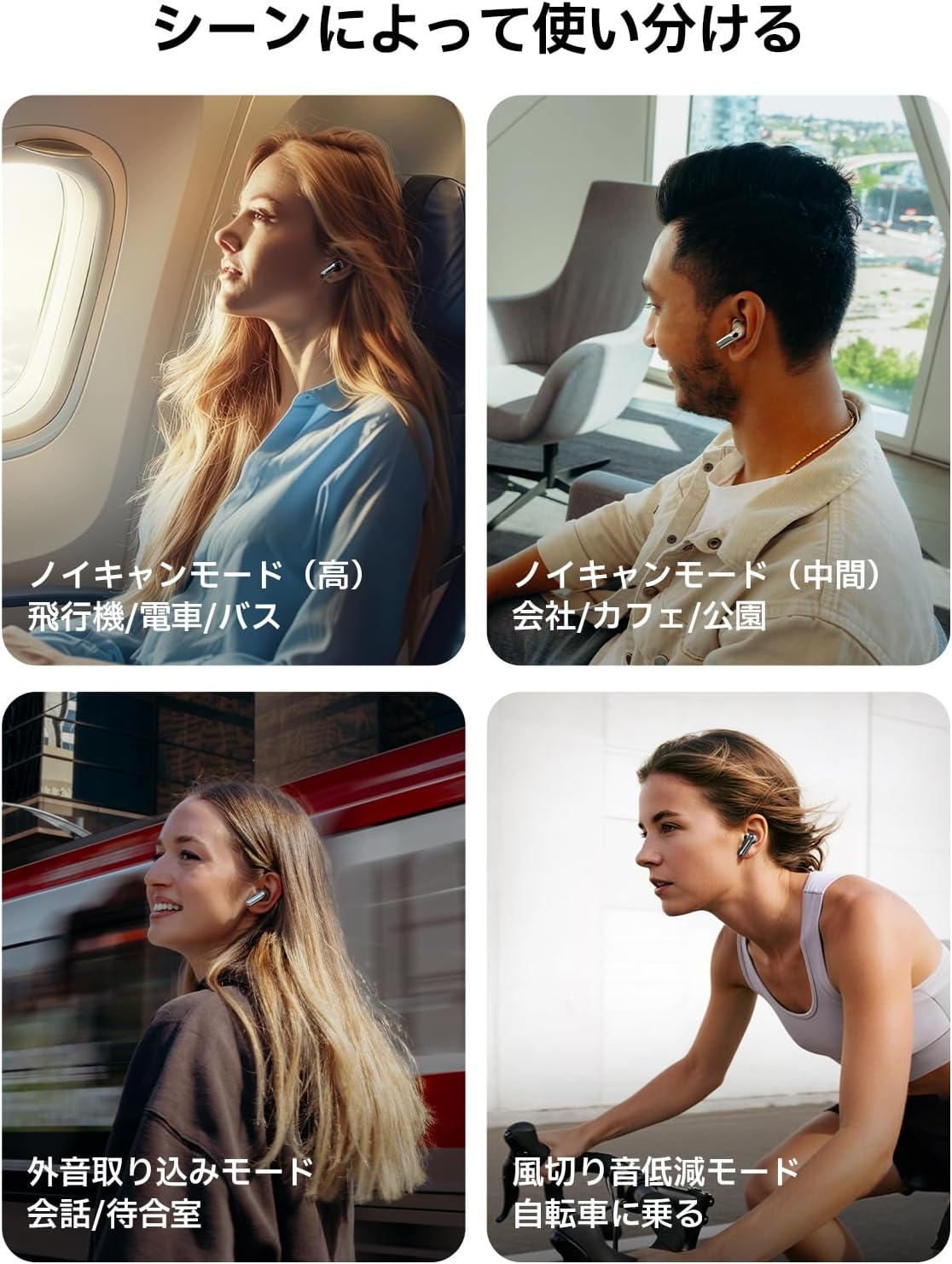
Image: Usage scenarios for different modes.
2.4 AI Voice Translation
The EvoBuds Pro offers seamless AI voice translation supporting 21 languages:
- Ensure your earphones are paired with your smartphone.
- Open the EDIFIER ConneX app and tap the translate icon to enable AI voice translation.
- Select your native language and the target language. Download the necessary language packs if prompted.
- Choose a conversation mode: "Side by Side" or "Face to Face".
- Tap the screen or double-tap either earbud to speak. Your speech will be translated, displayed on the screen, and played back through the smartphone and earphones.
- You can also specify who is wearing the earphone (yourself or the other person) or use the smartphone microphone only for translation.

Image: AI Voice Translation Function.
2.5 Mokhoa oa ho bapala
Activate game mode via the EDIFIER ConneX app to enjoy ultra-responsive audio with a low latency of 60ms, ideal for video viewho bapala le ho bapala.
2.6 Wearing Detection
The earbuds feature wearing detection. When you remove an earbud, music playback will automatically pause. When you put it back in, playback will resume.

Image: Wearing Detection Function.
2.7 Tšireletso ea ho utloa
The EDIFIER ConneX app includes a hearing protection function. By enabling "Volume Limit", you can set a maximum volume level and receive reminders to protect your hearing health.

Image: Hearing Protection Function.
3. Tlhokomelo
3.1 IP54 Water and Dust Resistance
The EDIFIER EvoBuds Pro are rated IP54 for water and dust resistance, making them suitable for use during outdoor activities or sports. This rating protects against splashes of water and limited dust ingress. Please note that they are not designed for use underwater.

Image: IP54 Water and Dust Resistance.
4. Ho rarolla mathata
4.1 Ho Seta Li-Earbud Bocha
If you encounter any issues during use, you can reset the earphones to their factory default settings:
- Place both earbuds into the charging case and leave the lid open.
- Press the button on the charging case three times.
- The LED indicator will blink green until the reset process is complete.
- After the reset, the earphones will automatically enter pairing mode, and the LED will blink red and green alternately, indicating they are ready for a new connection.
4.2 Finding Lost Earbuds
The EDIFIER ConneX app includes a "Find My Product" feature to help locate lost earbuds. Access this feature within the app to play an audio signal from the lost earbud.
5. Litlhaloso
| Sebopeho | Tlhaloso |
|---|---|
| Theknoloji ea Khokahano | Wireless |
| Theknoloji ea puisano e se nang mohala | bluetooth |
| Kenyellelitsoe Likaroloana | Earbuds, Charging Case, Charging Cable, Ear Tips (S/M/L/LL), Instruction Manual, Safety Precautions |
| Nako ea ho tjhaja | Lihora tse 1.5 |
| Boima ba Ntho | 0.05 lik'hilograma |
| Mokhoa oa ho Laola | App |
| Betri ea Hlokahala | Ee |
| Nako e Sebelisang ea Tšebeliso | Lihora tse 36 |
| Moetsi | MOTLATSI |
| Litekanyo tsa sephutheloana | 10.3 x 10 x 4.3 cm, |
| ASIN | B0FPLL98P5 |
| Brand | Mohlophisi |
| Mmala | Hlooho |
| Taolo ea Lerata | Ho Hlakola Lerata la Hybrid |
| Karabelo ea Khafetsa | 40 KHz |
| Kutloelo-bohloko | 92dB |
6. Warranty & Ts'ehetso
Warranty ea Lilemo tse 6.1 1
All EDIFIER products come with a 1-year warranty from the date of purchase. In case of product defects within this period, we offer exchanges, returns, or refunds.
6.2 Tšehetso ea Bareki
If you have any questions or require assistance during use, please feel free to contact our customer support.