
1. Sehlahisoa Overview
The BroadLink RM MAX is a universal IR/RF remote smart hub designed to centralize control of various home appliances. It features Wi-Fi and Bluetooth Low Energy (BLE) connectivity, enabling both local and remote control, as well as voice command integration with popular smart assistants like Alexa and Google Assistant. This device supports up to 24 IR and 433MHz fixed-code RF devices, offering a versatile solution for smart home automation.
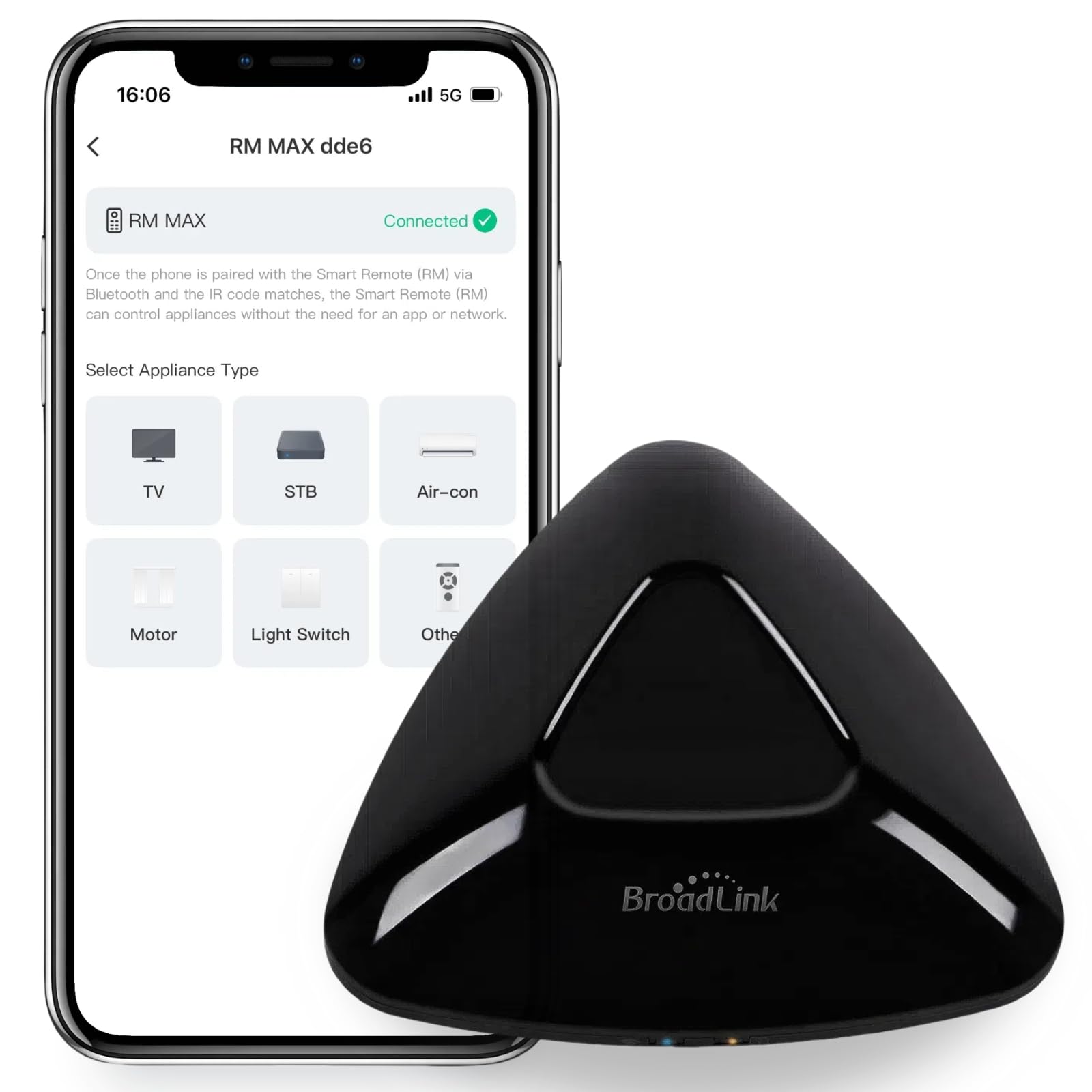
Image: The BroadLink RM MAX Universal Remote Smart Hub, a compact black triangular device.
Likarolo tsa Bohlokoa:
- BLE Setup & Local Control: Facilitates quick, near-instant connections and enables offline control of IR/RF devices such as air conditioners and curtains.
- FastCon Integration Hub: Acts as a central hub for BroadLink FastCon devices via the upgraded Magic Home App, allowing remote control and scheduling.
- 24-Device Hybrid Control: Supports up to 24 devices, including 38KHz IR devices (ACs, TVs) and 433MHz fixed-code RF devices. Note: Rolling code devices are not supported.
- Wi-Fi Network Switching: Allows switching Wi-Fi routers without a physical reset, simplifying network changes.
- Taolo ea Lentsoe le Remoutu: Control devices via the app from anywhere (2.4GHz Wi-Fi required) or using voice commands with Alexa or Google Assistant.
- Scheduling & Scene Automation: Create custom schedules and scenes for automated device control.
2. Tataiso ea ho seta
2.1 Se ka Lebokoseng
- BroadLink RM MAX Smart Hub
- Cable ea USB
- Bukana ea Mosebelisi
2.2 Initial Power-Up and App Installation
- Connect the RM MAX to a power source using the provided USB cable.
- Download the BroadLink Magic Home App ho tsoa lebenkeleng la lisebelisoa la sesebelisoa sa hau (e fumaneha bakeng sa iOS le Android).
- Bula sesebelisoa ebe u theha ak'haonte kapa kena.
2.3 Device Pairing (BLE Setup)
The RM MAX utilizes BLE for a fast and efficient initial setup process.
- Netefatsa hore Bluetooth ea smartphone ea hau e lumelletsoe.
- In the Magic Home App, tap the '+' icon to add a new device.
- The app should automatically discover the RM MAX via BLE. Follow the on-screen prompts to connect it to your 2.4GHz Wi-Fi network.
- Ha se se se hokahantsoe, sesebelisoa se tla be se loketse ho sebelisoa.

Image: Illustration of two control methods: quick local control via instant pairing (Bluetooth) and stable remote/voice control (Wi-Fi with Alexa). An app screenshot shows device selection.
2.4 Adding IR/RF Devices
After connecting the RM MAX to your Wi-Fi, you can add your IR and RF controlled appliances.
- In the Magic Home App, select the RM MAX device.
- Tap 'Add Appliance' or a similar option.
- Choose the type of appliance (e.g., TV, AC, Fan, Blinds).
- Follow the app's instructions to either select from a pre-defined remote template or use the manual learning function to teach the RM MAX commands from your original remote.
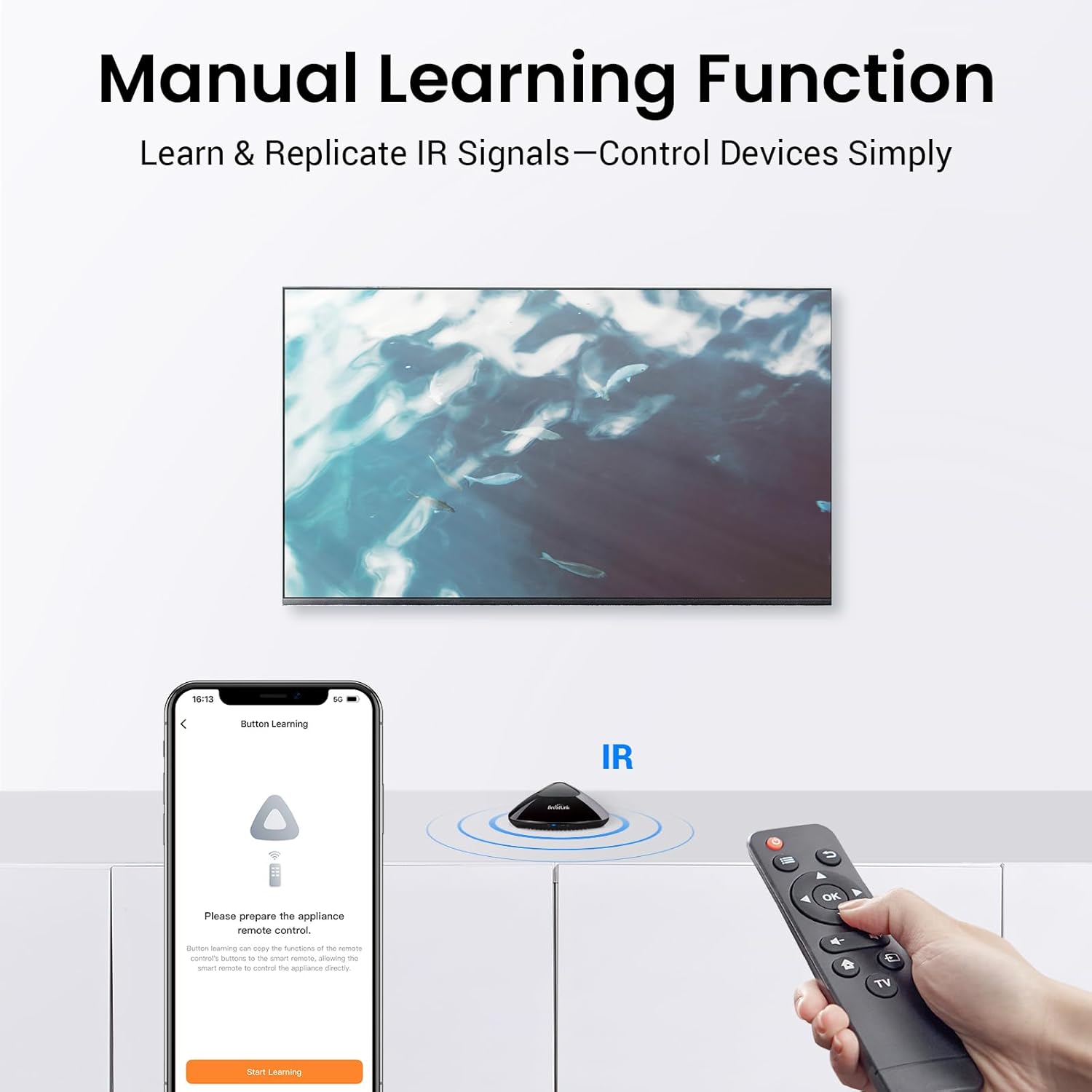
Image: A smartphone screen displays the 'Button Learning' interface for the BroadLink RM MAX, showing how to learn IR signals from an existing remote control to control a television.
3. Litaelo tsa Ts'ebetso
3.1 Local Control (BLE)
The RM MAX supports local control via BLE, allowing you to control paired IR/RF devices even without an active internet connection. This is ideal for basic automations and direct control within your home.

Image: The BroadLink RM MAX enabling local control via Fastcon pairing, indicating that no internet connection is needed for this function. An app screenshot shows various device controls.
3.2 Remote Control (Wi-Fi)
Once connected to your 2.4GHz Wi-Fi network, the RM MAX allows you to control your home appliances from anywhere using the Magic Home App.
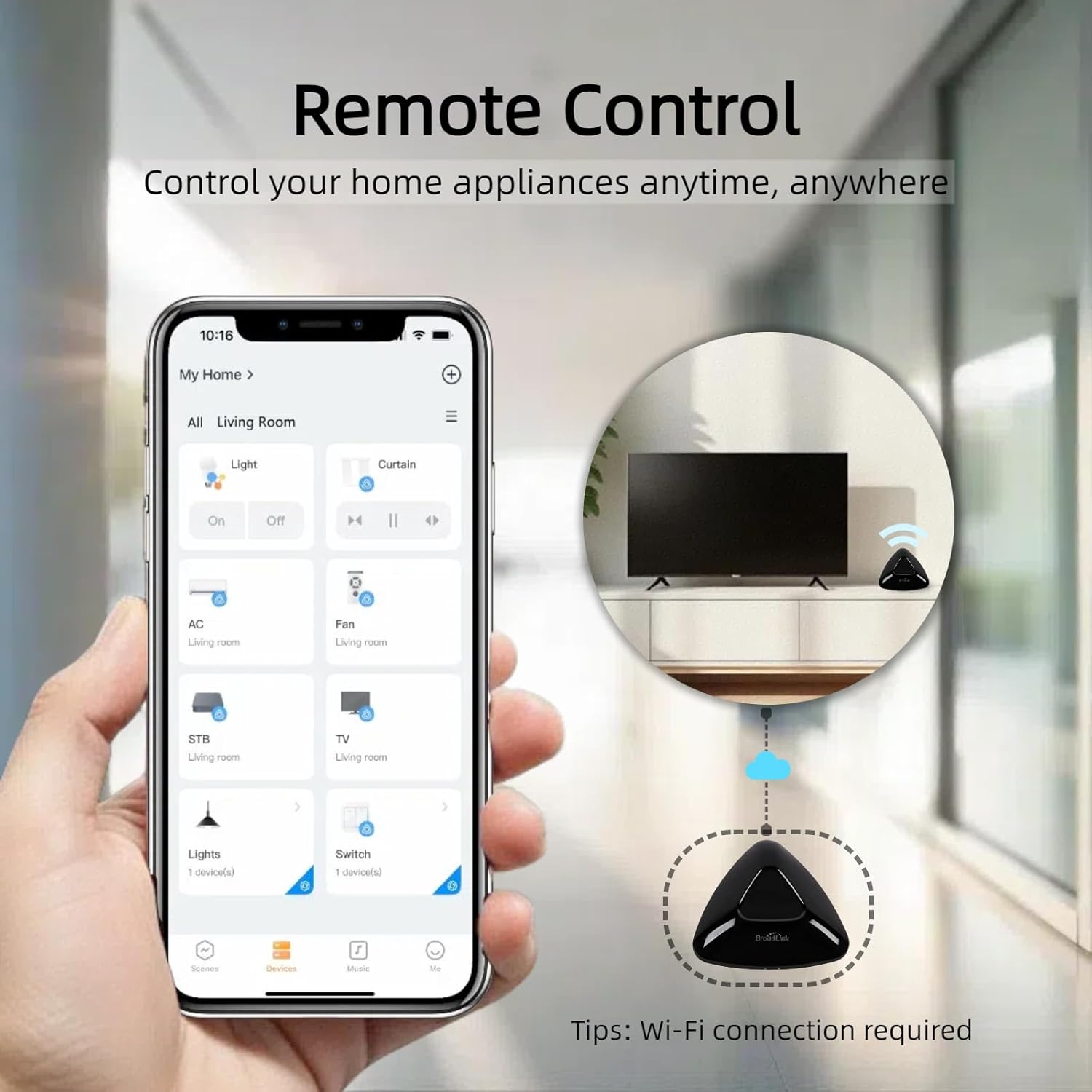
Image: A hand holding a smartphone with the BroadLink app, demonstrating remote control of home appliances via Wi-Fi, with the RM MAX hub shown in a cloud icon, indicating remote access.
3.3 Taolo ea lentsoe
Integrate your RM MAX with Alexa or Google Assistant for convenient voice control of your devices. Link your BroadLink account within the Alexa or Google Home app.
- Example Command: "Alexa, turn off the TV."
- Example Command: "Hey Google, set the AC to 24 degrees."

Image: A woman meditating in a living room, with an Amazon Echo device and the BroadLink RM MAX on a table, illustrating voice control functionality with the command "Alexa, turn on the fan."
3.4 Scheduling and Scene Automation
Create schedules to automate device actions at specific times or set up scenes to trigger multiple actions with a single command or condition.
- Mananeo: Program devices to turn on/off at set times (e.g., blinds opening at 7:00 AM).
- Litšoantšo: Combine multiple actions into one (e.g., a "Morning Mode" scene that turns on lights, adjusts AC, and opens blinds).

Image: Four panels illustrating the timer and schedule function, showing devices like lights, air conditioners, and televisions turning on or off at programmed times throughout the day.
4. Tlhokomelo
To ensure optimal performance and longevity of your BroadLink RM MAX, follow these simple maintenance guidelines:
- Ho hloekisa: Hlakola sesebediswa kgafetsa ka lesela le bonolo, le omileng. Qoba ho sebedisa dihlatswa-mokelikeli kapa thepa e kgopang.
- Sebaka: Place the device in a central location within the room to maximize IR/RF signal reach. Ensure it is not obstructed by furniture or other objects.
- Tikoloho: Keep the device away from direct sunlight, excessive heat, moisture, and extreme temperatures.
- Lisebelisoa tsa Firmware: Regularly check the Magic Home App for available firmware updates to ensure your device has the latest features and security enhancements.
5. Ho rarolla mathata
5.1 Mathata a Tloaelehileng le Litharollo
- Sesebelisoa ha se arabe:
- Check if the RM MAX is powered on and connected to your Wi-Fi network (indicated by the LED status).
- Ensure the RM MAX has a clear line of sight to the IR-controlled appliance.
- Verify that the correct remote template or learned commands are selected in the app.
- Ha e khone ho hokela ho Wi-Fi:
- Ensure your Wi-Fi network is 2.4GHz. The RM MAX does not support 5GHz Wi-Fi.
- Sheba phasewete ea hau ea Wi-Fi ho nepahala.
- Move the RM MAX closer to your Wi-Fi router.
- If changing routers, use the app's 'Switch WiFi Without Reset' feature to re-authorize network access.
- Taolo ea Lentsoe ha e sebetse:
- Confirm that your BroadLink account is correctly linked to your Alexa or Google Assistant app.
- Ensure the device names in the BroadLink app match those recognized by your voice assistant.
- Sheba khokahano ea hau ea Marang-rang.
5.2 Rolling Code Incompatibility
The BroadLink RM MAX supports 433MHz fixed-code RF devices but does not support rolling code (dynamic password) RF devices. Rolling code remotes are commonly used for garage door openers, some car remotes, and security systems.

Image: An infographic explaining the difference between normal (fixed code) and rolling code remotes, and how to test if a device uses rolling code. It highlights that rolling code devices are not supported.
How to Test for Rolling Code:
To determine if your device uses rolling code, grab its original remote and perform the following test:
- Stand where the device can receive the signal from its original remote.
- Quickly press the same button (e.g., "Open") 5-10 times in a row.
- Observe how the device reacts:
- If rolling code: The device may stop responding after a few presses, or it might work initially but then ignore commands. The remote might seem "broken" and only work again after a pause or a single press.
- If fixed code: The device will most likely respond every time you press the button.
If you are still unsure about compatibility, please contact BroadLink customer support before purchasing or attempting to configure the product.
6. Litlhaloso
| Sebopeho | Tlhaloso |
|---|---|
| Litekanyo tsa Sehlahisoa | 4.53 x 4.33 x 1.38 lisenthimithara |
| Boima ba Ntho | 4.6 lik'hilograma |
| Ntho Nomoro ea Mohlala | RM MAX |
| Brand | Broadlink |
| Tšobotsi e Khethehileng | Patlo ea Lentsoe |
| Mmala | Ntsho |
| Boholo ba Nomoro ea Lisebelisoa tse Tšehetsoeng | 24 |
| Lisebelisoa tse lumellanang | Air Conditioner, Curtains, Fan, Lights, Television |
| Moetsi | Hangzhou BroadLink Technology Co., Ltd. |
| Letsatsi le Fumanang Pele | La 10 Phupu 2025 |
7. Boitsebiso ba Tiisetso
BroadLink products typically come with a limited manufacturer's warranty. For specific details regarding the warranty period, coverage, and terms for your RM MAX device, please refer to the warranty card included in your product packaging or visit the official BroadLink websebaka. Boloka bopaki ba hau ba theko bakeng sa likopo tsa waranti.
8. Tšehetso
For further assistance, technical support, or to report issues with your BroadLink RM MAX, please utilize the following resources:
- BroadLink Official Websebaka: Etela www.broadlink.com.cn bakeng sa FAQs, lingoliloeng tsa tšehetso, le lintlha tsa ho ikopanya.
- Magic Home App: The app often includes a 'Help' or 'Support' section with troubleshooting tips and direct contact options.
- Tšehetso ea Morekisi: If purchased from a retailer, you may also contact the seller for product-related inquiries.