
Selelekela
This manual provides essential instructions for setting up, operating, and maintaining your Agreago Projector V3. Please read it thoroughly before use to ensure proper functionality and to maximize your viewka boiphihlelo.
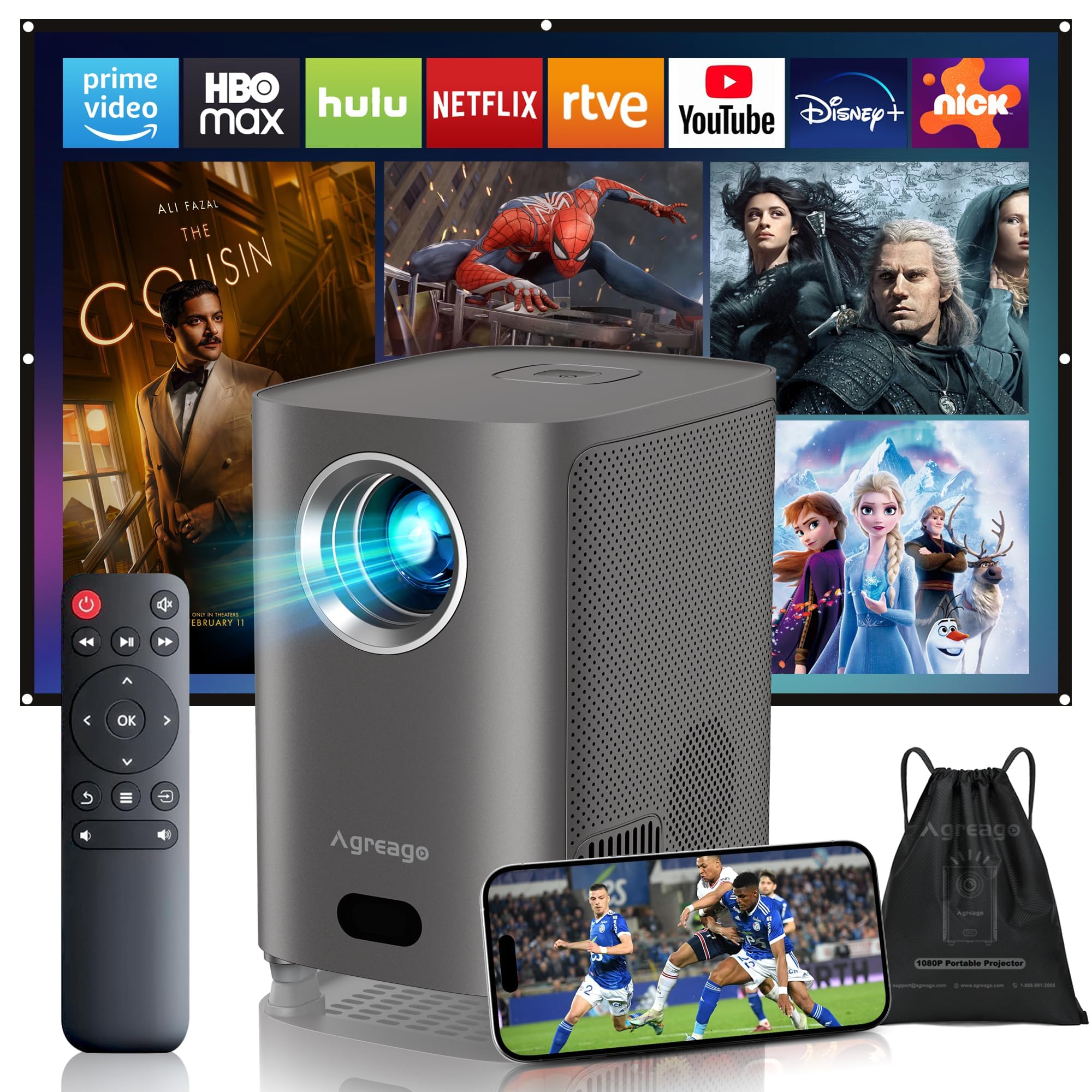
Figure 1: Agreago Projector V3 and accessories.
Se ka Lebokoseng
Ha o bula lebokose, netefatsa hore likarolo tsohle li teng:
- Agreago Projector V3
- Remote Control
- Motlakase oa Motlakase
- Cable ea HDMI
- AV Cable
- Bukana ea Mosebelisi
- Drawstring Jara Mokotla
Video 1: Unboxing the Agreago Projector V3, showing included accessories.
Sehlahisoa se Felletseview
Familiarize yourself with the projector's components and connection ports.
Khokahano Ports

Figure 2: Rear panel with audio, AV, HDMI, and USB ports.
- Audio Out (3.5mm): Hokela libui tsa kantle kapa li-headphone.
- Kenyo ea AV: Connect older devices using the provided AV cable.
- HDMI (x2): Connect devices like TV sticks, laptops, gaming consoles (Xbox, PS5).
- USB (x2): Hokela li-drive tsa USB bakeng sa ho bapala media.
- Seamohedi sa IR: For remote control signals.
Remote Control

Figure 3: Remote control for easy navigation and function access.
The remote control provides convenient access to all projector functions, including power, navigation, volume, focus adjustment, and direct access to popular streaming applications.
Video ea 2: Phelloview of the Agreago Projector V3's features and design.
Tlhophiso
Ho beha
Position the projector on a stable, flat surface. The integrated stand allows for flexible angle adjustments. For larger screen sizes, increase the distance between the projector and the projection surface.

Setšoantšo sa 4: Libaka tse khothaletsoang tsa ponelopele bakeng sa boholo bo fapaneng ba skrine.
Matla On
Connect the power cable to the projector and a power outlet. Press the power button on the projector or the remote control to turn it on.
Tsepamisa Maikutlo
The projector features electric focus. Use the dedicated focus buttons on the remote control (F+ / F-) to achieve a clear and sharp image. The auto-focus feature will also assist in initial setup.

Figure 5: Adjusting electric focus using the remote control.
Khalemelo ea Keystone
The projector supports automatic keystone correction to ensure a rectangular image even when projected at an angle. Manual adjustments can also be made via the settings menu if needed.
Network Connection (WiFi & Bluetooth)
Connect the projector to your home Wi-Fi network for online streaming and screen mirroring. Use Bluetooth 5.2 to pair with external audio devices for enhanced sound.
Video 3: Demonstrating Wi-Fi and Bluetooth connectivity for the Agreago Projector V3.
Ho hokahanya lisebelisoa
The projector offers multiple connectivity options:
- HDMI: Connect TV sticks, laptops, gaming consoles (Xbox, PS5).
- USB: Insert USB drives for direct media playback.
- EA: Use the provided AV cable for older devices.
- Screen Mirroring (iOS/Android): Wirelessly display content from your smartphone or tablet.
Litaelo tsa Ts'ebetso
Navigation
Use the remote control's directional buttons and 'OK' button to navigate the projector's interface. Dedicated buttons for streaming services provide quick access.
Mecha ea phatlalatso
Select the desired input source (HDMI, USB, Screen Mirroring) from the home screen. Navigate to your media files or streaming app to begin playback.
Litlhophiso tsa Molumo
The projector features built-in dual stereo speakers. Adjust volume using the remote. For a private listening experience, connect headphones via the 3.5mm audio jack or pair Bluetooth headphones.
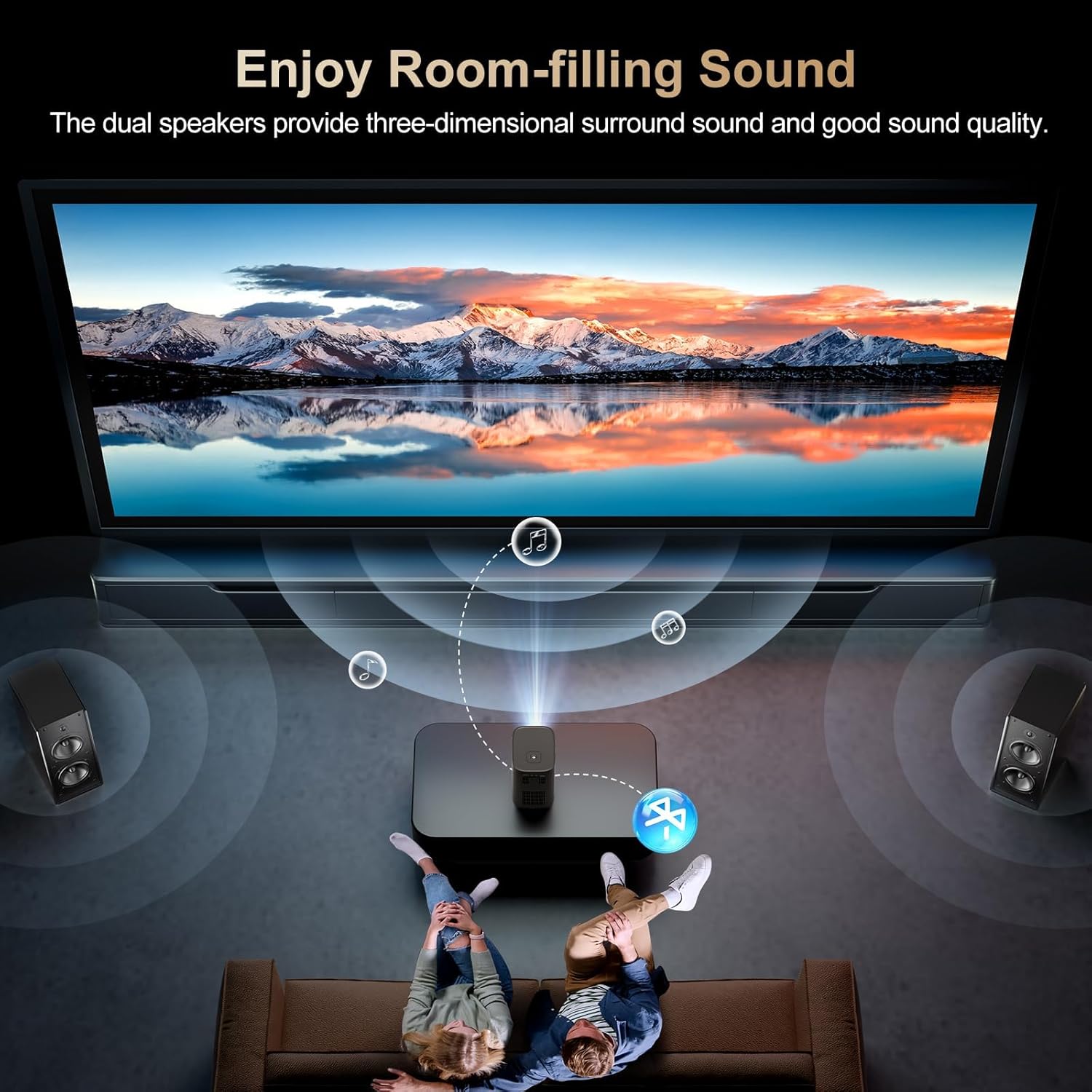
Figure 6: Dual stereo speakers provide immersive sound.
Litlhophiso tsa Litšoantšo
Access the settings menu to adjust image parameters such as brightness, contrast, color temperature, and projection mode for optimal viewmaemo.
Tlhokomelo
Ho hloekisa Lense
Gently wipe the projector lens with a soft, lint-free cloth. Avoid abrasive materials or harsh chemicals that could damage the lens coating.
Sesefa sa Lerōle
Regularly check and clean the dust filter to maintain optimal airflow and prevent overheating. Refer to the full user manual for specific instructions on accessing and cleaning the filter.
Ho batle phoso
- Ha ho Setšoantšo: Ensure the power cable is securely connected and the projector is turned on. Verify the input source is correctly selected.
- Setšoantšo se Lerootho: Adjust the electric focus using the remote control. Ensure the projection surface is flat and the projector is stable.
- Ha ho Molumo: Check the volume settings on the projector and the connected device. Ensure external speakers/headphones are properly connected or paired via Bluetooth.
- Mathata a ho Iponahatsa skrineng: Confirm both the projector and your device are connected to the same Wi-Fi network. Ensure your device supports the mirroring protocol (iOS/Android).
Litlhaloso
| Brand | Agreago |
| Nomoro ea Mohlala | V3 |
| Qeto ea Pontšo | 1920 x 1080 (1080P ea tlhaho) |
| Khanya | 15,000 Lumens |
| Phapang karo-karolelano | 15,000:1 |
| Theknoloji ea Khokahano | HDMI, USB, AV, 3.5mm Audio, WiFi 6, Bluetooth 5.2 |
| Likarolo Tse Khethehileng | Auto Focus, Electric Focus, 50%-100% Zoom, Dual Stereo Speakers |
| Litekanyo tsa Sehlahisoa | 5.5 x 6.1 x 4.2 lisenthimithara |
| Boima ba Ntho | 2.94 liponto |
Warranty le Tšehetso
For warranty information and customer support, please refer to the contact details provided in the included user manual or visit the official Agreago website. Protection plans are available for extended coverage.