
1. Selelekela
The StarTech.com NOTECONS02-VGA-MDP Portable Laptop Crash Cart Adapter transforms your laptop into a portable console for managing servers, PCs, ATMs, or kiosks. This device eliminates the need for a dedicated monitor, keyboard, and mouse when performing maintenance or troubleshooting on 'headless' systems. It provides a direct connection to the target system's video and input, allowing for BIOS-level control, file transfers, video capture, and screenshot functionality.
The adapter supports both VGA and Mini DisplayPort video inputs from the target system, offering versatile connectivity options for various environments.
2. Likahare tsa Sephutheloana
Netefatsa hore sephutheloana sa hau se na le lintho tse latelang:
- 1x USB Crash Cart Adapter (NOTECONS02-VGA-MDP)
- 1x Mini DisplayPort to VGA Adapter
- 1x USB-A to USB Mini-B Cable
- 1x Quick-Start Guide (not included in this digital manual)

Image: The package contents, showing the USB Crash Cart Adapter, Mini DisplayPort to VGA Adapter, and USB-A to USB Mini-B Cable.
3. Sehlahisoa Overview
The USB Crash Cart Adapter features several ports and indicators for seamless operation:
- USB Mini-B Port: Connects to your laptop for data and power.
- USB-A Cable: Integrated cable connects to the target system for keyboard/mouse emulation and power.
- VGA Cable: Integrated cable connects to the target system's VGA video output.
- Mini DisplayPort Adapter: Included for connecting to target systems with Mini DisplayPort video output.
- Lipontšo tsa LED: Provide status for USB link, Host Video link, and Host connection.
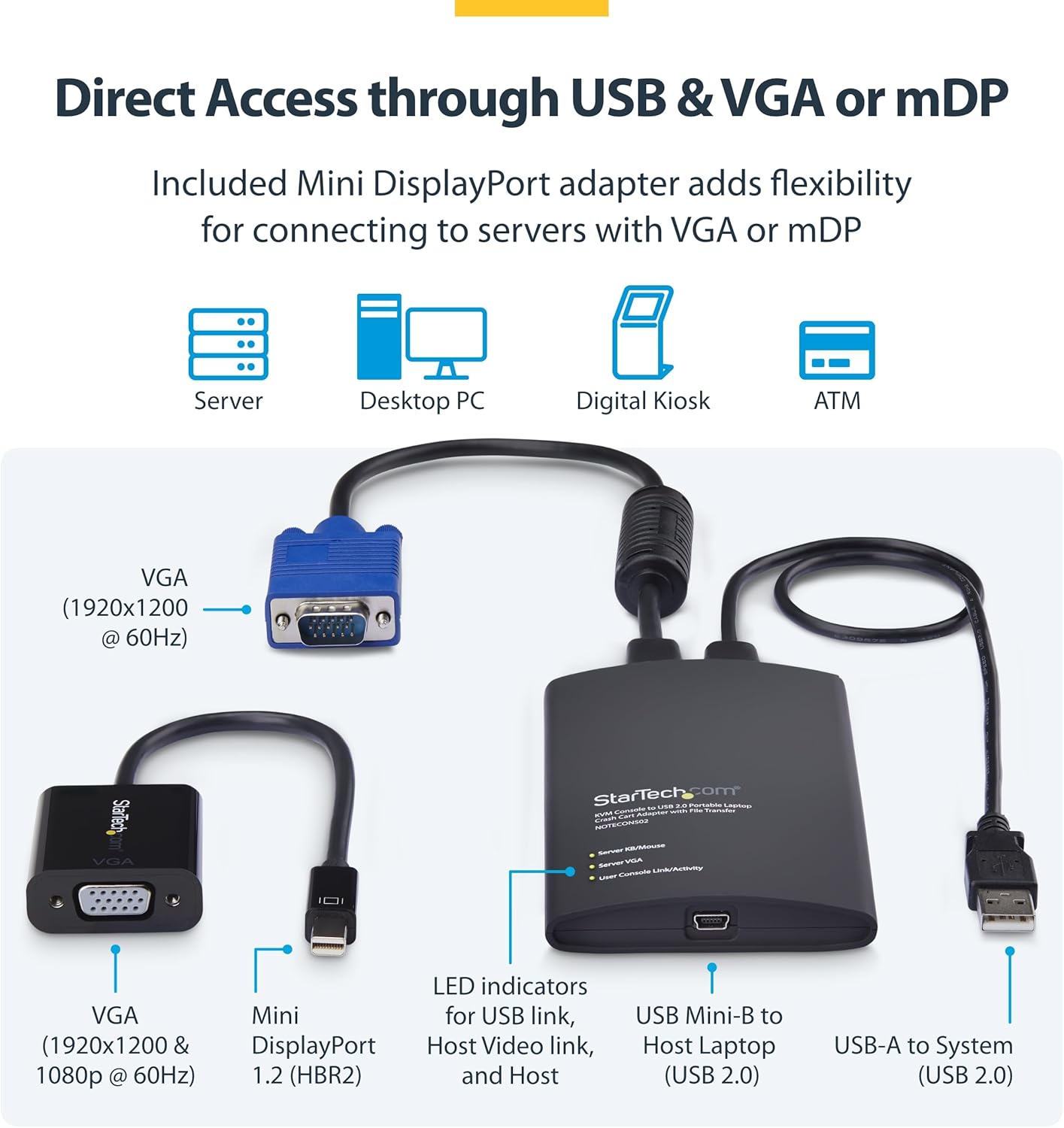
Setšoantšo: Ka botlalo view of the adapter's components and connection points.
4. Litaelo tsa ho seta
Follow these steps to set up and connect your Portable Laptop Crash Cart Adapter:
- Install Host Software: Before connecting the adapter, install the necessary host software on your laptop. Ensure you download the latest drivers specifically for the NOTECONS02-VGA-MDP model from the StarTech.com website to ensure full compatibility and functionality.
- Connect to Laptop: Connect the USB Mini-B end of the included USB-A to USB Mini-B cable to the adapter. Connect the USB-A end of this cable to an available USB port on your laptop.
- Connect to Target System (Video):
- For VGA-enabled systems: Connect the integrated VGA cable from the adapter to the VGA output port on the target server, PC, or device.
- For Mini DisplayPort-enabled systems: Attach the included Mini DisplayPort to VGA adapter to the integrated VGA cable. Then, connect the Mini DisplayPort end to the Mini DisplayPort output on the target system.
- Connect to Target System (USB): Connect the integrated USB-A cable from the adapter to an available USB port on the target server, PC, or device. This connection provides power to the adapter and enables keyboard/mouse emulation.
Once all connections are made and the software is installed, your laptop should display the video output from the target system, allowing you to control it.

Image: Connecting the adapter to a server for portable management.

Image: The adapter provides direct BIOS-level control and is compatible with Windows, macOS, and Linux operating systems.
5. Litaelo tsa Ts'ebetso
After successful setup, the adapter provides several functionalities through its software interface:
5.1. BIOS-Level Control
The adapter provides immediate access to the target system's POST screen and BIOS. This allows for full configuration and troubleshooting of the attached PC or machine from your laptop. The adapter emulates your laptop's keyboard and mouse inputs, giving you full control.
Note: Mouse functionality may be limited in some BIOS/UEFI environments.
5.2. File Phetisetso
The software interface facilitates bi-directional file transfers between your laptop and the connected target system. This feature is useful for transferring diagnostic tools, updates, or retrieving logs without needing external storage devices.
5.3. Video Capture and Screenshots
You can capture screenshots or record video of the target system's display directly through the adapter's software. This is valuable for documenting issues, creating training materials, or sharing troubleshooting information.
5.4. Display Scaling
The display window can be scaled to full screen mode or a smaller size without requiring scrolling, which aids in faster troubleshooting and a more comfortable viewka boiphihlelo.

Image: The adapter enables efficient file transfers, screenshot capture, and video recording for effective troubleshooting.
6. Ho rarolla mathata
- Ha ho Letšoao la Video:
- Ensure all cables (USB and video) are securely connected to both your laptop and the target system.
- Verify that the correct video input (VGA or Mini DisplayPort) is selected on the adapter's software, if applicable.
- Confirm the target system is powered on and outputting a video signal.
- Keyboard/Toeba ha e arabe:
- Check the USB connection between the adapter and the target system. This connection provides input control.
- Ensure the host software on your laptop is running and properly recognizes the adapter.
- As noted, mouse function may be limited in some BIOS/UEFI environments. Try using keyboard navigation in such cases.
- Mathata a Bakhanni:
- If you experience unexpected behavior, ensure you have installed the latest device-specific drivers for the NOTECONS02-VGA-MDP from the StarTech.com websebaka.
- Try uninstalling and reinstalling the drivers.
- Mathata a Matla:
- The adapter is self-powered via the target system's USB connection. Ensure the target system's USB port is providing sufficient power.
- If using a USB hub, try connecting directly to a laptop USB port.
7. Litlhaloso
| Sebopeho | Tlhaloso |
|---|---|
| Nomoro ea Mohlala | NOTECONS02-VGA-MDP |
| Brand | StarTech.com |
| Lisebelisoa tse lumellanang | ATM, Desktop, Headless System, Laptop, Rack Server |
| Tšebeliso e khethehileng Bakeng sa Sehlahisoa | Laptop, PC, Server |
| Mofuta oa Sehokelo | Mini DisplayPort, Mini USB, USB Type A, VGA |
| Mmala | Ntsho |
| Palo ea Boema-kepe | 1 |
| Keletso Voltage | Li-volts tse 5 |
| Boemo ba Hona Joale | 0.5 Amps |
| Mofuta oa Plug ea Matla | No Plug (USB Powered) |
| Litekanyo tsa Ntho (L x W x H) | 0.01 x 0.01 x 0.01 inches (approximate, refer to product for exact dimensions) |
| Boima ba Ntho | 0.01 Pounds (approximate, refer to product for exact weight) |
| UPC | 065030922401 |
| ASIN | B0FC2XR9R4 |
8. Tlhokomelo
To ensure the longevity and optimal performance of your StarTech.com Portable Laptop Crash Cart Adapter, follow these general maintenance guidelines:
- Ho hloekisa: Use a soft, dry cloth to clean the exterior of the adapter. Avoid using harsh chemicals or abrasive cleaners.
- Polokelo: Boloka adaptara sebakeng se pholileng, se omileng hole le khanya ea letsatsi le mocheso o feteletseng.
- Tlhokomelo ea Lithapo: Avoid bending or crimping the integrated cables excessively. Store cables neatly to prevent damage.
- Lintlafatso tsa Software: Periodically check the StarTech.com website for updated drivers or software for your NOTECONS02-VGA-MDP to ensure continued compatibility and performance.
9. Tiisetso le Tšehetso
This StarTech.com product is backed by a Tiisetso e Lekanyelitsoeng ea Selemo se 2. For detailed warranty information, please refer to the official StarTech.com websaete kapa karete ea tiisetso e kenyellelitsoeng sehlahisoa sa hau.
StarTech.com offers Thuso ea Mahala ea 24/5 ea Lipuo tse ngata from experienced technical advisors. If you encounter any issues or require support, please visit the StarTech.com support page or contact their customer service directly. Ensure you have your product model number (NOTECONS02-VGA-MDP) and purchase details ready when seeking support.
For returns, a 30-day refund/replacement policy is typically offered by Amazon, the seller. Please check your purchase details for specific return instructions.