
1. Selelekela
This manual provides detailed instructions for the Deeyaple Computer Speakers (Model: G4C). This 40W wireless soundbar is designed for desktop PCs, offering Bluetooth 5.3 and USB audio connectivity, dynamic RGB lighting, and custom EQ software. It is compatible with various devices including laptops, gaming consoles, and smartphones.

Setšoantšo: Pele view of the Deeyaple Computer Speakers, showcasing its sleek design and dynamic RGB lighting.

Image: The Deeyaple Computer Speakers integrated into a compact desktop setup, highlighting its stylish and space-saving design.
2. Likahare tsa Sephutheloana
Ka kopo netefatsa hore lintho tsohle li teng ka har'a sephutheloana:
- Deeyaple Computer Speaker (Model: G4C)
- Motlakase oa Motlakase
- Type-C to USB Audio Cable
- Tataiso ea ho Qala ka Potlako
3. Seta
3.1 Khokelo ea Matla
- Connect the provided power cable to the DC IN port on the back of the speaker.
- Plug the other end of the power cable into a standard wall outlet.
- The speaker will power on automatically or can be turned on using the power button.
3.2 Audio Connection Options
The Deeyaple Computer Speakers support both Bluetooth 5.3 wireless and USB wired audio connections.
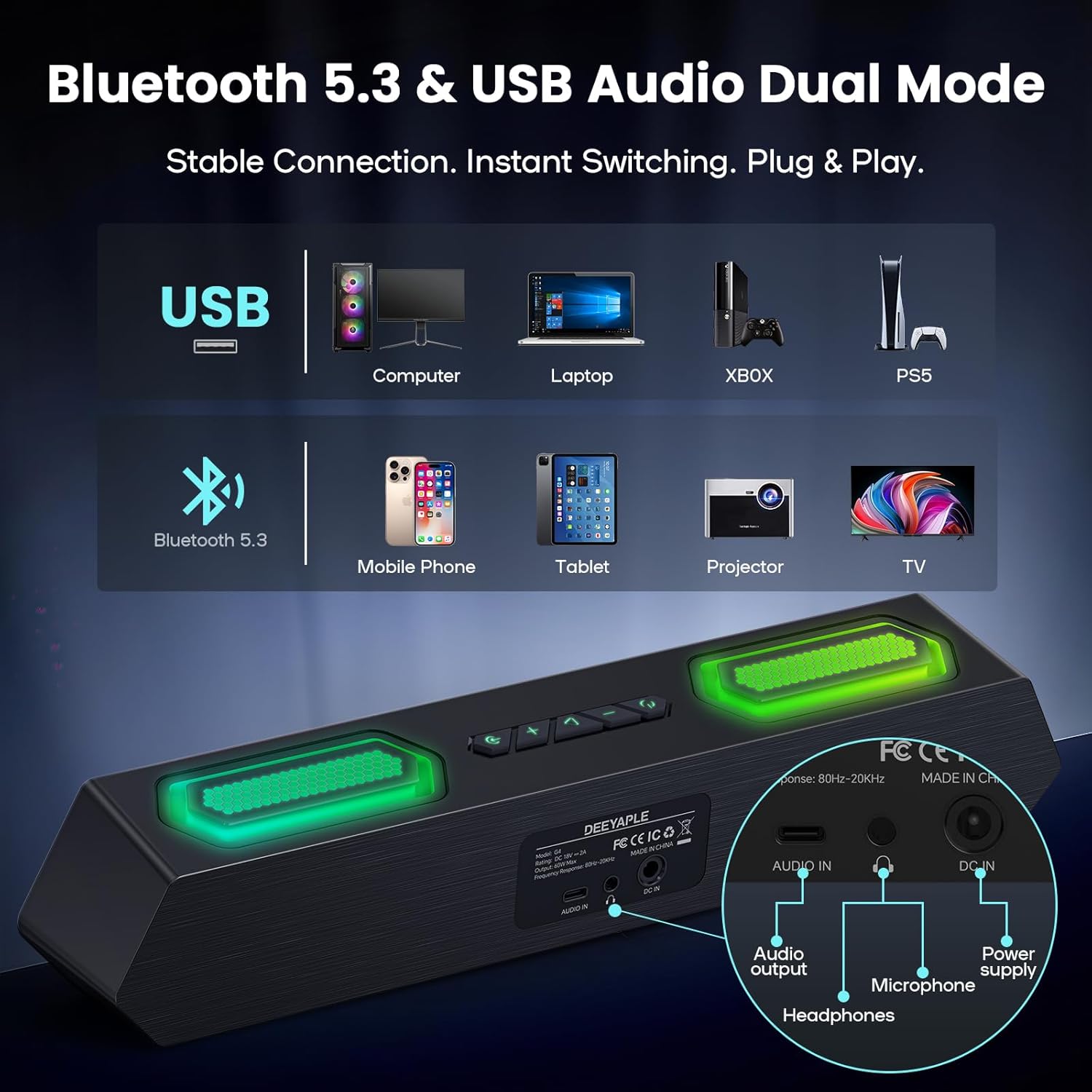
Setšoantšo: Ka morao view of the speaker showing USB, Audio In, DC In ports, and compatible devices for Bluetooth and USB connections.
3.2.1 Khokelo ea Bluetooth
- Netefatsa hore sebui se buletsoe.
- Press the Bluetooth button on the speaker to enter pairing mode (indicator light will flash).
- On your device (PC, laptop, smartphone, tablet), navigate to Bluetooth settings and search for "Deeyaple G4C".
- Select the speaker to pair. Once connected, the indicator light will become solid.
3.2.2 USB Audio Connection
- Connect one end of the provided Type-C to USB Audio Cable to the USB port on the speaker.
- Connect the other end of the cable to an available USB port on your computer or compatible device.
- The speaker will automatically switch to USB audio mode. You may need to select "Deeyaple G4C" as the audio output device in your computer's sound settings.
4. Ts'ebetso
4.1 Litaolo tsa Motheo
The speaker features full-button control for various functions:
- Konopo ea Matla: Press and hold to turn on/off. Double-click to turn RGB lights completely off.
- Likonopo tsa holimo / tsa tlase: Adjust the audio volume. The volume level will be indicated by the bottom RGB bar.
- Konopo ea Mokhoa: Switch between Bluetooth and USB audio input modes.
- RGB Lighting Button: Cycle through different RGB lighting effects.
4.2 Ho bapala ka molumo
Once connected via Bluetooth or USB, audio from your device will play through the Deeyaple speakers. Use your device's media controls for play/pause and track skipping.

Image: Diagram illustrating the internal components of the speaker, including full-range drivers and bass diaphragms, highlighting 40W Hi-Fi Stereo Sound capabilities.

Image: A user engaged with a computer setup, experiencing immersive sound and dynamic RGB lighting from the Deeyaple Computer Speakers.
5. Software Control (Custom EQ & RGB Lighting)
For advanced customization of sound and lighting, download and install the dedicated PC software (often referred to as "Eduplight" or similar, check the Quick Start Guide for the exact name and download link).
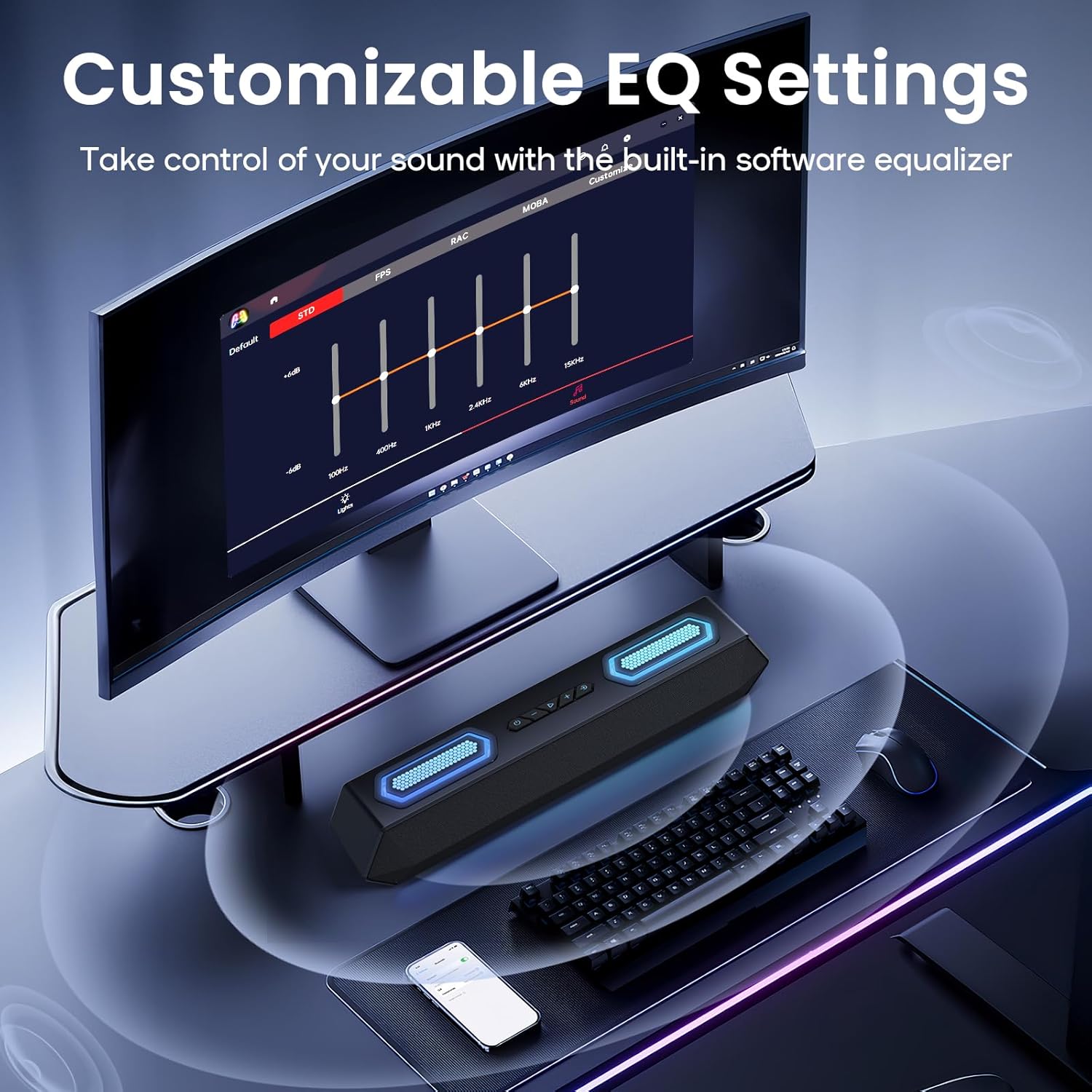
Image: Screenshot of the software interface for customizable EQ settings, showing sliders for bass, treble, and midrange adjustments.
5.1 Customizable EQ Settings
- The software allows you to adjust bass, treble, and midrange frequencies to create your preferred sound profile.
- Pre-set EQ modes may be available for different content types (e.g., gaming, music, movies).
Mekhoa e 5.2 ea Mabone a RGB

Image: The Deeyaple Computer Speakers displaying various vibrant RGB lighting effects, including 12 presets and transitions controlled via PC software.
- Access 12 dynamic RGB effects through the software.
- Customize colors, brightness, and lighting patterns.
- Features include Screen Color Sync, which matches on-screen colors, and Music Reactive Lighting, which pulses with your audio.
Note: Some users have reported that the software may require an online account or login. If you prefer not to use the software, basic lighting modes can be cycled via the physical button, and volume can be controlled via your connected device.
6. Litlhaloso
| Sebopeho | Lintlha |
|---|---|
| Lebitso la Mohlala | G4C |
| Mofuta oa Sebui | Sebui se nkehang habobebe |
| Sebui se Phahameng sa Matla a Phahamisang | 40 Watts |
| Theknoloji ea Khokahano | Bluetooth 5.3, USB Audio |
| Likarolo Tse Khethehileng | Bass Boost, LED Light (RGB), Software Custom EQ, Screen Color Sync, Music Reactive Lighting |
| Lisebelisoa tse lumellanang | PC, Laptop, Smartphone, Tablet, Gaming Console (Xbox, PS4) |
| Mmala | Ntsho |
| Litekanyo tsa Sehlahisoa | 13.5"D x 2.5"W x 3.34"H |
| Boima ba Ntho | 2.27 liponto |
| Phepelo ea motlakase | Adapter ea Matla a Kantle |
| UPC | 850060113321 |
7. Ho rarolla mathata
| Bothata | Tharollo e ka khonehang |
|---|---|
| Ha ho molumo o tsoang ho libui. |
|
| Pairing ea Bluetooth ea hloleha. |
|
| RGB lights are not working or stuck. |
|
| Sound quality issues (e.g., distortion, weak bass). |
|
| Software requires login/account. |
|
8. Tlhokomelo
- Ho hloekisa: Use a soft, dry cloth to clean the speaker's surface. Do not use liquid cleaners or abrasive materials.
- Polokelo: Beha sebui sebakeng se pholileng, se omileng hole le khanya ea letsatsi le mocheso o feteletseng.
- Ho tšoara: Avoid dropping the speaker or exposing it to strong impacts.
- Khahlamelo ea Metsi: This product is not waterproof. Keep it away from water and high humidity.
9. Tiisetso le Tšehetso
For warranty information and technical support, please refer to the warranty card included with your product or visit the official Deeyaple websebaka. Boloka rasiti ea hau ea theko bakeng sa likopo tsa tiisetso.
For further assistance, you may contact Deeyaple customer service through their official channels.