
1. Selelekela
This manual provides detailed instructions for the installation, operation, and maintenance of your Inefala Android 15 Car Stereo. Please read this manual thoroughly before using the product to ensure proper functionality and safety. This unit is designed for Suzuki SX4 models from 2006 to 2013 and Fiat Sedici models from 2005 to 2014.
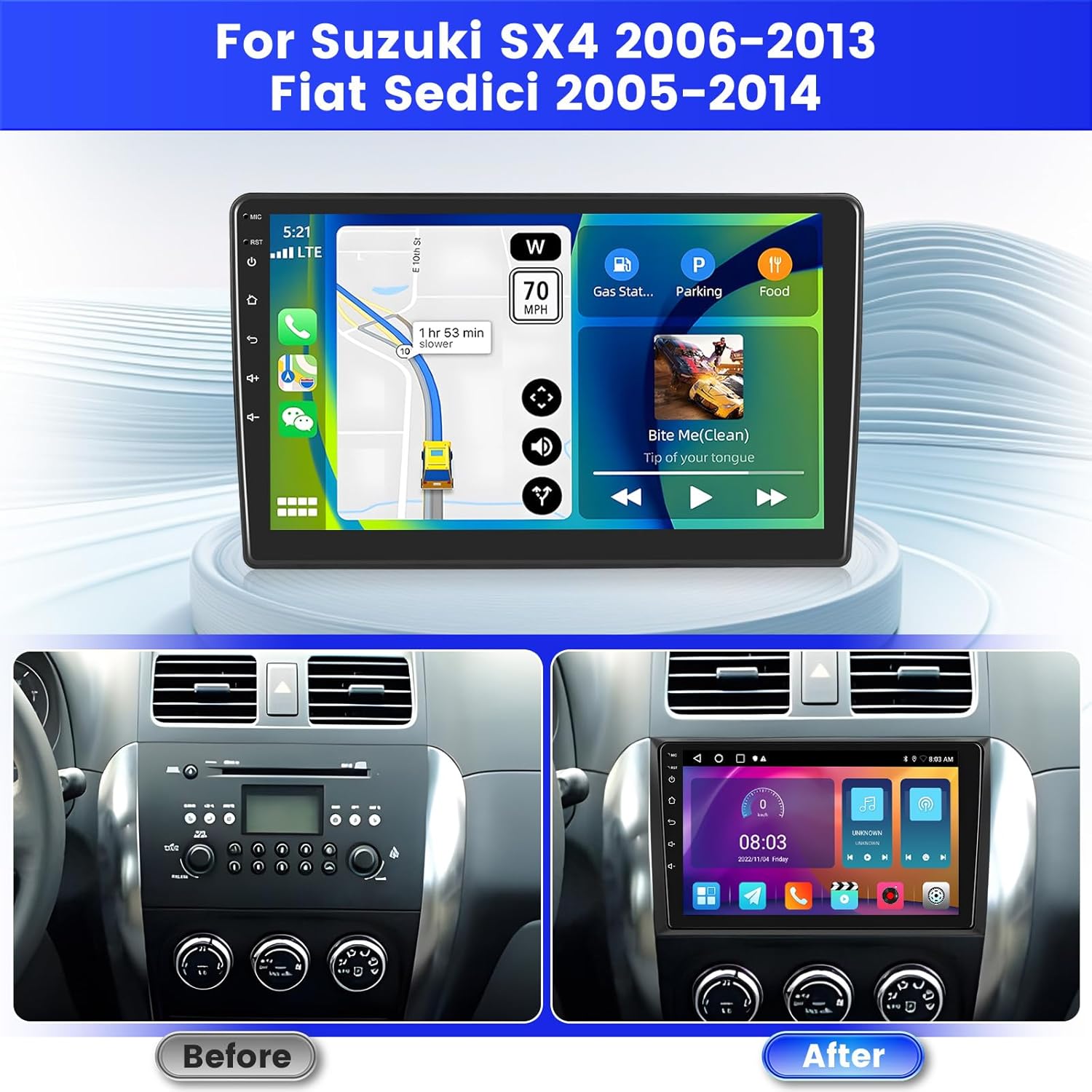
Image: Before and after installation of the Inefala Android Car Stereo in a Suzuki SX4 dashboard.
2. Likahare tsa Sephutheloana
Netefatsa hore lintho tsohle tse thathamisitsoeng ka tlase li kenyelelitsoe ka har'a sephutheloana sa hau:
- 1 x Inefala Android Radio for Suzuki SX4
- 1 x Thapo ea Matla
- 1 x Cable ea Adapter ea USB
- 1 x RCA Harness
- 1 x GPS Antenna
- 1 x AHD Backup Camera
- 1 x Cable ea ho Kena Khamera e ka Morao
- 1 x Microphone ea kantle
- 2 x Lithapo tsa USB
- 1 x Sesebelisoa sa ho kenya

Setšoantšo: Ka botlalo view of the package contents and their respective labels.
3. Ho kenya
3.1 Tlhahlobo ea Pele ho Kemiso
Before proceeding with the full installation, perform a quick test:
- Connect the red and yellow wires of the car stereo together, then connect them to the positive pole of a 12V battery. Connect the black wire to the negative pole.
- After 2 seconds, check the car stereo. If the screen lights up, it indicates the car stereo is functioning normally. If it does not work after this test, recheck the installation procedure.
3.2 Mahokelo a Wiring
Ensure all cables are connected securely. Refer to the port details diagram for correct connections.

Image: Port details and wiring connections for the car stereo.
3.3 Backup Camera Wiring
The reverse input cable must be plugged in even if the reverse camera is not being used, as it affects Bluetooth and WiFi signal reception.
- Red Cable: Connects to the positive terminal of the car's reverse light cable.
- Black Cable: Connects to the negative terminal of the car's reverse light cable.
- There is no need to connect the other two red extension cables (if present).

Image: Backup camera wiring diagram.
4. Tlhophiso ea Pele
After successful installation, power on the unit. The system will boot to the main interface. You may need to set the correct date, time, and language in the settings menu.
Video: Demonstrates the Android head unit's interface, including settings for time, date, music, radio, and DSP. This video shows the general functionality and navigation within the system.
5. Likarolo tsa Ts'ebetso
5.1 CarPlay & Android Auto & Mirror Link
The unit supports wireless and wired connections for Apple CarPlay and Android Auto, allowing voice-assisted controls and access to your phone's music, navigation, calls, and messages. Mirror Link functionality is also available.
- Khokahano e se nang Waele: Turn on your phone's Bluetooth and pair it with the car stereo's Bluetooth. Open the "Zlink" app on the stereo, and it will automatically connect.
- Khokahano ea Mehala: Connect your mobile phone to the car stereo via the original USB cable. Open the "Zlink" app, and it will automatically connect.
- Hlokomela: Some Samsung and Huawei phones may not fully support Android Auto and Mirror Link. Ensure your phone supports Google Services and has the "Android Auto" app installed.

Image: Wireless CarPlay and Android Auto functionality, displaying phone apps and features on the car stereo.

Image: Detailed connection instructions for Wireless CarPlay and Android Auto.
5.2 Digital Signal Processing (DSP)
The integrated Digital Signal Processing (DSP) supports 32-band EQ options, allowing you to fine-tune the audio output for an enhanced listening experience. Adjust sound fields and balance for optimal acoustics.

Image: DSP interface showing 32-band EQ and sound field controls.
5.3 Split Screen & Multi-UI Themes
The 2.5D 1024x600 screen supports split-screen functionality, enabling you to view and operate two applications simultaneously. You can also switch between 26 different desktop themes to personalize your interface.

Setšoantšo: Examples of 26 multi-UI themes and split-screen operation.
5.4 GPS Navigation & WiFi Connectivity
The unit features online and offline navigation capabilities. Connect to a WiFi hotspot to download additional apps like YouTube and TikTok, enriching your in-car experience.

Image: GPS Navigation and WiFi connection features.
5.5 Bluetooth le FM/RDS Radio
Bluetooth supports hands-free calling, phone book download, and music playback. The stable FM/RDS radio allows you to preset 18 stations, providing channel broadcasts, weather forecasts, and real-time road conditions.
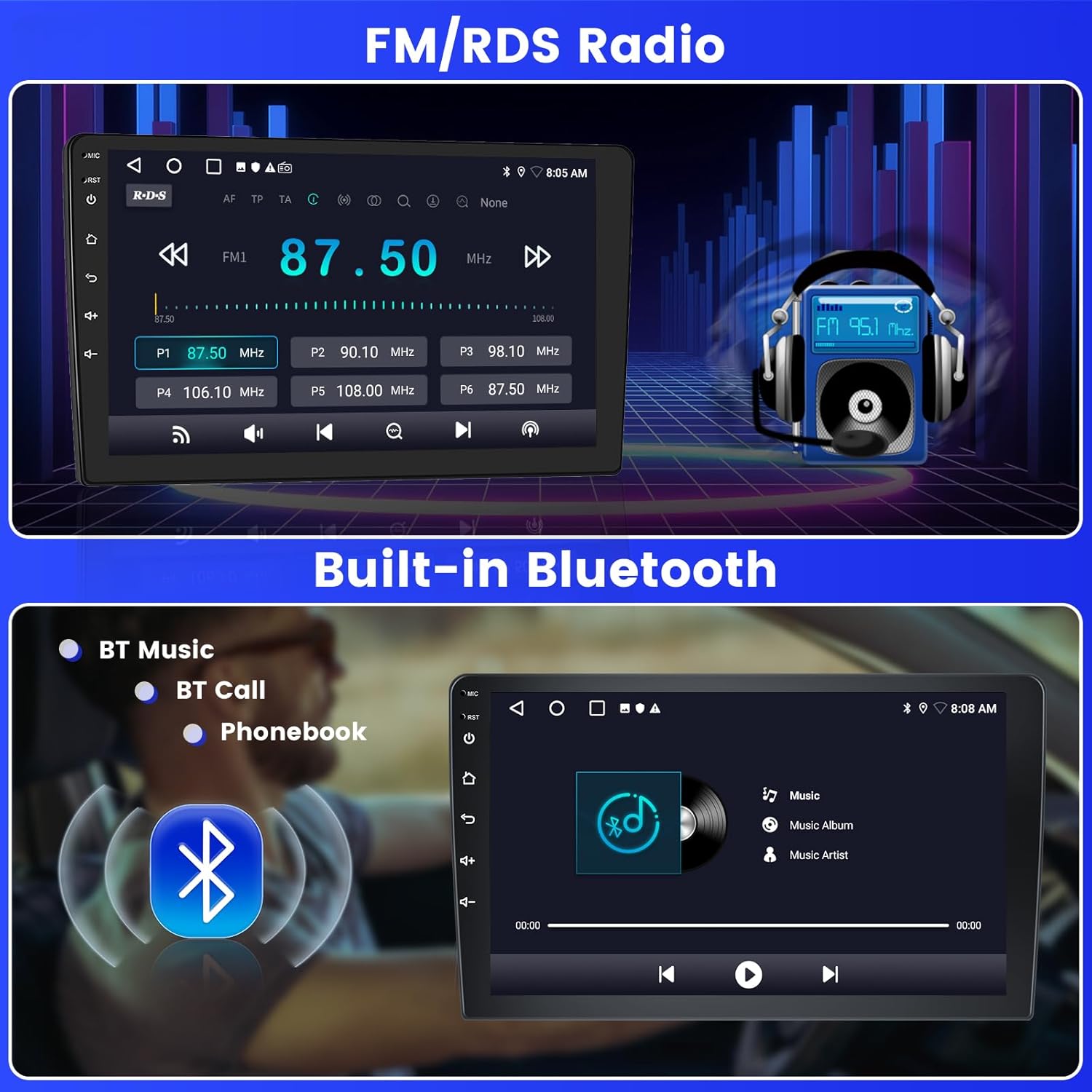
Image: FM/RDS Radio and Built-in Bluetooth interfaces.
5.6 Taolo ea Lebili la Setere
The unit supports steering wheel button functions, allowing you to control the car audio system easily while driving. Activation of steering wheel controls requires key learning in settings.
- Without CANBUS box: Activation requires key learning in settings.
- With CANBUS box: Connect the 20-pin white port in the power cable to the Canbus itself, and the remaining 8-pin white port to the corresponding port on the back of the radio. Match the car model in Factory Setup (Password 000000) -> Can Settings.
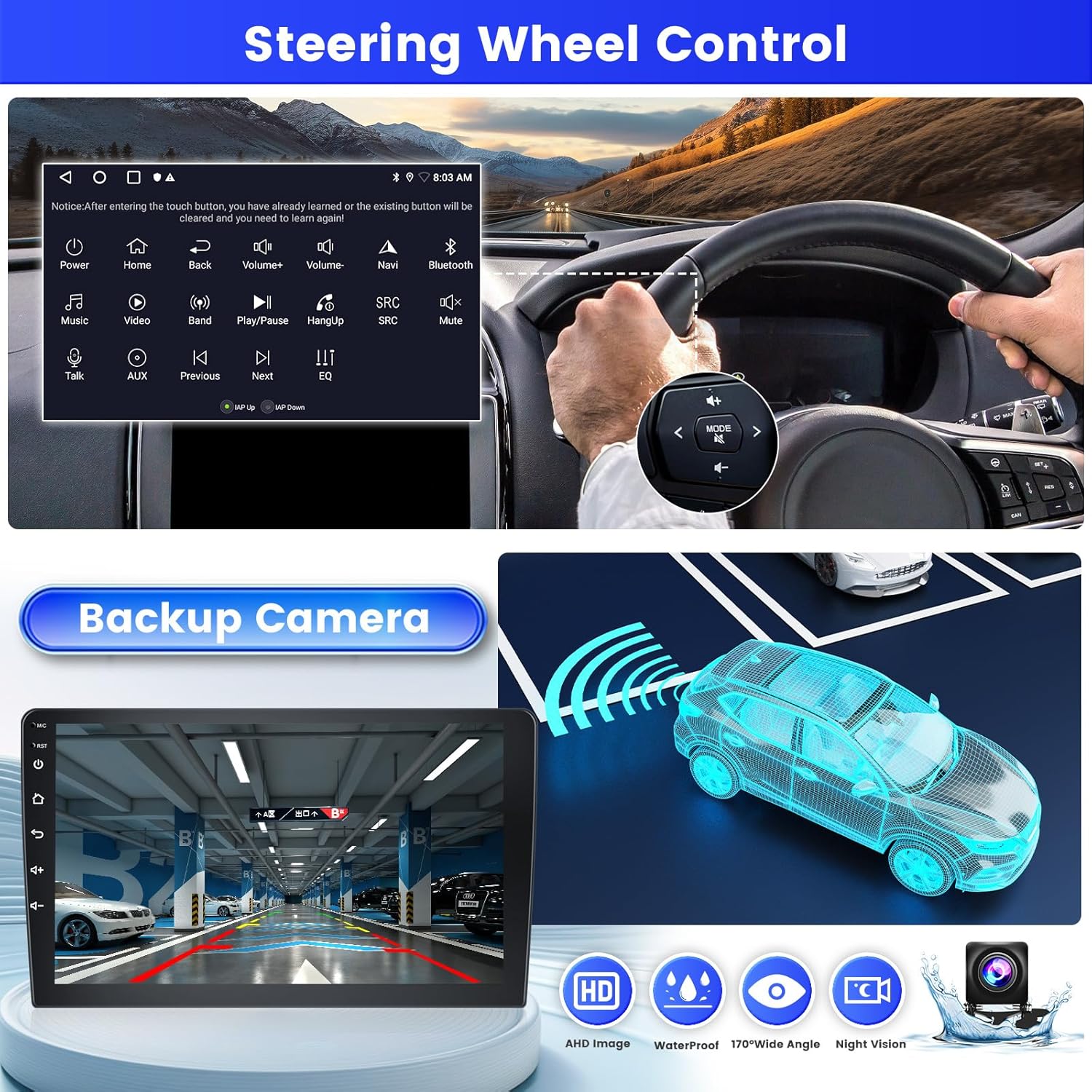
Image: Steering Wheel Control functionality and interface.

Image: Detailed guide for Steering Wheel Control setup.
5.7 AHD Backup Camera
A night vision waterproof AHD backup camera is included, providing clear rear view assistance for parking and reversing.

Image: Backup camera view le likarolo.
6. Ho rarolla mathata
Haeba o kopana le mathata, ka kopo sheba ditharollo tse latelang tse tlwaelehileng:
- Ha ho Matla: Check all power cable connections. Ensure the red and yellow wires are connected to a 12V power source and the black wire to ground. Verify the car's fuse box.
- Ha ho Molumo: Check speaker connections. Ensure the volume is not muted or set too low. Verify DSP settings.
- Bluetooth/WiFi Issues: Ensure the reverse input cable is connected. Check phone settings for Bluetooth visibility and correct pairing. Verify WiFi hotspot settings.
- Litaolo tsa Wheel Wheel ha li sebetse: Perform key learning in the settings menu. If using a CANBUS box, ensure it is correctly connected and configured for your car model.
- Khamera ea ho Boloka ha e Bontšoe: Check the camera's power and video signal connections. Ensure the reverse input cable is properly connected to the car stereo.
Bakeng sa thuso e eketsehileng, ka kopo ikopanye le ts'ehetso ea bareki.
7. Litlhaloso
| Brand | Inefala |
| Nomoro ea Mohlala | B0F66LCDC2 |
| Mokhoa oa tšebetso | Android 15 |
| Bokhoni ba ho Boloka Memori | 2GB RAM + 64GB ROM |
| Boholo ba skrine | 9 lisenthimithara |
| Mofuta oa Pontšo | LCD |
| Qeto ea skrine | 1024*600 |
| Theknoloji ea Khokahano | Bluetooth, USB, Wi-Fi |
| Likarolo Tse Khethehileng | 1080P Video Playback, DSP (32-band EQ), 26 Desktop Themes, Hands-free Bluetooth, Touchscreen, FM/RDS Radio, Reverse Input Support, Steering Wheel Learning, Wireless/Wired CarPlay & Android Auto & Mirror Link, Siri/Google Voice Assistant, GPS Navigation, WiFi/Hotspot Connection |
| Sistimi ea ho tsamaisa Satellite e tšehelitsoeng | GPS |
| Mokhoa oa Phatlalatso ea Audio | Setereo |
| Mofuta oa ho Beha | Thaba ea Dashboard |
8. Tiisetso le Tšehetso
8.1 Boitsebiso ba Tiisetso
This Inefala product comes with a 1-year warranty from the date of purchase. Please retain your proof of purchase for warranty claims.
8.2 Tšehetso ea Bareki
For any questions, technical assistance, or warranty claims, please contact Inefala customer support. You can typically reach us through the platform where you purchased the product or via the contact information provided by the seller.

Image: Information on how to contact Inefala customer support.