1. Sehlahisoa Overview
The NEEWER MM02 Dual Channel Microphone Audio Mixer Adapter is designed to enhance your audio recording capabilities for video production, vlogging, podcasts, and interviews. This compact device allows you to connect and control two microphones simultaneously, offering both mono and stereo output options. It features multiple mounting points for versatile integration with your camera setup.
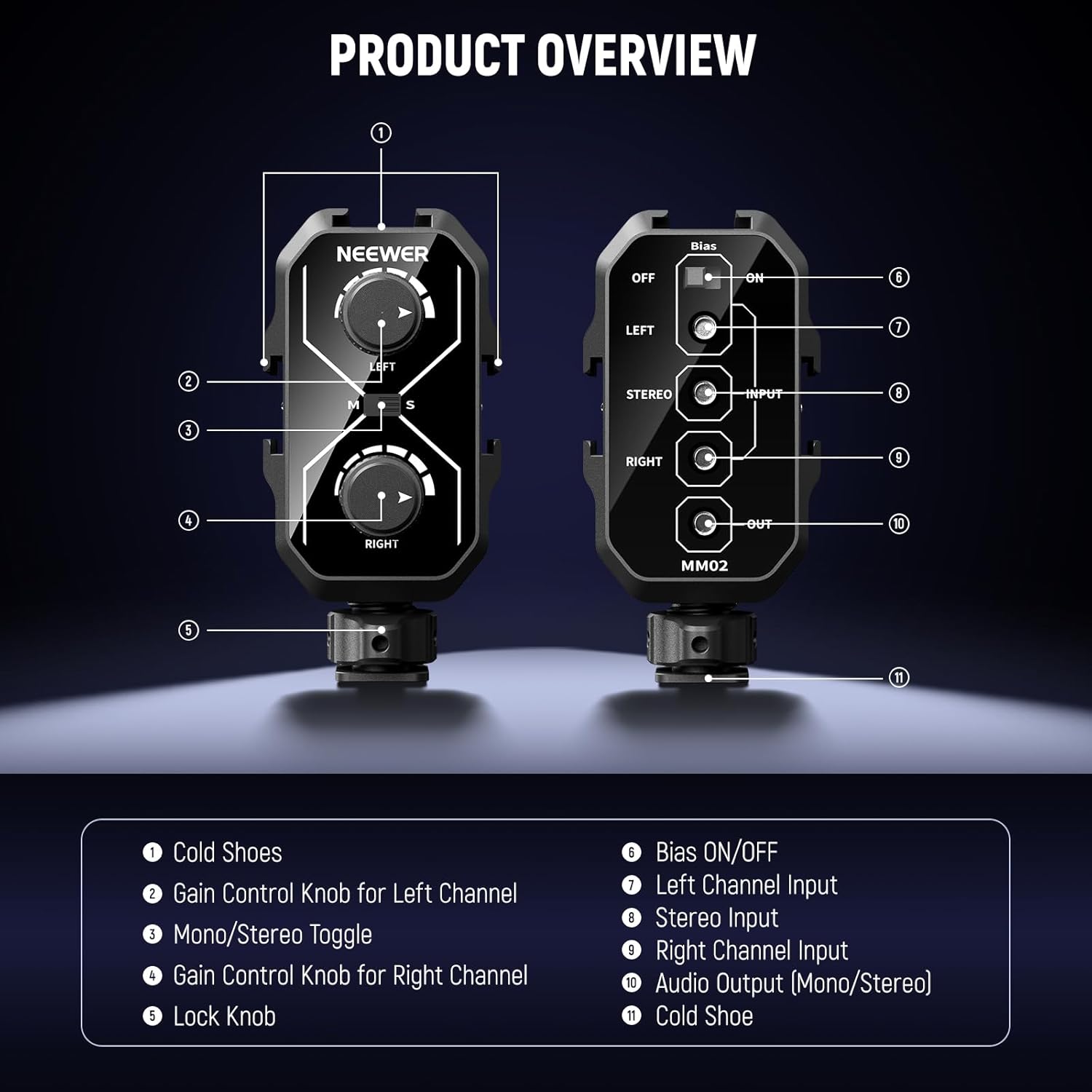
Image 1: NEEWER MM02 Product Overview. This image displays the front and back of the MM02 mixer with numbered labels pointing to its various components, including cold shoes, gain control knobs, mono/stereo toggle, input/output jacks, and bias switch.
Likarolo tsa Bohlokoa:
- Dual Microphone Recording: Mounts two microphones via cold shoes for professional audio quality.
- Universal 3.5mm TRS Jacks: Three 3.5mm TRS inputs (Left, Right, Stereo) and one 3.5mm TRS output for camera or camcorder connection.
- Mono/Stereo Mode Switch: Seamlessly switch between mono and stereo output modes.
- Cold Shoes & 1/4" Threads: Multiple mounting options for accessories like wireless receivers or LED lights.
- Tšebelisano ea Maekerofounu: Works with both battery-powered and unpowered microphones (bias voltage switch available for unpowered mics on the left channel).
2. Ho seta le ho kenya
- Mounting the Mixer:
- Attach the MM02 mixer to your DSLR camera or camcorder's hot shoe using the integrated cold shoe adapter at the bottom. Secure it by tightening the thumb wheel.
- The mixer also features three additional cold shoe brackets (one on top, one on each side) and 1/4" threads for mounting additional accessories like wireless receivers, LED lights, or magic arms.

Image 2: Cold Shoe and 1/4" Thread Mounting Options. This image highlights the various cold shoe mounts and 1/4" threads on the MM02 mixer, demonstrating how accessories like wireless receivers and LED lights can be attached.
- Connecting to Camera/Smartphone:
- Use the included 3.5mm TRS cable. Connect one end to the mixer's TSOA jack.
- Connect the other end of the 3.5mm TRS cable to the jack e kenyang ea MIC of your camera or camcorder. For smartphones, a TRRS adapter (not included) may be required.
- Ho hokela Maekerofounu:
- Connect your microphones to the LETS'ELA, TOKELO, kapa STEREO input jacks on the mixer.
- For unpowered microphones (e.g., NEEWER KM17), connect it to the LETS'ELA channel input and ensure the Leeme voltage switjha e behiloe ho ON. This provides necessary power to the microphone.

Image 3: Dual Microphone Setup. This image shows the MM02 mixer mounted on a camera, with two microphones connected, illustrating its capability to record audio from two sources simultaneously.

Image 4: Microphone Compatibility. This image demonstrates the MM02 mixer connected to a camera with a shotgun microphone, highlighting the bias voltage switch for unpowered microphones.
3. Litaelo tsa Ts'ebetso
- Adjusting Gain Controls:
- Use the two dials on the front of the mixer to control the gain (volume) for the left and right channels independently. Adjust these to achieve optimal audio levels and prevent clipping.
- Mono/Stereo Mode Selection:
- The M/S button (Mono/Stereo switch) allows you to select the desired output mode:
- Beha ho M (Mono) when using a single microphone or when you want both microphone inputs to be mixed into a single mono track.
- Beha ho S (Stereo) when using two microphones and you wish to record them as separate left and right stereo channels.

Image 5: Mono/Stereo Mode Switch. This image illustrates the M/S switch and gain control knobs, showing how to select between mono and stereo output modes and adjust individual channel volumes.
- The M/S button (Mono/Stereo switch) allows you to select the desired output mode:
- Leeme VoltagE switjha:
- The Bias switch (located on the back) provides power to unpowered microphones. Ensure it is set to ON if you are using a microphone that requires bias voltage and is connected to the left input. Set to TLOA for self-powered microphones.
4. Tlhokomelo le Tlhokomelo
- Boloka sesebediswa se hlwekile ka ho se hlakola ka lesela le bonolo, le omileng.
- Qoba ho beha sesebelisoa mochesong o feteletseng, mongobo, kapa mahlaseling a letsatsi.
- Boloka motsoako o omileng, o se nang lerole ha o sa sebelisoe.
- Do not attempt to disassemble or repair the device yourself, as this may void the warranty.
5. Ho rarolla mathata
- Ha ho Audio Output:
- Ensure all cables are securely connected to the correct input/output jacks.
- Check the gain control knobs to ensure they are not set to minimum.
- Verify the Bias switch is set correctly for your microphone type (ON for unpowered mics on the left channel).
- Confirm your camera's audio input settings are configured correctly.
- Molumo o sothehileng:
- Reduce the gain levels on the mixer and/or your camera to prevent clipping.
- Check microphone placement and ensure it's not too close to the sound source.
- Humming or Hissing Noise:
- Ensure all connections are secure and cables are not damaged.
- Move the mixer and cables away from other electronic devices that might cause interference.
6. Litlhaloso tsa Sehlahisoa
| Sebopeho | Lintlha |
|---|---|
| Lebitso la Mohlala | MM02 |
| Brand | LITS'ELISO SECHABA |
| Litšebeliso tse khothalelitsoeng | Video Recording, Voice Recording |
| Theknoloji ea Khokahano | Motlatsi |
| Mofuta oa Sehokelo | 3.5 limilimithara Jack |
| Tšobotsi e Khethehileng | Voice Activated Recording (Note: This feature is typically camera-dependent, not mixer-dependent) |
| Lisebelisoa tse lumellanang | Voice Recorder, DSLR Camera, Smartphones (with adapter) |
| Mmala | Ntsho |
| Kenyellelitsoe Likaroloana | 1 x Microphone Audio Mixer, 1 x 3.5mm TRS Male to 3.5mm TRS Male Cable |
| Boima ba Ntho | 1.85 Lionsi |
| Ntho ea Foromo ea Microphone | Handheld (referring to compatible mics) |
| Mohloli oa Matla | Battery Powered (referring to compatible mics, mixer is passive) |
| Palo ea Likanale | 2 |
| Boitsebiso bo Koaheletsoeng | Tšepe |
| UPC | 191073100244 |
7. Tiisetso le Tšehetso
The NEEWER MM02 Dual Channel Microphone Audio Mixer Adapter comes with a Warranty ea Moetsi oa Lilemo tse 1.
For further support, product information, or to explore other NEEWER products, please visit the NEEWER Store ho Amazon.