
Selelekela
This manual provides essential information for the setup, operation, maintenance, and troubleshooting of your Onn 22 inch 1080P 100 Hz FHD LED Monitor. Please read this guide thoroughly before using the product to ensure optimal performance and safety.
The Onn 22 inch FHD LED Monitor is designed for a variety of applications, offering a vivid 1920x1080 resolution, a 100Hz refresh rate, and a 6.5ms response time for efficient performance. Its slim profile and T-shaped base are ideal for saving desk space.
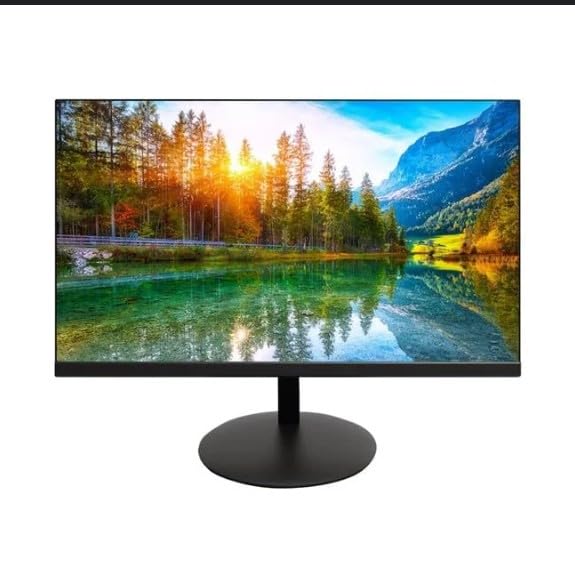
The image shows the Onn 22 inch FHD LED Monitor, highlighting its 100Hz refresh rate and 1080p resolution. The monitor features a slim design and a T-shaped base.
Litaelo tsa ho seta
- Ho phutha: Carefully remove the monitor and all accessories from the packaging. Ensure all components are present: monitor, T-shaped base, HDMI cable, and power adapter.
- Ho Kopanya Setulo: Attach the T-shaped base to the monitor. The design is screw-less for easy assembly. Ensure it is securely fastened.
- Ho hokela ho Sesebediswa:
The monitor supports both HDMI and VGA inputs. Connect the provided HDMI cable from your computer's HDMI output to the HDMI IN port on the monitor. Alternatively, use a VGA cable for VGA input.

This image displays the rear panel of the Onn monitor, illustrating the available input ports: HDMI IN, VGA IN, and the DC 12V power input. These ports are essential for connecting the monitor to a computer or other devices.
- Khokelo ea Matla: Connect the power adapter to the DC 12V input port on the monitor, then plug the adapter into a power outlet.
- Ho fetola Monitor: The monitor is capable of swivel, tilt, rotation, and height adjustment. Adjust the screen to your preferred viewing angle bakeng sa boiketlo ba ergonomic.
- Dual Monitor setup: This monitor is suitable for a fully functioning dual monitor setup. Connect a second monitor using the appropriate cables and configure your operating system's display settings.
Litaelo tsa Ts'ebetso
- Tlosa/Tima: Press the power button, usually located on the bottom or back of the monitor, to turn it on or off.
- Khetho ea Lintho: If the monitor does not automatically detect the input source, use the On-Screen Display (OSD) menu buttons to manually select between HDMI and VGA inputs.
- OSD Menu Navigation: Use the physical buttons on the monitor (typically on the back or bottom edge) to navigate the OSD menu. This allows you to adjust settings such as brightness, contrast, color temperature, and input source.
- Qeto le Sekhahla sa Tsosoloso: The monitor supports a native resolution of 1920x1080 at a 100Hz refresh rate. Ensure your computer's display settings are configured to these specifications for the best visual experience.
- Adaptive Sync: The monitor features Adaptive Sync for gaming, which helps to reduce screen tearing and stuttering. Ensure this feature is enabled in your graphics card settings if supported.
Tlhokomelo
- Ho hloekisa skrine: Hlakola skrine ka bonolo ka lesela le bonolo le se nang letlapa. Bakeng sa matšoao a manganga, ha bobebe dampen the cloth with water or a non-abrasive, monitor-specific cleaning solution. Avoid spraying liquids directly onto the screen.
- Ho hloekisa Casing: Sebelisa lesela le bonolo, le omeletseng ho hloekisa mochine casing. Do not use strong detergents or solvents, as they may damage the finish.
- Moea oa moea: Netefatsa hore masoba a moea a mohlokomeli ha aa koaloa ho thibela ho chesa haholo.
- Polokelo: Ha e sa sebelisoe ka nako e telele, boloka sekirini sebakeng se pholileng, se omileng, hole le khanya ea letsatsi le mocheso o feteletseng.
Ho batle phoso
- Ha ho Matla:
- Sheba hore na thapo ea motlakase e hokahane ka mokhoa o sireletsehileng ho sebonela-hōle le motlakase.
- Netefatsa hore motlakase o sebetsa hantle.
- Ha ho Letšoao:
- Ensure the video cable (HDMI or VGA) is firmly connected to both the monitor and the computer.
- Select the correct input source using the monitor's OSD menu.
- Lekola hore na komporo ea hau e buletsoe 'me ha e maemong a ho robala.
- Flickering Screen or Poor Image Quality:
- Sheba thapo ea video bakeng sa tšenyo kapa likhokahano tse hlephileng.
- Adjust the resolution and refresh rate settings on your computer to match the monitor's specifications (1920x1080, 100Hz).
- Seta litlhophiso tsa monitor ho ea ho tse tloaelehileng tsa fektheri ka menu ea OSD.
- Likonopo ha li arabe:
- Unplug the monitor from the power outlet, wait for 30 seconds, and then plug it back in.
If problems persist, please refer to the support information provided in the "Support and Warranty" section.
Litlhaloso
| Brand | Onn |
| Nomoro ea Mohlala | 100140681 |
| Lebitso la Mohlala | OTTO |
| Boholo ba skrine | 21.5 lisenthimithara |
| Mofuta oa Pontšo | LED, LCD |
| Qeto | 1920 x 1080 (FHD 1080p) |
| Refresh Rate | 100 Hz |
| Nako ea Karabelo | 6.5 Milliseconds |
| Sesebelisoa sa Hardware | HDMI, VGA |
| Likarolo Tse Khethehileng | Phetoho ea Bophahamo |
| ViewAngle | 160 likhato |
| Aspect ratio | 16:9 |
| Litekanyo tsa Sehlahisoa | 49.2 x 20 x 37.2 cm; 3.24 lik'hilograma |
Tšehetso le Warranty
For technical support, product inquiries, or warranty information, please visit the official Onn support websebaka kapa ikopanye le litšebeletso tsa bareki.
- Tšehetso ea Semmuso Websebaka: onnsupport.ca
- Tiisetso: Specific warranty details may vary by region and purchase date. Please refer to the documentation included with your product or visit the support websebaka sa marang-rang bakeng sa tlhahisoleseling ea morao-rao ea waranti.