
Selelekela
This manual provides detailed instructions for the installation, operation, maintenance, and troubleshooting of your Inefala 4G 128G Car Stereo. This unit is designed for Mitsubishi Mirage models from 2012 to 2022, featuring a 9-inch Incell Touchscreen with Android 15, CarPlay, Android Auto, Bluetooth 5.0, GPS, and WiFi connectivity. Please read this manual thoroughly before use to ensure proper functionality and safety.
Se ka Lebokoseng
Netefatsa hore likarolo tsohle tse thathamisitsoeng ka tlase li kenyelelitsoe ka har'a sephutheloana sa hau:
- 1 x Inefala Android Radio for Mitsubishi Mirage
- 1 x Thapo ea Matla
- 1 x RCA Harness
- 1 x GPS Antenna
- 1 x AHD Backup Camera
- 1 x Cable ea ho Kena Khamera e ka Morao
- 1 x Microphone ea kantle
- 2 x Lithapo tsa USB
- 1 x Sesebelisoa sa ho kenya

Image: The package contents, showing the main head unit, power cable, RCA harness, GPS antenna, AHD backup camera, rear camera input cable, external microphone, two USB cables, and an installation tool.
Ho seta le ho Kenya
This section outlines the general steps for installing your Inefala car stereo. Professional installation is recommended if you are unfamiliar with car audio systems.
Tlhahlobo ea ho lumellana
Ensure your vehicle is a Mitsubishi Mirage model manufactured between 2012 and 2022. Before purchasing, verify that the power cable port on the product detail page matches your original car's power cable port.
Pre-Installation Test
- Combine the red and yellow wires of the car stereo and connect them to the positive pole of the 12V battery. Connect the black wire to the negative pole of the battery.
- After approximately 2 seconds, check the car stereo. If the screen lights up, it indicates that the car stereo is functioning correctly. If the car player turns on but the device does not work after installation, recheck the installation procedure.
Wiring le Mahokelo
- Cable ea Matla: Connect the main power harness to your vehicle's wiring.
- RCA Harness: Use for external audio/video connections.
- GPS Antenna: Install in a location with a clear view ea leholimo bakeng sa kamohelo e ntle ka ho fetisisa ea lets'oao.
- Lithapo tsa USB: Connect for data transfer or charging.
- Microphone ea kantle: Connect for improved call quality and voice commands.
E khutlisetsa morao Wiring ea Khamera
The reversing input must be plugged in even if the reversing camera is not used. Failure to do so may affect your WiFi and Bluetooth signals.
- Cable 1 and Cable 5: Connect the positive pole of the car reversing light cable.
- Cable 2: Connect the negative pole of the car reversing light cable.
- Cable 3 and Cable 4: Connect to the reverse trigger wire of the power cable (labeled "Reverse/Back"). No need to connect if without this wire. Pull it out and connect it if the last step doesn't work.

Image: A detailed diagram illustrating the wiring connections for the AHD backup camera, including power and signal cables.
Taolo ea Lebili la Tsamaiso
The unit supports steering wheel button functions for easy audio system control while driving.
- Without CANBUS box: Activation of steering wheel controls requires key learning in settings.
- With CANBUS box:
- Connect the 20-pin white port in the power cable to the Canbus itself.
- Connect the remaining 8-pin white port to the corresponding port on the back of the radio.
- Match the car model: CANBUS Matching Path: Settings > Factory Setup (Password 1234) > Can Settings.

Image: A visual guide to connecting and configuring steering wheel controls, showing the physical buttons and the on-screen settings interface.
Lintlha tsa Boema-kepe

Image: A diagram detailing the rear ports of the head unit, including Power Cable, RCA Cable, USB Cable, Camera Input, and GPS Antenna connections.
Phello ea ho kenya
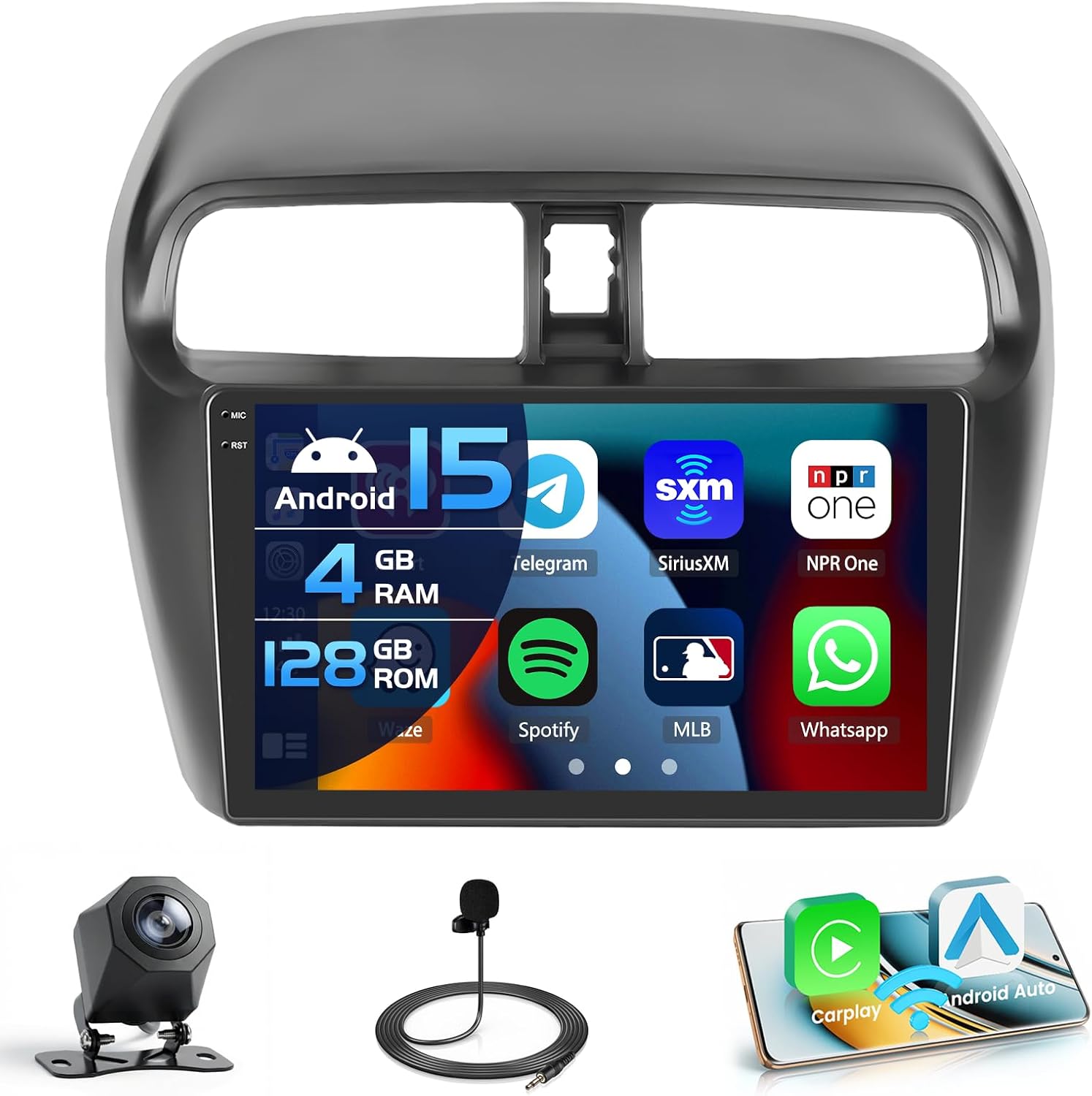
Image: The Inefala car stereo seamlessly integrated into the dashboard of a Mitsubishi Mirage, showcasing its 9-inch display with various application icons.

Setšoantšo: Papiso view of the Mitsubishi Mirage dashboard, showing the factory radio and the upgraded Inefala car stereo installed, highlighting the fit and finish.
Litaelo tsa Ts'ebetso
In-Cell Touch Screen
The 9-inch Incell screen features a 1280 x 720 ultra-high resolution, improving light transmission and color contrast by approximately 20%. It offers a wide viewing angle of 178° and supports 1080P video playback and split-screen functionality. You can switch between 15 different desktop themes.

Image: An illustration demonstrating the advanced features of the In-Cell Touch Screen, such as enhanced color accuracy, contrast, brightness, and wide viewing angles, along with split-screen capability.
CarPlay & Android Auto & Mirror Link
Connect your smartphone wirelessly for voice-assisted controls and easy access to music, navigation, calls, and messages. The system supports both Wireless CarPlay and Android Auto. Mirror Link functionality allows syncing your phone's screen via WiFi hotspot or USB cable. Note: Some Samsung and Huawei phones may have limited compatibility with Android Auto and Mirror Link.

Image: A visual representation of Wireless CarPlay and Android Auto in action, displaying phone applications like music, navigation, and messaging on the car stereo screen, alongside a mirrored smartphone display.
Bluetooth 5.0
Bluetooth 5.0 enables hands-free calling, phone book download, and music playback, enhancing safety and convenience while driving.

Image: A depiction of the Bluetooth 5.0 interface on the car stereo, showing a dial pad for hands-free calls and music controls, with a woman interacting with the system.
GPS Navigation
The system supports both online and offline navigation using GPS, BeiDou, Galileo, and Glonass for wide coverage. Real-time road conditions help avoid traffic, and accurate satellite positioning prevents you from getting lost.

Image: The GPS navigation screen displaying a detailed map with routes, landmarks, and satellite icons, indicating global positioning capabilities.
FM/RDS Radio
The stable FM/RDS radio allows you to preset up to 54 stations, providing channel broadcasts, weather forecasts, and real-time road conditions.
Khokahano ea Wifi
Connect to a WiFi hotspot to download various applications like YouTube and TikTok, enriching your in-car experience.

Image: The WiFi function display, showing a variety of application icons and an online interface, demonstrating internet access and app download capabilities.
EQ Options (32-band DSP)
The system supports EQ options with a 32-band DSP (Digital Signal Processor) for fine-tuning your audio experience.
Official Product Video: Interface and Features Overview
Video Description: This video demonstrates the various functions and user interface of the Inefala Android car stereo, including desktop themes, CarPlay/Android Auto music and navigation, hands-free calls, voice control, dual screen mode, FM/RDS radio, weather forecast, network radio, 32-band EQ DSP, GPS navigation, and rear view pontsho ya khamera.
Tlhokomelo
To ensure the longevity and optimal performance of your Inefala car stereo, follow these general maintenance guidelines:
- Ho hloekisa: Sebelisa lesela le bonolo, le omileng ho hloekisa skrine le bokantle. Qoba lihlatsoi tse khorofo kapa li-solvent tse ka senyang bokaholimo.
- Lintlafatso tsa Software: Periodically check for software updates to ensure you have the latest features and performance enhancements.
- Maemo a Tikoloho: Qoba ho beha yuniti mochesong o feteletseng kapa letsatsing le tobileng ka nako e telele.
- Lihokelo tsa Cable: Netefatsa hore dithapo tsohle di hokahantswe ka mokhoa o sireletsehileng ho thibela mathata a sa feleng.
Ho batle phoso
If you encounter issues with your Inefala car stereo, refer to the following common troubleshooting tips:
- Ha ho Matla: Double-check all power connections. Ensure the red and yellow wires are correctly connected to the 12V battery positive, and the black wire to the negative.
- Ha ho Molumo: Verify speaker connections and audio settings. Check if the volume is muted or set too low.
- The touchscreen ha e arabele: If the touchscreen is not responding, try restarting the unit. Ensure all cables are properly seated, as loose connections can sometimes affect functionality.
- Khamera ea ho Boloka ha e Bontšoe: Confirm the rear camera input cable is correctly connected and the reverse trigger wire is properly wired. Remember, the reversing input must be plugged in even if the camera is not used to avoid WiFi/Bluetooth signal issues.
- Mathata a CarPlay/Android Auto: Ensure your phone is compatible and has the necessary apps installed (e.g., Android Auto app for Android devices). Check your phone's settings for wireless projection.
- Letšoao le Fosahetseng la GPS: Netefatsa hore antenna ea GPS e kentsoe sebakeng se nang le lebone le hlakileng view ea leholimo, e lokolohile litšitisong.
If the issue persists, please refer to the support section for contact information.

Image: A visual guide providing quick installation tips and instructions on how to reach customer support for further assistance.
Litlhaloso
| Tsamaiso | Latest Android System |
| Qeto ea skrine | 1280*720 Incell Screen |
| Sehlahisoa sa Matla | 4*45W |
| Bluetooth Version | 5.0 |
| Mosebetsi oa Taolo ea Lebili la Tsamaiso | Tšehetso |
| Sehlopha sa Radio | FM / RDS |
| Ka morao Khamera Standard | AHD & CVBS |
| Microphone ea kantle | Tšehetso |
| Arola skrine | Tšehetso |
| WiFi | Tšehetso |
| Carplay / Android Auto | Khokahano e se nang mohala feela |
| Sehokelo sa Mirror | E se nang mohala / Wired |
| USB | Habeli USB segokanyimmediamentsi sa sebolokigolo |
| Audio Format | APE / FLAC / WAV / MP3 / WMA etc |
| Sebopeho sa Video | MKV / RMVB / AVI / MP4 / MDV etc |
| Sebopeho sa Litšoantšo | PNG / JPEG / JPG / GIF / WBMP / BNP etc |
| Mantsoe a bohlokoa a ho beha fektheri | 1234 |
| Limmapa | Built-in online & offline maps (requires internet to download data) |
| Puo | English / Spanish / Chinese / French / Italian / Korean / Japanese / Arabic / Portuguese / Russian / Turkish / Vietnamese / Hebrew / Polish / German |

Image: A comprehensive table listing the technical specifications of the Inefala car stereo, including system details, screen resolution, power output, Bluetooth version, and supported features.
Warranty le Tšehetso
Your Inefala car stereo comes with a Warranty ea Selemo se 1. For any technical assistance, troubleshooting, or warranty claims, please contact Inefala customer support.
Mokhoa oa ho re fihlela
- Click on the seller name "Inefala Direct" on the product page.
- Click "Ask a question".
- Please send us questions you met, and attach relevant pictures or videos will help to solve the problem faster!
All messages will be replied within 24 hours, regardless of holidays.

Image: An image displaying the Inefala customer service email address for support inquiries.