
1. Sehlahisoa Overview
This manual provides detailed instructions for the installation, operation, and maintenance of your podofo 9-inch Android 13 Car Stereo. This unit is designed to enhance your driving experience with advanced features such as wireless CarPlay, Android Auto, GPS navigation, Wi-Fi connectivity, Bluetooth, and an HD backup camera.
Ho lumellana
This car head unit is compatible with the following Mercedes Benz models:
- Mercedes Benz E Class W211 (2002-2009)
- Mercedes Benz CLS W219 (2002-2009)
2. Ho seta le ho kenya
Careful installation is crucial for optimal performance. It is recommended that installation be performed by a qualified professional.
Litaba tsa Sephutheloana
Netefatsa hore likarolo tsohle li teng ka har'a sephutheloana sa hau:
- Android Car Stereo Unit
- GPS Antenna
- Microphone ea kantle
- HD Backup Camera
- Motlakase oa Motlakase
- Cable ea RCA
- Cable ea USB
- Radio Antenna & Canbus
- Sesebelisoa sa ho Kenya
- Bukana ea Mosebelisi

Image: Dimensions of the 9-inch car stereo and a visual representation of all included accessories.
Hlahloba Kemiso ea Pele
Before proceeding with installation, carefully check your vehicle's existing radio line interface. If your vehicle's radio line interface matches the one shown in the 'Before Installation' diagram below, a separate car optical fiber box will be required for proper functionality. This box is not included and must be purchased separately.
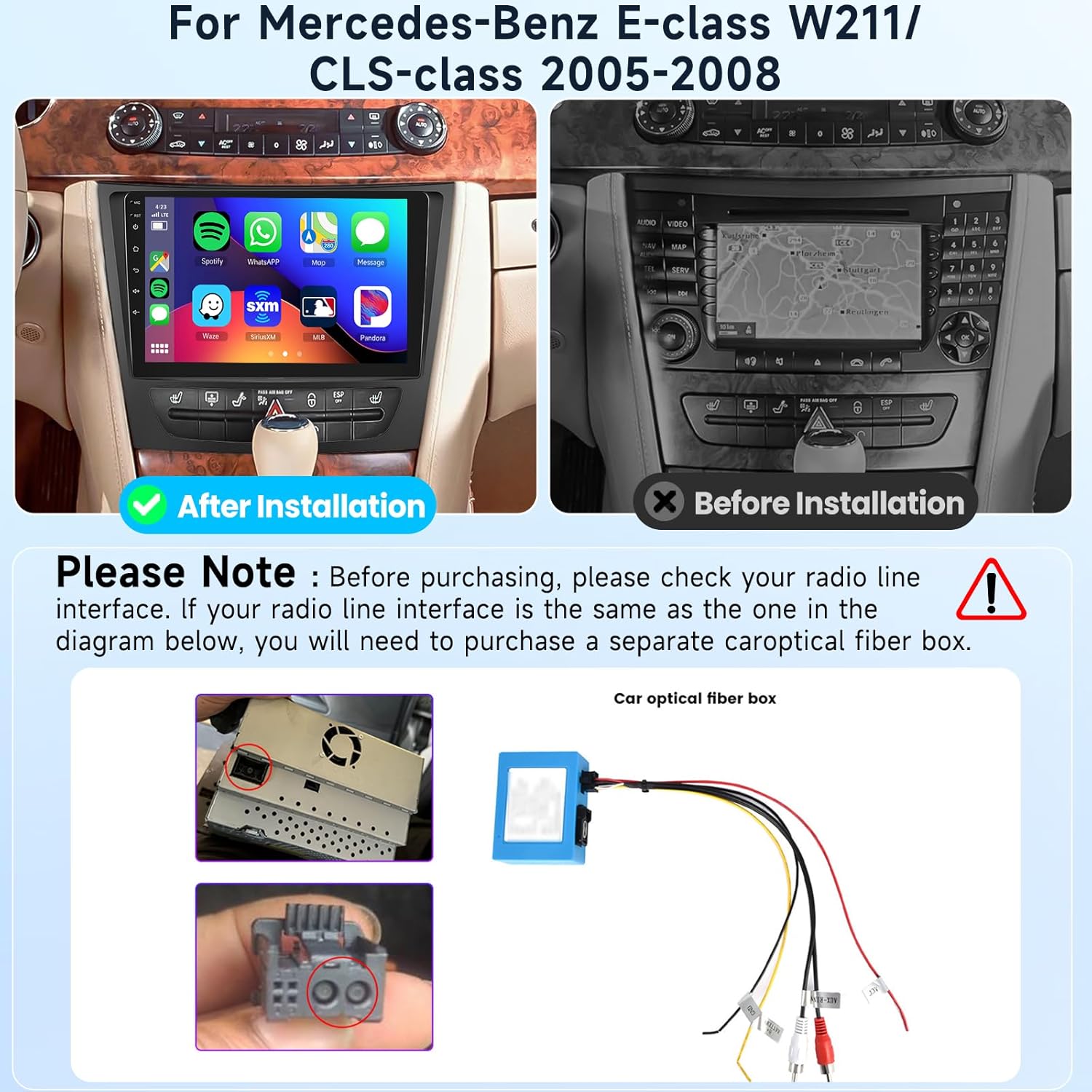
Image: Visual guide for checking the radio line interface and the appearance of the stereo before and after installation.
Backup Camera Wiring
Follow these steps for connecting the HD backup camera:
- Connect the red wire (labeled +12V) to the car's reversing light positive terminal.
- Connect the black wire (labeled GND) to the car's reversing light negative terminal.
- No additional connections are needed for the video signal cable.
- The reverse trigger wire (labeled "Reverse/back") connects to the vehicle's reverse light positive. If your vehicle does not have this wire, no connection is needed.

Image: Detailed wiring diagram for the HD backup camera.
3. Litaelo tsa Ts'ebetso
Your podofo car stereo runs on the Android 13 operating system, offering a wide range of functionalities.
Litlhaloso tsa Tsamaiso
- Mokhoa oa tšebetso: Android 13.0
- Motlakase: Quad-core CPU
- RAM: 2GB
- Bobolokelo ba ka Hare 64GB

Setšoantšo: Ho felileview of the smart Android system features.
Likarolo tsa Pontšo
- Boholo ba skrini: 9 lisenthimithara
- Qeto: 1080P
- Mofuta oa Pontšo: IPS
- Tšoaea Mofuta oa Tlhahlobo Capacitive 2.5D Glass
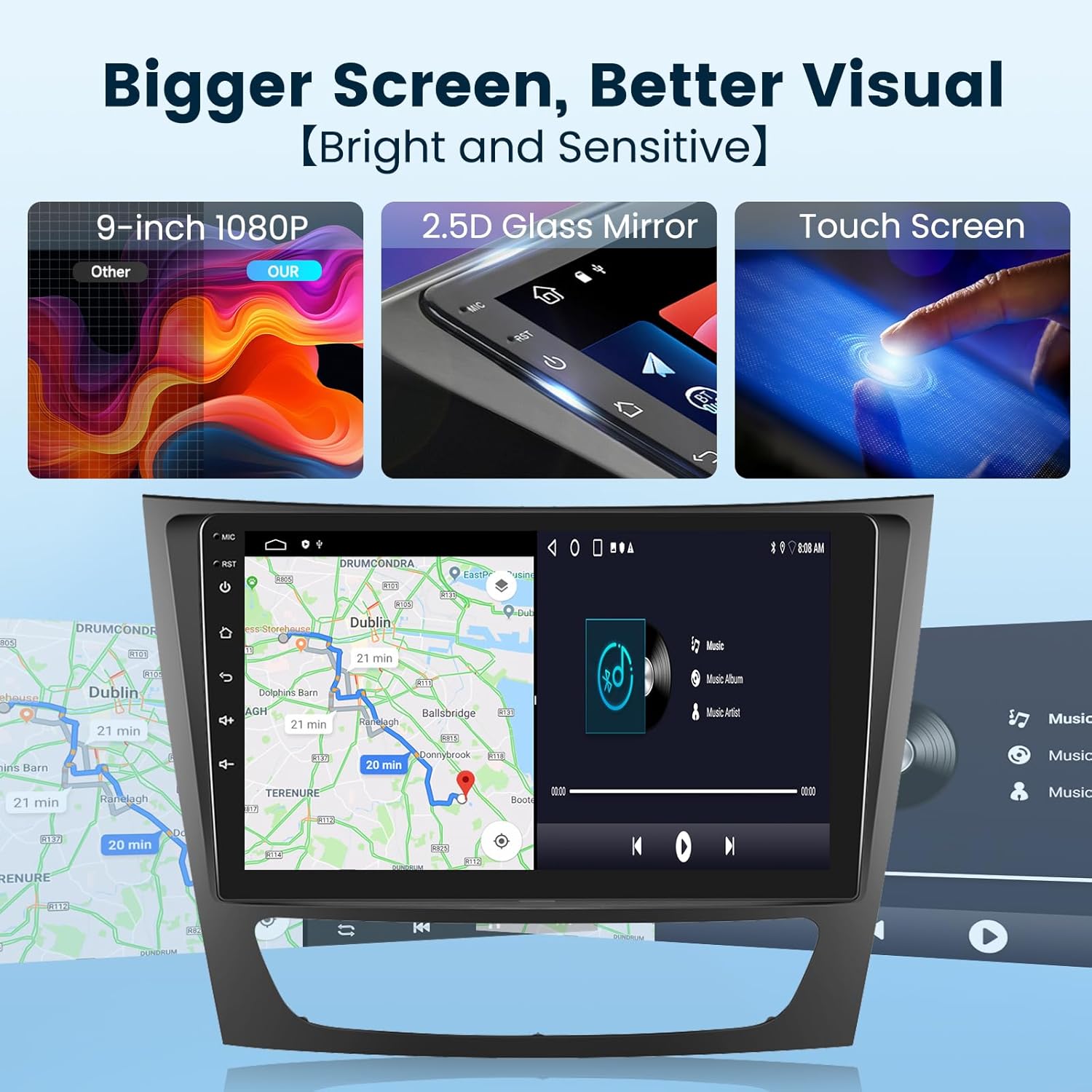
Image: Visual details of the car stereo's display.
Wireless CarPlay / Android Auto
Connect your smartphone wirelessly or via USB to access apps like navigation, music, and calls directly on the stereo screen. Supports voice control for enhanced driving safety.

Image: Wireless CarPlay and Android Auto interface.
GPS Navigation & Wi-Fi
The unit includes a built-in offline map application, allowing you to download worldwide map data. Connect to Wi-Fi or a mobile hotspot for online navigation and to install or manage Android applications from the Application Store.

Image: Online and offline GPS navigation features.

Image: Built-in Wi-Fi connectivity for app downloads and online services.
Ts'ebetso ea Bluetooth
Equipped with a built-in noise-canceling microphone and an external microphone jack, the stereo ensures clear hands-free calls. Bluetooth wireless audio streaming allows for a superior music listening experience.

Image: Bluetooth call and music streaming features.
Taolo ea Lebili la Tsamaiso
Utilize your vehicle's existing steering wheel buttons to control the car audio system, providing convenient and safer operation while driving.

Image: Steering wheel control integration.
Mirror Link (Screen Casting)
Connect your smartphone to the car stereo via USB or Bluetooth to mirror its screen, allowing you to enjoy videos and other content on the larger display.
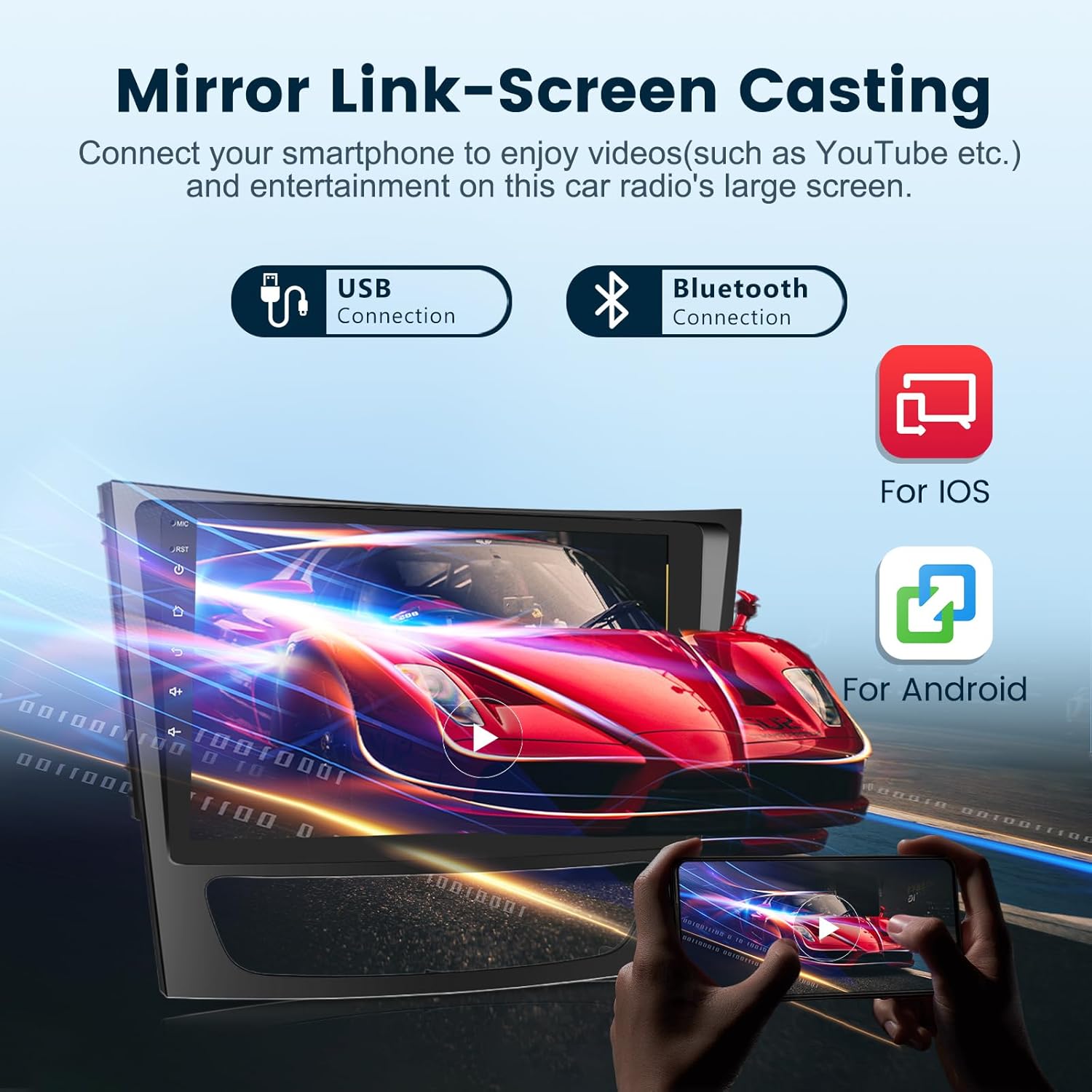
Image: Mirror Link functionality for screen casting.
FM/RDS Radio
Access FM radio stations with RDS (Radio Data System) support, providing information such as station name and song titles where available.

Image: FM/RDS Radio interface.
HiFi Audio & EQ Settings
Experience advanced HiFi high-fidelity audio technology. Customize your sound experience with built-in EQ settings, allowing adjustments for various music genres and personal preferences.

Image: HiFi Audio and Equalizer settings.
HD Backup Camera
The included HD backup camera provides a clear, wide-angle view (170°) with night vision capabilities, assisting with safe parking and reversing. The camera is IP69 waterproof.

Image: HD Backup Camera view le likarolo.
4. Tlhokomelo
To ensure the longevity and optimal performance of your car stereo, follow these general maintenance guidelines:
- Regularly clean the screen with a soft, lint-free cloth. Avoid abrasive cleaners.
- Boloka yuniti e se na lerōle le lithōle.
- Netefatsa moea o nepahetseng ho potoloha yuniti ho thibela mocheso o feteletseng.
- Qoba ho beha yuniti mochesong o feteletseng kapa mahlaseli a letsatsi ka nako e telele.
5. Ho rarolla mathata
If you encounter any issues with your car stereo, please refer to the following basic troubleshooting steps. For more complex problems, contact customer support.
Mathata a Tloaelehileng le Litharollo:
- Ha ho Matla: Check all power connections and fuses. Ensure the car's ignition is on.
- Ha ho Molumo: Verify speaker connections. Check volume levels and mute settings. Ensure the correct audio source is selected.
- GPS ha e sebetse: Netefatsa hore antenna ea GPS e hokahane hantle 'me e na le leseli le hlakileng view ea leholimo. Hlahloba litlhophiso tsa GPS tsamaisong.
- Mathata a Khokahano ea Bluetooth: Ensure Bluetooth is enabled on both the stereo and your device. Try unpairing and re-pairing the devices.
- CarPlay/Android Auto Ha e hokahane: Check USB cable connection (if wired). Ensure Wi-Fi and Bluetooth are enabled for wireless connection. Update phone and stereo software if necessary.
6. Litlhaloso
| Sebopeho | Tlhaloso |
|---|---|
| Brand | podofo |
| Boholo ba skrine | 9 lisenthimithara |
| Mokhoa oa tšebetso | Android 13 |
| Bokhoni ba ho Boloka Memori | 64 GB |
| Theknoloji ea Khokahano | Bluetooth, USB, Wi-Fi |
| Likarolo Tse Khethehileng | Navigation, Wired/Wireless CarPlay, Wired/Wireless Android Auto |
| Mofuta oa 'Mapa | Worldwide (Offline/Online) |
| Kenyellelitsoe Likaroloana | Android Car Stereo, External Microphone, GPS Antenna, HD Backup Camera |
| Boima ba Ntho | 1 lik'hilograma |
| Mofuta oa Screen Screen | Capacitive |
| Mofuta oa Pontšo | IPS |
| Lisebelisoa tse lumellanang | Smartphone |
| Mokhoa oa ho Laola | Thetsa |
| Sistimi ea ho tsamaisa Satellite e tšehelitsoeng | GPS |
7. Boitsebiso ba Tiisetso
This podofo car stereo comes with a Waranti ea lilemo tse 2 ho tloha ka letsatsi la theko. Tiisetso ena e akaretsa liphoso tsa tlhahiso le ho se sebetse hantle tlas'a ts'ebeliso e tloaelehileng. Ka kopo, boloka bopaki ba theko ea hau bakeng sa likopo tsa waranti.
8. Tšehetso ea Bareki
podofo is committed to providing professional technical support. For any concerns regarding installation, operation, or troubleshooting, please contact us directly via Amazon. Our team is available to assist you.
Mokhoa oa ho ikopanya le Tšehetso:
You can reach our support team through the Amazon platform:
- Navigate to the product page on Amazon.
- Find the 'Sold by Podofo US' section.
- Click on 'Ask a question' to send a message to our support team.


Images: Steps to contact podofo customer support via Amazon.