
1. Selelekela
Thank you for choosing the eLinkSmart Fingerprint Padlock. This smart padlock offers a convenient and secure keyless solution for various indoor applications. With advanced biometric technology and smartphone app integration, you can manage access with ease. This manual provides detailed instructions to help you set up, operate, and maintain your new padlock.
2. Sehlahisoa Overview
The eLinkSmart Fingerprint Padlock is a compact and lightweight security device designed for personal lockers, toolboxes, cases, chests, and cabinets. It features a zinc alloy body and a stainless steel shackle for durability. Key features include fingerprint unlocking, app-based authorization management, and long battery life.

Figure 1: eLinkSmart Fingerprint Padlock (Lavender Purple)

Figure 2: Padlock demonstrating its compact size when held
3. Seta
3.1 Tefiso ea Pele
Before first use, fully charge the padlock using the provided USB charging cable. The padlock supports 6 months of standby time or over 2000 unlocks on a full charge. A red light or app voice prompt will indicate low battery.
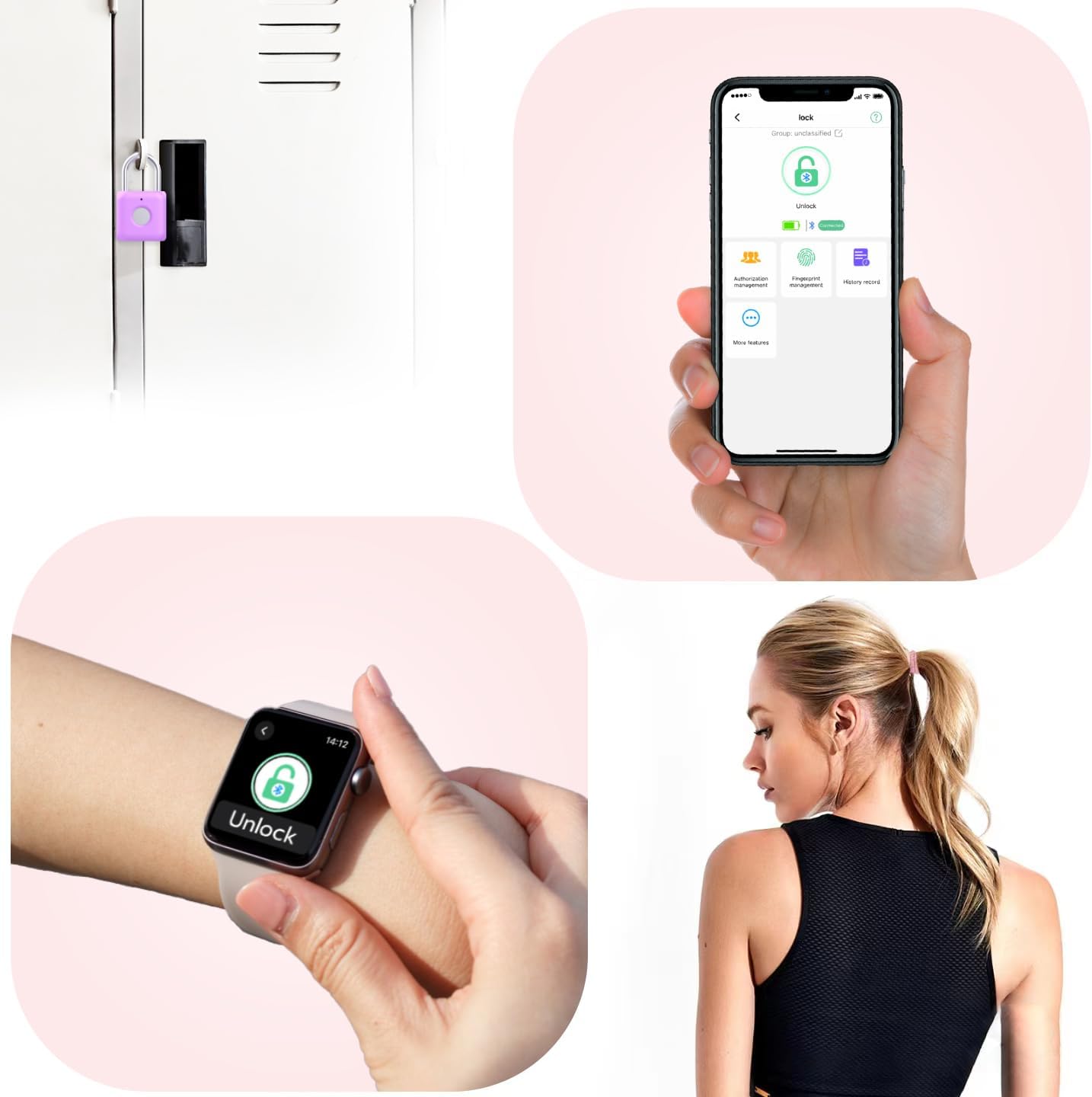
Figure 3: Padlock connected to a USB charging cable
3.2 Ho jarolla le ho kopanya app
- Scan the QR code in the included User's Manual or search for the 'eLinkSmart' app in your device's app store (iOS/Android).
- Kenya le ho bula sesebelisoa.
- Netefatsa hore Bluetooth ea fono ea hau e lumelletsoe.
- In the app, select 'Add Device' or similar option. The app will detect the padlock via Bluetooth.
- Follow the on-screen prompts to bind the padlock to your account. The padlock's indicator light will flash blue during pairing.
Video 1: This video demonstrates the initial setup process, including app download and device pairing for the eLinkSmart smart lock.
Video ea 2: Video ena e fana ka karabo e potlakilengview of the setup process, highlighting easy app use and fingerprint registration.
3.3 Fingerprint Registration
The padlock can store up to 20 different fingerprints, including 2 admin fingerprints. Only admin users can reset or manage fingerprints.
- In the eLinkSmart app, navigate to 'Fingerprint Management'.
- Select 'Add Fingerprint' and follow the on-screen instructions.
- You will be prompted to place your finger on the padlock's sensor multiple times from different angles to ensure accurate registration.
- Once successfully registered, the app will confirm.

Figure 4: Screenshot of the eLinkSmart app interface for managing the padlock.
4. Operating the Padlock
4.1 Ho Notlolla Menoana
To unlock the padlock using your fingerprint:
- Beha monoana o ngolisitsoeng ho sensor ea menoana.
- The padlock will unlock in approximately 0.1 seconds if the fingerprint is recognized.
Video 3: This video demonstrates the quick fingerprint unlock feature of the eLinkSmart padlock.
4.2 App Unlock
To unlock the padlock using the eLinkSmart app:
- Ensure your phone's Bluetooth is on and the padlock is within range.
- Open the eLinkSmart app.
- Select the padlock from your device list.
- Tap the 'Unlock' button within the app. The padlock will open.
Video 4: This video illustrates how to unlock the eLinkSmart padlock using the mobile application.
4.3 Locking the Padlock
To lock the padlock, simply push the shackle down into the lock body until it clicks into place. No fingerprint or app interaction is needed to lock it.
Video 5: A short video demonstrating the compact size and ease of use of the padlock, including locking it.
Video 6: A brief video showing the padlock being used on a gym locker, highlighting its suitability for this purpose.
5. Tlhokomelo
5.1 Ho tjhaja
Recharge the padlock using the provided USB cable when the low battery indicator (red light or app prompt) appears. A full charge typically takes about 40 minutes and provides power for approximately 6 months of standby or 2000 unlocks.
5.2 Ho hloekisa
Keep the fingerprint sensor clean and dry for optimal performance. Use a soft, dry cloth to wipe the sensor if needed.
6. Ho rarolla mathata
- Monoana ha o tsejoe: Ensure your finger is clean and dry. Try placing your finger on the sensor from different angles. If issues persist, delete and re-register your fingerprint in the app.
- App not connecting to padlock: Verify that Bluetooth is enabled on your smartphone and the padlock is within range. Try restarting the app or your phone. If necessary, reset the padlock and re-pair it with the app.
- Padlock not responding: The battery might be low. Connect the padlock to a power source using the USB charging cable.
- Difficulty registering fingerprints via app: If the app fails on the final step of fingerprint registration, try renaming the user name for the prints. Some users have found this resolves the issue.
7. Litlhaloso
| Sebopeho | Lintlha |
|---|---|
| Brand | eLinkSmart |
| Lebitso la Mohlala | YL-P8bf-Purple |
| Mofuta oa Lock | Biometric |
| Mokhoa oa ho Laola | App, Fingerprint |
| Lintho tse bonahalang | Zinc Alloy Body, Stainless Steel Shackle |
| Mmala | Lavender Purple |
| Litekanyo tsa Ntho (L x W x H) | 1.3 x 0.59 x 2.31 lisenthimithara |
| Boima ba Ntho | 0.08 lik'hilograma (li-ounces tse 2.89) |
| Bokhoni ba Menoana | Up to 20 (including 2 admin fingerprints) |
| Bophelo ba Battery | 6 months standby or 2000+ unlocks |
| Boema-kepe ba ho tjhaja | USB (e kenyelelitsoe thapo) |
| Litšebeliso tse khothalelitsoeng | Gym, School & Fence, Toolbox, Cases, Chests, Cabinets |
8. Tiisetso le Tšehetso
For warranty information and technical support, please refer to the contact details provided with your product packaging or visit the official eLinkSmart websebaka. Boloka rasiti ea hau ea theko bakeng sa likopo life kapa life tsa tiisetso.