
1. Selelekela
The MiBOXER HZ5 5-in-1 LED Controller is a versatile device designed for managing various LED lighting systems. It supports both Zigbee 3.0 and 2.4G wireless communication, offering flexible control for single color, dual white (CCT), RGB, RGBW, and RGB+CCT LED lights. This controller integrates seamlessly with compatible smart home systems and offers precise control over brightness, color, and color temperature.
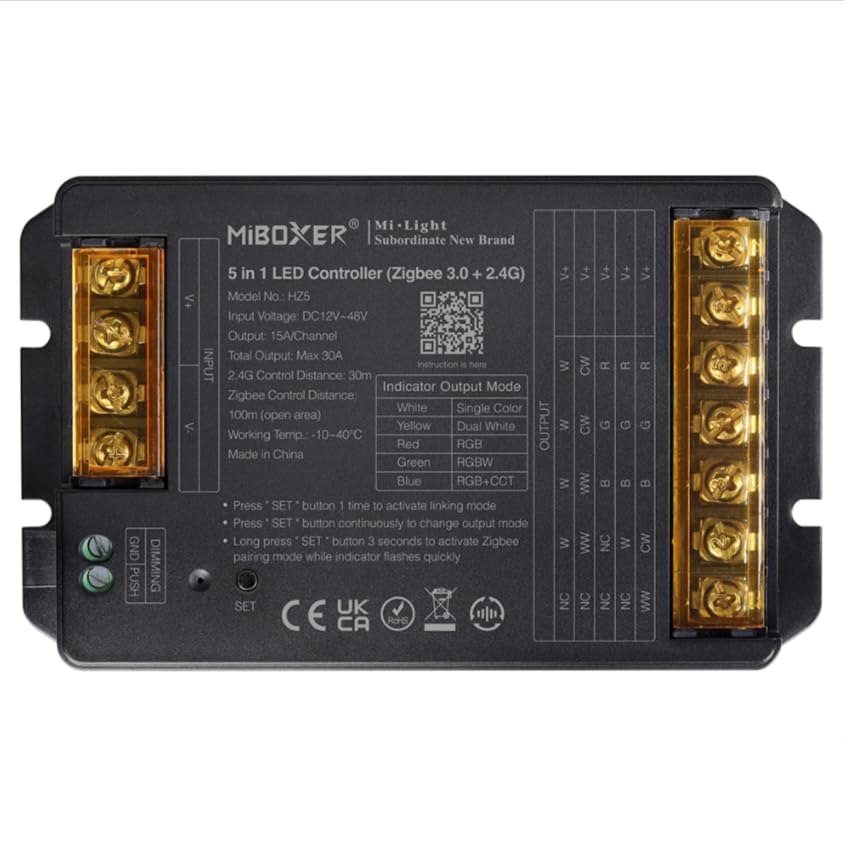
Image 1: MiBOXER HZ5 5-in-1 LED Controller device.
2. Boitsebiso ba Tšireletseho
- Always disconnect power before installing or performing maintenance on the controller or connected LED strips.
- Netefatsa hore ho kenya molumotage (DC12-24V) and output current (Max 6A/Channel, Total Max 12A) ratings are strictly observed to prevent damage to the device or LED strips.
- Do not expose the controller to moisture, water, or extreme temperatures (-10~40°C).
- Sesebelisoa sena se reretsoe ho sebelisoa ka tlung feela.
- Consult a qualified electrician if you are unsure about any installation steps.
3. Likarolo tsa lihlahisoa
- Zigbee 3.0 Standard Protocol: Ensures broad compatibility with Zigbee-enabled smart home hubs.
- 5-in-1 Compatibility: Supports single color, dual white (CCT), RGB, RGBW, and RGB+CCT LED lights.
- Extensive Color Control: Offers 16 million colors adjustable, saturation adjustable, and color temperature adjustable.
- PUSH Dimming Support: Allows for simple brightness adjustment using a push switch.
- Mekhoa e Matla: Built-in 18 dynamic modes with jumping and gradually changing effects (for 2.4G remote control).
- Theknoloji ea Waelese ea 2.4G: Provides stable control with a range of up to 30 meters.
- Taolo ea Sesebelisoa le Lentsoe: Compatible with smart apps and voice assistants like Alexa and Google Assistant.
4. Ho seta le ho kenya
4.1 Litaelo tsa Wiring
Proper wiring is crucial for the correct operation of the LED controller. Refer to the diagrams below for different LED strip configurations. Always ensure power is disconnected before making any connections.
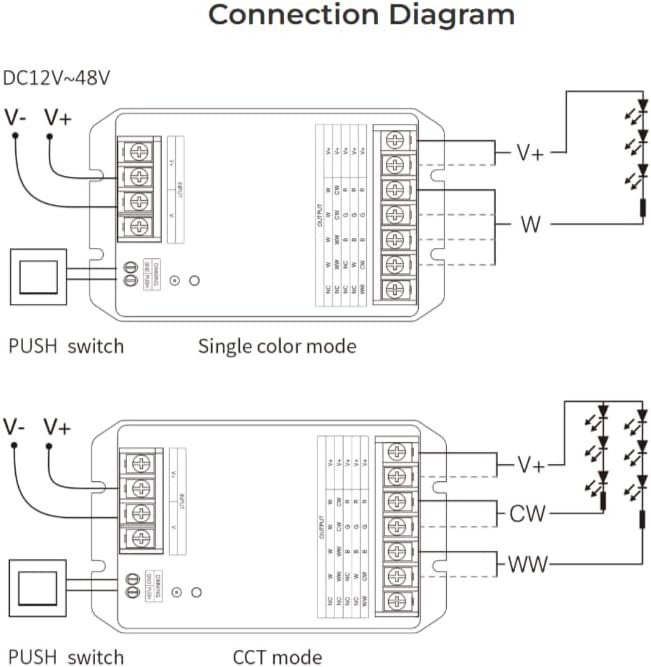
Image 2: Wiring diagrams for Single Color and CCT (Dual White) LED strips. Connect the V+ and V- terminals for power input. For Single Color, connect the LED strip's positive to V+ and negative to W. For CCT, connect the LED strip's positive to V+, warm white to WW, and cool white to CW.

Image 3: Wiring diagrams for RGB, RGBW, and RGB+CCT LED strips. Connect the V+ and V- terminals for power input. For RGB, connect the LED strip's positive to V+, Red to R, Green to G, and Blue to B. For RGBW, add the White channel to W. For RGB+CCT, add Warm White to WW and Cool White to CW.
4.2 Pairing and App Integration
The HZ5 controller supports both 2.4G remote control and smart app integration via Zigbee 3.0. To pair the device with a remote or app, follow these steps:
- Matla ho sesebelisoa.
- Activate Linking Mode: Press the 'SET' button on the controller once to activate linking mode. The indicator light will flash.
- Activate WiFi Pairing Mode: For app control, long press the 'SET' button for 3 seconds. The indicator light will flash quickly, indicating it's ready for WiFi pairing.
- Tlhophiso ea App: Open your compatible smart home app (e.g., MiBoxer Smart app), select 'Add Device', and follow the on-screen instructions to discover and add the controller. Ensure Bluetooth is enabled on your phone for easier device discovery.
Video 1: This video demonstrates the wiring instructions for a MiBOXER controller, which is applicable to the HZ5 model for proper connection of LED strips.

Setšoantšo sa 4: Example of the mobile application interface for controlling LED lighting, showing color selection and brightness adjustment.

Image 5: The MiBOXER HZ5 controller is compatible with popular voice assistants such as Amazon Alexa and Google Assistant for convenient hands-free operation.
5. Litaelo tsa Ts'ebetso
5.1 Switching Output Modes
The HZ5 controller can operate in different output modes depending on the connected LED strip type. The indicator light on the controller changes color to show the current output mode:
- Khubelu: Mokhoa oa RGB
- Botala: Mokhoa oa RGBW
- Boputsoa: RGB+CCT mode
- Boutu: Single Color mode
- Cyan: Dual White (CCT) mode
To change the output mode, press the 'SET' button continuously until the desired indicator color is displayed.
5.2 Taolo ka App
Once paired with the smart app, you can control your LED lighting with various functions:
- Khetho ea Mebala: Use the color wheel to choose from 16 million colors.
- Phetoho ea Khanya: Adjust the brightness level from 1% to 100%.
- Mocheso oa 'Mala: For CCT and RGB+CCT strips, adjust the color temperature from warm white to cool white.
- Libaka tse Matla: Select from pre-programmed dynamic modes or create custom scenes.
- Kopanya Mmino: Some apps may offer music synchronization features.
- Kemiso: Set timers and schedules for automatic on/off or scene changes.
Video 2: This video demonstrates app control for a similar 5-in-1 LED strip controller (WL5), showcasing color, brightness, and scene adjustments. The functionality is comparable to the HZ5 model.
Video 3: Another demonstration of app control for a MiBOXER 5-in-1 LED strip controller (WL5), highlighting various color and mode selections. This provides a visual guide to the HZ5's app capabilities.
6. Tlhokomelo
- Ho hloekisa: Use a soft, dry cloth to clean the controller. Do not use harsh chemicals or abrasive cleaners.
- Polokelo: Boloka sesebelisoa sa taolo sebakeng se pholileng, se omileng hole le khanya ea letsatsi le mocheso o feteletseng ha se sa sebelisoe ka nako e telele.
- Lisebelisoa tsa Firmware: Periodically check the MiBOXER app for any available firmware updates to ensure optimal performance and access to new features.
7. Ho rarolla mathata
- Ha ho Matla: Ensure the power adapter is correctly connected and providing the specified DC12-24V. Check all wiring connections.
- Li-LED ha li arabele: Verify that the LED strip is correctly wired to the controller according to the specific mode (Single Color, CCT, RGB, RGBW, RGB+CCT). Check if the correct output mode is selected on the controller.
- Mathata a ho Kopanya: If the controller fails to pair with the app or remote, ensure the device is in the correct pairing mode (single press for linking, long press for WiFi pairing). Try resetting the controller by disconnecting and reconnecting power, then re-attempt pairing.
- Taolo e sa Feleng: Check for potential interference from other 2.4G devices. Ensure the controller is within the 30-meter control distance from the remote or WiFi router.
- Mebala e Fosahetseng: If RGB/RGBW/RGB+CCT colors are incorrect, double-check the wiring of the R, G, B, W, CW, WW channels to ensure they match the LED strip's configuration.
8. Litlhaloso
| Sebopeho | Lintlha |
|---|---|
| Nomoro ea Mohlala | HZ5 |
| Keletso Voltage | DC12-24V |
| Output Current | 6A/Channel |
| Kakaretso ea Sephetho | Boholo ba 12A |
| Control Distance (2.4G) | 30m |
| Mocheso oa Mosebetsi | -10 ~ 40°C |
| Litekanyo (L x W x H) | 134mm x 81mm x 24mm (mak.) |
| Boima ba Ntho | 6.2 lik'hilograma |

Image 6: Technical drawing showing the dimensions of the MiBOXER HZ5 controller.
9. Tiisetso le Tšehetso
This product is typically covered by a standard manufacturer's warranty against defects in materials and workmanship. Please refer to your purchase documentation or contact the retailer for specific warranty terms and duration.
For technical support, troubleshooting assistance, or further inquiries, please contact MiBOXER customer service or visit their official websebaka. Boloka rasiti ea hau ea theko e le bopaki ba hore u rekile litseko tsa waranti.


