
1. Sehlahisoa Overview
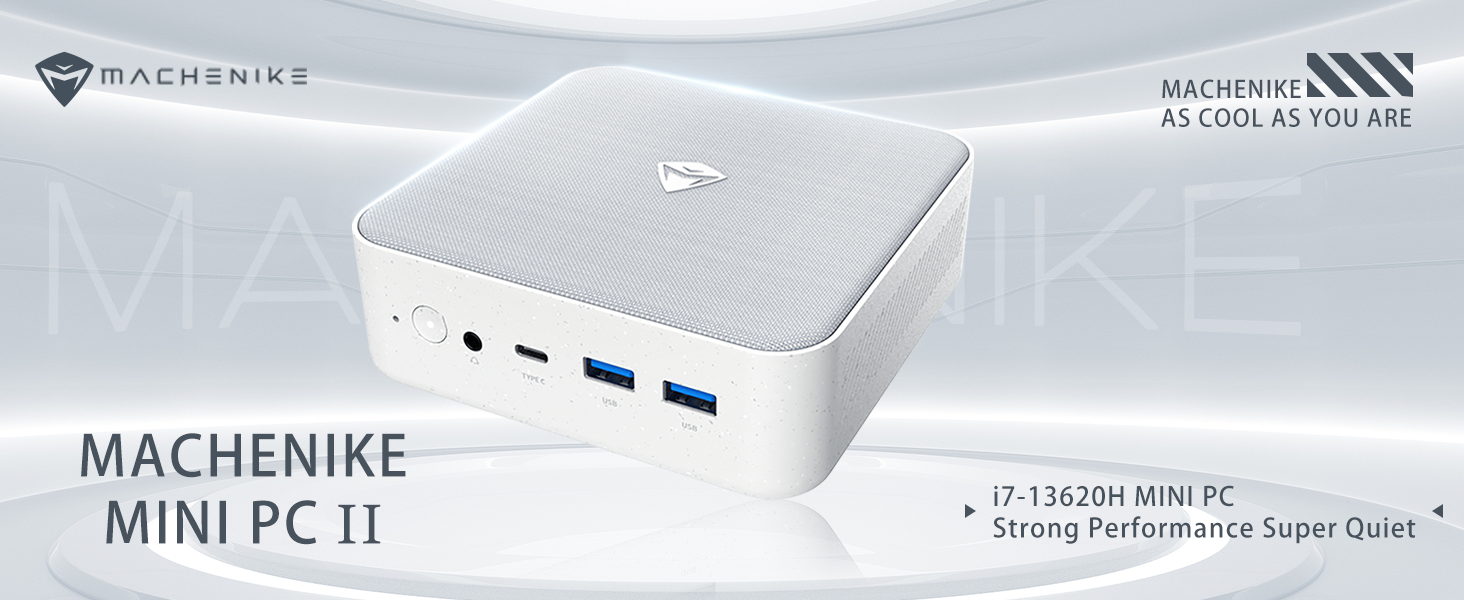
The Machenike Machcreator Mini Desktop, Model 4762H, is a compact and powerful computing solution designed for various applications, from business to everyday use. It features a 13th Gen Intel Core i7-13620H processor, 16GB DDR5 RAM, and a 512GB PCIe M.2 SSD, providing high-speed performance and efficient multitasking capabilities. This mini PC supports 4K dual monitor output and comes pre-installed with Windows 11 Pro.
Setšoantšo: Ho felileview of the Intel Core i7 processor, highlighting 10 Cores, 16 Threads, 4.90 GHz Max Turbo Frequency, and 24 MB L3 Cache.
Likarolo tsa Bohlokoa:
- Motlakase: Intel Core i7-13620H (10 Cores, 16 Threads, up to 4.9 GHz)
- Sehopotso: 16GB DDR5 SODIMM RAM (expandable up to 64GB)
- Polokelo: 512GB PCIe M.2 Solid State Drive (supports dual M.2 expansion)
- Mokhoa oa tšebetso: Windows 11 Pro
- Litšoantšo: Integrated Intel UHD Graphics, supporting 4K dual monitor output via HDMI 2.0 and DisplayPort 1.4
- Khokahano: Wi-Fi 6, Bluetooth, 2 x RJ45 Ethernet, USB 3.2 Gen2 Type-A, USB Type-C
- Sistimi ea ho Pholisa: Twin turbine cooling fan with deluxe all-copper radiator
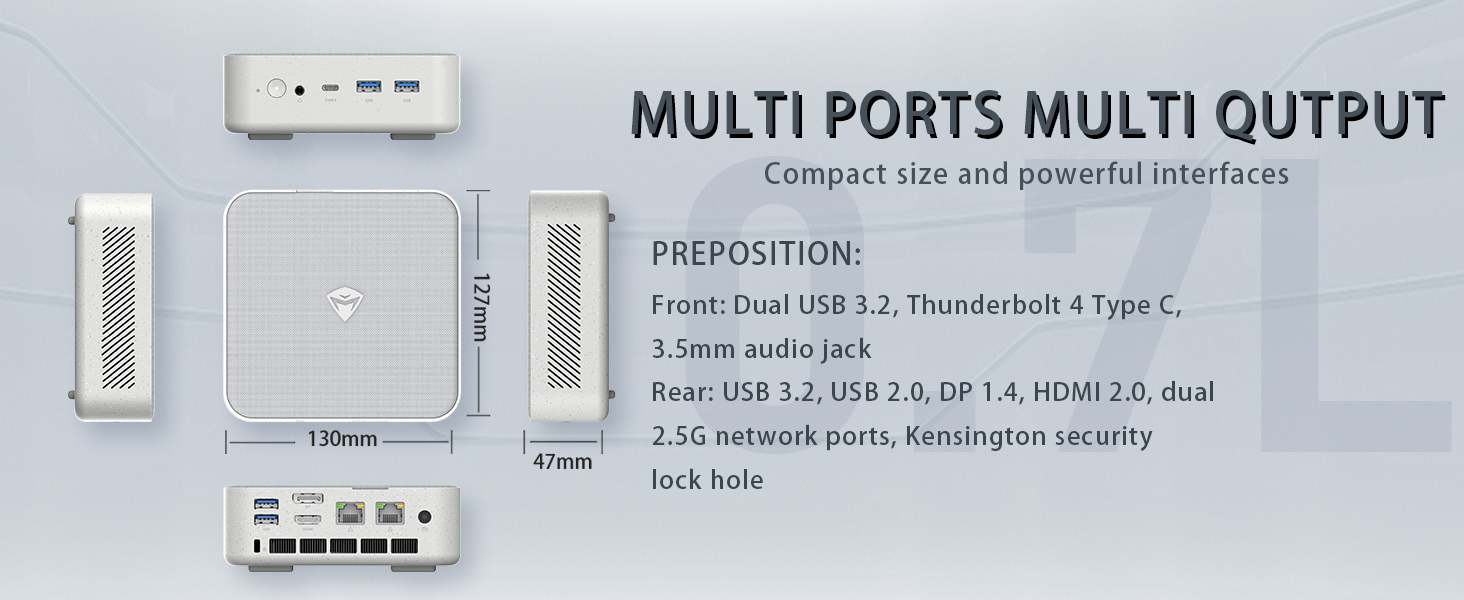
Image: Illustration of PCIe 4.0 SSD and memory slots, indicating support for up to 64GB DDR5 RAM and up to 4TB PCIe SSD expansion.
2. Tataiso ea ho seta
2.1 Unpacking the Device
Tlosa ka hloko likarolo tsohle tsa sephutheloana. Netefatsa hore lintlha tse latelang li teng:
- Machenike Machcreator Mini Desktop (Model 4762H)
- Adapter ea Matla
- Bukana ea mosebelisi (tokomane ena)
- (Optional) VESA Mount Kit
2.2 Lithako tse hokelang
Before powering on, connect your essential peripherals:
- Hlahisa: Connect your monitor(s) to the HDMI 2.0 or DisplayPort 1.4 ports on the rear of the mini PC. The USB Type-C port also supports video output.
- Keyboard le Toeba: Connect your USB keyboard and mouse to any of the available USB 3.2 Gen2 Type-A ports.
- Marang-rang: For a wired connection, connect an Ethernet cable to one of the RJ45 ports. For wireless, ensure your Wi-Fi network is available.
- Matla: Connect the power adapter to the DC-in port on the mini PC, then plug the adapter into a power outlet.
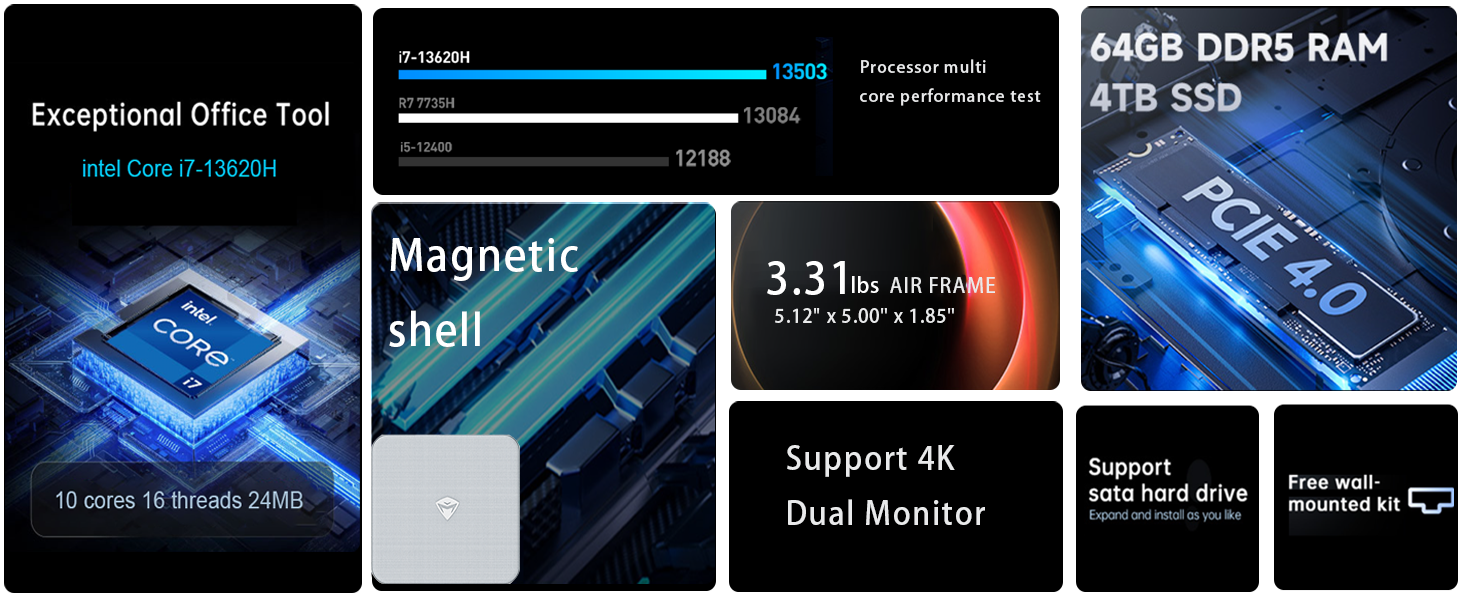
Setšoantšo: Ka botlalo view of the mini PC's front and rear ports, including USB 3.2 Gen2 Type-A, USB Type-C, 3.5mm Audio Jack, HDMI 2.0, DisplayPort 1.4, and RJ45 Ethernet ports. Dimensions are also shown.
2.3 Initial Boot-up and Windows 11 Pro Setup
- Press the power button located on the front of the mini PC.
- The system will boot into the Windows 11 Pro setup wizard. Follow the on-screen instructions to configure your language, region, network, and user account.
- Once setup is complete, your mini PC is ready for use.
3. Litaelo tsa Ts'ebetso
3.1 Ho Bulela/Ho tima
- Matlafatsa: Tobetsa konopo ea matla hang.
- Koala: Tobetsa konopo ea Qala ho Windows, ebe u khetha Matla > Koala.
- Qala hape: Click the Start button in Windows, then select Power > Restart.
- Robala: Click the Start button in Windows, then select Power > Sleep.
3.2 Tlhophiso ea Pontšo
The mini PC supports up to two 4K displays simultaneously. To configure display settings:
- Right-click on the desktop and select "Display settings".
- Here you can detect multiple displays, arrange them, change resolution, and adjust scaling.
3.3 Khokahano ea Marang-rang
- WiFi: Click the network icon in the taskbar, select your Wi-Fi network, enter the password, and connect.
- Ethernet: If an Ethernet cable is connected, the system should automatically establish a wired network connection.
3.4 Cooling System Modes
The mini PC features an advanced cooling system with adjustable modes via the BIOS to optimize performance and noise levels. These modes include:
- Mokhoa oa ho khutsa: Prioritizes quiet operation, suitable for light tasks.
- Mokhoa oa ho leka-lekanya: Offers a good balance between performance and noise.
- Mokhoa oa Ts'ebetso: Maximizes performance (up to 65W power release), ideal for demanding applications.
To change these settings, access the BIOS during startup (typically by pressing Del or F2 repeatedly after powering on) and navigate to the relevant power or performance settings.
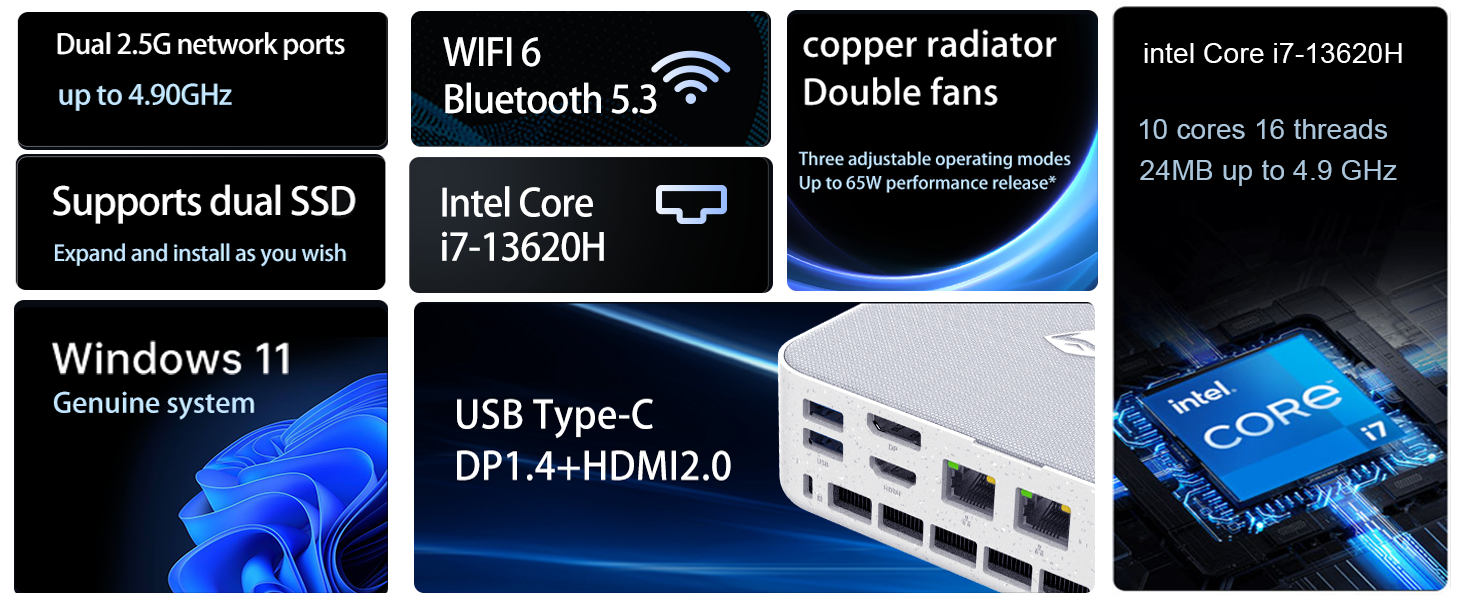
Image: Illustration of the twin turbine cooling fan and deluxe all-copper radiator, explaining how it prevents slowdowns due to overheating and offers silence, balance, and performance modes.
4. Tlhokomelo
4.1 Ho hloekisa Sesebelisoa
To ensure optimal performance and longevity, regularly clean your mini PC:
- Power off the device and disconnect it from the power outlet.
- Sebelisa lesela le bonolo, le omileng ho hlakola bokantle.
- Use compressed air to gently clear dust from ventilation openings. Do not insert any objects into the vents.
4.2 Lintlafatso tsa Software
Keep your Windows 11 Pro operating system and drivers updated to ensure security and performance:
- Lintlafatso tsa Windows: Go to Start > Settings > Windows Update and check for updates.
- Lintlafatso tsa Bakhanni: Visit the Machenike official website for the latest drivers for your specific model.
4.3 Storage and Memory Expansion
The Machenike Machcreator Mini Desktop supports upgrades for both RAM and storage:
- RAM: The device has 2 SODIMM slots and supports up to 64GB DDR5 RAM.
- Polokelo: It supports dual PCIe M.2 SSDs, allowing for significant storage expansion up to 4TB.
Hlokomela: Opening the device for upgrades may void your warranty. Consult a qualified technician or refer to specific upgrade guides from Machenike if available.
5. Ho rarolla mathata
Karolo ena e bua ka mathata a tloaelehileng ao u ka 'nang ua kopana le 'ona. Bakeng sa mathata a rarahaneng haholoanyane, ka kopo ikopanye le tšehetso ea bareki.
5.1 Ha ho Matla
- Netefatsa hore adaptara ea motlakase e hokahantsoe ka mokhoa o sireletsehileng ho PC e nyane le sokete ea motlakase e sebetsang.
- Netefatsa hore motlakase oa sebetsa ka ho hokela sesebelisoa se seng.
- Sheba adaptara ea matla bakeng sa tšenyo leha e le efe e bonahalang.
5.2 Ha ho Sephetho sa Pontšo
- Confirm that the monitor is powered on and the correct input source is selected.
- Ensure the HDMI or DisplayPort cable is securely connected to both the mini PC and the monitor.
- Leka thapo e fapaneng ea ponts'o kapa sebonela-hōle haeba se fumaneha.
- If using multiple displays, try connecting only one display at a time.
5.3 Mathata a Khokahano ea Marang-rang
- Khoele (Ethernet): Check if the Ethernet cable is properly connected to both the mini PC and the router/modem. Verify router/modem status.
- Wireless (Wi-Fi): Ensure Wi-Fi is enabled in Windows settings. Restart your router/modem. Check if other devices can connect to the Wi-Fi network.
- Run Windows Network Troubleshooter (Start > Settings > Network & internet > Advanced network settings > Network troubleshooter).
6. Litlhaloso
Detailed technical specifications for the Machenike Machcreator Mini Desktop, Model 4762H:
| Sebopeho | Tlhaloso |
|---|---|
| Brand | Machenike |
| Nomoro ea Mohlala | 4762H |
| Mokhoa oa tšebetso | Windows 11 Pro |
| Mohlala oa CPU | Intel Core i7-13620H |
| CPU lebelo | Up to 4.9 GHz (Max Turbo Frequency) |
| Memori ea RAM e kentsoeng boholo | 16 GB DDR5 (Expandable to 64 GB) |
| Lebelo la Oache ea memori | 4800 MHz |
| Memori Slots A fumaneha | 2 |
| Bokhoni ba ho Boloka Memori | 512 GB PCIe M.2 SSD (Supports dual M.2, up to 4TB) |
| Coprocessor ea Graphics | Intel UHD Graphics (E kopantsoeng) |
| Sebopeho sa Video Output | HDMI 2.0, DisplayPort 1.4, USB Type-C |
| Boholo ba Resolution ea Pontšo | 3840x2160 (4K) |
| Sesebelisoa sa Hardware | 3.5mm Audio, Bluetooth, DisplayPort, Ethernet (2x RJ45), HDMI, USB, USB Type C |
| Khokahano e se nang mohala | Wi-Fi 6 (802.11ax), Bluetooth |
| Litekanyo tsa Ntho (LxWxH) | 5.12 x 5 x 1.85 lisenthimithara |
| Boima ba Ntho | 49.8 Liponto (Note: This weight may be a data entry error; actual weight for a mini PC is typically much less.) |
| UPC | 193200587317 |
7. Tiisetso le Tšehetso
7.1 Boitsebiso ba Tiisetso
Machenike products typically come with a limited manufacturer's warranty. Please refer to the warranty card included with your purchase or visit the official Machenike website for detailed warranty terms and conditions specific to your region and product model. Keep your proof of purchase for warranty claims.
7.2 Tšehetso ea Bareki
For technical assistance, troubleshooting beyond this manual, or warranty inquiries, please contact Machenike customer support:
- Ts'ehetso ea Marang-rang: Visit the official Machenike websaete (www.machenike.com - example link, actual link may vary) 'me u tsamaee ho ea karolong ea tšehetso.
- Tšehetso ea lengolo-tsoibila: Refer to your product documentation for the specific support email address.
- Tšehetso ea Mohala: Check the Machenike websebaka sa marang-rang bakeng sa linomoro tsa tšehetso ea mohala tsa libaka.
When contacting support, please have your product model number (4762H) and serial number ready.