
1. Sehlahisoa Overview
The QRD Wireless Controller (Model: US-T5-JB02) is a high-performance replacement controller designed for Nintendo Switch, Switch Pro, Lite, and OLED models. It features advanced technologies such as Hall Effect joysticks for precise, drift-free control, dual vibration motors for immersive feedback, and a 6-axis gyroscope for accurate motion sensing. This controller also includes programmable back buttons and customizable LED backlighting, enhancing your gaming experience.
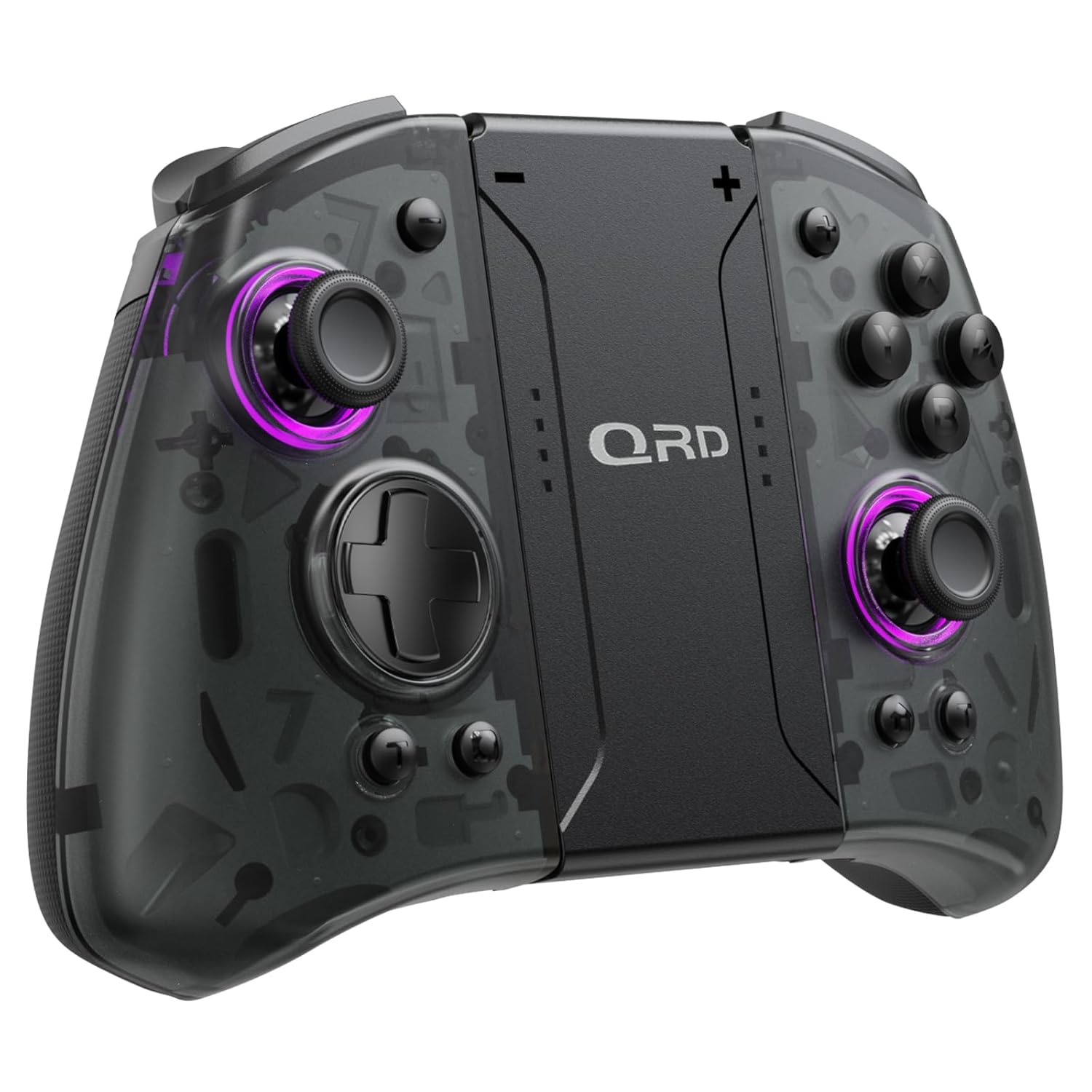
Setšoantšo sa 1.1: Pele view of the QRD Wireless Controller, showcasing moralo oa eona oa ergonomic le sebopeho sa konopo.
2. Likarolo tsa Bohlokoa
- Kgokelo ya Bluetooth 5.3 e se nang mohala: Ensures stable, lag-free connection for seamless gameplay.
- Hall Effect Joysticks: Provides 360° precise, drift-free control and extended lifespan.
- Limota tse peli tsa ho thothomela: Offers 3 levels of adjustable vibration for enhanced tactile feedback.
- 6-Axis Gyroscope Motion Sensing: Enables accurate tilt detection for precise aiming and movement in compatible games.
- Likonopo tsa ho Khutla tse ka Hlophisoang: Customize controls with single or multiple mappings for efficient combo execution.
- Mosebetsi oa Turbo: Allows for rapid firing of buttons.
- Leseli la LED: Features 8 different colors with static, breathing, and flashing modes for personalized aesthetics.
- Bophelo bo Bolelele ba Battery: Up to 10 hours of uninterrupted gameplay on a single charge (2 hours charging time).
- Moralo oa Ergonomic: Comfortable grip for extended gaming sessions, includes a screenshot function.

Image 2.1: Diagram highlighting key features such as Bluetooth 5.3, Dual Vibration, 6-Axis Gyro, Turbo, Macro Back Paddles, and Colorful Options.

Image 2.2: Illustration demonstrating the Hall Effect Joysticks, emphasizing drift-free and accurate control.
3. Seta le Khokahano
3.1 Initial Pairing with Nintendo Switch
- Ensure your Nintendo Switch console is powered on and updated to the latest system version.
- From the HOME Menu, select "Controllers" > "Change Grip/Order".
- On the QRD Wireless Controller, press and hold the konopo ea HOME (usually located in the center) for 3-5 seconds until the LED indicators start flashing rapidly.
- Once the controller is successfully paired, the corresponding player LED(s) on the controller will light up solid.
- The controller can also be connected by sliding it into the Nintendo Switch Dock while the console is attached.
3.2 Reconnecting the Controller
To reconnect a previously paired controller, simply press the konopo ea HOME once. The controller will automatically attempt to connect to the last paired console.
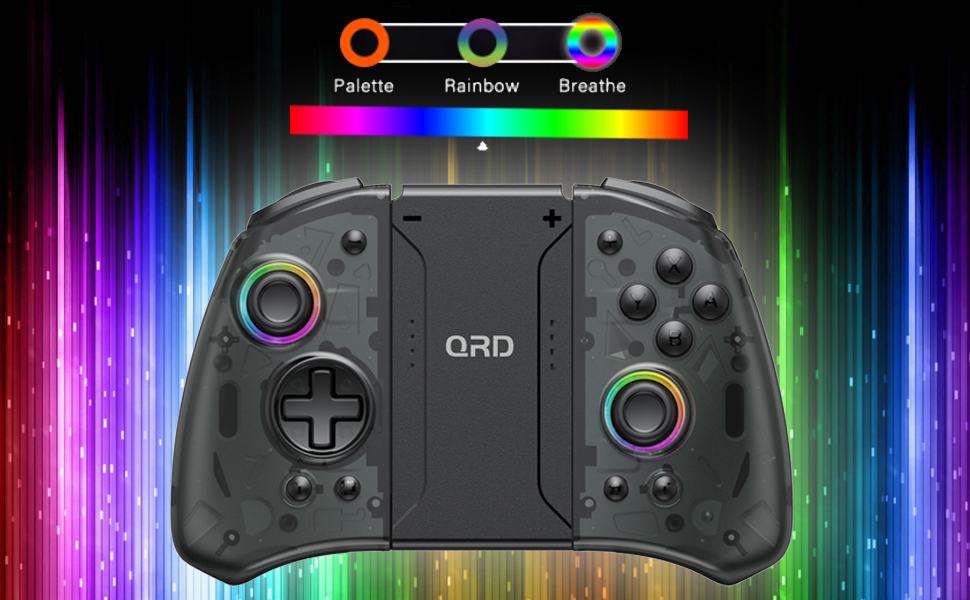
Image 3.1: Visual representation of controller compatibility with Nintendo Switch and Switch OLED models. Note: Not compatible with Switch Lite.
4. Litaelo tsa Ts'ebetso
4.1 Leano la Likonopo
Itloaetse sebopeho sa konopo ea molaoli:
- Left Joystick: Movement control.
- Joystick e nepahetseng: Camera or aiming control.
- D-Pad: Kenyelletso ea tataiso.
- Likonopo tsa A/B/X/Y: Likonopo tsa ketso.
- Likonopo tsa L/R: Likonopo tsa mahetla.
- Likonopo tsa ZL/ZR: Likonopo tsa ho qala.
- Konopo ea HOME: Returns to the HOME Menu, powers on/off the controller.
- Konopo ea skrini: E nka linepe tsa skrini.
- +/- Likonopo: Plus and Minus buttons for in-game functions.
- M1/M2 (Back Buttons): Programmable macro buttons.
4.2 Adjusting Vibration Intensity
The controller supports 3 levels of vibration intensity. To adjust, press and hold the Konopo ea Turbo ebe o tobetsa konopo ea D-Pad Up or D-Pad Down to cycle through intensity levels (Low, Medium, High, Off).
4.3 Turbo Function Setup
To set a button to Turbo mode:
- Tobetsa o hatelle Konopo ea Turbo.
- While holding Turbo, press the desired action button (e.g., A, B, X, Y, L, R, ZL, ZR). The button will now continuously register input when held down.
- To clear Turbo for a specific button, repeat the process. To clear all Turbo settings, press and hold the Konopo ea Turbo bakeng sa metsotsoana e 5.
4.4 Programming Back Buttons (Macro)
The M1 and M2 back buttons can be programmed to execute a sequence of button presses (macro). Each macro can store up to 16 button presses.
- Tobetsa o hatelle M1 or M2 button you wish to program.
- While holding the M button, press the SET konopo (refer to manual diagram for location, typically a small button on the back). The indicator light will flash slowly.
- Enter the desired sequence of button presses (e.g., A, B, X, Y, D-Pad directions).
- Tobetsa ea SET konopo again to save the macro. The indicator light will stop flashing.
- To clear a macro, press and hold the programmed M button and then press the SET konopo habeli.
4.5 LED Backlight Adjustment
The controller features customizable RGB lighting. To cycle through modes and colors:
- Tobetsa ea Konopo ea LED (refer to manual diagram for location) to change between static color, breathing, and flashing modes.
- In static mode, press the Konopo ea LED pheta-pheto ho potoloha mebala e 8 e fumanehang.

Image 4.1: Display of the controller's LED backlight options, including Palette (static colors), Rainbow, and Breathe modes.
5. Ho tjhaja le Bophelo ba Betri
The QRD Wireless Controller is equipped with a built-in rechargeable Lithium Polymer battery. A 2.5m USB-C cable is included for charging.
- Connect the USB-C end of the cable to the controller's charging port and the USB-A end to a power source (e.g., Nintendo Switch Dock, USB wall adapter, computer USB port).
- Ho tjhaja ho nka lihora tse ka bang 2 ho tjhaja ka botlalo.
- A full charge provides up to 10 hours of continuous gameplay.
- The LED indicators on the controller will show charging status and battery level.
6. Tlhokomelo
To ensure the longevity and optimal performance of your QRD Wireless Controller, follow these maintenance guidelines:
- Ho hloekisa: Sebelisa lesela le bonolo, le omileng ho hlakola sesebelisoa sa taolo. Bakeng sa litšila tse thata, tlosa litšila tse ngataampQoba ho sebelisa lik'hemik'hale tse matla, li-solvent, kapa li-cleaner tse khorofo.
- Polokelo: Store the controller in a cool, dry place away from direct sunlight, extreme temperatures, and high humidity.
- Ho tšoara: Avoid dropping the controller or subjecting it to strong impacts. Do not disassemble the controller, as this may void the warranty and cause damage.
- Ho tjhaja: Do not leave the controller charging for excessively long periods after it is fully charged.
7. Ho rarolla mathata
| Bothata | Lebaka le ka khonehang | Tharollo |
|---|---|---|
| Taolo ha e hokahane. | Low battery; Not paired; Interference. | Charge the controller; Re-pair the controller following Section 3.1; Move closer to the console or away from other wireless devices. |
| Input lag or disconnection during gameplay. | Wireless interference; Distance from console; Low battery. | Ensure no strong wireless signals are nearby; Reduce distance to console; Charge the controller. |
| Joysticks drift or are unresponsive. | Calibration issue; Physical debris. | Go to Switch System Settings > Controllers and Sensors > Calibrate Control Sticks. Clean around the joystick base. |
| Likonopo ha li arabele. | Stuck button; Software glitch. | Ensure buttons are not physically stuck. Try resetting the controller (if a reset button is present, otherwise power cycle). |
| Ho thothomela ha ho sebetse. | Vibration setting off; Game does not support vibration. | Adjust vibration intensity (Section 4.2). Verify game compatibility. |
8. Litlhaloso
| Sebopeho | Lintlha |
|---|---|
| Nomoro ea Mohlala | US-T5-JB02 |
| Khokahano | Bluetooth 5.3 |
| Ho lumellana | Nintendo Switch, Switch Pro, Switch OLED |
| Joystick Type | Hall Effect |
| Ho thothomela | Dual Motors, 3 adjustable levels |
| Taolo ea Motsamao | 6-Axis Gyroscope |
| Likonopo tse ka reroang | Yes (Back Buttons) |
| Mofuta oa Leshala | Lithium Polymer |
| Nako ea ho tjhaja | Hoo e ka bang. Lihora tse 2 |
| Nako ea ho Bapala | Ho fihlela lihora tse 10 |
| Boema-kepe ba ho tjhaja | USB-C |
| Litekanyo | 7.95 x 5.51 x 2.36 inches (hoo e ka bang.) |
| Boima ba 'mele | 12.35 ounces (hoo e ka bang.) |
9. Tiisetso le Tšehetso
9.1 Boitsebiso ba Tiisetso
QRD products are manufactured with high-quality materials and undergo rigorous testing. This product comes with a standard manufacturer's warranty against defects in materials and workmanship. Please refer to the product packaging or the official QRD websebaka bakeng sa lipehelo le nako e itseng ea tiisetso.
9.2 Tšehetso ea Bareki
For technical assistance, troubleshooting, or warranty claims, please contact QRD Customer Support. Have your product model number (US-T5-JB02) and purchase information ready when contacting support.
- Ts'ehetso ea Marang-rang: Visit the official QRD website for FAQs, updated manuals, and support contact forms.
- Tšehetso ea lengolo-tsoibila: [Insert QRD Support Email Address Here - if available, otherwise omit]
- Tšehetso ea Mohala: [Insert QRD Support Phone Number Here - if available, otherwise omit]
We are committed to providing excellent customer service and ensuring your satisfaction with QRD products.