
Selelekela
This manual provides detailed instructions for the installation, operation, and maintenance of your DEXTER PP120 Smart Digital Handle Lock. Please read this guide carefully before attempting to install or operate the lock to ensure proper functionality and safety. Keep this manual for future reference.
Likarolo tsa Sehlahisoa
The DEXTER PP120 Smart Digital Handle Lock offers multiple convenient and secure access methods:
- Taolo ea App: Unlock and manage your lock remotely via a dedicated smartphone application.
- Tlhokomeliso ea Likhatiso tsa menoana: Fast and secure access using registered fingerprints.
- Key Access: Traditional mechanical key override for emergency situations.
- Numeric Passcode: Keypad entry with a customizable numeric code.
- Unlock Card: Convenient access using RFID unlock cards.
- IP53 e Thibela Metsi: Designed to withstand splashes and dust, suitable for various environments.
- Khokahano ea Wi-Fi: Seamless integration with your home network for remote management and monitoring.
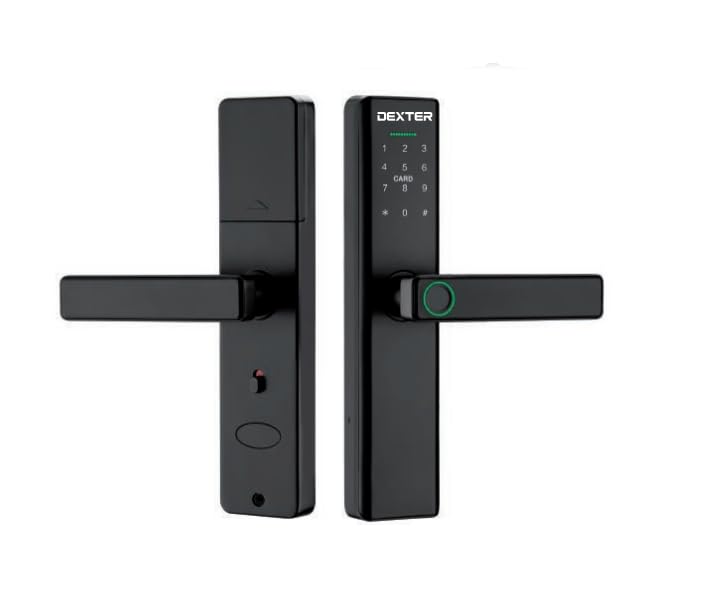
This image illustrates the DEXTER PP120 Smart Digital Handle Lock, highlighting its key features: App control, fingerprint recognition, key access, numeric passcode, unlock card functionality, IP53 water resistance, and Wi-Fi connectivity. The image also includes a table detailing model variations (PP120 and PP120 WIFI) with their article numbers, type (Embutir - Mortise), finish (Negro - Black), and master quantity.
Litaba tsa Sephutheloana
Before beginning installation, please verify that all the following components are included in your package:
- Front Handle Assembly (with keypad and fingerprint sensor)
- Rear Handle Assembly (with battery compartment)
- Mortise Lock 'Mele
- Strike Plate and Strike Box
- Mounting Screws le Lisebelisoa
- Physical Keys (Emergency Override)
- Unlock Cards
- Bukana ea Mosebelisi
Ho seta le ho Kenya
Proper installation is crucial for the lock's performance. If you are unsure about any step, consult a professional locksmith.
- Tokiso ea Monyako: Ensure your door meets the lock's specifications regarding thickness and backset. Use the provided template to drill necessary holes if your door is not pre-drilled for a smart lock.
- Ho kenya Mortise Lock: Insert the mortise lock body into the edge of the door. Secure it with the provided screws.
- Handle Assembly Installation: Connect the cable from the front handle assembly to the rear handle assembly. Carefully align and insert the spindle and mounting posts through the mortise lock. Secure both handle assemblies to the door using the provided screws.
- Kenya Betri: Open the battery cover on the rear handle assembly. Insert four (4) AA alkaline batteries, ensuring correct polarity. Close the battery cover.
- Ho Khoasolla le ho Kopanya App:
- Download the DEXTER smart lock application from your device's app store.
- Theha ak'haonte 'me u kene.
- Follow the in-app instructions to add your new lock. This typically involves activating Bluetooth on your phone and bringing it close to the lock.
- Once paired via Bluetooth, the app will guide you through connecting the lock to your home Wi-Fi network for remote access and advanced features.
- Tlhophiso ea pele: Set up an administrator passcode and fingerprint through the app immediately after pairing.
Litaelo tsa Ts'ebetso
Ho notlolla Lemati
- Ho sebelisa App: Open the DEXTER app, select your lock, and tap the unlock icon.
- Using Fingerprint: Place a registered finger flat on the fingerprint sensor located on the handle. The lock will unlock if the fingerprint is recognized.
- Using Numeric Passcode: Touch the keypad to activate it. Enter your registered 6-10 digit passcode, followed by the '#' key.
- Using Unlock Card: Present a registered unlock card to the card reader area on the front handle. The lock will unlock upon successful recognition.
- Using Physical Key: In case of battery depletion or electronic malfunction, insert the physical key into the emergency keyhole (usually hidden) and turn to unlock.
Ho notlela Monyako
- Ho notlela ka Moetso: The lock is designed to automatically re-lock after a preset time (configurable in the app) once the door is closed.
- Manual Locking (from inside): Lift the handle upwards from the inside to engage the deadbolt.
- Manual Locking (via App): Use the DEXTER app to remotely lock the door.
User Management (via DEXTER App)
The DEXTER app allows you to manage access for various users:
- Ho eketsa Basebelisi: Grant access to family members or guests by adding their fingerprints, creating unique passcodes, or assigning unlock cards.
- Modifying Access: Change existing passcodes, update fingerprints, or set time-limited access for specific users.
- Hlakola Basebelisi: Revoke access by deleting user profiles, fingerprints, passcodes, or unlock cards.
- Kena ho Litlaleho: View a history of who entered and when (requires Wi-Fi connection).
Tlhokomelo
To ensure the longevity and optimal performance of your DEXTER PP120 lock, follow these maintenance guidelines:
- Phetoho ea Betri: Replace all four AA batteries when the low battery warning is indicated by the lock or in the app. Always use new, high-quality alkaline batteries. Do not mix old and new batteries or different battery types.
- Ho hloekisa: Wipe the lock's surface with a soft, dry cloth. Avoid using abrasive cleaners, solvents, or harsh chemicals, as these can damage the finish and electronic components.
- Lisebelisoa tsa Firmware: Regularly check the DEXTER app for available firmware updates. Installing updates ensures your lock has the latest features, security enhancements, and bug fixes.
- Tlhahlobo ea Mechini: Periodically check that all screws are tight and the handle operates smoothly. Do not force the handle if it feels stiff.
Ho batle phoso
If you encounter issues with your DEXTER PP120 lock, refer to the following common problems and solutions:
- Notlolo ha e arabe:
- Sheba maemo a betri mme o nkele sebaka ha ho hlokahala.
- Ensure the lock is properly installed and all cables are connected.
- If using the app, ensure Bluetooth is enabled and you are within range.
- Monoana ha o tsejoe:
- Netefatsa hore monoana oa hau o hloekile ebile o omme.
- Try placing your finger in different positions on the sensor.
- If issues persist, delete and re-register your fingerprint in the app.
- Numeric passcode not working:
- Ensure you are entering the correct passcode followed by the '#' key.
- Check if the passcode has expired or been disabled in the app.
- Mathata a khokahano ea Wi-Fi:
- Verify your home Wi-Fi network is active and stable.
- Netefatsa hore senotlolo se sebakeng sa sebaka sa router ea hau ea Wi-Fi.
- Try reconnecting the lock to Wi-Fi through the DEXTER app settings.
- Lock is jammed or stiff:
- Do not force the handle.
- Check for any obstructions in the door frame or mortise.
- Ensure the lock is correctly aligned and installed.
Litlhaloso
| Tlhaloso | Lintlha |
|---|---|
| Brand | DEXTER |
| Lebitso la Mohlala | Dexter Pp120 |
| Nomoro ea Mohlala | Dexter Pp120 |
| Mofuta oa Lock | Senotlolo sa elektroniki |
| Mokhoa oa ho Laola | Kopo |
| Khokahano | Bluetooth, WiFi |
| Ho hanyetsa Metsi | IP53 |
| GTIN / UPC | 633349060758 |
Warranty le Tšehetso
For detailed warranty information, product registration, and technical support, please visit the official DEXTER website or contact DEXTER customer service directly. Keep your purchase receipt as proof of purchase for warranty claims.