
Selelekela
This manual provides comprehensive instructions for setting up, operating, and maintaining your Aura Walden 15" WiFi Digital Picture Frame. The Aura Walden frame is designed to display your cherished photos and videos with ease, offering a high-definition display and smart features for an enhanced viewing experience. Please read this manual thoroughly before using your device to ensure optimal performance and longevity.

Image: The Aura Walden 15" digital picture frame in white with a mat, shown alongside a smartphone displaying the Aura app interface. This illustrates the frame's design and its connectivity with the mobile application.
Tataiso ea ho seta
1. Unboxing le Tlhahlobo ea Pele
Tlosa ka hloko likarolo tsohle tsa sephutheloana. Netefatsa hore lintho tse latelang li kenyelelitsoe:
- Aura Walden 15" Digital Picture Frame
- Adapter ea Matla
- Tabletop Frame Stand (pre-attached or separate)
- Wall Mounting Kit (haeba ho hlokahala)
- Tataiso ea ho Qala ka Potlako
Inspect the frame for any visible damage. If any components are missing or damaged, contact Aura support immediately.
2. Powering On the Frame
Connect the power adapter to the frame's power port and then plug it into a standard electrical outlet. The frame will automatically power on and display the Aura logo.
3. Ho kenya App le ho theha Ak'haonte
The Aura frame requires the Aura app for setup and photo management.
- Download the free Aura app from the Apple App Store (for iOS devices) or Google Play Store (for Android devices).
- Open the Aura app and follow the on-screen prompts to create a new Aura account or log in if you already have one.
4. Ho hokela ho Wi-Fi
The Aura app will guide you through connecting your frame to your home Wi-Fi network. Ensure your frame is within range of your Wi-Fi router.
- Select your Wi-Fi network from the list provided in the app.
- Kenya password ea hau ea Wi-Fi haeba u khothalletsoa.
- The frame will confirm successful connection.
5. Adding Photos and Videos
Once connected, you can begin adding photos and videos to your frame using the Aura app.
- In the Aura app, navigate to the "Photos" or "Add Photos" section.
- Select photos and videos from your device's gallery or cloud services.
- Upload them to your frame. Aura offers free, unlimited storage for your memories.

Image: A family scene showing a person using the Aura app on a smartphone, emphasizing the ability to add unlimited photos and videos to the frame. This highlights the user-friendly nature of the app for content management.
6. Frame Placement (Tabletop or Wall Mount)
The Walden 15" frame can be placed on a tabletop or mounted on a wall.
- Letlapa la Letlapa: Use the integrated stand to position the frame in either portrait or landscape orientation.
- Mount Mount: Utilize the included wall mounting kit and follow the specific instructions provided with the kit for secure installation. Ensure the frame is level and securely fastened.

Setšoantšo: Ka morao view of the Aura Walden 15" frame, highlighting its interactive touchbar, built-in speaker for video playback, and the design that allows for both portrait and landscape orientations. This image demonstrates the frame's versatility in display orientation.
Litaelo tsa Ts'ebetso
1. Basic Controls: Interactive Touch Bar
The Aura Walden frame features an interactive touch bar located on the top edge (when in landscape) or side edge (when in portrait).
- Swaepela ka ho le Letshehadi/Ka ho le letona: To manually advance or go back through photos.
- Tlanya: To reveal photo details (e.g., who added it).
- Tobetsa nako e telele: To delete a photo from the frame (requires confirmation in the app).
2. Viewlifoto le livideo
The frame automatically cycles through your uploaded photos and videos.
- Photos are displayed in full HD resolution.
- Videos will play with sound through the built-in speaker.
- The frame intelligently crops photos to fit the display while preserving key elements.
3. Adjusting Settings via Aura App
All advanced settings and preferences are managed through the Aura app.
- Khanya: Adjust screen brightness. The frame also has an ambient light sensor for automatic brightness adjustment.
- Ho Bulela/Koala: Set schedules for the frame to automatically turn on and off, conserving energy.
- Photo Order: Choose between chronological, shuffled, or other display orders.
- Frame Orientation: The frame automatically detects and adjusts to portrait or landscape orientation.

Image: A close-up of the Aura Walden 15" frame, detailing its anti-glare, matte-finish high-resolution screen, the auto on/off sensor, and the textured white mat. This image emphasizes the quality and smart features of the display.
4. Inviting Others to Share
You can invite family and friends to contribute photos and videos to your frame from anywhere in the world.
- In the Aura app, go to the "Members" or "Invite" section.
- Send an invitation link via text, email, or other messaging services.
- Once accepted, invited members can upload photos directly to your frame.
Tlhokomelo
1. Cleaning the Frame
To maintain the clarity of your display:
- Hlakola skrine ka bonolo ka lesela le bonolo le se nang letlapa.
- Bakeng sa smudges manganga, hanyenyane dampQoba lik'hemik'hale tse matla kapa litlhoekiso tse khorofo.
- Clean the frame's body with a dry, soft cloth.
2. Lintlafatso tsa Software
Aura regularly releases software updates to improve performance and add new features. Ensure your frame is connected to Wi-Fi for automatic updates. The app will notify you if an update is available or required.
Ho batle phoso
| Bothata | Tharollo e ka khonehang |
|---|---|
| Frame not powering on. | Netefatsa hore adaptara ea motlakase e hokahane ka mokhoa o sireletsehileng le foreimi le sokete ea motlakase e sebetsang. Leka sokete e 'ngoe. |
| Ha e khone ho hokela ho Wi-Fi. |
|
| Photos not appearing on the frame. |
|
| Frame screen is blank or frozen. | Unplug the power adapter from the frame, wait 10 seconds, then plug it back in to restart the device. |
| Video sound is not playing. | Ensure the frame's volume is not muted or set too low in the Aura app settings. Check the video file itself for sound issues. |
Ho tsosolosa Frame
If issues persist, a factory reset may be necessary. This will erase all photos from the frame and disconnect it from your Wi-Fi. You will need to set it up again through the Aura app. Refer to the Aura app's help section for specific instructions on performing a factory reset.
Litlhaloso
| Sebopeho | Lintlha |
|---|---|
| Mohlala | Walden 15" |
| Boholo ba Pontšo | 15 inch (diagonal) |
| Qeto | HD e felletseng (1280p) |
| Khokahano | WiFi |
| Polokelo | Free, Unlimited Cloud Storage |
| Litekanyo (Sehlahisoa) | 8.13 x 15 x 0.99 lisenthimithara |
| Boima ba Ntho | 7.72 liponto |
| Lisebelisoa tse lumellanang | Smartphones (Apple iOS, Android) |
| Likaroloana | Anti-glare screen, Auto on/off sensor, Built-in speaker, Interactive touch bar, Portrait/Landscape orientation, Wall mountable. |
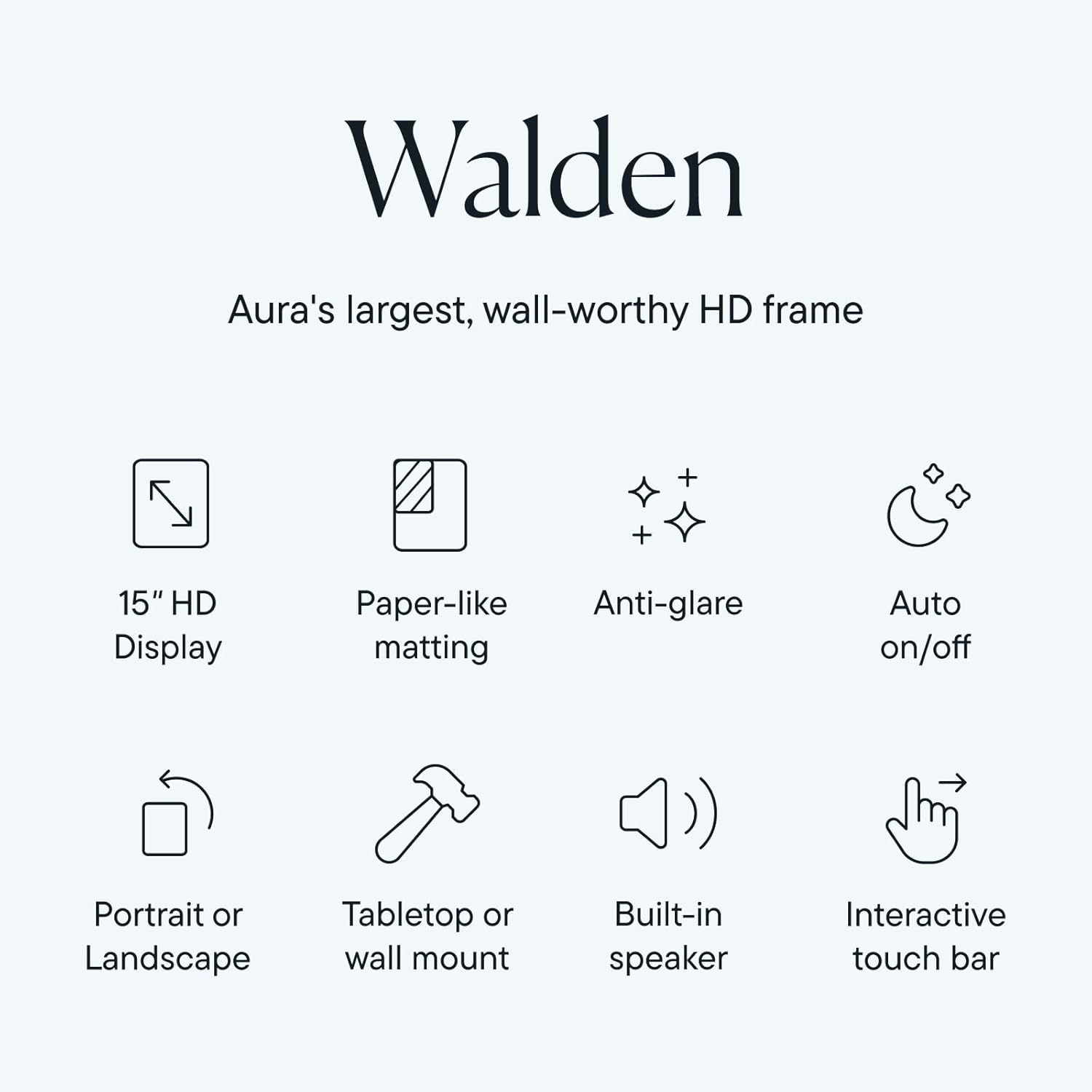
Image: An infographic summarizing the key features of the Aura Walden frame, including its 15" HD display, paper-like matting, anti-glare properties, auto on/off function, dual orientation capability, tabletop/wall mount options, built-in speaker, and interactive touch bar.
Warranty le Tšehetso
Boitsebiso ba Warranty
Your Aura Walden 15" WiFi Digital Picture Frame comes with a standard manufacturer's warranty. For specific details regarding the warranty period and coverage, please refer to the warranty card included in your product packaging or visit the official Aura websebaka. Boloka bopaki ba hau ba theko bakeng sa likopo tsa waranti.
Tšehetso ea Bareki
For further assistance, technical support, or warranty inquiries, please contact Aura customer support:
- Ts'ehetso ea Marang-rang: Visit the official Aura support websebaka sa li-FAQ, litataiso tsa ho rarolla mathata, le liforomo tsa ho ikopanya.
- Aura App: Access support resources directly through the Aura mobile application.
When contacting support, please have your frame's model number (Walden 15") and serial number (found on the back of the frame or in the app settings) ready.