
Ninkear A15
Ninkear A15 Laptop User Manual
Setšoantšo sa A15
1. Selelekela
Welcome to the Ninkear A15 Laptop user manual. This guide provides essential information for setting up, operating, maintaining, and troubleshooting your new Ninkear A15 laptop. Please read this manual thoroughly to ensure proper use and to maximize the performance and longevity of your device.
The Ninkear A15 is a high-performance laptop featuring an AMD Ryzen 5 5500U Hexa-core Processor, 16GB RAM, and a 512GB PCIe SSD, designed for a variety of computing tasks from daily productivity to graphic design and entertainment.
2. Se ka Lebokoseng
Upon opening your Ninkear A15 Laptop package, please verify that all the following items are included:
- A15 laptop x 1
- Tweba x 1
- Mouse Pad x 1
- Tjhaja x 1
3. Sehlahisoa Overview
The Ninkear A15 laptop is engineered for efficiency and user comfort. Below are key features and components:
3.1 Likarolo tsa Bohlokoa
- Motlakase o Matla: Equipped with an AMD Ryzen 5 5500U processor, AMD Radeon graphics, 6 cores and 12 threads, with a frequency up to 4.0Ghz, suitable for various applications.
- Pontšo e Khōlō: Features a 15.6-inch FHD IPS display with 1920x1080 resolution, offering a 90.3% screen-to-body ratio and a 180-degree viewing angle for clear and natural picture quality.
- Bophelo ba Battery bo Atolositsoeng: A 4350mAh battery provides up to 6 hours of daily use, making it ideal for mobile work. It supports full-function Type-C charging.
- AmpPolokelo le Memori: Comes with 16GB DDR4 RAM (3200Mhz) and a 512GB PCIe SSD, ensuring fast performance for professional software and multitasking.
- Moralo o Sebeletsang: Includes a full digital backlit keyboard with three adjustable monochrome backlight levels (FN+F9) and a 0.5-second fingerprint unlocking feature for enhanced security and convenience.
3.2 Visual Overview

Pele view of the Ninkear A15 Laptop, showcasing moralo oa eona o boreleli le ponts'o.

Ho fedileview of the Ninkear A15 Laptop highlighting key specifications like 15.6" IPS FHD display, AMD Ryzen 5 5500U processor, 16GB DDR4 RAM, 512GB PCIe SSD, 4350mAh battery, backlit keyboard, and Type-C full function port.

Ka botlalo view of the AMD Ryzen 5 5500U processor, emphasizing its 6 cores, 12 threads, 7nm process, and 4.0GHz max turbo frequency.
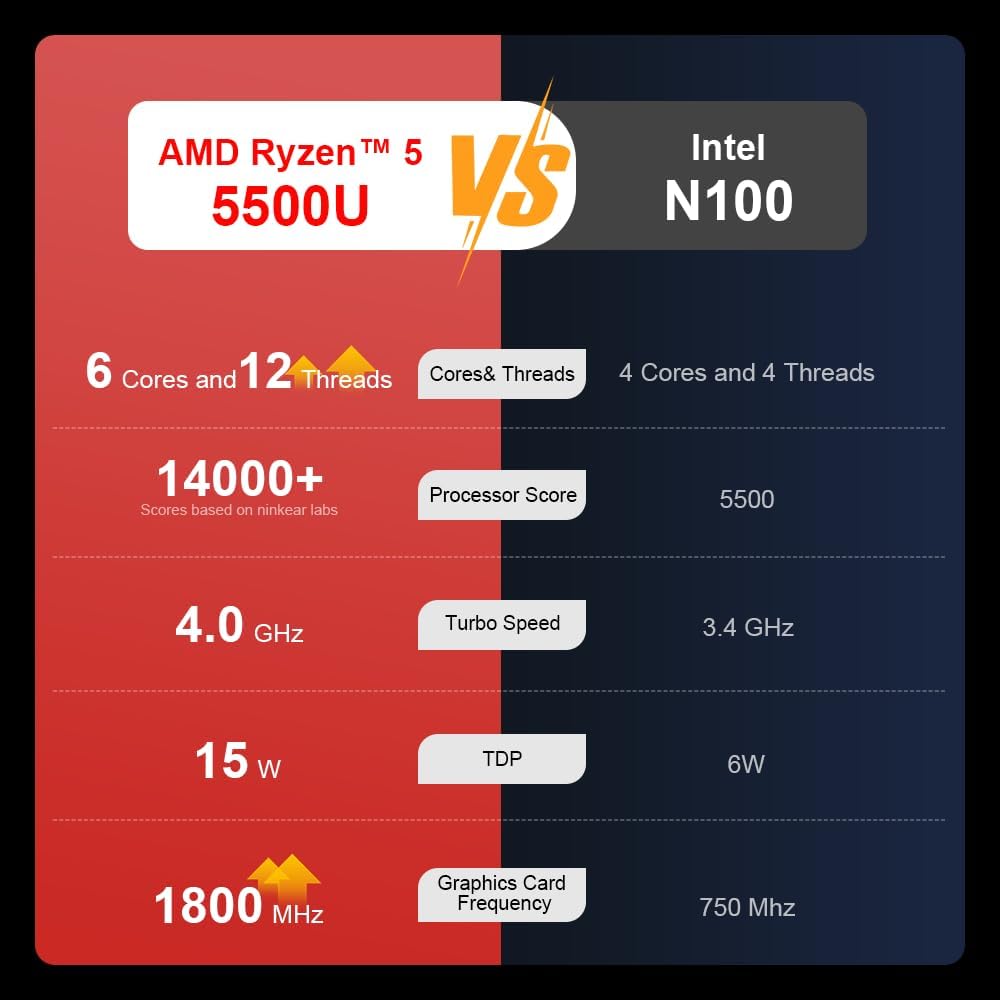
A comparison chart illustrating the performance differences between the AMD Ryzen 5 5500U and Intel N100 processors, including core/thread count, processor score, turbo speed, TDP, and graphics card frequency.

Image showing the 512GB M.2 PCIe SSD and highlighting the 3200MHz DDR4 running frequency, indicating a 20% speed improvement over 2666MHz DDR4.

The 15.6-inch IPS FHD screen of the A15, designed to deliver vibrant and accurate colors while reducing eye strain during long work hours.

Illustration of the A15 laptop's suitability for various 'recreational office' tasks, including graphic design (Ae, Ps, Ai) and gaming/entertainment.

Information about the laptop's 50.5WH high-capacity lithium-ion battery, providing up to 8 hours of local video playback and 72 hours of standby time.

A visual guide to the rich interfaces of the Ninkear A15 Laptop, including USB 3.0, USB 2.0, Headphone Jack, Charging Port, HDMI, and full-function Type-C ports.
3.3 Video ea Sehlahisoa
Pontšo ea video ea sehlahisoa sa semmusoasing the Ninkear A15 Laptop's features, including its design, display, backlit keyboard, and various ports. This video provides a dynamic overview of the laptop's capabilities and physical attributes.
4. Seta
Follow these steps to set up your Ninkear A15 Laptop for the first time:
- Tlosa Laptop: Tlosa laptop ka hloko le lisebelisoa tsohle ka har'a sephutheloana.
- Kopanya Matla: Plug the charger into the laptop's charging port (DC-in or Type-C) and then into a power outlet.
- Boot ea pele: Open the laptop lid and press the power button (integrated with fingerprint sensor). The laptop will power on and begin the initial Windows 11 setup process.
- Tlhophiso ea Windows 11: Follow the on-screen instructions to complete the Windows 11 setup, including selecting your region, language, connecting to Wi-Fi, and creating a user account.
- Setaele sa Mongolo oa Menoana: During or after Windows setup, you can configure the fingerprint reader for quick and secure login.
5. Litaelo tsa Ts'ebetso
This section covers basic operation of your Ninkear A15 Laptop.
5.1 Power On/Off and Sleep
- Matlafatsa: Tobetsa konopo ea matla.
- Tlosa motlakase: Tobetsa konopo ea Qala ho Windows, ebe u khetha Matla > Koala.
- Mokhoa oa ho robala: Kwala sekwahelo kapa tobetsa konopo ya Qala, ebe o kgetha Matla > Robala.
5.2 Keyboard le Touchpad
- Backlit Keyboard: Tobetsa Fn + F9 to cycle through the three levels of monochrome backlight brightness or turn it off.
- Touchpad: Use the integrated touchpad for cursor control and gestures. Refer to Windows settings for touchpad customization.
- Letlapa la Linomoro: The laptop features a full digital numeric keypad for convenient data entry.
5.3 Lithako tse hokelang
Utilize the various ports for external devices:
- Li-ports tsa USB: Connect USB devices like external hard drives, mice, or keyboards to the USB 2.0 or USB 3.0 ports.
- HDMI: Connect to external monitors or projectors using the HDMI port.
- Mofuta oa C: The full-function Type-C port supports data transfer, video output, and power delivery.
- Jack Audio: Hokela li-headphones kapa libui tsa kantle ho jack ea audio ea 3.5mm.
5.4 Di-setting tsa pontsho
Adjust display settings via Windows Settings > System > Display to optimize resolution, scaling, and multiple monitor setups.
6. Tlhokomelo
Proper maintenance ensures the longevity and optimal performance of your Ninkear A15 Laptop.
- Ho hloekisa: Use a soft, lint-free cloth to clean the screen and chassis. For stubborn marks, slightly dampst lesela le nang le metsi kapa mochini o hloekisang skrine. Qoba lik'hemik'hale tse bohale.
- Lintlafatso tsa Software: Regularly update Windows and device drivers to ensure system stability, security, and performance.
- Tlhokomelo ea Betri: Ho lelefatsa bophelo ba betri, qoba ho ntša betri ka botlalo khafetsa. Boloka laptop sebakeng se pholileng, se omileng ha e sa sebelisoe ka nako e telele.
- Moea oa moea: Netefatsa hore masoba a moea a laptop ha a thijoe ho thibela ho chesa haholo. Sebelisa laptop sebakeng se thata, se bataletseng.
- Backup ya data: Regularly back up your important data to an external drive or cloud storage to prevent data loss.
7. Ho rarolla mathata
This section addresses common issues you might encounter with your Ninkear A15 Laptop.
| Bothata | Lebaka le ka khonehang | Tharollo |
|---|---|---|
| Laptop ha e sebetse | Low battery or power adapter issue | Ensure the charger is properly connected and the power outlet is working. Allow the laptop to charge for at least 30 minutes before attempting to power on again. |
| Skrine ha e na letho kapa e ntšo | Display driver issue, external display connected, or sleep mode | Press any key or move the mouse to wake from sleep. Disconnect any external monitors. Try pressing Fn + F7 (or the key with a display icon) to switch display modes. If still blank, force shut down by holding the power button for 10 seconds, then restart. |
| Wi-Fi ha e hoketsoe | Wi-Fi adapter off, incorrect password, or router issue | Check if Wi-Fi is enabled in Windows settings. Verify the Wi-Fi password. Restart your router and modem. Update Wi-Fi drivers if necessary. |
| Keyboard backlight ha e sebetse | Backlight turned off or low brightness setting | Tobetsa Fn + F9 repeatedly to adjust brightness or turn on the backlight. |
| Tshebetso e fokolang | Too many programs running, low disk space, or outdated drivers | Close unnecessary applications. Free up disk space. Run Windows Update and update drivers. Consider running a virus scan. |
8. Litlhaloso
Detailed technical specifications for the Ninkear A15 Laptop:
| Sebopeho | Tlhaloso |
|---|---|
| Brand | Ninkear |
| Lebitso la Mohlala | A15 |
| Boholo ba skrine | 15.6 lisenthimithara |
| Qeto ea skrine | Dipiksele tse 1920 x 1080 (FHD IPS) |
| processor | AMD Ryzen 5 5500U (2.1 GHz, 6 Cores, 12 Threads) |
| RAM | 16 GB DDR4 (3200 MHz) |
| Hard Drive | 512 GB PCIe SSD |
| Karete ea Grafiken | Litšoantšo tsa Radeon tsa AMD tse Kopaneng |
| Mokhoa oa tšebetso | Windows 11 |
| Mmala | Silevera |
| Boima ba Ntho | 5 liponto |
| Litekanyo tsa Sehlahisoa | 14 x 9 x 0.15 lisenthimithara |
| Li-port tsa USB 3.0 | 2 |
| Karolelano ea Bophelo ba Battery | Up to 6-8 hours (daily use) |
| Likarolo Tse Khethehileng | Backlit Keyboard, Numeric Keypad, Fingerprint Unlock, Full-function Type-C |
9. Warranty & Ts'ehetso
Ninkear provides a standard warranty for the A15 Laptop. Please refer to the warranty card included in your product packaging for specific terms and conditions, including warranty duration and coverage details.
For technical support, troubleshooting assistance, or warranty claims, please contact Ninkear customer service through the official website or the contact information provided with your purchase. Ensure you have your product model (A15) and purchase details ready when contacting support.
You can also visit the official Ninkear store on Amazon for additional product information and support resources: Ninkear Amazon Store
Ask a question about this manual
Ask about setup, troubleshooting, compatibility, parts, safety, or missing instructions. Manuals+ will review the question and use this page’s manual context to help answer it.