
Digihome PTDR55UHDS7
Buka ea Mosebelisi ea Digihome SMART 4K LED TV
Model: PTDR55UHDS7
55" Ultra HD HDR Freeview Bapala
Selelekela
Thank you for choosing the Digihome SMART 4K LED TV. This manual provides essential information for setting up, operating, and maintaining your new television. Featuring a 55-inch 4K Ultra HD display with HDR technology, built-in SMART apps, and Freeview Play, your TV offers a comprehensive entertainment experience. Please read this manual thoroughly before using your TV to ensure proper operation and safety.
1. Seta
1.1 Ho phutha
Carefully remove the TV and all accessories from the packaging. Retain the packaging for future transport or if servicing is required. Ensure all components listed below are present:
- Digihome 55" 4K LED TV
- Remote Control
- Motlakase oa Motlakase
- TV Stand Components (if not pre-assembled)
- Bukana ea mosebelisi (tokomane ena)
1.2 Seboka sa Boemo (Boikhethelo)
If your TV requires stand assembly, follow these steps:
- Beha sefahleho sa TV fatše sebakeng se bonolo, se bataletseng ho thibela tšenyo ea skrine.
- Align the stand components with the mounting holes on the bottom of the TV.
- Sireletsa sethala u sebelisa li-screw tse fanoeng. U se ke ua tiisa ho feta tekano.
Alternatively, the TV can be wall-mounted using a compatible VESA wall mount (sold separately). Refer to the wall mount's instructions for installation.
1.3 Matla a ho Hokela
Plug the power cable firmly into the TV's power input, then plug the other end into a suitable wall socket. The TV will enter standby mode.
1.4 Ho hokela lisebelisoa tsa kantle
Your Digihome TV offers multiple connectivity options:
- HDMI: For connecting Blu-ray players, game consoles, set-top boxes, etc. Your TV supports multiple HDMI inputs.
- Antenna/Aerial: Connect a terrestrial antenna cable for Freeview dikanale.
- USB: Bakeng sa ho hokela lisebelisoa tsa polokelo ea USB ho bapala media.
- Ethernet (LAN): Bakeng sa khokahanyo ea marang-rang ea marang-rang.
- Optical Audio Out: For connecting to a soundbar or home cinema system.
Ensure all cables are securely connected before powering on the TV.
1.5 Wizate ea ho Seta ea Pele
Ha TV e qala ho e bulela, e tla o tataisa ka wizate ya ho seta ya pele:
- Khetho ea Puo: Khetha puo eo u e ratang.
- Sebaka/Naha: Select your region for correct channel tuning.
- Tlhophiso ea Marang-rang: Connect to your Wi-Fi network or use a wired Ethernet connection. This is essential for Smart TV features and Freeview Bapala.
- Sesebelisoa sa Channel: The TV will automatically scan for available Freeview channels. This may take several minutes.
- Melao le Maemo: Accept the terms and conditions to proceed with Smart TV features.
2. Ho Sebelisa TV ea Hao
2.1 Taolo ea Remoutu Overview
The included remote control allows full navigation and control of your Digihome TV. Familiarize yourself with the button layout for easy operation.
2.2 Mesebetsi ea Motheo
- Matla: Press the power button on the remote to turn the TV on or off (standby mode).
- Bolumo: Sebelisa le KELETSO +/- likonopo ho lokisa molumo.
- Channel: Sebelisa le CH +/- likonopo ho fetola likanale.
- Khutsa: Tobetsa ea THOLA button to temporarily silence the audio.
- Source/Input: Tobetsa ea MOHLOLI button to select input sources (HDMI 1, HDMI 2, TV, etc.).
2.3 Smart TV Features and Freeview Bapala
Your Digihome TV comes equipped with a range of Smart TV applications and Freeview Play functionality. To access these features, ensure your TV is connected to the internet.
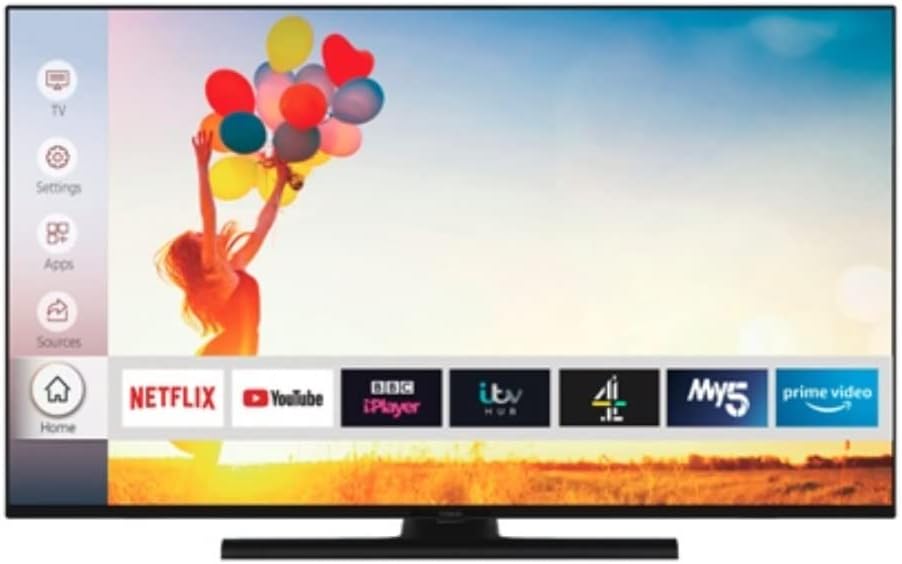
Image: The Digihome Smart TV home screen, displaying a user-friendly interface with quick access to popular streaming applications such as Netflix, YouTube, BBC iPlayer, ITV Hub, My5, and Prime Video. A navigation menu is visible on the left side, including options for TV, Settings, Apps, and Sources.
- Ho kena ho Lisebelisoa: Tobetsa ea LEHAE or TLHOKOMELISO button on your remote to open the Smart TV portal. Here you can find pre-installed apps like Netflix, YouTube, BBC iPlayer, ITV Hub, My5, and Prime Video.
- Mahalaview Bapala: Mahalaview Play combines live TV with catch-up services from BBC iPlayer, ITV Hub, All 4, My5, and UKTV Play. You can scroll back through the TV guide to watch programmes you've missed.
- Ho bala Marang-rang: A web browser may be available for general internet surfing.
2.4 Menu ya Di-setting
Tobetsa ea MENU or LIEKETSENG button on your remote to access the TV's settings. Here you can adjust:
- Litlhophiso tsa Litšoantšo: Brightness, Contrast, Colour, Sharpness, Picture Mode (Standard, Dynamic, Movie, etc.), HDR settings.
- Litlhophiso tsa Molumo: Volume, Sound Mode (Standard, Music, Movie, etc.), Equalizer, Digital Audio Out.
- Litlhophiso tsa Channel: Channel Scan, Channel List, Parental Control.
- Litlhophiso tsa Marang-rang: Wi-Fi connection, Wired connection, Network status.
- Litlhophiso tsa Sistimi: Language, Time, Sleep Timer, Software Update, Factory Reset.
3. Tlhokomelo
3.1 Ho hloekisa TV ea hau
Ho boloka ponahalo le tšebetso ea TV ea hau:
- Skrine: Hlakola skrine ka bonolo ka lesela le bonolo, le omileng, le se nang lesela. Bakeng sa matheba a manganga, hlakola hanyaneampen the cloth with water or a screen-specific cleaning solution (do not spray directly onto the screen). Avoid using abrasive cleaners or solvents.
- Sehlopha sa TV: Hlakola foreimi ea TV 'me u eme ka lesela le bonolo, le omeletseng.
- Kamehla u hokele TV ho tsoa setsing sa motlakase pele u hloekisa.
3.2 Lintlafatso tsa Software
Your TV may receive software updates to improve performance and add new features. It is recommended to keep your TV connected to the internet to receive these updates automatically. You can also check for updates manually via the System Settings menu.
4. Ho rarolla mathata
Haeba o kopana le mathata ka TV ea hau, ka kopo sheba mathata le litharollo tse latelang tse tloaelehileng pele o ikopanya le tšehetso.
| Bothata | Seo e ka bang Sesosa / Tharollo |
|---|---|
| Ha ho Matla | Ensure the power cable is securely plugged into the TV and the wall outlet. Check if the wall outlet is working. Try pressing the power button on the TV itself. |
| Ha ho Setšoantšo / Ha ho Molumo | Check the selected input source (e.g., HDMI 1, TV). Ensure external devices are powered on and connected correctly. For TV channels, perform a channel scan. Check volume levels and mute status. |
| Boleng bo Fosahetseng ba Litšoantšo | Check antenna connection for Freeview. For external devices, ensure high-quality cables are used. Adjust picture settings (brightness, contrast, sharpness). |
| Smart Features Not Working / No Internet | Check network cable or Wi-Fi connection. Restart your router/modem. Re-enter Wi-Fi password in TV settings. Ensure network settings are correct. |
| Taolo ea Remote Ha e Arabe | Hlahloba le ho nkela libeteri sebaka. Netefatsa hore ha ho na litšitiso pakeng tsa remote le sensor ea IR ea TV. |
If the problem persists after trying these solutions, please refer to the Support section.
5. Litlhaloso
Key technical specifications for the Digihome PTDR55UHDS7 55" 4K LED TV:
| Lebitso la Mohlala | PTDR55UHDS7 |
| Boholo ba skrine | 55 inch |
| Bontša Theknoloji | LED |
| Qeto | 4K Ultra HD (3840 x 2160) |
| Tšehetso ea HDR | Ee |
| Litšebeletso tsa Inthanete tse tšehelitsoeng | Mahalaview Play, SMART apps (Netflix, YouTube, etc.) |
| Theknoloji ea Khokahano | HDMI, USB, Ethernet (LAN), Wi-Fi |
| Aspect ratio | 16:9 |
| Kenyellelitsoe Likaroloana | Remote Control |
| Litekanyo tsa Lihlahisoa (W x D x H) | 124 x 24 x 75 cm (ka setulo) |
| Moetsi | Digihome |
6. Tiisetso le Tšehetso
This product is sold as a "Renewed" item. For specific warranty information, please refer to the terms and conditions provided by the seller at the time of purchase. Typically, renewed products come with a limited warranty from the seller or a third-party refurbisher.
For technical support, troubleshooting assistance beyond this manual, or warranty claims, please contact the seller or the Amazon Renewed support channel through which you purchased this product. Have your purchase details and the TV's model number (PTDR55UHDS7) ready when contacting support.
Ask a question about this manual
Ask about setup, troubleshooting, compatibility, parts, safety, or missing instructions. Manuals+ will review the question and use this page’s manual context to help answer it.