
BlitzWolf BW-VT2EU
Buka ea Mosebetsi ea BlitzWolf BW-VT2 Mini Projector
Your comprehensive guide to setting up, operating, and maintaining your BlitzWolf BW-VT2 Mini Projector.
1. Sehlahisoa Overview
1.1 Likahare tsa Sephutheloana
Ka kopo, netefatsa hore lintho tsohle li teng ka har'a sephutheloana sa hau:
- BlitzWolf BW-VT2 Mini Projector
- Remote Control
- Adapter ea Matla
- Cable ea HDMI
- Bukana ea mosebelisi (tokomane ena)
1.2 Sebopeho sa Sesebelisoa
Familiarize yourself with the various parts and ports of your projector.
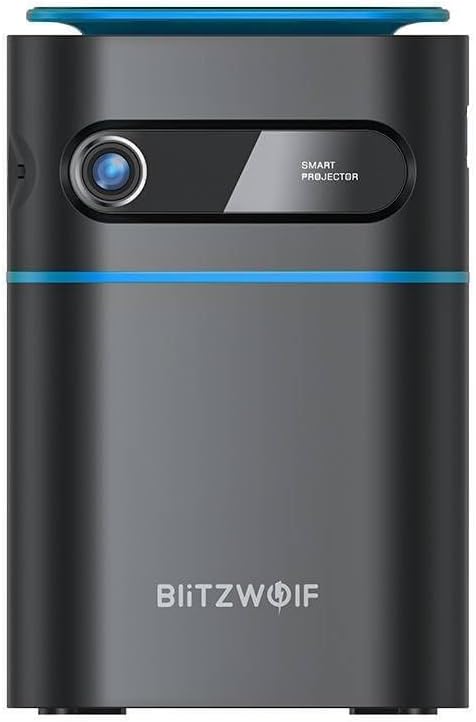
Setšoantšo sa 1.1: Pele View. This image displays the front of the BlitzWolf BW-VT2 Mini Projector, highlighting the projection lens and the 'SMART PROJECTOR' branding.

Figure 1.2: Projector with Remote Control. This image shows the BlitzWolf BW-VT2 Mini Projector alongside its dedicated remote control, illustrating the compact size of both devices.
Setšoantšo sa 1.3: Ka morao View. The rear of the projector is shown, featuring ventilation grilles and various input/output ports.

Setšoantšo sa 1.4: Lehlakore View. This image highlights the side of the projector where additional connectivity options such as USB and HDMI ports are located.

Setšoantšo sa 1.5: Holimo View. The top surface of the projector is visible, featuring the integrated touch control panel for direct interaction.
1.3 Likou le Litaolo
- Port ea HDMI: Connect to laptops, game consoles, Blu-ray players, etc.
- Boema-kepe ba USB: Hokela di-flash drive tsa USB bakeng sa ho bapala mecha ea phatlalatso.
- Audio Out (3.5mm) Port: Hokela libui tsa kantle kapa li-headphone.
- DC IN Port: Hokela adaptara ea motlakase.
- Konopo ea Matla: E bulela projector/e tima.
- Lebili la Tsepamiso: Adjusts image clarity.
- Tšoara Panel Control Navigate menus and control playback directly on the device.
2. Tataiso ea ho seta
2.1 Ho Matlafatsa
- Connect the power adapter to the DC IN port on the projector.
- Hokela adaptara ea motlakase ka har'a lebota.
- Press and hold the Power Button on the projector or the remote control until the device powers on.
2.2 Ho beoa ha Pele
Bakeng sa ho fetisisa viewing experience, consider the following:
- Beha projektara sebakeng se tsitsitseng, se bataletseng.
- Ensure there is adequate ventilation around the projector to prevent overheating.
- Position the projector perpendicular to the projection surface (wall or screen) for a rectangular image.
- Fetola sebaka ho fihlela boholo ba skrine boo u bo batlang.
2.3 Tokiso ya Maikutlo
After powering on, adjust the focus to ensure a clear image:
- Fetolela lebili le haufi le lense ho fihlela setšoantšo se hlahisoang se bonahala se le bohale 'me se hlakile.
2.4 Remote Control Setup
Insert batteries into the remote control before first use:
- Bula sekoaelo sa kamore ea betri ka morao ho taolo e hole.
- Insert two AAA batteries (not included), ensuring correct polarity (+/-).
- Koala sekoaelo sa karolo ea betri.
3. Litaelo tsa Ts'ebetso
3.1 Ho tsamaea
You can navigate the projector's interface using either the remote control or the touch control panel on top of the device.
- Remote Control: Use the directional buttons (up, down, left, right) to move through menus and the 'OK' button to select.
- Tšoara Panel Control Swipe and tap on the touch-sensitive surface to navigate.
3.2 Lisebelisoa tse hokelang
The BW-VT2 supports various input sources:
- Keletso ea HDMI: Connect your laptop, game console, or other HDMI-enabled devices using an HDMI cable. Select the HDMI input source from the projector's menu.
- Keletso ea USB: Insert a USB flash drive into the USB port. The projector's media player will typically detect the drive automatically, allowing you to browse and play supported media files (videos, photos, music).
- Khokahano ea Wi-Fi: Navigate to the 'Settings' menu, then 'Network' or 'Wi-Fi'. Select your Wi-Fi network and enter the password to connect the projector to the internet. This enables access to online streaming apps and updates.
3.3 Android OS Features
As an Android-powered projector, the BW-VT2 offers smart functionalities:
- App Access: Download and install various streaming apps (e.g., Netflix, YouTube) directly from the pre-installed app store or by sideloading APKs.
- Litlhophiso: Customize display settings, audio output, network configurations, and system preferences through the Android settings menu.
- Screen Mirroring: Utilize built-in screen mirroring features (e.g., Miracast, AirPlay compatible apps) to project content from your smartphone or tablet wirelessly.
3.4 Sephetho sa Molumo
The projector has built-in speakers, but you can also connect external audio devices:
- 3.5mm Audio Out: Connect headphones or external speakers via the 3.5mm audio jack for enhanced sound.
4. Tlhokomelo
Tlhokomelo e nepahetseng e netefatsa bophelo bo bolelele le ts'ebetso e nepahetseng ea projeke ea hau.
4.1 Tlhoekiso ea Lense
To maintain clear image quality, clean the projector lens regularly:
- Sebelisa lesela le bonolo, le se nang lint le etselitsoeng lilense tsa mahlo.
- Ka bonolo hlakola lense ka motsamao o chitja.
- Avoid using abrasive cleaners or excessive force, which can scratch the lens.
4.2 Moea o fokang moea
Ensure proper airflow to prevent overheating:
- Do not block the ventilation vents on the projector.
- Sebetsa projektara sebakeng se nang le moya o kenang hantle.
- Periodically clean dust from the vents using a soft brush or compressed air.
4.3 Polokelo
When not in use, store your projector properly:
- Store the projector in a cool, dry place, away from direct sunlight and extreme temperatures.
- Use the original packaging or a protective case to prevent dust accumulation and physical damage.
5. Ho rarolla mathata
Sheba karolo ena bakeng sa lintlha tse tloaelehileng le tharollo ea tsona.
| Bothata | Lebaka le ka khonehang | Tharollo |
|---|---|---|
| Projektara ha e bule. | No power connection; faulty power adapter. | Ensure power adapter is securely connected to both projector and outlet. Try a different outlet. |
| No image projected. | Incorrect input source selected; loose HDMI/USB cable. | Verify the correct input source is selected in the menu. Check cable connections. |
| Setšoantšo se lerootho. | Focus not adjusted; projector too close/far. | Rotate the focus wheel until the image is clear. Adjust projection distance if necessary. |
| Ha ho molumo. | Volume too low; external audio device not connected properly. | Increase volume. Check connections to external speakers/headphones. Ensure audio output is set correctly in settings. |
| Mathata a khokahano ea Wi-Fi. | Phasewete e fosahetseng; mathata a router; tšitiso ya sesupo. | Re-enter Wi-Fi password. Restart router. Move projector closer to router. |
| Remote control ha e sebetse. | Libetri tse shoeleng; tšitiso; remote ha ea kopanngoa. | Replace batteries. Ensure no obstruction between remote and projector. |
6. Lintlha tsa Setegeniki
Key specifications of the BlitzWolf BW-VT2 Mini Projector:
| Sebopeho | Tlhaloso |
|---|---|
| Brand | BlitzWolf |
| Nomoro ea Mohlala | BW-VT2EU |
| Mmala | Ntsho |
| Theknoloji ea Khokahano | HDMI, USB, VGA, Wi-Fi |
| Qeto ea Pontšo | 1920 x 1080 (HD e felletseng) |
| Mofuta oa Pontšo | LCD, LED |
| Sebopeho sa Foromo | E nkehang |
| Likarolo Tse Khethehileng | Portable, Android OS, Wi-Fi, HDMI, USB, VGA |
| Lisebelisoa tse lumellanang | Laptops, Smartphones, Game Consoles, Blu-ray Players, Media Players, Wi-Fi enabled devices |
| Litšebeliso tse khothalelitsoeng | Home Cinema |
7. Tiisetso le Tšehetso
7.1 Tiisetso ea Moetsi
The BlitzWolf BW-VT2 Mini Projector comes with a Tiisetso ea lilemo tse 2 ea moetsi. Tiisetso ena e koahela mefokolo ea thepa le moetso tlas'a tšebeliso e tloaelehileng. Ka kopo, boloka bopaki ba theko ea hau bakeng sa likopo tsa waranti.
7.2 Tšehetso ea Bareki
If you encounter issues not covered in the troubleshooting section or require further assistance, please contact BlitzWolf customer support. Refer to the product packaging or the official BlitzWolf websebaka sa marang-rang bakeng sa tlhahisoleseling ea hajoale.
Ask a question about this manual
Ask about setup, troubleshooting, compatibility, parts, safety, or missing instructions. Manuals+ will review the question and use this page’s manual context to help answer it.