
1. Selelekela
This manual provides comprehensive instructions for the FTDI TTL-232R-3V3 USB to UART cable. This cable offers a simple and reliable solution for connecting devices with +3.3V TTL level UART signals to a computer via a USB port. It is designed for engineers, hobbyists, and developers working with embedded systems, microcontrollers, and other serial communication applications.
2. Boitsebiso ba Tšireletseho
- Netefatsa voltage levels (+3.3V) are maintained to prevent damage to connected devices.
- Do not expose the cable to extreme temperatures, moisture, or corrosive environments.
- Avoid bending or twisting the cable excessively, as this may damage internal wires.
- Disconnect the cable from both the computer and the target device before performing any maintenance or modifications.
3. Likahare tsa Sephutheloana
Netefatsa hore lintho tsohle li teng ka har'a sephutheloana sa hau:
- 1 x FTDI TTL-232R-3V3 USB to UART Cable
- (Optional: Driver CD or link to driver download, if applicable. Refer to manufacturer's website for latest drivers.)
4. Sehlahisoa Overview
The FTDI TTL-232R-3V3 is a USB to serial UART (Universal Asynchronous Receiver/Transmitter) converter cable. It provides a USB-A connector on one end and a 6-pin SIL (Single In-Line) connector with 0.1" pitch on the other, offering +3.3V TTL level signals. The cable integrates an FT232R IC, handling all USB signaling and protocols.
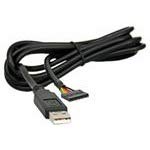
Setšoantšo sa 1: FTDI TTL-232R-3V3 USB to UART Cable. This image shows the black USB-A connector on one end and the 6-pin header on the other, with the cable coiled.
4.1 Tlhaloso ea Pinout
The 6-pin SIL connector provides the following signals:
| Pin | Letshwao | Tlhaloso |
|---|---|---|
| 1 | GND | Fatše |
| 2 | CTS | Clear To Send (Input to FT232R) |
| 3 | VCC | +5V power output from USB |
| 4 | TXD | Transmit Data (Output from FT232R) |
| 5 | RXD | Receive Data (Input to FT232R) |
| 6 | RTS | Request To Send (Output from FT232R) |
Note: The VCC pin (Pin 3) provides +5V from the USB port, which can be used to power external circuitry up to 75mA. The data signals (TXD, RXD, CTS, RTS) operate at +3.3V TTL levels.
5. Seta
5.1 Ho kenya Mokhanni
The FTDI TTL-232R-3V3 cable requires specific drivers to function correctly on your computer. These drivers are often automatically installed by modern operating systems (Windows 10/11, macOS, Linux) when the cable is first connected. If automatic installation fails, or for older operating systems, manual installation may be necessary.
- Khoasolla Bakhanni: Visit the official FTDI websaete (www.ftdichip.com/Drivers/VCP.htm) to download the latest Virtual COM Port (VCP) drivers for your operating system.
- Kenya Drivers: Follow the instructions provided with the downloaded driver package. This typically involves running an executable file or following on-screen prompts.
- Hokela Cable: Plug the USB-A end of the TTL-223R-3V3 cable into an available USB port on your computer.
- Netefatsa Kemiso:
- Windows: Open Device Manager (search for "Device Manager" in the Start menu). Look under "Ports (COM & LPT)" for an entry like "USB Serial Port (COMx)", where 'x' is a number.
- macOS: Open Terminal and type
ls /dev/tty.usbserial*. You should see an entry corresponding to the cable. - Linux: Open Terminal and type
ls /dev/ttyUSB*. You should see an entry corresponding to the cable.
5.2 Connecting to a Target Device
Connect the 6-pin SIL connector to your target device's UART interface. Ensure correct pin alignment:
- Connect the cable's TXD (Pin 4) to the target device's RXD.
- Connect the cable's RXD (Pin 5) to the target device's TXD.
- Connect the cable's GND (Pin 1) to the target device's GND.
- If hardware flow control is used, connect CTS (Pin 2) to target's RTS le RTS (Pin 6) to target's CTS.
- If powering the target device from the cable, connect the cable's VCC (Pin 3) to the target device's +5V input (ensure the target device can accept 5V and its current draw does not exceed 75mA).
Tlhokomeliso: Always double-check the pinout of your target device to avoid damage due to incorrect connections.
6. Litaelo tsa Ts'ebetso
Once the drivers are installed and the cable is connected to your target device, you can use a serial terminal program to communicate.
- Open Terminal Program: Use a serial terminal application such as PuTTY (Windows), CoolTerm (macOS/Windows), or Minicom/screen (Linux).
- Select COM Port: In the terminal program settings, select the COM port number identified during driver installation (e.g., COM3, /dev/ttyUSB0).
- Configure Serial Settings:
- Tekanyo ea Baud: Set to match your target device's baud rate (e.g., 9600, 115200, up to 3MBaud).
- Lintlha tsa lintlha: Ka tloaelo 8
- Bonngoe: Ha ho letho
- Emisa likotoana: Ka tloaelo 1
- Taolo ea Phallo: None, or Hardware (RTS/CTS) if enabled on your target device.
- Theha Khokahano: Open the serial connection in your terminal program. You should now be able to send and receive data from your target device.
7. Tlhokomelo
- Ho hloekisa: Use a soft, dry cloth to clean the cable and connectors. Do not use liquid cleaners or solvents.
- Polokelo: Store the cable in a cool, dry place, away from direct sunlight and extreme temperatures. Avoid tangling the cable.
- Tlhahlobo: Periodically inspect the cable for any signs of damage, such as frayed wires, bent pins, or cracked insulation. Discontinue use if damage is found.
8. Ho rarolla mathata
8.1 Mathata a Tloaelehileng le Litharollo
- No COM Port Detected:
- Ensure drivers are correctly installed (refer to Section 5.1).
- Leka kou e fapaneng ea USB komporong ea hau.
- Qala komporo ea hau bocha.
- Check the cable for physical damage.
- Ha ho Phetiso/Kamohelo ea Lintlha:
- Verify the pinout connections between the cable and your target device (TXD to RXD, RXD to TXD, GND to GND).
- Confirm that the serial settings (baud rate, data bits, parity, stop bits, flow control) in your terminal program match those of your target device.
- Ensure the target device is powered on and functioning correctly.
- Check if the target device's UART is enabled and configured.
- Khokahano ea nakoana:
- Check for loose connections at both the USB and 6-pin ends.
- Avoid electromagnetic interference from other devices.
- Ensure the cable is not excessively bent or stressed.
9. Litlhaloso
| Nomoro ea Karolo | TTL-232R-3V3 |
| Lebelo la USB | Lebelo le felletseng (12Mbps) |
| UART Signal Levels | +3.3V TTL |
| Litefiso tsa data | Up to 3 MBaud |
| Sehokedi sa USB | Mofuta oa A |
| Qetella Sehokelo | 6 pin SIL, 0.1" pitch |
| Bolelele ba Cable | 1.8m |
| Lintlha tsa Cable | 6 core, 5mm UL2464 24 AWG |
| I/O Moqtage | 3.3V |
| Max Power Output (VCC) | + 5V / 75mA |
| Internal IC | FT232R |
| Mocheso oa ho sebetsa | -40°C ho ea ho +85°C |
| Litsamaiso tsa Ts'ebetso tse tsamaellanang | Windows, macOS, Linux, Android |
10. Tiisetso le Tšehetso
For warranty information and technical support, please refer to the official FTDI website or contact your point of purchase. FTDI provides extensive documentation and support resources for their products.
- FTDI Websebaka: www.ftdichip.com
- Tšehetso ea Bakhanni: www.ftdichip.com/Drivers/VCP.htm


